
Product Overview
The Doohoeek Bluetooth Lighting Media Control is a versatile, water-resistant remote designed for convenient media management across various activities. It allows users to control music playback, adjust volume, manage calls, and activate voice assistants without directly interacting with their phone. Its compact design and included strap make it suitable for attachment to steering wheels, bike handlebars, or other gear.
Key features include IPX7 water resistance for outdoor use, universal Bluetooth compatibility with most smartphones, and an integrated ring light for visibility in low-light conditions.

Figure 1: The Doohoeek Bluetooth Lighting Media Control unit.
Package Contents
- Doohoeek Bluetooth Lighting Media Control Unit
- Mounting Strap (13.4in/34cm x 0.78in/2cm)
- USB-C Charging Cable
- User Manual
Setup and Pairing
Charging the Device
Before first use, fully charge the device using the provided USB-C charging cable. Connect the cable to the device's charging port and a compatible USB power source. The LED indicator will show charging status.
Bluetooth Pairing
- Ensure the media control unit is charged.
- Make sure Bluetooth is enabled on your smartphone and the media control is in pairing mode (LED flashing).
- Hold the center Play/Pause button on the media control for 3 seconds until the LED indicator begins to flash, indicating pairing mode.
- On your smartphone, search for available Bluetooth devices and select "Doohoeek Remote" (or similar) from the list.
- Once connected, the LED indicator on the media control will stop flashing or change to a solid light, depending on the model.
The device will automatically attempt to reconnect to the last paired device when powered on.
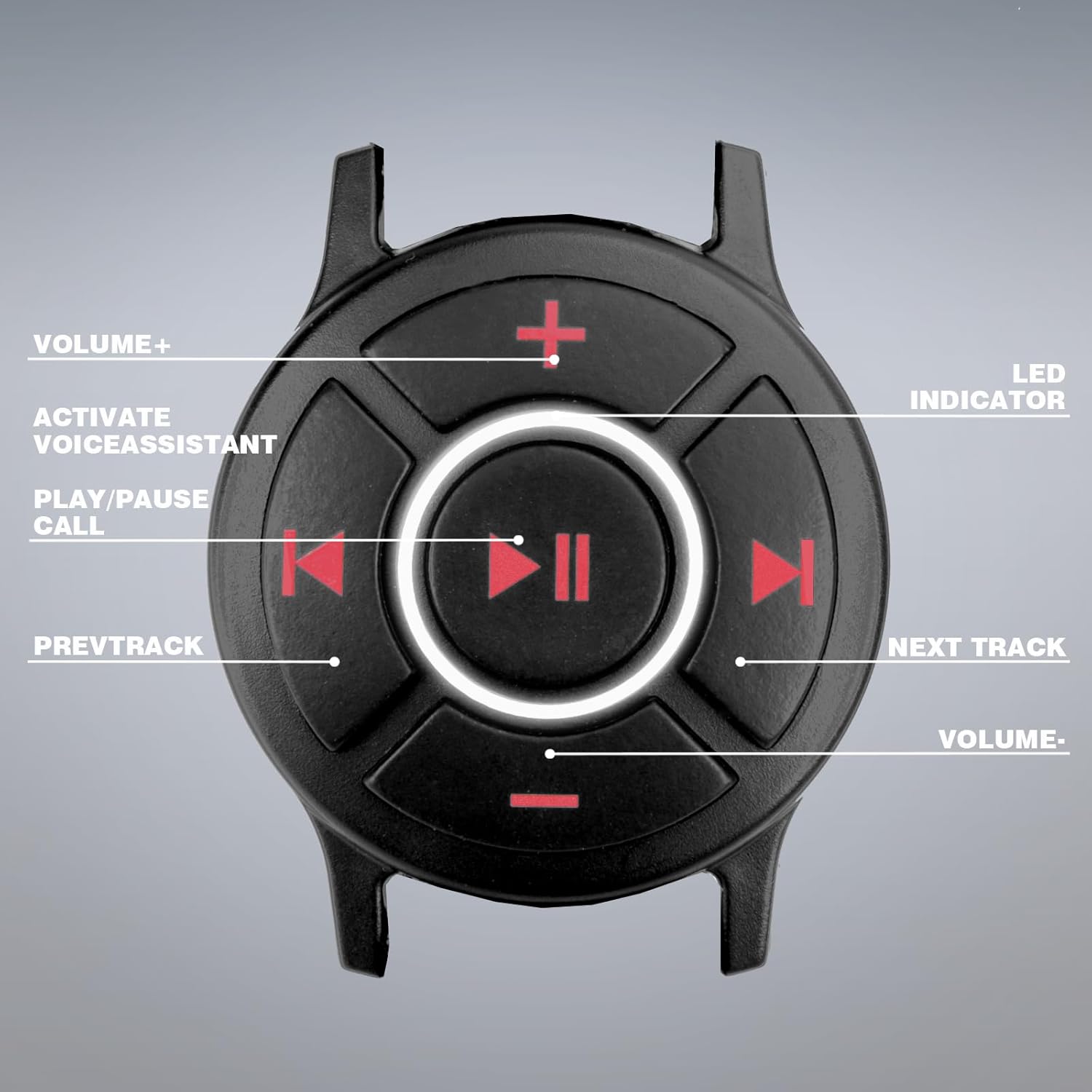
Figure 2: Overview of the control buttons and LED indicator on the Doohoeek Bluetooth Media Control.
Operating Instructions
The Doohoeek Bluetooth Lighting Media Control provides intuitive control over your device's media functions.
- Play/Pause/Call Button (Center):
- Press once to Play or Pause music.
- Press once to Answer an incoming call.
- Press once to End an active call.
- Press and hold to activate Siri or Google Assistant.
- Next Track Button (Right): Press once to skip to the next song.
- Previous Track Button (Left): Press once to go to the previous song.
- Volume Up Button (Top): Press to increase the volume.
- Volume Down Button (Bottom): Press to decrease the volume.
- Selfie Control: When in camera mode on your phone, the Play/Pause button can act as a remote shutter button.
- Lighting Design: The integrated ring light around the center button assists in locating controls in dark environments.
Note: This device does not work with Apple CarPlay. It also does not function while plugged in for charging.
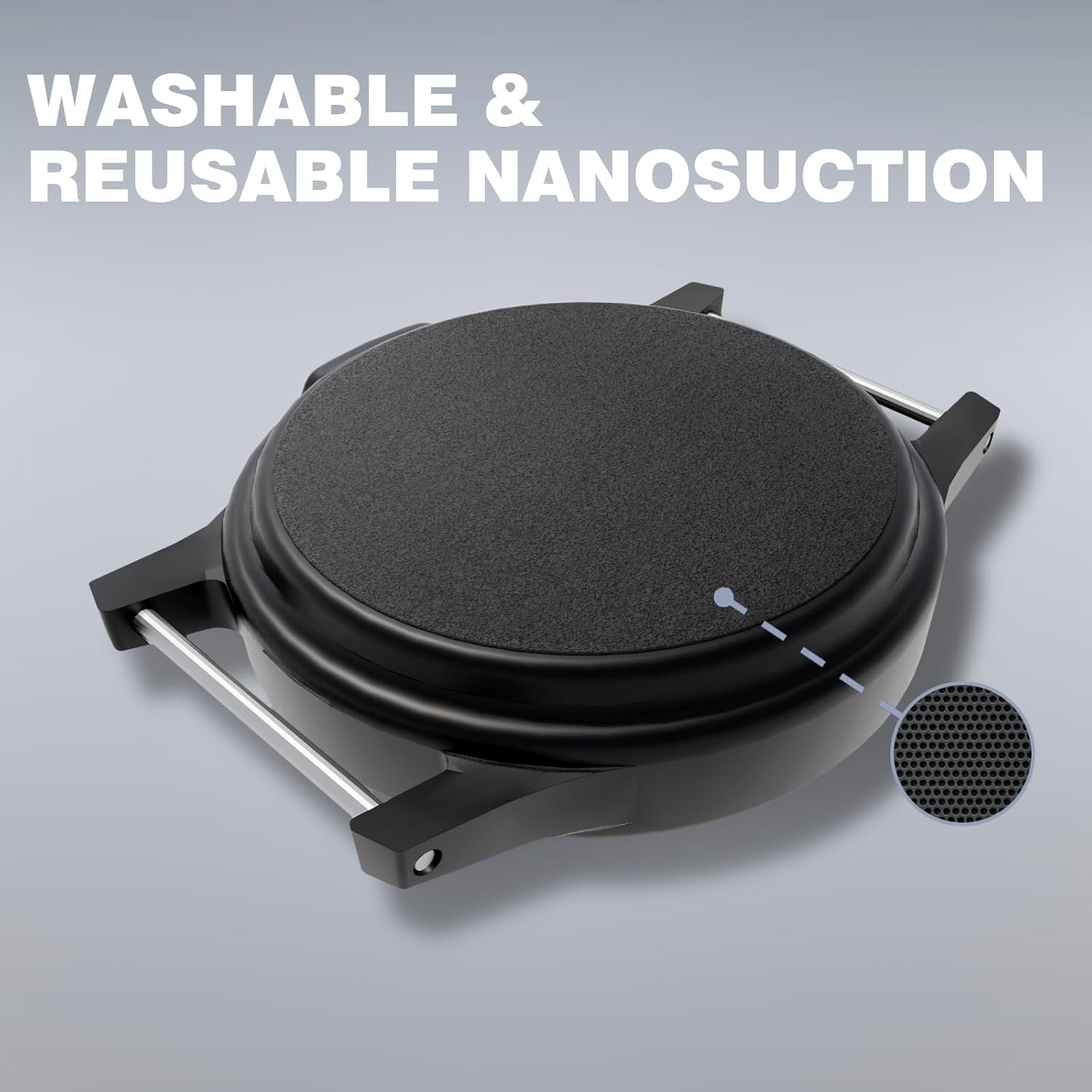
Figure 3: The media control worn on the wrist for easy access.
Installation and Mounting
The media control unit comes with a versatile strap for easy attachment.
- Wrist Mount: Use the strap to secure the device to your wrist like a watch.
- Handlebar Mount: The strap can be wrapped around bicycle handlebars, motorcycle handlebars, or other similar cylindrical surfaces.
- Steering Wheel Mount: Attach the device to your car's steering wheel for easy access while driving.
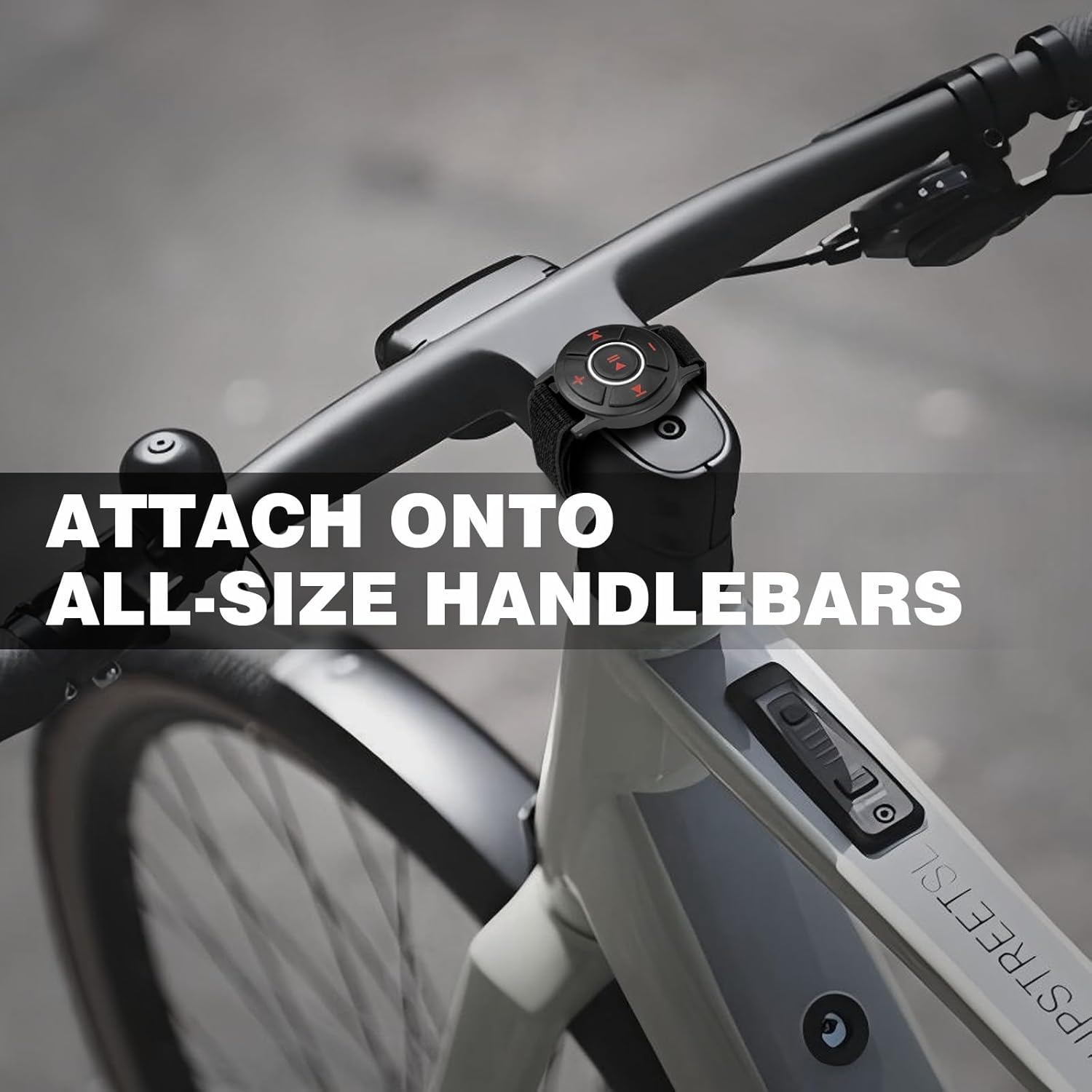
Figure 4: The Doohoeek Bluetooth Media Control mounted on a bicycle handlebar.

Figure 5: Examples of the media control's wide compatibility across different vehicles and activities.
Maintenance and Care
- Water Resistance: The device is IPX7 water-resistant, meaning it can withstand immersion in water up to 1 meter for 30 minutes. It is suitable for use in rain, snow, or during sweaty activities.
- Important: Do NOT rinse this product under running water or wear it while showering. Avoid prolonged exposure to water, especially while in use.
- Cleaning: Wipe the device with a soft, damp cloth. Do not use harsh chemicals or abrasive cleaners.
- Storage: Store the device in a cool, dry place when not in use.
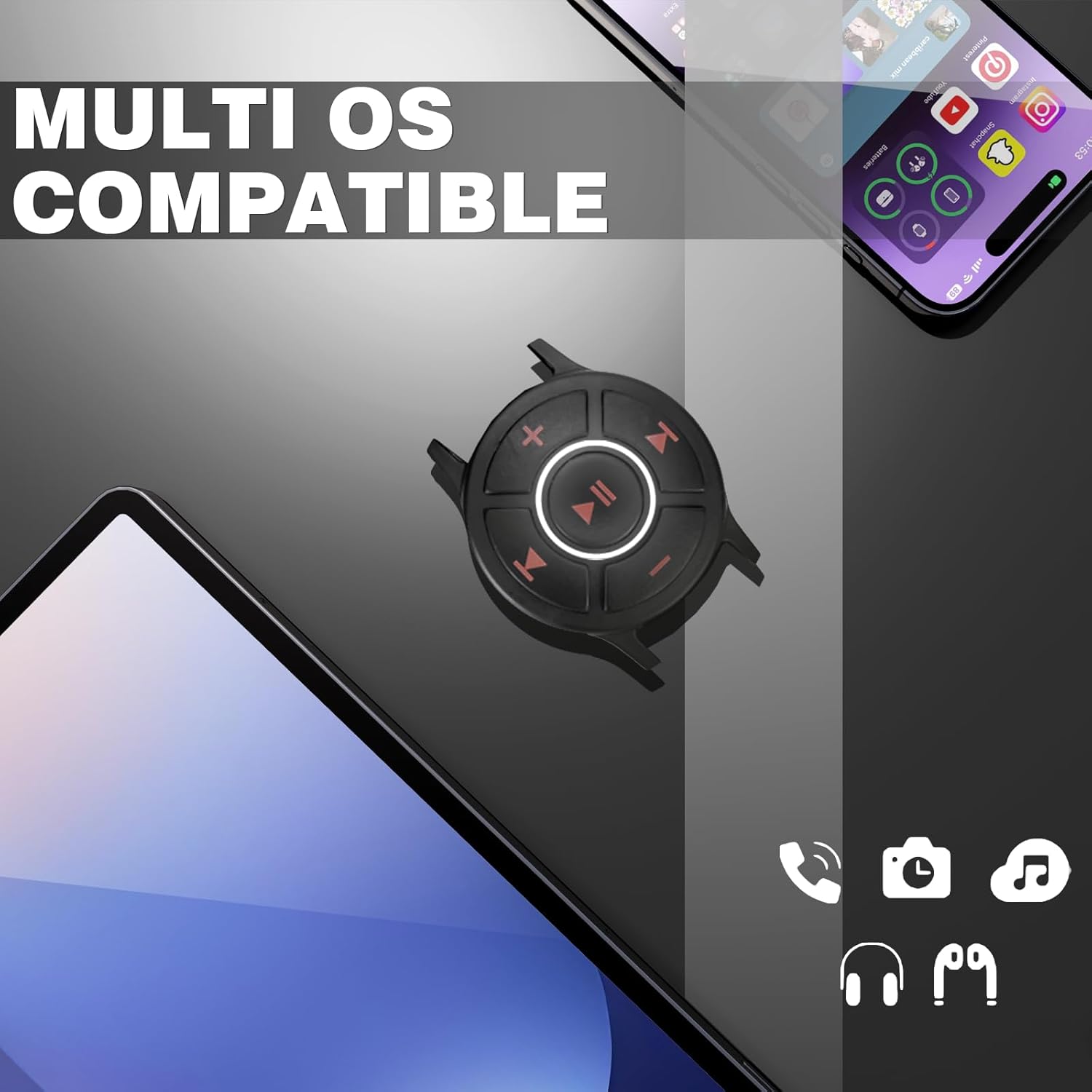
Figure 6: The device demonstrating its IPX7 water resistance.
Troubleshooting
- Device not pairing:
- Ensure the device is fully charged.
- Make sure Bluetooth is enabled on your smartphone and the media control is in pairing mode (LED flashing).
- Move the device closer to your smartphone.
- Turn off and on both the media control and your smartphone's Bluetooth.
- Forget the device from your phone's Bluetooth settings and attempt to pair again.
- Buttons not responding:
- Check if the device is properly paired and connected to your smartphone.
- Ensure the device is not currently charging, as it does not operate while plugged in.
- Restart both the media control and your smartphone.
- Intermittent connection:
- Ensure there are no obstructions between the media control and your smartphone.
- Avoid strong electromagnetic interference.
- Keep the devices within the effective Bluetooth range (typically 10 meters).
Specifications
| Feature | Detail |
|---|---|
| Product Dimensions | 2 x 1.7 x 0.4 inches |
| Item Weight | 2.39 ounces |
| Batteries | 1 9V battery required (included) |
| Connectivity Technology | Bluetooth |
| Power Source | Battery Powered |
| Material | Plastic, PVC |
| Special Feature | Lightweight, Lighting Design |
| Water Resistance | IPX7 |
Warranty and Support
For warranty information or technical support, please refer to the contact details provided with your purchase or visit the official Doohoeek website. Keep your proof of purchase for warranty claims.