Introduction
This manual provides comprehensive instructions for the installation, operation, and maintenance of your TWSYOXPR V380 Pro 4K 4MP 4G SIM Outdoor IP Security Camera. Designed for both indoor and outdoor use, this advanced security camera features high-definition imaging, 4G SIM card connectivity, AI human detection, color night vision, and two-way audio, ensuring robust protection for your property.

Figure 1: TWSYOXPR V380 Pro 4K 4MP 4G SIM Outdoor IP Security Camera. This image shows the front view of the camera with its dual lenses and antennas.
Package Contents
Before proceeding with installation, please verify that all components are present in your package:
- TWSYOXPR V380 Pro Security Camera
- 1*12V Power Adapter
- 2*Screws Package (for mounting)
- 1*Waterproof Cap
- 1*User's Manual (this document)
- (Note: Micro SD card is not included)

Figure 2: Package Contents. This image displays the camera alongside its included accessories: power adapter, screws, waterproof cap, and user manual. It also indicates that an SD card is not included.
Setup Guide
1. Powering the Camera
- Connect the provided 12V power adapter to the camera's power input port.
- Plug the power adapter into a standard electrical outlet.
- Wait for the camera to power on and initiate its self-test.
2. Network Connection (4G SIM Card / WiFi)
For 4G SIM Card Connection:
- Ensure the camera is powered off before inserting the SIM card.
- Locate the SIM card slot on the camera (refer to product diagram if available).
- Insert a compatible 4G SIM card into the slot, ensuring correct orientation.
- Power on the camera. The camera will automatically attempt to connect to the 4G network.
For WiFi Connection:
- Download and install the V380 Pro application on your smartphone (available on iOS App Store and Android Google Play Store).
- Open the V380 Pro app and create an account or log in.
- Follow the in-app instructions to add a new device. Select the option for WiFi camera setup.
- Ensure your smartphone is connected to the 2.4GHz WiFi network you intend to use for the camera.
- The app will guide you through connecting the camera to your WiFi network. This typically involves scanning a QR code displayed on your phone with the camera, or entering WiFi credentials.
3. Physical Installation (Wall Hanging)
The camera is designed for wall-hanging installation, suitable for both indoor and outdoor environments.
- Choose a suitable mounting location that provides the desired viewing angle and is within reach of a power source.
- Use the provided screws package to securely mount the camera bracket to the wall.
- Attach the camera to the mounted bracket.
- Adjust the camera's angle as needed.
Operating Instructions
1. V380 Pro Application Overview
The V380 Pro app is your primary interface for controlling and monitoring the camera. Through the app, you can view live feeds, access recorded footage, configure settings, and receive alerts.
2. Live View and Playback
- Open the V380 Pro app and select your camera from the device list to access the live view.
- Use the playback function within the app to review recorded video footage.
3. Pan 360° / Tilt 90° Control
The camera supports remote pan (horizontal) and tilt (vertical) adjustments, allowing you to cover a wide area without blind spots.
- In the V380 Pro app's live view, use the on-screen controls to pan the camera horizontally up to 360 degrees and tilt it vertically up to 90 degrees.

Figure 3: Remote Pan 360° / Tilt 90° Control. This image illustrates how the camera can be remotely controlled via a smartphone app to pan horizontally and tilt vertically, eliminating blind spots.
4. AI Intelligent Human Detection and Alarm
The camera is equipped with advanced AI human detection technology to accurately identify human targets and trigger alarms.
- Enable AI human detection in the V380 Pro app settings.
- When a human figure is detected, the camera will automatically track the movement and send a real-time alarm notification to your smartphone.

Figure 4: Real-Time Motion Detection Alarm. This image displays the camera detecting a person and sending an alarm notification to a smartphone, highlighting the AI detection feature.
5. Color Night Vision
The camera provides clear, full-color images even in low-light or completely dark conditions.
- The camera automatically switches to color night vision mode when ambient light is insufficient.
- You can also manually switch between infrared night vision and full-color night vision modes via the V380 Pro app settings.
6. Two-Way Audio Communication
The built-in microphone and speaker allow for real-time two-way communication through the camera.
- In the V380 Pro app's live view, tap the microphone icon to speak through the camera's speaker.
- The camera's microphone will pick up audio from the monitored area.

Figure 5: Two-Way Audio. This image demonstrates the camera's two-way audio capability, allowing users to speak and listen through the camera via their smartphone.
7. Dual-Lens and Dual-Screen Viewing
The camera features a dual-lens system, providing both a fixed panoramic view and a PTZ (Pan-Tilt-Zoom) camera for automatic tracking.
- The V380 Pro app allows simultaneous viewing from both lenses, offering comprehensive coverage.
- The fixed lens provides a broad overview, while the PTZ lens can track detected motion.

Figure 6: Dual-Lens, Dual-Screen. This image illustrates the camera's two lenses, one for fixed panoramic viewing and another for PTZ with automatic tracking, displayed simultaneously on a screen.
Maintenance
Proper maintenance ensures the longevity and optimal performance of your security camera.
- Cleaning: Gently wipe the camera lens and body with a soft, damp cloth. Avoid using harsh chemicals or abrasive cleaners that could damage the surface or lens coating.
- Weather Protection: The camera is IP66 waterproof, designed to withstand various weather conditions including sunny, rainy, snowy, and windy environments. However, avoid submerging the camera in water.
- Firmware Updates: Regularly check the V380 Pro app for available firmware updates. Keeping the firmware updated ensures you have the latest features and security enhancements.
- Power Supply: Ensure the power adapter and cable are not damaged. Use only the provided power adapter or a compatible replacement.
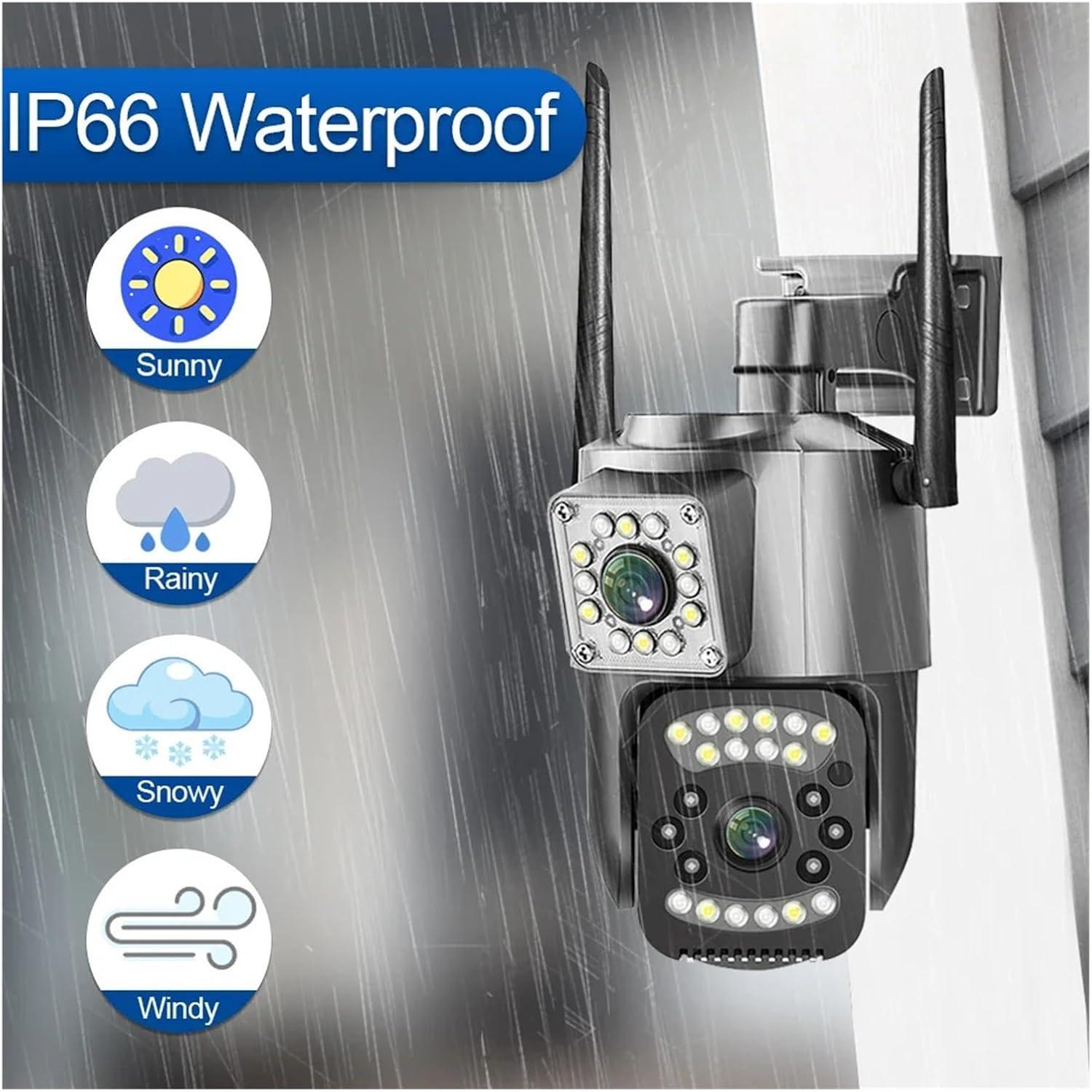
Figure 7: IP66 Waterproof. This image highlights the camera's IP66 waterproof rating, indicating its resilience to various weather conditions like sun, rain, snow, and wind.
Troubleshooting
If you encounter issues with your camera, refer to the following common problems and solutions:
| Problem | Possible Cause | Solution |
|---|---|---|
| Camera offline in app | No power; Weak WiFi signal; 4G SIM card issue; Network configuration error. | Check power connection. Ensure camera is within WiFi range or 4G signal is strong. Reconfigure network settings in V380 Pro app. Check SIM card insertion and data plan. |
| No night vision | Night vision mode disabled; IR/white lights malfunction. | Check night vision settings in V380 Pro app. Ensure there are no obstructions blocking the lights. |
| Motion detection not working | Detection sensitivity too low; Detection area not set; AI detection disabled. | Adjust sensitivity settings in the app. Define detection zones. Ensure AI human detection is enabled. |
| Poor video quality | Dirty lens; Insufficient bandwidth; Low resolution setting. | Clean the camera lens. Ensure stable internet connection. Check video resolution settings in the app. |
| Two-way audio issues | Microphone/speaker muted; App permissions; Network delay. | Check audio settings in the app. Grant necessary microphone permissions to the V380 Pro app on your phone. Ensure stable network. |
Specifications
| Feature | Detail |
|---|---|
| Model | V380 Pro |
| Brand | TWSYOXPR |
| Megapixels | 8 million pixels (4 million + 4 million pixels) |
| Lens (mm) | 3.6mm |
| Connection | IP/Network Wireless, 4G SIM Card |
| Power Supply | Mains power supply (12V adapter) |
| Case Material | Plastic |
| Color Night Vision | Yes |
| Installation Mode | Wall hanging |
| Video Compression Format | H.265 |
| Alarm Action | Local alarm, AI Human Detection, Automatic Tracking |
| Application | V380 Pro |
| Waterproof Rating | IP66 |
| Pan/Tilt Range | Pan 360°, Tilt 90° |
| Audio | Two-way audio (built-in microphone and speaker) |
| Dimensions (Package) | 1.18 x 0.79 x 0.39 inches |
| Item Weight | 1.76 ounces (50 Grams) |
Warranty and Support
Warranty Information
Specific warranty details for the TWSYOXPR V380 Pro camera are typically provided at the point of purchase or within the product packaging. Please retain your proof of purchase for warranty claims. For detailed warranty terms and conditions, please contact the seller or manufacturer directly.
Customer Support
For technical assistance, troubleshooting, or any inquiries regarding your TWSYOXPR V380 Pro camera, please utilize the following resources:
- V380 Pro App: The application often includes a "Help" or "FAQ" section, and may offer in-app support chat or contact options.
- Seller/Manufacturer: Refer to your purchase documentation for contact information for the seller or TWSYOXPR customer support.