
1. Introduction
This manual provides detailed instructions for the installation, operation, and maintenance of your PEGATISAN PTZ Dual Lens Surveillance Camera. This camera features a dual-lens system, combining a PTZ (Pan-Tilt-Zoom) lens with a fixed wide-angle lens to provide comprehensive surveillance coverage. It supports advanced features such as AI human detection, two-way audio, and various night vision modes.
2. Safety Information
- Ensure the camera is installed by qualified personnel or according to these instructions.
- Use only the power adapter provided with the camera. Incorrect voltage may damage the device.
- Do not expose the camera to extreme temperatures outside its operating range (-20°C to +60°C) or corrosive environments.
- Avoid pointing the camera directly at strong light sources for extended periods, as this may affect image quality and sensor lifespan.
- Keep the camera lenses clean to ensure optimal image clarity.
- Disconnect power before performing any maintenance or cleaning.
3. Package Contents
Please check the package contents upon unboxing. If any items are missing or damaged, contact customer support.
- PEGATISAN PTZ Dual Lens Surveillance Camera
- Power Adapter
- Mounting Screws and Wall Plugs
- Waterproof Kit for Network Cable (if applicable)
- User Manual (this document)
4. Product Overview
The PEGATISAN 600S-Y96-50 camera features a robust IP65-rated housing suitable for both indoor and outdoor environments. It integrates two lenses: a fixed wide-angle lens for broad coverage and a motorized PTZ lens for detailed observation with optical zoom.

Figure 4.1: Front view of the PEGATISAN PTZ Dual Lens Surveillance Camera, showing both fixed and PTZ lenses, antennas, and LED illuminators.
Key Components:
- Fixed Wide-Angle Lens: Provides a constant, broad overview.
- PTZ Lens: Motorized lens for pan, tilt, and optical zoom functions.
- IR LEDs: Infrared illuminators for black and white night vision.
- White Light LEDs (Floodlights): For color night vision and deterrence.
- Microphone: For audio input (up to 15m range).
- Speaker: For audio output and voice alarms (up to 40m range).
- Antennas: For Wi-Fi or 4G connectivity.
- SD Card Slot: For local storage (supports up to 128GB TF card).
- Reset Button: To restore factory settings.
- Power Port: For connecting the power adapter.
- Ethernet Port: For wired network connection (optional).
5. Setup
5.1 Mounting the Camera
- Choose a suitable wall or ceiling location for installation. Ensure the camera has a clear field of view and access to a power source.
- Use the mounting template (if provided) or the camera base to mark the drill holes.
- Drill holes and insert wall plugs.
- Secure the camera bracket to the wall/ceiling using the provided screws.
- Attach the camera to the bracket.
5.2 Power Connection
Connect the provided power adapter to the camera's power port and then plug it into a power outlet. The camera will power on and initiate its self-test sequence.
5.3 Network Connection
The camera supports both Wi-Fi (2.4G) and 4G (EU version) connectivity. For initial setup, a wired connection via the Ethernet port might be easier.
- Download the ICSEE App: Search for "ICSEE" in your smartphone's app store (iOS or Android) and install it.
- Register/Log In: Open the ICSEE app and create an account or log in if you already have one.
- Add Device: Tap the "+" icon to add a new device. Select the appropriate method (e.g., "Add Wi-Fi Camera" or "Scan QR Code").
- Wi-Fi Setup: Follow the in-app instructions to connect the camera to your 2.4G Wi-Fi network. This typically involves entering your Wi-Fi password and allowing the camera to scan a QR code displayed on your phone or listening for an audio prompt.
- 4G Setup (if applicable): Insert a compatible 4G SIM card into the camera's SIM card slot (ensure the camera is powered off before inserting/removing the SIM). The camera should automatically connect to the 4G network.
- Wired Connection: Connect an Ethernet cable from the camera's Ethernet port to your router. The camera should automatically obtain an IP address.
- Finalize Setup: Once connected, name your camera and set a password for security.
6. Operating Instructions
6.1 Live View and Dual Lens Display
Open the ICSEE app and select your camera to access the live view. The app will display a combined 6MP image from both the fixed wide-angle lens and the PTZ lens, offering a comprehensive view of the monitored area.
6.2 PTZ Control and Zoom
Use the directional controls within the ICSEE app to pan (355° horizontal), tilt (90° vertical), and zoom the PTZ lens. The camera supports 10X or 18X optical zoom, with digital zoom capabilities up to 50X.
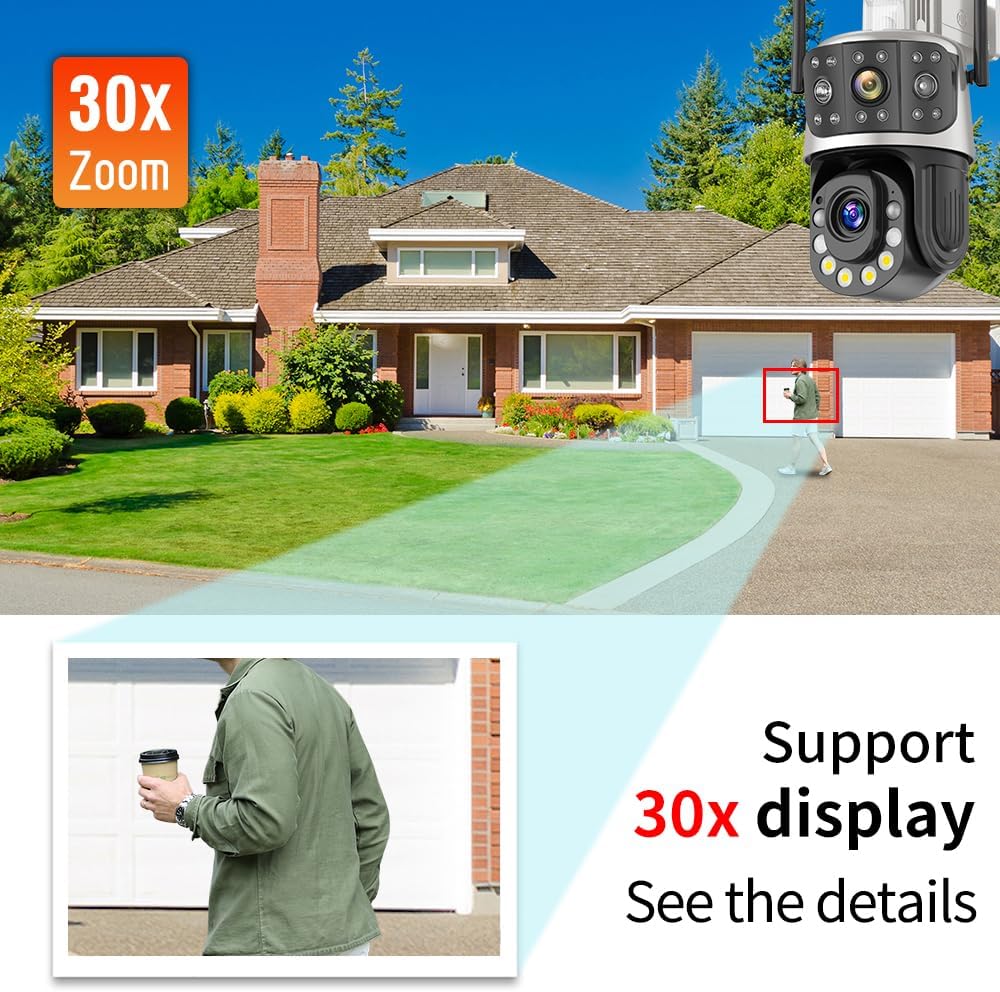
Figure 6.1: The camera's zoom function allows for detailed viewing of distant objects.
6.3 Night Vision Modes
The camera offers versatile night vision capabilities:
- Infrared (IR) Night Vision: Utilizes IR LEDs for clear black and white images in complete darkness, with a range of up to 120 meters.
- Color Night Vision: Activates the built-in floodlights to provide full-color images in low-light conditions, with a range of up to 60 meters.
- Smart Night Vision: The camera can automatically switch to color night vision when human motion is detected in IR mode.

Figure 6.2: Comparison of color night vision (top) and infrared night vision (bottom) capabilities.
6.4 Two-Way Audio
The integrated microphone and speaker enable two-way communication. You can listen to the audio from the camera's location and speak through the camera using the ICSEE app. This feature is useful for communicating with visitors or deterring intruders.

Figure 6.3: Illustration of two-way audio functionality, allowing communication via the camera.
6.5 AI Human Detection and Alerts
The camera features AI-powered human detection. When a person is detected within the monitored area, the camera can:
- Send push notifications to your smartphone.
- Trigger an audible alarm through the camera's speaker.
- Automatically switch to color night vision (if in IR mode).
- Record video footage of the event.

Figure 6.4: The camera detects human shapes, triggers recording, and sends notifications to your phone.
6.6 Recording and Playback
The camera supports video recording to a local TF card (up to 128GB) or cloud storage (subscription may be required). You can access recorded footage and play it back through the ICSEE app.
6.7 Preset Points, Patrol, and Scan
Configure preset positions for the PTZ lens within the app. You can set up patrol routes for the camera to automatically move between these presets or initiate a two-point scan to cover a specific area.
6.8 ONVIF/NVR Integration
The camera is ONVIF compatible and supports Hikvision protocols, allowing integration with compatible Network Video Recorders (NVRs) from brands like Dahua and others for centralized recording and management.
7. Maintenance
- Cleaning Lenses: Gently wipe the camera lenses with a soft, clean cloth. For stubborn dirt, use a lens cleaning solution. Avoid abrasive materials.
- Firmware Updates: Regularly check the ICSEE app for available firmware updates. Keeping the firmware updated ensures optimal performance and security.
- Storage Management: If using a TF card, periodically review and manage stored footage. Ensure the card has sufficient space or is set to overwrite old recordings.
- Power Cycle: If the camera experiences minor issues, try power cycling it by disconnecting and reconnecting the power adapter.
8. Troubleshooting
- Camera Not Powering On: Ensure the power adapter is securely connected to both the camera and a working power outlet. Verify the outlet has power.
- Cannot Connect to Wi-Fi:
- Ensure your Wi-Fi network is 2.4GHz. The camera does not support 5GHz Wi-Fi.
- Check your Wi-Fi password for accuracy.
- Move the camera closer to your Wi-Fi router.
- Restart your router and the camera.
- Poor Image Quality:
- Clean the camera lenses.
- Ensure sufficient lighting in the monitored area, especially for color night vision.
- Check network stability for smooth streaming.
- No Audio/Two-Way Audio Not Working:
- Check volume settings on your phone and within the app.
- Ensure the microphone and speaker are not obstructed.
- Verify network connection stability.
- Motion Detection Not Triggering:
- Adjust motion detection sensitivity settings in the app.
- Ensure detection zones are correctly configured.
- Verify the camera has a clear view of the detection area.
For further assistance, please contact customer support.
9. Specifications
| Feature | Specification |
|---|---|
| Model Number | 600S-Y96-50 |
| Resolution | 6 MP (Combined from two 3MP lenses) |
| Optical Zoom | 10X (5-50mm) or 18X (4.7-94mm) |
| Digital Zoom | Up to 50X |
| Pan Range | 355° |
| Tilt Range | 90° |
| IR Night Vision Range | Up to 120 meters |
| Color Night Vision Range | Up to 60 meters |
| Connectivity | Wi-Fi (2.4G), 4G (EU option), Ethernet |
| Storage | TF Card (up to 128GB), Cloud Storage |
| Audio | Two-Way Audio (15m mic, 40m speaker) |
| Weather Resistance | IP65 |
| Operating Temperature | -20°C to +60°C |
| Control Method | ICSEE APP / NVR |
| Dimensions (L x W x H) | 17 x 27.3 x 20 cm |
10. Warranty Information
PEGATISAN products are covered by a limited warranty from the date of purchase. Please refer to the warranty card included in your package or contact customer support for specific warranty terms and conditions. This warranty typically covers manufacturing defects but does not cover damage caused by misuse, accidents, unauthorized modifications, or improper installation.
11. Customer Support
If you encounter any issues or have questions regarding your PEGATISAN PTZ Dual Lens Surveillance Camera, please contact our customer support team. For efficient service, please have your model number (600S-Y96-50) and purchase information ready.
Contact details can typically be found on the product packaging, our official website, or within the ICSEE application's help section.


