
1. Introduction
This manual provides essential instructions for setting up, operating, maintaining, and troubleshooting your iBUYPOWER Slate White Gaming PC Desktop Computer, model SWI9N56T01. Please read this guide thoroughly before using your new computer to ensure optimal performance and longevity.
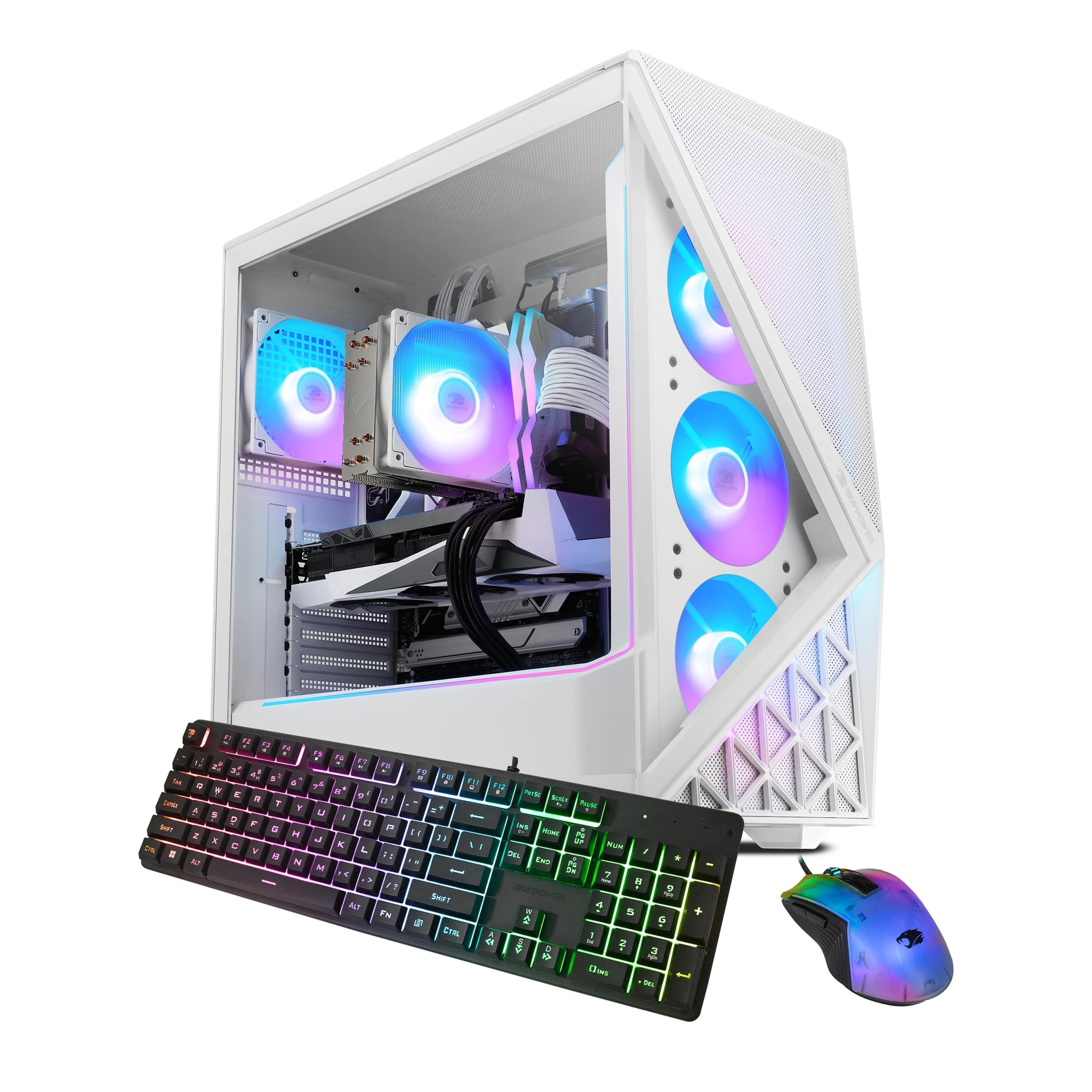
Figure 1: iBUYPOWER Slate White Gaming PC Desktop Computer (Model SWI9N56T01)
2. Setup
2.1 Unboxing and Inspection
Carefully remove all components from the packaging. Verify that all items are present:
- iBUYPOWER Slate White Gaming PC Desktop Computer (SWI9N56T01)
- Power Cable
- iBUYPOWER Gaming Keyboard
- iBUYPOWER RGB Gaming Mouse
- Documentation (this manual, warranty information)
Inspect the computer for any visible damage. If any components are missing or damaged, contact iBUYPOWER support immediately.
2.2 Connecting Peripherals
Before powering on, connect your essential peripherals:
- Monitor: Connect your monitor to the graphics card's display output ports (HDMI, DisplayPort) located at the rear of the PC. Ensure it is connected to the dedicated graphics card (NVIDIA GeForce RTX 5060Ti), not the motherboard's integrated graphics ports.
- Keyboard and Mouse: Connect the included iBUYPOWER keyboard and mouse to any available USB ports on the rear of the PC.
- Power: Connect the power cable to the power supply unit (PSU) at the rear of the PC, then plug the other end into a grounded electrical outlet.
- Network (Optional): For a wired internet connection, connect an Ethernet cable from your router/modem to the RJ-45 network port on the PC. For wireless, ensure the Wi-Fi antennas (if provided) are attached.
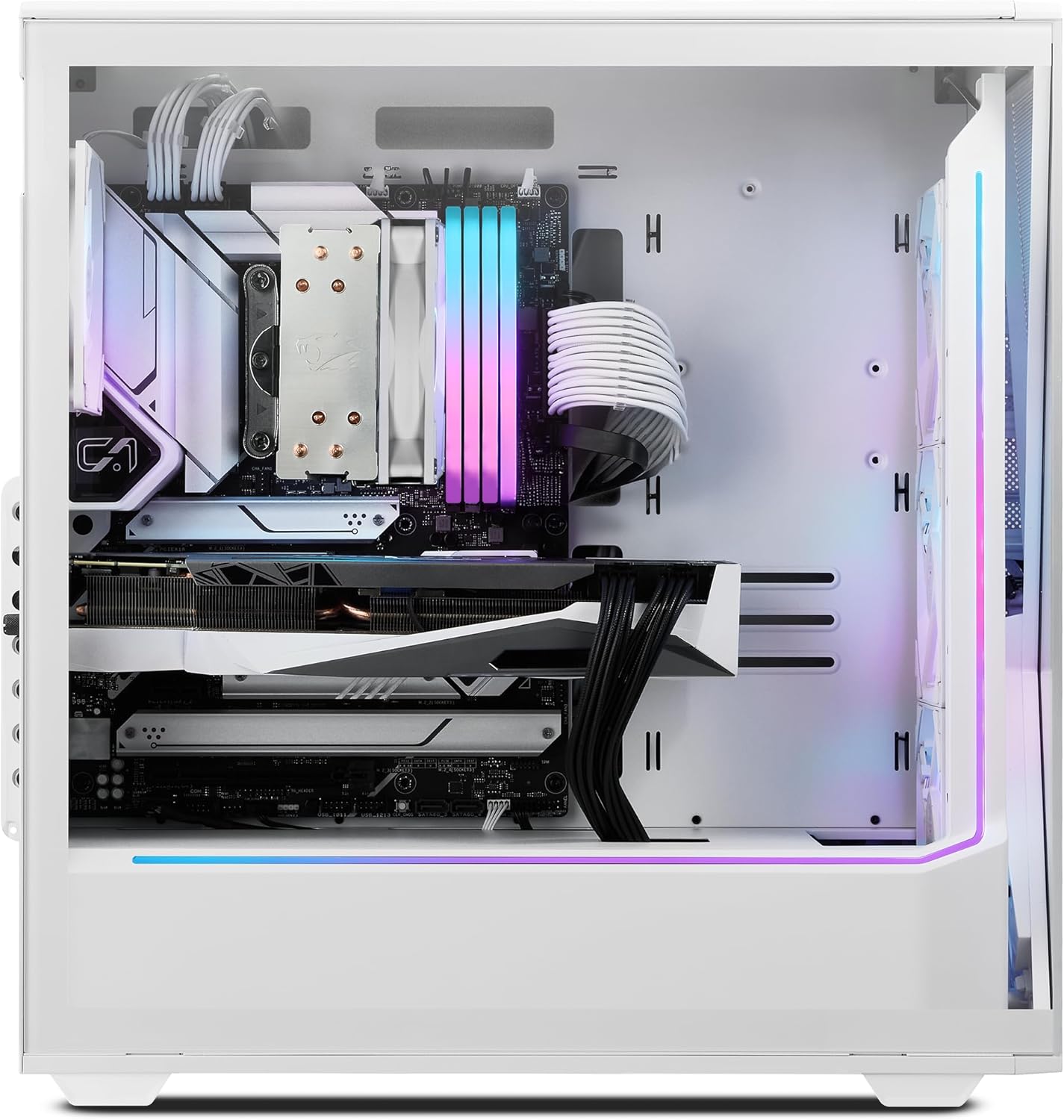
Figure 2: Internal view showing component layout and cable management.
2.3 Initial Power-On
Once all peripherals are connected:
- Press the power button located on the top or front of the PC case.
- The system will boot into Windows 11 Home. Follow the on-screen instructions to complete the initial setup, including language, region, network connection, and user account creation.
- Allow Windows to install any necessary updates after initial setup.
3. Operating Your PC
3.1 Windows 11 Home
Your PC comes pre-installed with Windows 11 Home. Familiarize yourself with the operating system's interface and features. Regular updates are crucial for security and performance.
3.2 Connectivity
The system offers various connectivity options:
- USB Ports: Multiple USB 3.1 ports are available for connecting external devices such as external hard drives, webcams, and other peripherals.
- Ethernet: A 10/100/1000 Mbps RJ-45 port provides a stable wired network connection.
- Wi-Fi: Integrated 802.11AC Wi-Fi allows for wireless internet access. Ensure antennas are properly connected for optimal signal strength.
- Audio: On-board audio ports are available for headphones, microphones, and speakers.
3.3 RGB Lighting Control
Your iBUYPOWER PC features customizable RGB lighting for the case fans and internal components. Specific software or motherboard utilities may be pre-installed or available for download from the iBUYPOWER website to control these lighting effects. Refer to the software's documentation for detailed instructions.

Figure 3: The PC case showcasing the illuminated aRGB fans.
3.4 Gaming and Performance
This system is designed for high-performance gaming and content creation. Ensure your graphics drivers are always up to date for the best gaming experience. You can download the latest drivers from the NVIDIA official website.
4. Maintenance
4.1 Cleaning
Regular cleaning helps maintain optimal performance and extends the lifespan of your PC.
- Exterior: Use a soft, damp cloth to wipe down the exterior of the case. Avoid harsh chemicals.
- Dust Filters: The case features a perforated mesh panel for improved airflow. Regularly clean dust filters (if removable) and use compressed air to clear dust from vents and fans.
- Interior: Periodically, with the PC powered off and unplugged, use compressed air to gently remove dust from internal components, especially CPU cooler fins and GPU heatsinks.

Figure 4: Perforated mesh panel design for enhanced airflow and cooling.
4.2 Software Updates
Keep your operating system, drivers, and applications updated to ensure security, stability, and performance. Windows Update will handle OS updates, and graphics drivers should be updated directly from NVIDIA's website.
4.3 System Backups
Regularly back up your important data to an external drive or cloud storage to prevent data loss.
5. Troubleshooting
This section addresses common issues. For more complex problems, contact iBUYPOWER support.
5.1 No Power
- Ensure the power cable is securely connected to both the PC and the wall outlet.
- Verify the power switch on the PSU (at the back of the PC) is in the 'ON' position.
- Test the outlet with another device to confirm it has power.
5.2 No Display on Monitor
- Confirm the monitor is powered on and correctly connected to the graphics card's output ports.
- Ensure the correct input source is selected on your monitor.
- Try a different display cable or monitor if available.
5.3 Slow Performance
- Check for background applications consuming resources using Task Manager (Ctrl+Shift+Esc).
- Ensure Windows and all drivers are up to date.
- Run a virus and malware scan.
- Verify adequate airflow and clean any dust buildup to prevent thermal throttling.
6. Specifications
Key technical specifications for the iBUYPOWER Slate White Gaming PC Desktop Computer SWI9N56T01:
| Feature | Detail |
|---|---|
| Model Number | SWI9N56T01 |
| Processor | Intel Core Ultra 9 285 (2.5 GHz) |
| Graphics Card | NVIDIA GeForce RTX 5060Ti 8GB |
| RAM | 64GB DDR5 RGB 5200MHz |
| Storage | 2TB NVMe SSD |
| Operating System | Windows 11 Home |
| Connectivity | 6 x USB 3.1, 1x RJ-45 Ethernet, 802.11AC Wi-Fi, On-board Audio |
| Dimensions (LxWxH) | 19.5 x 8.7 x 19.3 inches |
| Weight | 36 pounds |
| Included Peripherals | iBUYPOWER Gaming Keyboard, RGB Gaming Mouse |
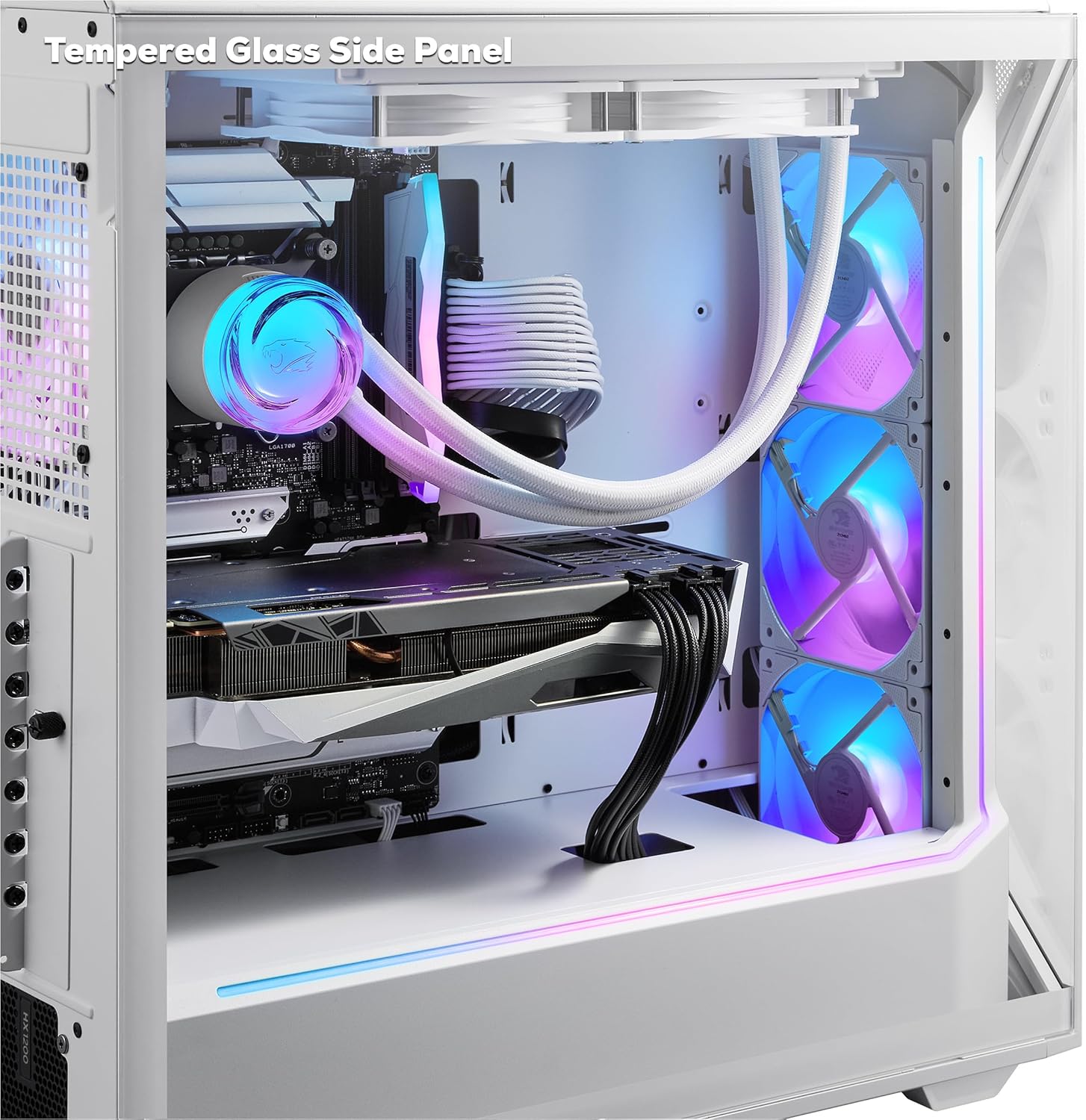
Figure 5: Tempered glass side panel showcasing internal components.
7. Warranty and Support
7.1 Warranty Information
Your iBUYPOWER PC comes with a standard manufacturer's warranty. Please refer to the warranty card included in your product packaging or visit the official iBUYPOWER website for detailed terms and conditions regarding warranty coverage, duration, and limitations. Keep your proof of purchase for warranty claims.
7.2 Technical Support
For technical assistance, troubleshooting beyond this manual, or warranty claims, please contact iBUYPOWER customer support. Have your model number (SWI9N56T01) and serial number ready when contacting support.
iBUYPOWER Support Website: www.ibuypower.com/support
iBUYPOWER Contact Information: Refer to the official website for the most current phone numbers and contact methods.