
Introduction
Welcome to the Samsung Galaxy A16 User Guide. This manual is designed to help you understand and utilize the full potential of your Samsung Galaxy A16 5G smartphone. It provides step-by-step instructions, practical tips, and essential advice to navigate every feature, setting, and function your device offers.
The Samsung Galaxy A16 5G is equipped with powerful performance, an impressive display, and a versatile camera system. This guide will assist you in making the most of your device's capabilities.
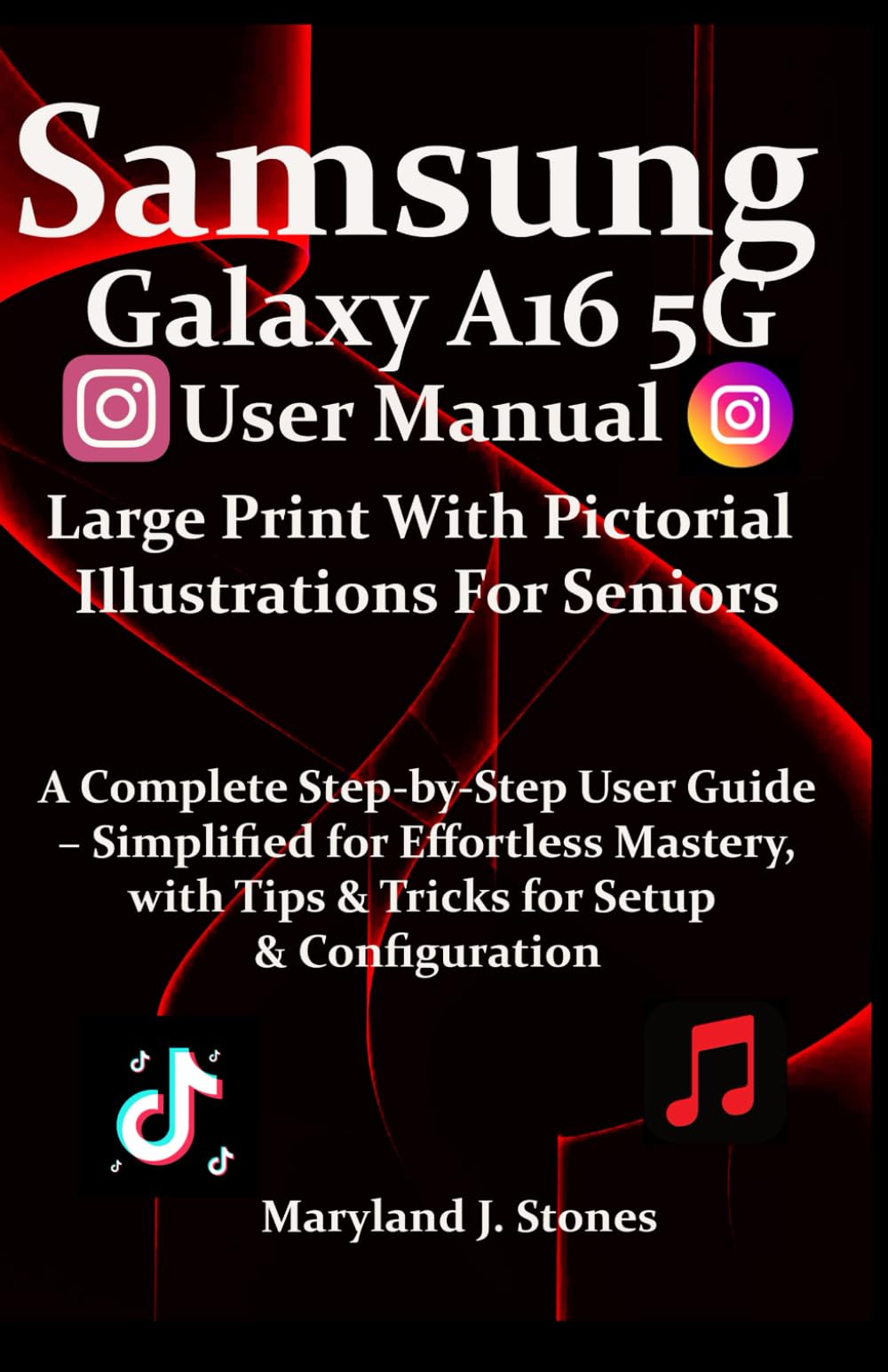
Image: Front cover of the Samsung Galaxy A16 5G User Manual.
Setup
This section covers the initial setup of your Samsung Galaxy A16 5G, including powering on, connecting to networks, and personalizing your device.
1. Initial Device Setup
- Power On: Press and hold the power button until the Samsung logo appears.
- Language Selection: Choose your preferred language from the list.
- Wi-Fi Connection: Select your Wi-Fi network and enter the password to connect to the internet.
- Terms and Conditions: Read and accept the terms and conditions to proceed.
- Google Account Setup: Sign in with your Google account or create a new one. This is essential for accessing the Google Play Store and other Google services.
- Data Transfer: Follow the on-screen prompts to transfer data from an old device, if applicable.
- Security Setup: Configure your preferred screen lock method (PIN, pattern, password, fingerprint, or face recognition).
- Samsung Account: Sign in or create a Samsung account for additional features and services.
- Finalize Setup: Complete the remaining setup steps to customize your device.
2. Personalizing Your Home Screen
- Wallpapers: Long-press on an empty area of the home screen, then select "Wallpaper and style" to change your background.
- Widgets: Long-press on an empty area, then select "Widgets" to add useful tools like clocks, weather, or calendar.
- App Icons: Drag and drop app icons to rearrange them or create folders by dragging one app icon onto another.
Operating Your Device
General Usage
- Navigation: Use gestures (swipe up for home, swipe from side for back, swipe up and hold for recent apps) or the traditional navigation buttons at the bottom of the screen.
- Notifications Panel: Swipe down from the top of the screen to access notifications and quick settings.
- Volume Control: Use the volume buttons on the side of the device to adjust media, notification, and alarm volumes.
- Power Menu: Press and hold the power button to access options for power off, restart, or emergency mode.
Mastering the Camera
The Galaxy A16 5G features a versatile multi-lens camera system. Explore various modes and settings to capture stunning photos and videos.
- Camera Modes: Switch between Photo, Video, Portrait, Pro, Panorama, and other modes by swiping left or right in the camera app.
- Zoom: Pinch in or out on the screen, or tap the zoom icons (e.g., 0.5x, 1x, 2x) to adjust magnification.
- Focus: Tap on the subject on the screen to set the focus.
- Settings: Access camera settings (gear icon) to adjust resolution, aspect ratio, timer, and other advanced options.
Maximizing Battery Life
To extend your device's battery life and utilize fast-charging capabilities:
- Battery Saver Mode: Enable Power saving mode in Settings > Battery and device care > Battery.
- Screen Brightness: Reduce screen brightness or enable Adaptive brightness.
- Background Apps: Close unnecessary apps running in the background.
- Fast Charging: Use a compatible fast charger for quicker charging times. Ensure "Fast charging" is enabled in Battery settings.
Security & Privacy
Protect your device and personal data with these security features:
- Fingerprint Recognition: Register your fingerprints in Settings > Security and privacy > Biometrics > Fingerprints.
- Face Recognition: Set up face unlock in Settings > Security and privacy > Biometrics > Face recognition.
- App Permissions: Review and manage app permissions in Settings > Apps > [Select App] > Permissions.
- Secure Folder: Utilize Secure Folder for sensitive apps and data (Settings > Security and privacy > Secure Folder).
Hidden Features & Shortcuts
Discover features to enhance productivity and user experience:
- Edge Panels: Access frequently used apps and contacts by swiping from the edge of the screen (Settings > Display > Edge panels).
- One-handed Mode: Enable for easier use with one hand (Settings > Advanced features > One-handed mode).
- Dual Messenger: Use two separate accounts for the same messaging app (Settings > Advanced features > Dual Messenger).
Maintenance
Regular maintenance helps ensure optimal performance and longevity of your Samsung Galaxy A16 5G.
- Software Updates: Keep your device's software up to date by checking for updates in Settings > Software update.
- Storage Management: Regularly clear unnecessary files and cache to free up storage space (Settings > Battery and device care > Storage).
- Device Optimization: Use the "Optimize now" feature in Settings > Battery and device care to improve performance.
- Physical Cleaning: Gently clean the screen and ports with a soft, dry, lint-free cloth. Avoid harsh chemicals.

Image: Back cover of the Samsung Galaxy A16 5G User Manual.
Troubleshooting
This section addresses common issues and provides solutions to help you resolve them.
- Device Not Responding: If your device is frozen, press and hold the Power button and Volume Down button simultaneously for about 7-10 seconds to force restart.
- Battery Draining Quickly: Check background app usage, reduce screen brightness, and ensure Power saving mode is enabled.
- Connectivity Issues (Wi-Fi/Bluetooth): Try toggling Wi-Fi or Bluetooth off and on. Restart your device or reset network settings (Settings > General management > Reset > Reset network settings).
- App Crashing: Clear the app's cache and data (Settings > Apps > [Select App] > Storage > Clear cache/Clear data). If the issue persists, uninstall and reinstall the app.
- Slow Performance: Optimize your device using "Battery and device care," clear cache, and ensure sufficient storage space.
Specifications
| Feature | Detail |
|---|---|
| ASIN | B0F4Z5GSPB |
| Publisher | Independently published |
| Publication Date | April 14, 2025 |
| Language | English |
| Print Length | 251 pages |
| ISBN-13 | 979-8319384560 |
| Item Weight | 13.8 ounces |
| Dimensions | 5.5 x 0.57 x 8.5 inches |
Warranty and Support
For information regarding the warranty of your Samsung Galaxy A16 5G, please refer to the documentation included with your device or visit the official Samsung support website. Warranty terms and conditions may vary by region and retailer.
For further assistance, technical support, or service inquiries, please contact Samsung customer support directly or visit an authorized service center.