1. Introduction
The CNVNTAO Wetag GPS Tracker is a compact, anti-lost device designed to help you locate your valuable items using your iOS device. This tracker utilizes Bluetooth technology and integrates seamlessly with Apple's Find My network, offering real-time positioning and anti-lost features without requiring a monthly subscription. It is suitable for tracking keys, wallets, luggage, pets, and even children.
This manual provides essential information for the proper setup, operation, and maintenance of your Wetag GPS Tracker.
2. Safety Information
- Keep the device out of reach of small children and pets to prevent accidental ingestion of small parts, especially the battery.
- Do not expose the device to extreme temperatures, direct sunlight, or moisture.
- Use only the specified CR2032 battery for replacement. Incorrect battery types may pose a risk of fire or explosion.
- Do not attempt to disassemble, repair, or modify the device. This will void the warranty and may cause damage or injury.
- Dispose of batteries and the device according to local regulations.
3. Package Contents
Verify that your package contains the following items:
- Wetag GPS Tracker(s) (Quantity as purchased, e.g., 4PCS)
- User Manual (This document)
- Keyring attachment (pre-attached or included separately)

Image 3.1: Contents of the Wetag GPS Tracker package, showing multiple trackers and an iPhone displaying the tracking interface.
4. Product Overview
The Wetag GPS Tracker is a small, circular device designed for discreet attachment to various items. It features a built-in speaker for audible alerts and a replaceable CR2032 coin cell battery.

Image 4.1: Overview of the Wetag GPS Tracker's key features and design.
5. Setup Instructions
5.1. Battery Installation/Activation
The Wetag Tracker comes with a pre-installed CR2032 battery. To activate the device for first use, ensure any protective pull-tab is removed from the battery compartment. If the device does not power on, you may need to open the tracker and ensure the battery is correctly seated.
5.2. Pairing with iOS Device
The Wetag Tracker is designed to work exclusively with Apple's Find My network on iOS devices (iOS 14.5 or above). No separate app download is required.
- Ensure your iOS device's Bluetooth is enabled.
- Open the Find My app on your iPhone or iPad.
- Navigate to the Items tab.
- Tap the + icon and select Add Other Item.
- Follow the on-screen instructions to pair your Wetag Tracker. You may need to press a button on the tracker (if available) or simply ensure it is powered on and nearby.
- Once paired, you can name your item (e.g., "Keys," "Wallet," "Pet") and assign an emoji.
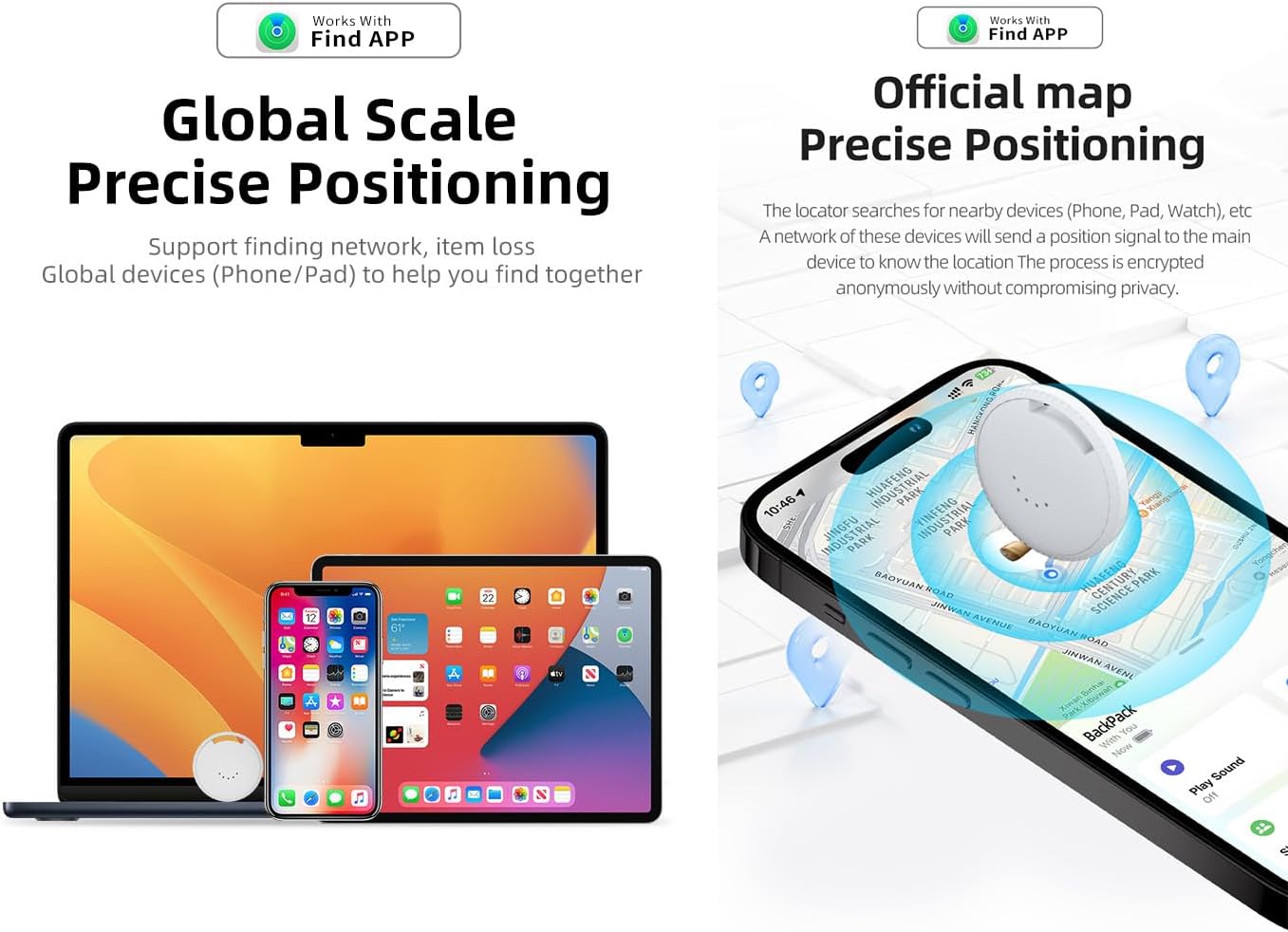
Image 5.1: The Wetag tracker integrates with the Apple Find My app for global positioning.
6. Operating Instructions
6.1. Locating Your Item
To find an item attached to your Wetag Tracker:
- Open the Find My app on your iOS device.
- Go to the Items tab and select the Wetag Tracker you wish to locate.
- Play Sound: Tap the "Play Sound" button. The tracker will emit an audible alert, helping you pinpoint its exact location if it's nearby.
- View on Map: The app will display the tracker's last known location on a map. If it's within Bluetooth range of your device or any other device in the Find My network, its location will update in real-time.

Image 6.1: Using the Find My app and Siri to locate a lost item.
6.2. Using Siri
For quick location, you can ask Siri to find your item. Simply say, "Hey Siri, find my [item name]" (e.g., "Hey Siri, find my keys"). Siri will then prompt the tracker to play a sound.
6.3. Lost Mode
If your item is lost and out of range, you can enable Lost Mode in the Find My app:
- In the Find My app, select your Wetag Tracker.
- Scroll down and tap Enable under "Lost Mode."
- Follow the prompts to enter a phone number or email address where you can be contacted if someone finds your item.
- When another device in the Find My network comes within range of your lost tracker, you will receive a notification of its location. The finder can also see your contact information.
6.4. Left-Behind Reminders (Electronic Fence)
You can set up notifications to alert you if you leave your item behind at a specific location or if it moves out of a designated safe zone:
- In the Find My app, select your Wetag Tracker.
- Under "Notifications," enable Notify When Left Behind.
- You can customize locations where you do not want to be notified (e.g., your home).
6.5. Sharing Your Tracker
The Wetag Tracker allows you to share its location with family and friends who also use the Find My app. This is useful for tracking shared items or monitoring pets and children.
- In the Find My app, select the Wetag Tracker you wish to share.
- Scroll down and tap Add Person under "Share This Item."
- Select contacts from your address book to share the item with.
- Shared users can view the item's location, play a sound, and utilize Precision Finding (if available on their device).
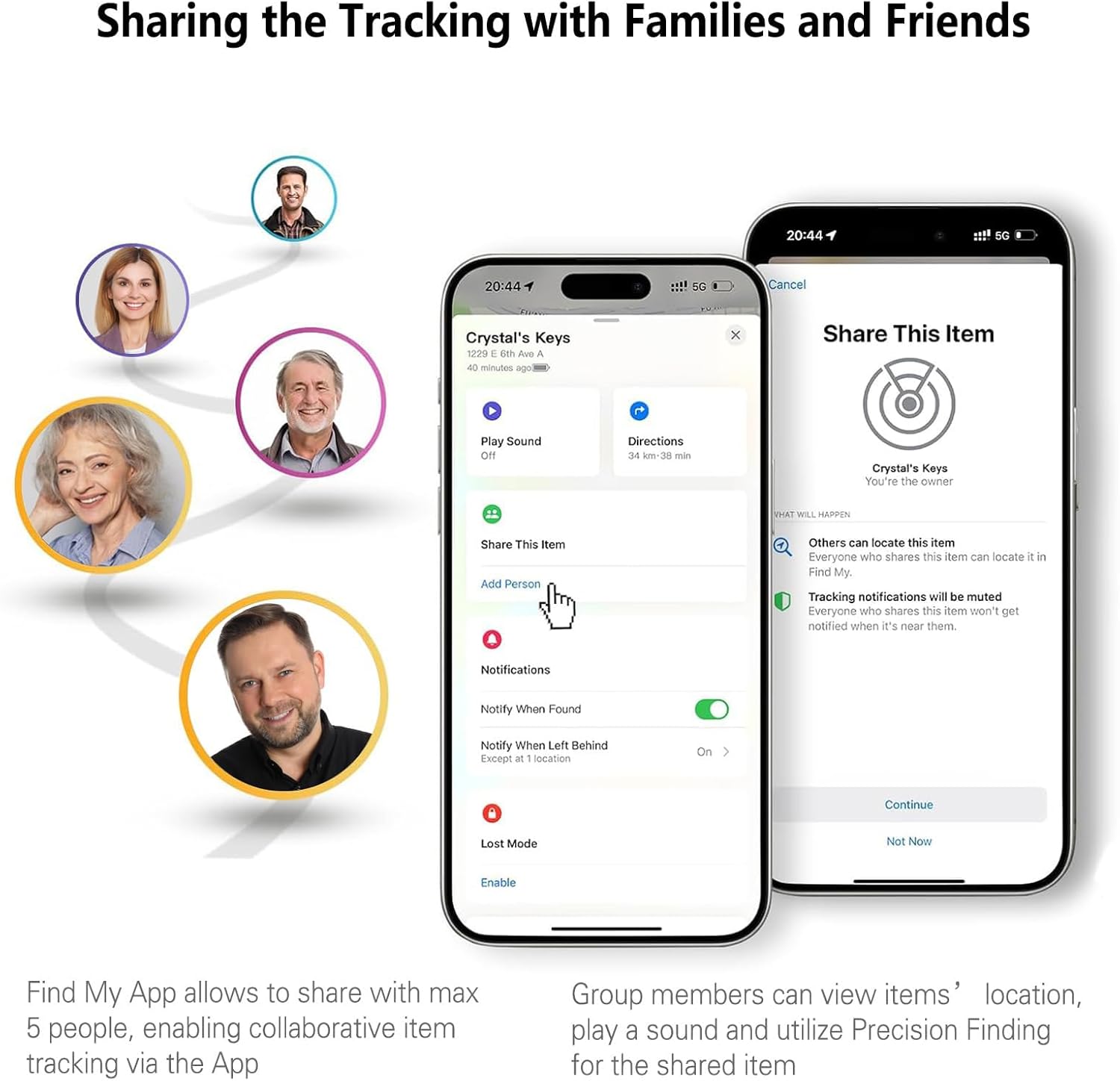
Image 6.2: Sharing the Wetag tracker's location with family and friends via the Find My app.
7. Maintenance
7.1. Battery Replacement
The Wetag Tracker uses a standard CR2032 coin cell battery, which typically lasts up to one year. When the battery is low, you will receive a notification on your iOS device.
- Locate the battery compartment on the tracker. This usually involves twisting the back cover counter-clockwise or gently prying it open with a small tool.
- Remove the old CR2032 battery.
- Insert a new CR2032 battery with the positive (+) side facing up.
- Securely close the battery compartment, ensuring a tight seal.
7.2. Cleaning
Wipe the tracker with a soft, dry, or slightly damp cloth. Do not use harsh chemicals or abrasive cleaners. Ensure the device is completely dry before use.
8. Troubleshooting
- Tracker not connecting to Find My app:
Ensure Bluetooth is enabled on your iOS device. Check if the tracker's battery is charged or needs replacement. Try restarting your iOS device. If issues persist, try removing the tracker from the Find My app and re-pairing it. - Tracker not playing sound:
Verify that the tracker is within Bluetooth range of your iOS device or another device in the Find My network. Check the battery level. Ensure the volume on your iOS device is not muted. - Inaccurate location:
Location accuracy depends on the density of the Find My network and GPS signal availability. In indoor environments or areas with poor signal, accuracy may be reduced. Ensure your iOS device has a stable internet connection. - Short battery life:
Ensure you are using a fresh, high-quality CR2032 battery. Frequent use of theDocuments - CNVNTAO – B0F4Y35SHDno relevant documents