
Introduction
This manual provides detailed instructions for the setup, operation, maintenance, and troubleshooting of your padom GS07 Normal Version Smart Glasses. These smart glasses feature open-ear Bluetooth audio, photochromic lenses that adapt to light conditions, anti-blue light filtering, touch controls, and voice assistant compatibility.
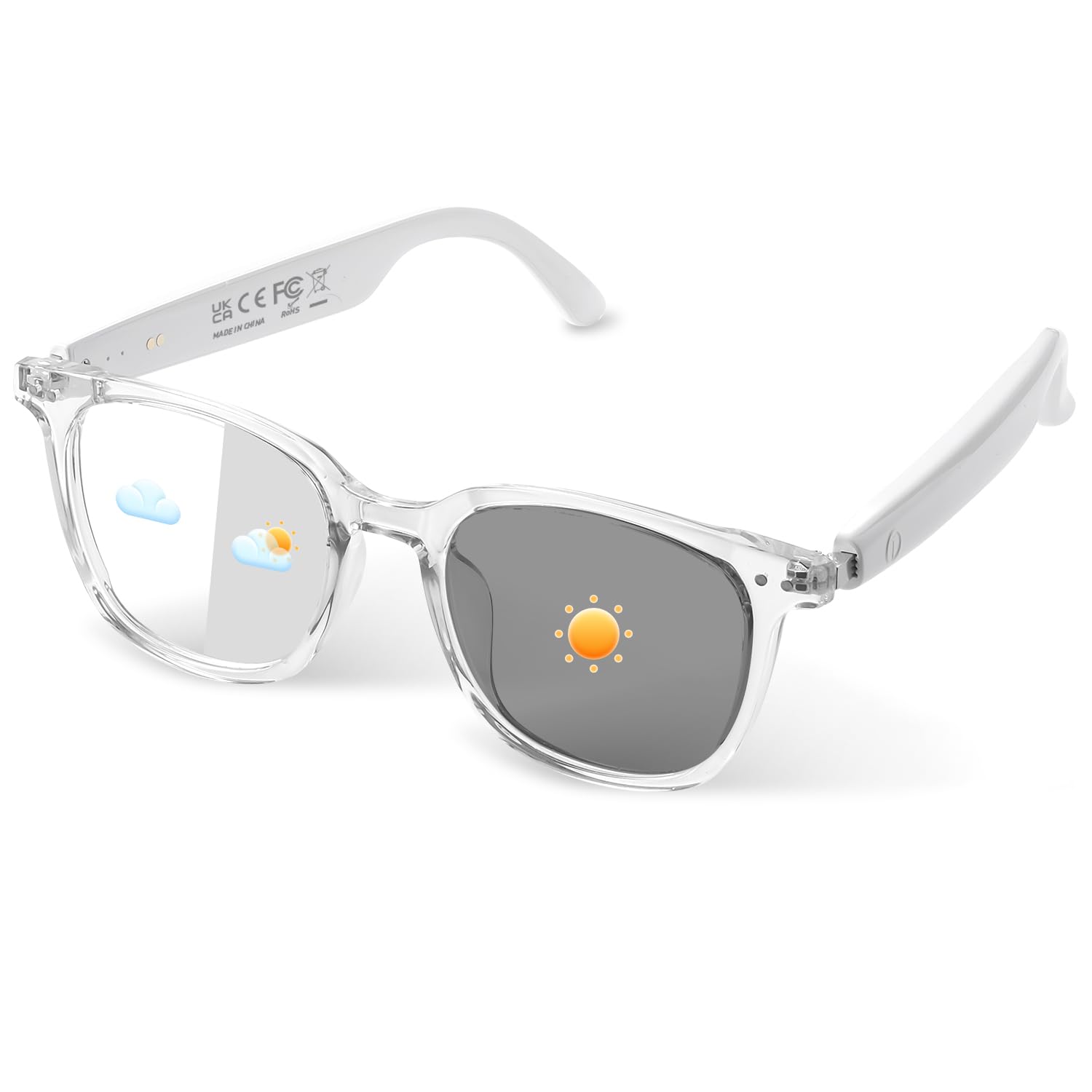
Package Contents
Upon opening the package, verify that all the following items are included:
- Audio Bluetooth Glasses (padom GS07 Normal Version Smart Glasses)
- Magnetic Charging Cable
- User Manual
- Quick Start Guide
- Glasses Case
- Cleaning Cloth
- Eyeglasses Storage Bag

Setup
1. Charging the Glasses
Before first use, fully charge your smart glasses. Use the provided magnetic charging cable. The glasses feature an efficient charging design, allowing a full charge in approximately 1 hour, providing 4-6 hours of call or music playback.

- Secure Magnetic Alignment: Ensures proper connection without exposed ports.
- Charge Status LED Indicator: Provides visual feedback on charging status.
- IPX5 Sweat-Resistant: Charging contacts are designed to resist sweat.
2. Bluetooth Pairing
The padom GS07 Smart Glasses use Bluetooth 5.4 for universal compatibility with iOS and Android devices. Once paired, the smart audio glasses will auto-reconnect when powered on.
- Ensure your smart glasses are charged and powered on.
- Activate Bluetooth on your smartphone or other device.
- Search for available Bluetooth devices and select "GS07 Smart Glasses" (or similar name) from the list.
- Confirm pairing on your device.

Operating Instructions
Basic Controls
The smart glasses feature touch-sensitive areas on the temples for various functions. Perform all actions in the designated touch area on the temples.

| Action | Function |
|---|---|
| Press and hold left or right simultaneously for 3 seconds | Power On |
| Press and hold either side for 5 seconds | Power Off |
| Press and hold for 1.5 seconds Left +, Right - | Volume Adjustment |
| Press and hold for 3 seconds on either touch area | Reject Call |
| Touch left or right 2 times | Play or Pause Music / Answer or Reject a Call |
| Left touch 3 times | Activate Voice Assistant |
| Touch right 3 times | Remote Control Shooting (requires pre-opened photo mode on phone) |
Voice Assistant
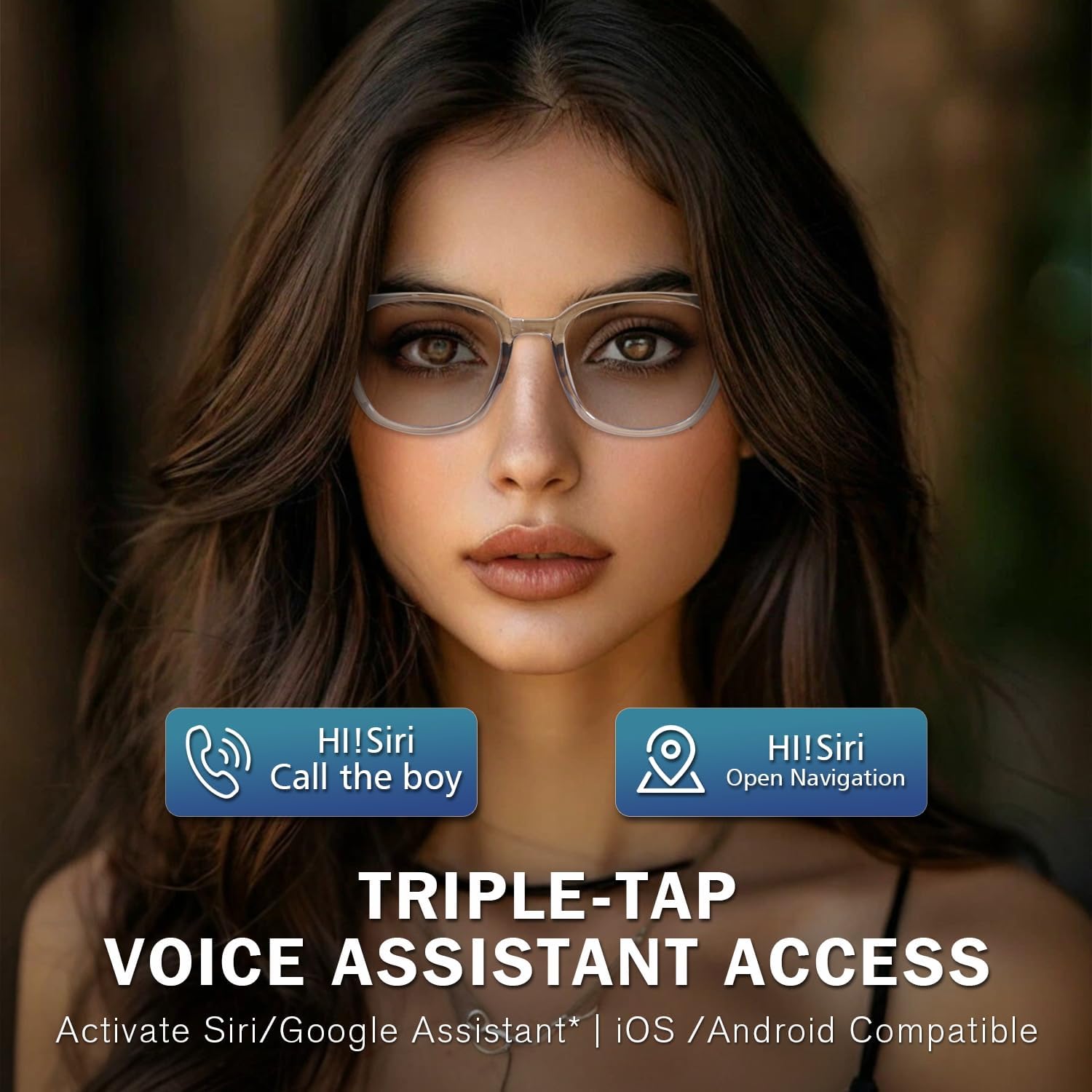
Triple-tap the left temple to activate your smartphone's voice assistant (Siri, Google Assistant, etc.). This allows for hands-free control of music, calls, and navigation.

Photochromic Lenses
The lenses automatically change color from clear indoors to shaded outdoors, providing UV protection and glare reduction. They also filter blue light from screens when clear.

Open-Ear Audio
Experience 3D stereo sound with AAC audio decoding technology, allowing you to hear music and calls while remaining aware of your surroundings. The glasses also feature clear voice calling technology with AI-enhanced noise reduction.


Remote Photography
Tap the right temple three times to remotely trigger your phone's camera. Ensure your phone's camera app is open beforehand.

Maintenance
Water Resistance
The padom GS07 Smart Glasses are IP65 water resistant, protecting against sweat, rain, and dust. This makes them suitable for workouts or light rain conditions. Avoid submerging the glasses in water.

Cleaning and Storage
- Use the provided cleaning cloth to gently wipe the lenses and frame.
- Avoid using harsh chemicals or abrasive materials.
- When not in use, store the glasses in the provided glasses case or storage bag to protect them from scratches and damage.
Troubleshooting
Common Issues and Solutions
- No Power:
- Ensure the glasses are fully charged.
- Press and hold both temples simultaneously for 3 seconds to power on.
- Bluetooth Pairing Failure:
- Make sure Bluetooth is enabled on your device and the glasses are in pairing mode.
- Move the glasses closer to your device.
- Turn off and on both the glasses and your device, then try pairing again.
- Clear previous Bluetooth connections on your device if necessary.
- No Sound or Low Volume:
- Check the volume level on both the glasses (long press left/right temple) and your connected device.
- Ensure the glasses are properly connected via Bluetooth.
- Verify that the audio output on your device is set to the smart glasses.
- Lenses Not Changing Color:
- Photochromic lenses react to UV light. Ensure you are in an environment with sufficient UV exposure (e.g., direct sunlight).
- The transition speed can vary based on temperature and UV intensity.
- Remote Photography Not Working:
- Ensure your phone's camera application is open before attempting to trigger the shutter.
- Verify the Bluetooth connection is active.
Specifications
Key technical specifications for the padom GS07 Normal Version Smart Glasses:
| Feature | Detail |
|---|---|
| Model Name | UF-15 smart glasses (GS07 Normal Version) |
| Item Model Number | 2025 |
| Brand | padom |
| Connectivity Technology | Bluetooth 5.4 |
| Special Features | Music Player, Notifications, Alarm Clock, Photochromic Lenses, Anti-Blue Light, Touch Control, Voice Assistant, Open-Ear Speaker, Remote Photography |
| Operating System | Proprietary OS |
| Item Weight | 27 Grams (0.952 ounces) |
| Battery Type | 2 Lithium Polymer batteries (included) |
| Battery Life (Music/Calls) | 4-6 hours |
| Charging Time | Approx. 1 hour |
| Water Resistance Rating | IP65 |
| Lens Type | Photochromic, Anti-Blue Light |
| Dimensions (Approx.) | 6.73 x 2.36 x 2.24 inches (Package) |

Official Product Video
Video 1: GS07 Smart Glasses Overview. This video provides a visual demonstration of the padom GS07 Smart Glasses, showcasing their design and features, including the photochromic lenses and various color options.
Warranty and Support
For warranty information and customer support, please refer to the documentation included in your product packaging or visit the official padom website. Keep your proof of purchase for warranty claims.
If you encounter any issues not covered in this manual, please contact padom customer service for assistance.