
Introduction
Thank you for choosing the LeadsaiL Q9 Bluetooth Wireless Mouse. This manual provides detailed instructions for setting up, operating, and maintaining your mouse to ensure optimal performance and longevity. Please read this manual thoroughly before use.
Package Contents
- 1 x LeadsaiL Q9 Wireless Mouse
- 1 x Type-C Charging Cable
- 1 x USB Dongle (2.4G Receiver)
- 1 x User Manual
Product Overview
The LeadsaiL Q9 mouse offers dual-mode connectivity, ergonomic design, and adjustable DPI for versatile use across various devices and tasks.

Image: Underside of the LeadsaiL Q9 mouse, highlighting key components like the power switch, connectivity mode switch, breathing light switch, USB receiver storage, and optical sensor.
Key Features
- Dual-Mode Connectivity: Seamlessly switch between 2.4G wireless (via USB receiver) and Bluetooth 5.0/3.0 for connecting to two different devices.
- Rechargeable Battery: Built-in 800mAh battery provides extended usage, with auto-sleep function to conserve power.
- Silent Clicks: Designed for quiet operation, reducing noise in shared environments.
- Ergonomic Design: Contoured shape with anti-fingerprint, skin-like coating and anti-slip scroll wheel for comfortable grip.
- Adjustable DPI: Five DPI levels (800/1600/2400/3200/4000) for precise cursor control.
- Side Buttons: Convenient back/forward buttons for enhanced navigation (Note: Customization not supported on macOS).
Setup and Connection
The LeadsaiL Q9 mouse supports two connection modes: 2.4G Wireless and Bluetooth. You can switch between these modes to connect to different devices.
2.4G Wireless Mode (USB Receiver)
- Locate the USB receiver stored in the compartment on the underside of the mouse.
- Plug the USB receiver into an available USB port on your computer.
- Turn on the mouse using the power switch on the bottom.
- Slide the connectivity switch on the bottom of the mouse to the "2.4G" position (indicated by a small icon).
- The mouse should automatically connect to your computer. No drivers are required.

Image: The LeadsaiL Q9 mouse demonstrating dual-mode connection, with the 2.4G USB receiver plugged into a laptop.
Bluetooth Mode
- Turn on the mouse using the power switch on the bottom.
- Slide the connectivity switch on the bottom of the mouse to the "BT" (Bluetooth) position.
- On your device (computer, laptop, tablet), go to Bluetooth settings.
- Search for new devices. The mouse should appear as "LeadsaiL Mouse" or similar.
- Select the mouse to pair. Once paired, the mouse is ready for use.
Note: The 2.4G and Bluetooth modes cannot be used simultaneously on the same device. You can switch between modes to use the mouse with two different devices.
Operating Instructions
DPI Adjustment
The mouse features 5 adjustable DPI levels (800/1600/2400/3200/4000) to customize cursor sensitivity. To change the DPI, press the DPI button located behind the scroll wheel. Each press cycles through the available DPI settings.

Image: Illustration of the LeadsaiL Q9 mouse with an overlay showing the 5 adjustable DPI settings.
Side Buttons
The two side buttons on the left of the mouse function as "Back" and "Forward" for web browsing and file navigation. These buttons are designed for quick access without altering your grip.
Note: Side button customization is not supported on macOS.
Charging the Mouse
When the battery is low, the mouse's indicator light may flash. Connect the included Type-C charging cable to the charging port on the front of the mouse and plug the other end into a USB power source (e.g., computer USB port, USB wall adapter). A full charge typically takes 2-3 hours.
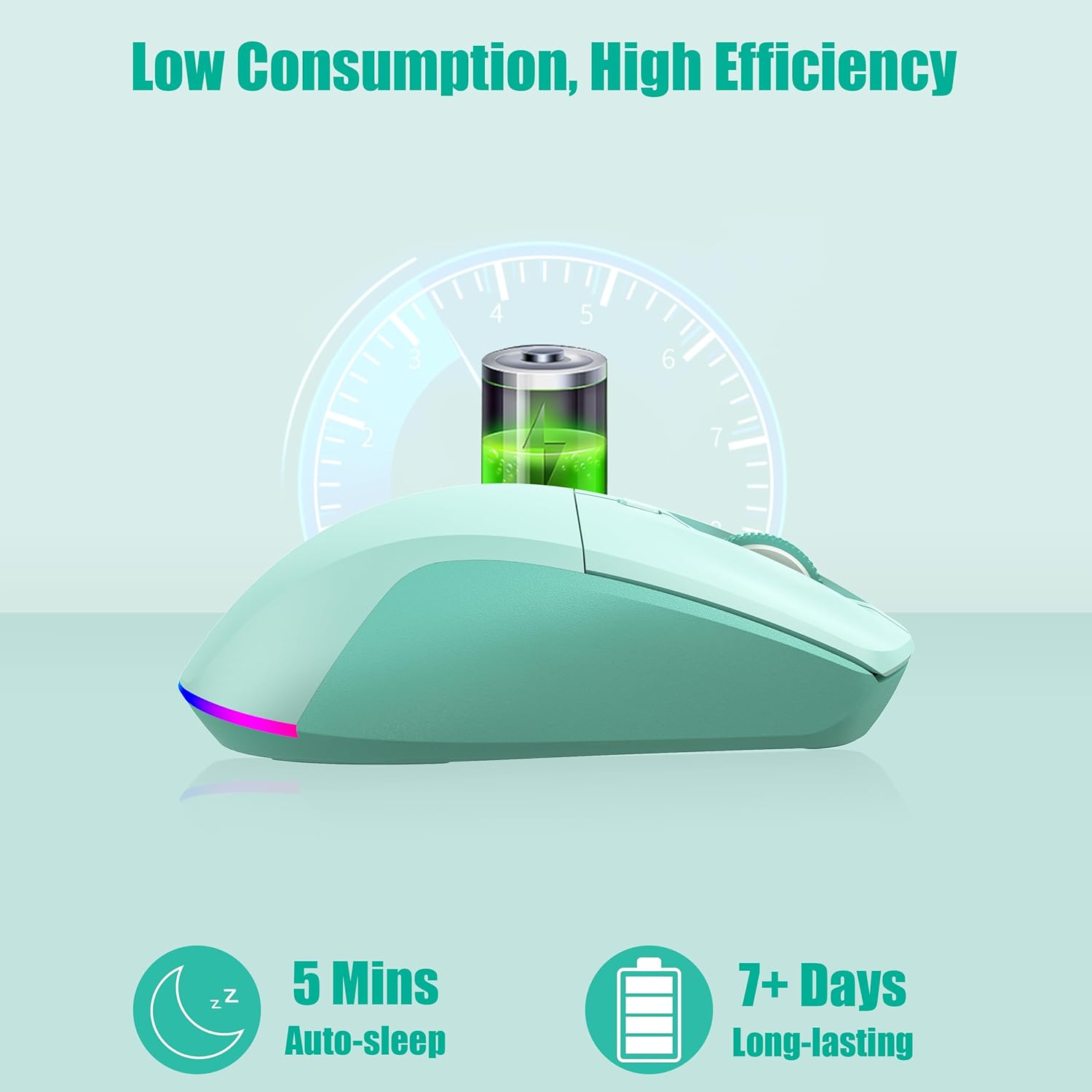
Image: The LeadsaiL Q9 mouse illustrating its low power consumption and long battery life, with an auto-sleep feature after 5 minutes of inactivity.
Power Management and RGB Lighting
The mouse features an auto-sleep function, entering sleep mode after 5 minutes of inactivity to conserve battery. Click any button to wake it up instantly.
The mouse also has an RGB breathing light. You can turn this light on or off using the dedicated switch on the underside of the mouse. Turning off the RGB light can significantly extend battery life.
Maintenance
- Cleaning: Use a soft, dry cloth to clean the mouse. For stubborn dirt, a slightly damp cloth can be used, ensuring no moisture enters the internal components.
- Battery Care: To maximize battery lifespan, avoid fully discharging the mouse frequently. Charge it when the low battery indicator appears.
- Storage: When not in use for extended periods, turn off the mouse to conserve battery. Store it in a cool, dry place.
- USB Receiver: Keep the USB receiver stored in its designated slot on the mouse's underside when not in use to prevent loss.
Troubleshooting
- Mouse not responding:
- Ensure the mouse is turned on.
- Check battery level and charge if necessary.
- For 2.4G mode, ensure the USB receiver is securely plugged in and the mouse is set to 2.4G mode.
- For Bluetooth mode, ensure Bluetooth is enabled on your device and the mouse is correctly paired and set to BT mode. Try re-pairing if necessary.
- Try connecting to a different USB port or device to rule out port/device issues.
- Lagging or erratic cursor movement:
- Ensure the mouse is on a clean, non-reflective surface.
- Check for interference from other wireless devices.
- Adjust DPI settings to a lower value if the cursor is too sensitive.
- Ensure the battery is sufficiently charged.
- Side buttons not working on macOS:
- This is a known limitation. Side button customization is not supported on macOS.
Specifications
| Model | Q9 |
| Connectivity Technology | 2.4G Wireless, Bluetooth 5.0/3.0 |
| DPI Levels | 800 / 1600 / 2400 / 3200 / 4000 |
| Battery Capacity | 800mAh (Rechargeable) |
| Charging Port | Type-C |
| Operating System Compatibility | Windows 7/10/11, macOS 10.12 Sierra (and above), Linux |
| Item Weight | 3.32 ounces |
| Product Dimensions (LxWxH) | 4.52 x 2.55 x 0.1 inches |
| Color | Mint Green |
Warranty and Support
LeadsaiL products are designed for reliability and performance. For warranty information or technical support, please refer to the contact details provided with your purchase or visit the official LeadsaiL website. Keep your purchase receipt as proof of purchase for warranty claims.

