
1. Introduction
This manual provides detailed instructions for the installation of the Lkfyyds Front Screen Outer Glass Lens with Optically Clear Adhesive (OCA) for the ZTE Nubia Red Magic 10 Pro, model NX789J. This replacement part is designed to restore the original appearance and functionality of your device's front screen glass.

Image 1.1: The Lkfyyds Front Screen Outer Glass Lens with OCA. This component is used to replace a damaged outer glass layer on the ZTE Nubia Red Magic 10 Pro NX789J.
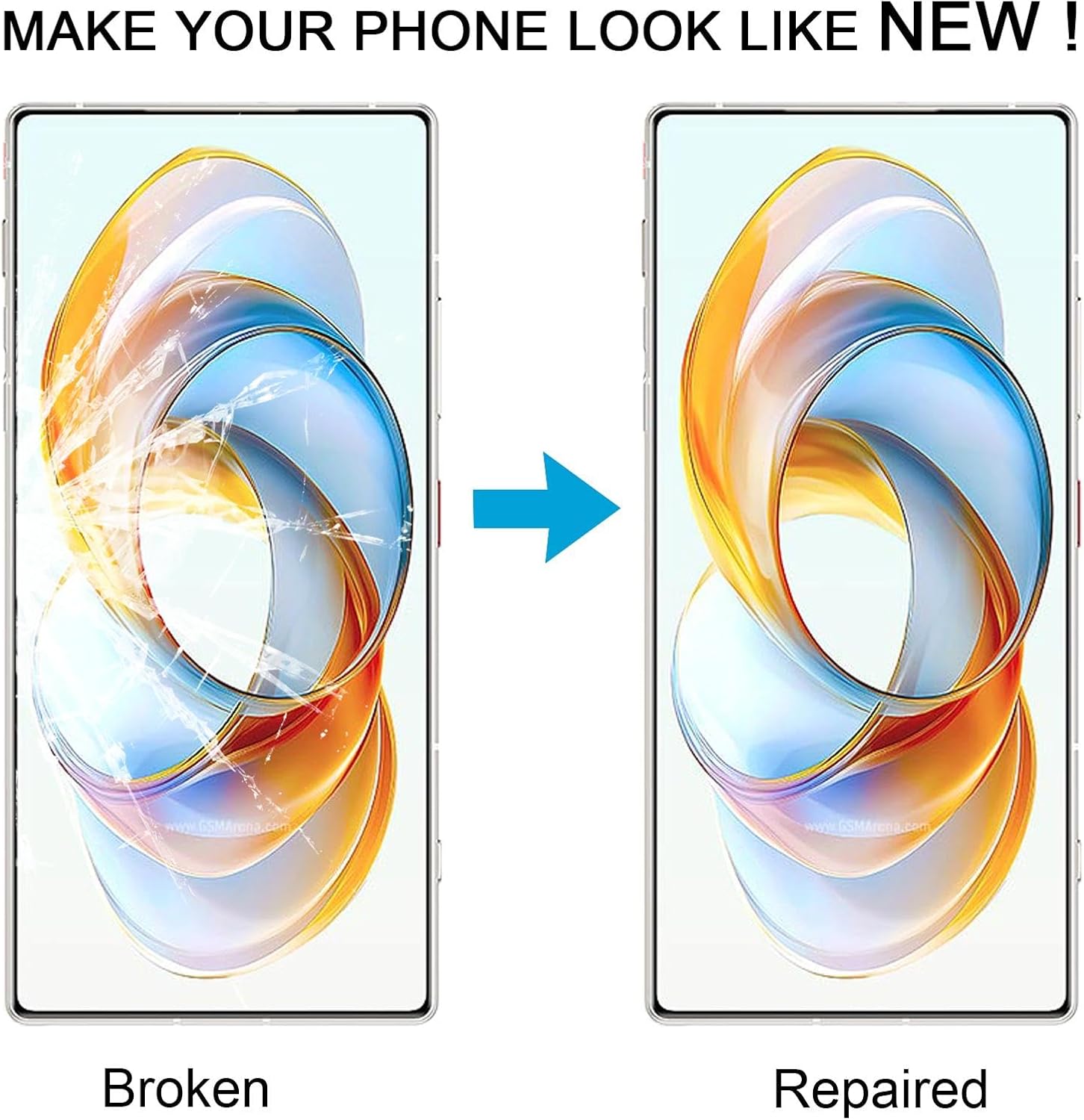
Image 1.2: Visual representation of a phone screen before and after replacement of the outer glass lens, demonstrating the restoration of appearance.
2. Important Safety Precautions
Professional installation is highly recommended for this product. Attempting repair without proper tools and experience may result in damage to your device or personal injury.
- Electrostatic Discharge (ESD): Before attempting any repair, ensure you ground yourself using an ESD strap. This prevents static electricity from damaging sensitive electronic components within the phone.
- Eye Protection: Always wear eye protection to guard against potential glass splinters during the repair process.
- Caution with Glass: Handle the screen components with extreme care. The glass can be sharp and cause cuts.
- Power Off Device: Ensure the mobile phone is completely powered off and disconnected from any power source before beginning the repair.
3. Before Installation Notes
- Test Before Installation: Do not remove any protective film or tags from the new screen component before testing. Simulate the installation by connecting the new screen to the motherboard (LCD or screen connected audio cable) and powering on the device. Verify that the screen displays correctly and touch functionality is responsive. If issues arise during testing, contact support immediately and do not proceed with full installation.
- Cable Handling: Exercise extreme caution with the flexible cables. Do not over-bend the LCD cable. Bending it beyond 90 degrees can cause permanent damage, leading to a black display or other malfunctions.
- Clean Workspace: Ensure your workspace is clean, well-lit, and free of dust and debris to prevent contamination during installation.
4. Setup and Preparation
Gather all necessary tools and prepare your workspace before starting the installation process.
4.1. Required Tools (Not Included)
- Heat gun or hairdryer (for softening adhesive)
- Suction cup
- Plastic opening tools (spudgers)
- Fine-tip tweezers
- Small Phillips head screwdriver
- Anti-static wrist strap
- Clean, lint-free cloths
- Isopropyl alcohol (99%)
4.2. Product Preparation
The replacement part undergoes a thorough quality control process to ensure optimal performance.
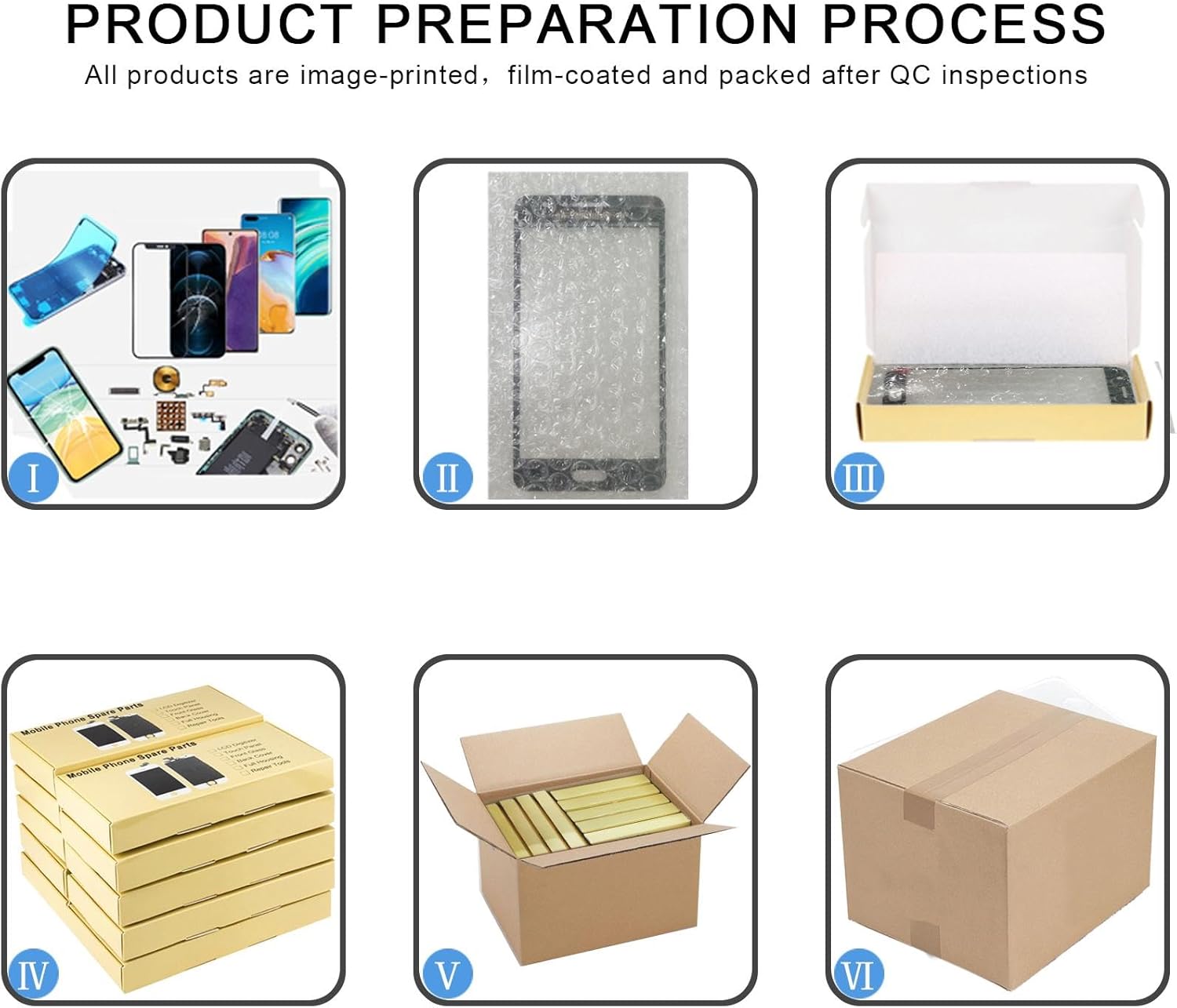
Image 4.1: Overview of the product preparation and quality control process, including packaging and inspection steps.
5. Installation Guide
This section outlines the general steps for replacing the outer glass lens. Specific disassembly and reassembly steps for the ZTE Nubia Red Magic 10 Pro NX789J may vary and require consulting a device-specific repair guide.
- Disassemble Device: Carefully disassemble your phone to access the screen assembly. This typically involves removing the back cover, battery, and various internal components.
- Remove Damaged Screen: Apply heat to the edges of the screen to soften the adhesive. Use a suction cup and plastic opening tools to carefully pry open the screen assembly from the phone frame.
- Separate Outer Glass: Once the screen assembly is removed, carefully separate the damaged outer glass lens from the LCD/digitizer panel. This step requires precision and specialized tools to avoid damaging the underlying display.
- Clean LCD/Digitizer: Thoroughly clean any remaining adhesive or glass fragments from the LCD/digitizer panel using isopropyl alcohol and a lint-free cloth. Ensure the surface is perfectly clean before applying the new OCA.
- Apply New OCA and Glass: Carefully align and apply the new outer glass lens with the pre-applied OCA to the clean LCD/digitizer panel. Ensure no dust or air bubbles are trapped between the layers.
- Test Functionality: Before reassembling the entire phone, perform the pre-installation test again as described in Section 3.1.
- Reassemble Device: If testing is successful, carefully reassemble your phone, ensuring all connectors are properly seated and screws are tightened appropriately.
6. Post-Installation Testing
After completing the installation, perform a comprehensive test of your device's functionality.
- Display Check: Power on the device and check for any dead pixels, discoloration, or uneven backlighting.
- Touch Functionality: Test the touch response across the entire screen. Drag an icon around the screen to ensure there are no dead zones.
- Sensor Check: Verify proximity sensor, ambient light sensor, and other front-facing sensors are working correctly.
- Camera Check: Test the front-facing camera.
7. Maintenance and Care
To ensure the longevity of your new screen, follow these maintenance guidelines:
- Screen Protectors: Consider using a high-quality screen protector to add an extra layer of defense against scratches and minor impacts.
- Cleaning: Clean the screen with a soft, lint-free cloth. For stubborn smudges, lightly dampen the cloth with water or a screen-specific cleaning solution. Avoid harsh chemicals.
- Avoid Impacts: Protect your device from drops and impacts, which can damage the screen.
- Temperature Extremes: Avoid exposing your device to extreme temperatures, as this can affect adhesive integrity and screen performance.
8. Troubleshooting
If you encounter issues after installation, refer to the following common problems and solutions:
- Screen Not Displaying / Black Screen:
- Check all flex cable connections to ensure they are securely seated.
- Verify that the LCD cable has not been over-bent (beyond 90 degrees).
- Ensure the battery is charged.
- Touch Not Responding / Partial Touch:
- Ensure the digitizer flex cable is properly connected.
- Check for any debris or foreign objects between the screen and the frame.
- Perform a hard reset of the device.
- Display Issues (Lines, Discoloration):
- Recheck all display cable connections.
- Ensure no pressure is being applied to the screen from internal components.
- If issues persist, the screen component may be faulty.
For persistent issues, it is recommended to seek assistance from a professional repair technician or contact Lkfyyds customer support.
9. Specifications
| Feature | Detail |
|---|---|
| Brand | Lkfyyds |
| Compatible Model | ZTE Nubia Red Magic 10 Pro NX789J |
| Part Type | Front Screen Outer Glass Lens with OCA |
| Color | Black |
| Item Weight | 0.28 Kilograms |
| Manufacturer | CHENYANENY Cell Phone Spare Parts |
10. Warranty and Support
For information regarding product warranty, returns, or technical support, please refer to the seller's policies or contact Lkfyyds customer service directly. It is recommended to retain your proof of purchase for any warranty claims.
Note: Damage caused by improper installation or misuse is typically not covered under warranty.