
NFGHTRUU NFGHTRUU
User Manual for Artillery-3D Sidewinder X4 Plus LCD Screen Component
Model: Sidewinder X4 Plus LCD Screen Component | Brand: NFGHTRUU
1. Introduction
This manual provides comprehensive instructions for the setup, operation, maintenance, and troubleshooting of your Artillery-3D Sidewinder X4 Plus LCD Screen Component. Please read this manual carefully before using the product to ensure proper function and longevity.
The LCD screen component is designed as a direct replacement or upgrade part for Artillery-3D Sidewinder X4 Plus 3D printers. It serves as the primary user interface, offering easy assembly and seamless integration with your existing setup.
2. Product Overview
The product is an LCD screen and tablet component specifically designed for Artillery-3D Sidewinder X4 Plus 3D printers. It facilitates user interaction with the printer's functions and settings.

LCD screen component with coiled connection cable, showing the port for connection.

LCD screen component with the coiled cable connected, ready for installation.
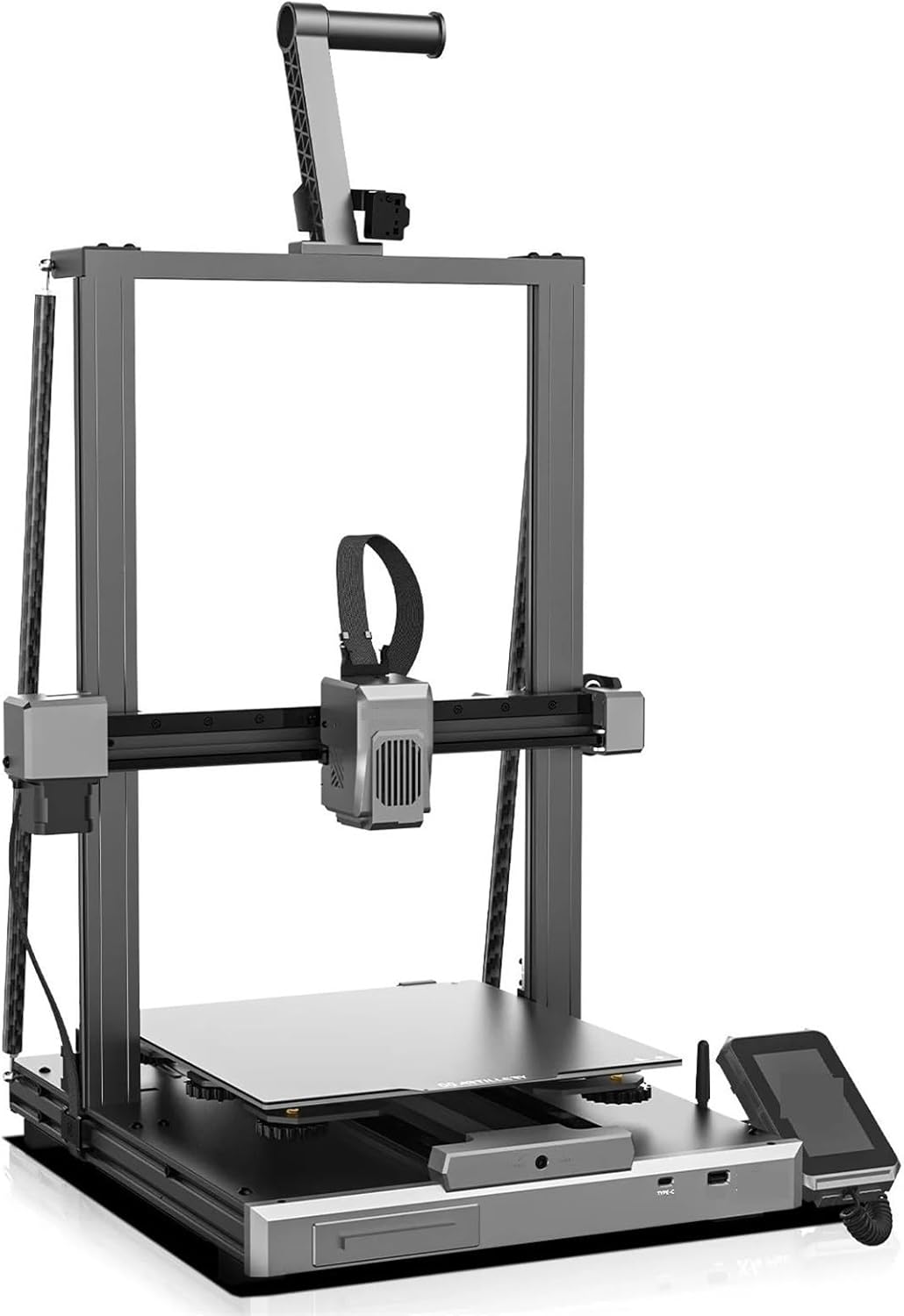
Artillery-3D Sidewinder X4 Plus 3D printer, showing the overall structure.
3. Setup and Installation
Follow these steps to properly set up and install the LCD screen component with your 3D printer.
- Unpacking: Carefully remove all components from the packaging. Verify that all parts are present according to the packing list.
- Identify Connection Port: Locate the dedicated connection port on your Artillery-3D Sidewinder X4 Plus/Printer for the LCD screen. This is typically an RJ-style connector.
- Connect Cable: Insert one end of the provided coiled cable into the port on the LCD screen component. Ensure it clicks securely into place.
- Connect to Printer: Insert the other end of the coiled cable into the corresponding port on your 3D printer.
- Mounting (Optional): If your printer has a designated mounting bracket for the screen, secure the LCD component using the appropriate screws or clips (not included, as this is a component).
- Power On: Once connected, power on your 3D printer. The LCD screen should initialize automatically.
4. Operating Instructions
The LCD screen serves as the primary interface for controlling your 3D printer. Navigation is typically done via a rotary encoder or touch screen, depending on the specific model of the Sidewinder X4 Plus.
- Main Menu: Upon startup, the screen will display the main menu, providing access to various functions such as Print, Prepare, Control, and Settings.
- Navigation: Use the rotary knob (if present) to scroll through menu options and press to select. For touchscreens, simply tap the desired option.
- Printing: To start a print, navigate to the "Print" menu, select your desired G-code file from the SD card or USB drive, and confirm.
- Monitoring: During printing, the screen will display real-time information such as print progress, nozzle temperature, bed temperature, and print time remaining.
- Pausing/Canceling: Most screens allow pausing or canceling a print directly from the interface. Refer to your printer's specific firmware documentation for exact steps.
5. Maintenance
Proper maintenance ensures the longevity and optimal performance of your LCD screen component.
- Cleaning:
- Gently wipe the screen surface with a soft, lint-free cloth.
- For stubborn smudges, slightly dampen the cloth with water or a screen-safe cleaner. Avoid harsh chemicals or abrasive materials.
- Ensure no liquid seeps into the edges of the screen or connection ports.
- Cable Inspection: Periodically check the coiled connection cable for any signs of wear, fraying, or damage. Replace if necessary.
- Firmware Updates: While the screen itself typically doesn't have separate firmware, ensure your 3D printer's firmware is up-to-date, as this can affect screen functionality and features.
6. Troubleshooting
This section addresses common issues you might encounter with the LCD screen component.
| Problem | Possible Cause | Solution |
|---|---|---|
| Screen is blank or not turning on. |
|
|
| Screen displays garbled text or graphics. |
|
|
| Screen is unresponsive (touch or knob). |
|
|
7. Specifications
| Feature | Detail |
|---|---|
| Package Dimensions | 1.18 x 0.79 x 0.39 inches |
| Item Weight | 1.76 ounces |
| ASIN | B0F4PPHYPY |
| Item Model Number | NFGHTRUU |
| Date First Available | April 13, 2025 |
| Manufacturer | NFGHTRUU |
8. Warranty and Support
For warranty information and technical support, please refer to the official documentation provided with your Artillery-3D Sidewinder X4 Plus/Printer, or contact the manufacturer NFGHTRUU directly.
Manufacturer: NFGHTRUU
Model: Sidewinder X4 Plus LCD Screen Component
ASIN: B0F4PPHYPY
Date First Available: April 13, 2025
For further assistance, please visit the manufacturer's website or contact their customer service.
Ask a question about this manual
Ask about setup, troubleshooting, compatibility, parts, safety, or missing instructions. Manuals+ will review the question and use this page’s manual context to help answer it.