
Introduction
Thank you for purchasing the Qpingan Digital Night Vision Monocular DNV2000. This device is designed to enhance your vision in low-light and complete darkness, allowing you to capture high-quality photos and videos. It features a 16x digital zoom, 1080P video recording, 12MP photo capability, and an 850nm infrared illuminator for clear viewing up to 984 feet (300 meters) in total darkness. This manual provides detailed instructions for setup, operation, maintenance, and troubleshooting to ensure optimal performance and longevity of your monocular.
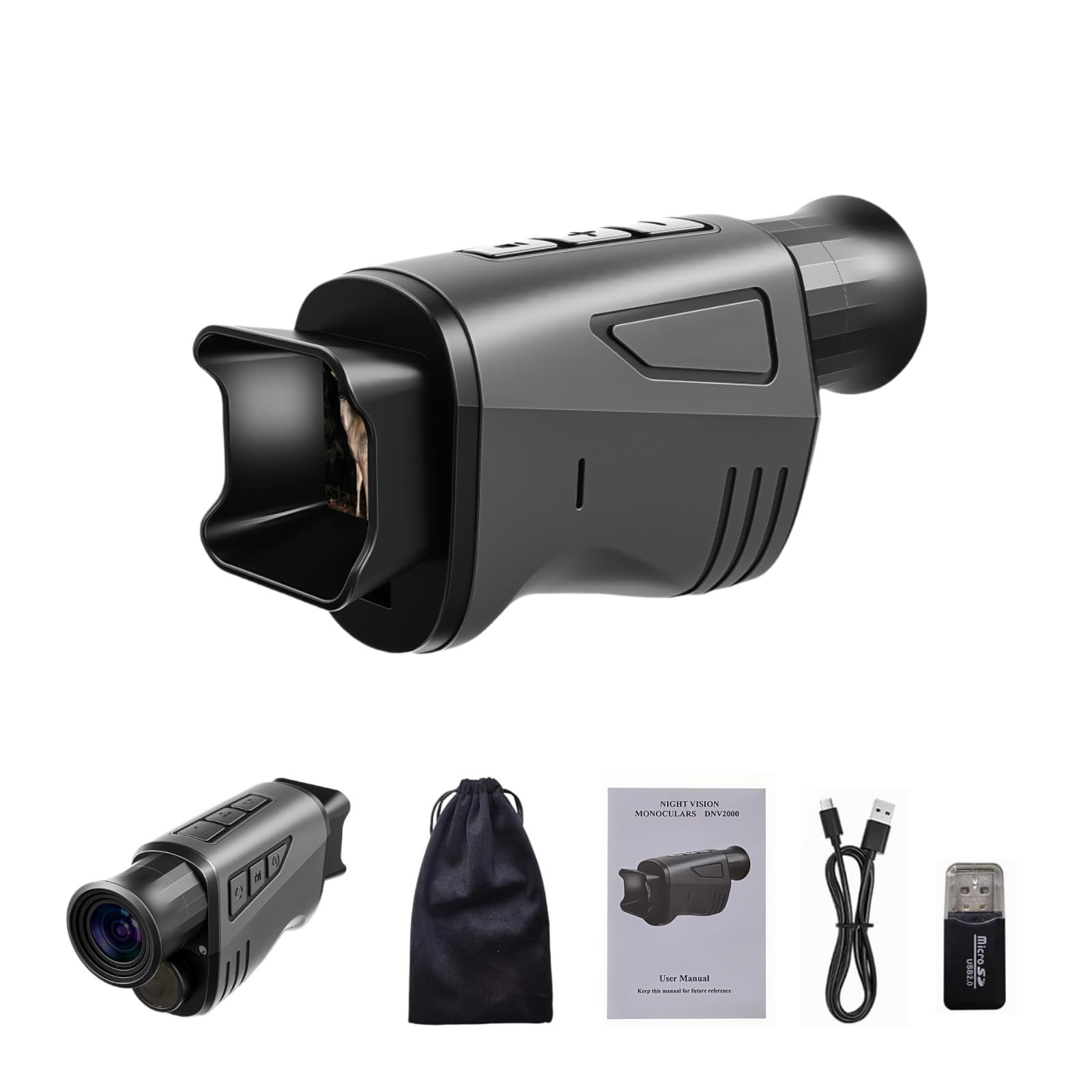
Figure 1: Qpingan Digital Night Vision Monocular DNV2000 overview, highlighting photography, video, 984ft/300m range, HD, 7-level IR, 16x digital zoom, and rechargeable battery.
Safety Information
- Do not look directly at the sun or any bright light source through the monocular, as this can cause permanent eye damage.
- Keep the device away from water and moisture. If it gets wet, turn it off immediately and allow it to dry completely before use.
- Avoid dropping or subjecting the device to strong impacts.
- Store the monocular in a cool, dry place when not in use.
- Use only the specified charging cable and power adapter to prevent damage to the battery and device.
- Keep out of reach of children.
Package Contents
Please check the package contents upon unboxing. If any items are missing or damaged, contact customer support.
- Qpingan Digital Night Vision Monocular DNV2000
- USB-C Charging Cable
- User Manual
- Cleaning Cloth (may vary)
Note: A TF (microSD) memory card is required for storing photos and videos and is not included in the package. A tripod is also not included.
Product Overview
Familiarize yourself with the components and controls of your Qpingan Digital Night Vision Monocular DNV2000.
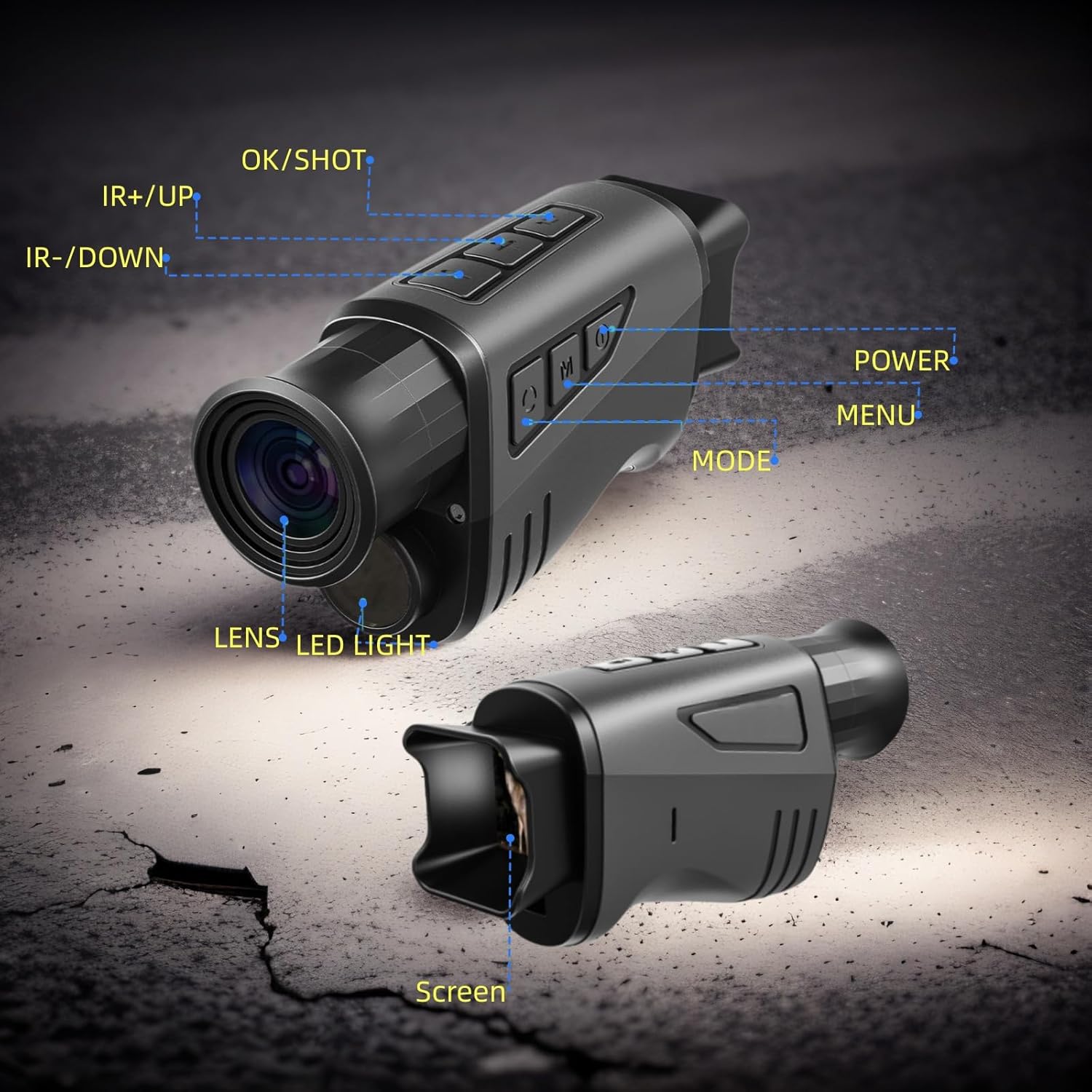
Figure 2: Front and rear view of the monocular with key components labeled: IR+/UP button, IR-/DOWN button, OK/SHOT button, Power button, Menu button, Mode button, Lens, LED Light, and Screen.
- IR+/UP Button: Increases Infrared (IR) intensity level or navigates up in menus.
- IR-/DOWN Button: Decreases Infrared (IR) intensity level or navigates down in menus.
- OK/SHOT Button: Confirms selections in menus or takes a photo/starts/stops video recording.
- Power Button: Turns the device on or off.
- Menu Button: Accesses the device settings menu.
- Mode Button: Switches between photo, video, and playback modes.
- Lens: The objective lens for viewing.
- LED Light: Infrared illuminator for night vision.
- Screen: 1.54-inch display for viewing and playback.
- Focusing Wheel: (Located near the eyepiece) Adjusts focus for clear viewing.
- USB-C Port: For charging and data transfer.
- TF Card Slot: For inserting a microSD memory card.
- Tripod Mount: Standard thread for attaching to a tripod.
Setup
1. Charging the Battery
The monocular is equipped with a rechargeable battery. Before first use, fully charge the device.
- Connect the provided USB-C cable to the monocular's USB-C port and the other end to a standard USB power adapter (not included) or a computer's USB port.
- The charging indicator light will illuminate.
- A full charge typically takes approximately 3 hours.
- Once fully charged, the indicator light may change color or turn off. Disconnect the cable.
A fully charged battery provides approximately 5 hours of operation with the IR function on.
2. Inserting a TF (MicroSD) Card
A memory card is required to save photos and videos. The device supports TF (microSD) cards (not included).
- Locate the TF card slot on the side of the monocular.
- Gently insert the TF card into the slot with the gold contacts facing down until it clicks into place.
- To remove, gently push the card in again until it springs out.
3. Attaching to a Tripod (Optional)
For stable viewing or hands-free operation, the monocular can be mounted on a tripod (not included).
- Locate the tripod mount thread on the bottom of the monocular.
- Screw the monocular onto a standard tripod mount until secure.
Operating Instructions
1. Powering On/Off
- To Power On: Press and hold the Power button for a few seconds until the screen illuminates.
- To Power Off: Press and hold the Power button again until the screen turns off.
2. Adjusting Focus
For a clear image, adjust the manual focusing wheel located near the eyepiece.
- While looking through the eyepiece, rotate the focusing wheel until the image appears sharp and clear.

Figure 3: Adjusting the focusing wheel for clear viewing of objects at various distances.
3. Using Digital Zoom
The monocular features up to 16x digital zoom.
- In viewing mode, press the IR+/UP button to zoom in.
- Press the IR-/DOWN button to zoom out.
4. Activating Infrared (IR) and Day/Night Modes
The 850nm infrared illuminator allows for clear vision in complete darkness. The device automatically switches between color (day) and black & white (night) modes.
- In low-light or dark conditions, the device will automatically activate IR and display a black and white image.
- To manually adjust IR intensity, press the IR+/UP button to increase the IR level (up to 7 levels) or the IR-/DOWN button to decrease it. Higher IR levels provide better visibility in darker conditions but consume more battery.
- In bright light conditions, the device will display a color image with IR off.
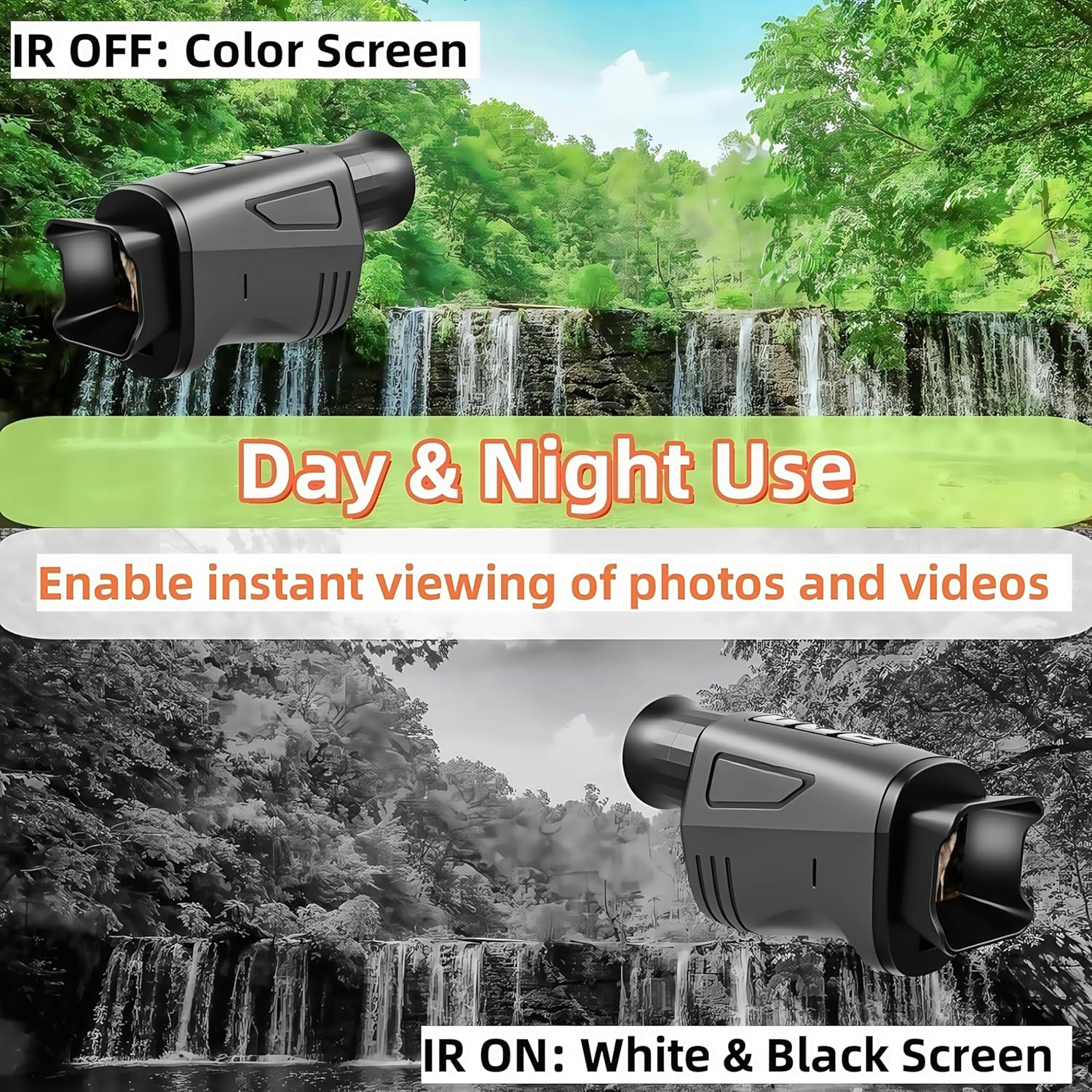
Figure 4: The monocular's ability to switch between color display (IR OFF) for day use and black & white display (IR ON) for night use.

Figure 5: The effective long viewing range of the monocular in complete darkness, reaching up to 984 feet (300 meters).
5. Taking Photos and Recording Videos
Ensure a TF card is inserted before attempting to capture media.
- Switching Modes: Press the Mode button to cycle between Photo mode (camera icon), Video mode (video camera icon), and Playback mode (play icon).
- Taking a Photo: In Photo mode, press the OK/SHOT button once to take a 12MP photo.
- Recording a Video: In Video mode, press the OK/SHOT button once to start recording 1080P video. Press it again to stop recording. Videos are recorded silently (no sound).
6. Reviewing and Transferring Files
- On Device Playback: In Playback mode, use the IR+/UP and IR-/DOWN buttons to navigate through your captured photos and videos. Press OK/SHOT to view a photo or play a video.
- Transferring Files via USB: Connect the monocular to a computer using the USB-C cable. The device should appear as a removable disk. You can then copy files to your computer.
- Transferring Files via TF Card: Remove the TF card from the monocular and insert it into a compatible card reader connected to your computer.
7. Menu Settings
Press the Menu button to access settings such as resolution, date/time, language, and formatting the TF card. Use the IR+/UP and IR-/DOWN buttons to navigate and OK/SHOT to select.
Maintenance
1. Cleaning the Device
- Use a soft, lint-free cloth to clean the exterior of the monocular.
- For the lens, use a specialized lens cleaning cloth and lens cleaning solution. Gently wipe in a circular motion. Do not use abrasive materials or harsh chemicals.
- Ensure no dust or debris enters the lens or eyepiece.
2. Battery Care
- Charge the battery regularly, even if the device is not used frequently, to maintain battery health.
- Avoid fully discharging the battery for extended periods.
- Do not expose the device to extreme temperatures, as this can affect battery performance and lifespan.
3. Storage
- Store the monocular in its original packaging or a protective case to prevent dust and damage.
- Keep it in a cool, dry environment, away from direct sunlight and humidity.
Troubleshooting
| Problem | Possible Cause | Solution |
|---|---|---|
| Device does not power on. | Battery is depleted. | Charge the battery fully using the provided USB-C cable. |
| Image is blurry. | Focus is not adjusted correctly. | Rotate the focusing wheel until the image is clear. |
| Cannot save photos/videos. | No TF card inserted or card is full/corrupted. | Insert a TF card. Check if the card is full and delete unnecessary files, or format the card (this will erase all data). Try a different TF card. |
| IR illuminator not working. | IR level is set to 0 or device is in bright conditions. | Ensure you are in low-light conditions. Press the IR+/UP button to increase IR intensity. |
| Screen is black and white during the day. | IR is active or device is in night mode. | Ensure sufficient ambient light. The device should automatically switch to color mode when IR is off. If not, check menu settings. |
Specifications
| Feature | Detail |
|---|---|
| Brand | Qpingan |
| Model Name | Monocular night vision (DNV2000) |
| Resolution (Photo) | 12MP |
| Resolution (Video) | 1080P |
| Digital Zoom | 16x |
| Infrared Illuminator | 850nm IR, 7 levels |
| Viewing Distance (Dark) | Up to 984ft (300m) |
| Display Screen | 1.54 inches |
| Battery Type | Rechargeable (approx. 3000mAh) |
| Battery Life (IR On) | Approx. 5 hours |
| Charging Port | USB-C |
| Charging Time | Approx. 3 hours |
| Storage | TF (microSD) card slot (card not included) |
| Objective Lens Diameter | 28 Millimeters |
| Focus Type | Manual Focus |
| Lens Coating | Multi-Coated |
| Product Dimensions | 14.99 x 3.81 x 6.86 cm (5.9 x 1.5 x 2.7 inches) |
Warranty and Support
For warranty information and customer support, please refer to the documentation provided with your purchase or contact the retailer. Keep your proof of purchase for any warranty claims.