
SHANLING UA6-US
SHANLING UA6 Portable USB DAC/AMP
User Manual
Model: UA6-US
1. Introduction
The SHANLING UA6 is a high-performance portable USB Digital-to-Analog Converter (DAC) and Headphone Amplifier designed to elevate your audio experience across a wide range of devices. Featuring a Quad DAC architecture with four Cirrus Logic CS43131 chips, it delivers exceptional sound quality with support for high-resolution audio up to 768kHz/32bit and native DSD512.
Equipped with a 1.3-inch color LCD display and mechanical button controls, the UA6 offers intuitive operation and customizable settings. Its Hybrid Power System 2.0, powered by an independent 220 mAh battery, ensures stable performance and reduces power consumption from connected devices. The UA6 supports both 3.5mm unbalanced and 4.4mm balanced outputs, along with a 3.5mm SPDIF digital output, providing versatile connectivity options for various headphones and audio systems.
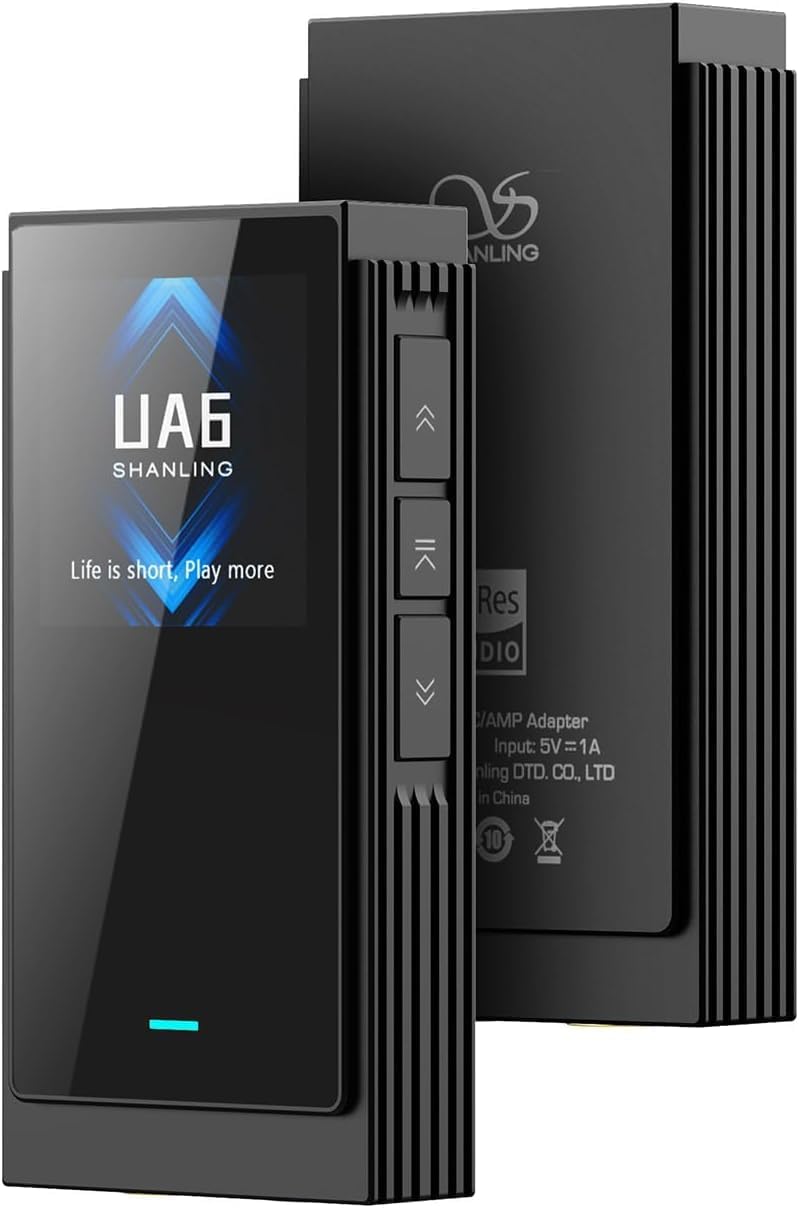
Figure 1.1: SHANLING UA6 device, showcasing its sleek design and side-mounted control buttons.
2. What's in the Box
Please check the contents of your SHANLING UA6 package. If any items are missing or damaged, please contact your retailer or SHANLING customer support.
- 1 x SHANLING UA6 DAC/AMP Unit
- 1 x USB-C to USB-C Data Cable
- 1 x USB-C to USB-A Adapter
- 1 x User Manual (this document)
- 1 x Warranty Card
- 1 x Product Catalog

Figure 2.1: Overview of the SHANLING UA6 package contents.
3. Product Overview
3.1. Design and Display
The UA6 features a lightweight and durable housing with a modern, dynamic design. The front of the device is equipped with a 1.3-inch color LCD display, providing clear information on settings such as sample rate, volume, gain, and DAC mode. The user interface is customizable, allowing adjustments to display design, font style, and font color.

Figure 3.1: The UA6's 1.3-inch color display and customizable user interface.
3.2. Controls and Ports
Mechanical button switches are located on the side of the UA6 for easy access to volume adjustment and various settings. The device includes both 3.5mm unbalanced and 4.4mm balanced headphone outputs, as well as a 3.5mm SPDIF digital output for connecting to external DACs or audio systems.

Figure 3.2: Control layout and functions of the SHANLING UA6.
Main Interface Controls:
- Display On/Off: Double Press Middle Button
- Adjust Volume: Press Top/Bottom Buttons
- Enter Settings: Press Middle Button for 2 seconds
- Factory Reset: Press Middle Button for 10 seconds
Settings Menu Controls:
- Switch Item: Press Middle Button
- Adjust Item: Press Top/Bottom Buttons
- Exit Settings: Press Middle Button for 2 seconds
4. Setup and Connection
4.1. Connecting to Devices
The SHANLING UA6 is compatible with a wide range of operating systems, including Android, iOS, Mac, and Windows. Use the provided USB-C to USB-C data cable or USB-C to USB-A adapter to connect the UA6 to your source device.

Figure 4.1: The UA6 connected to a smartphone, demonstrating its broad compatibility.
For Windows machines, it may be necessary to install specific drivers for optimal performance. Please refer to the SHANLING official website for the latest driver downloads. For iOS devices, a separate Lightning to USB-C cable (such as the Shanling L3) is required and sold separately.

Figure 4.2: The UA6 connected to a tablet, ready for use.
4.2. Gaming DAC Mode (UAC1.0)
The UA6 supports UAC1.0 mode, making it compatible with gaming consoles like PS4, PS5, and Nintendo Switch. To activate UAC1.0 mode, press and hold the center button of the mechanical key while connecting the UA6 to your game console. The display will indicate "UAC 1.0" when successfully activated, turning the UA6 into an external DAC for your console.

Figure 4.3: UA6 in UAC1.0 mode, connected to a Nintendo Switch for enhanced gaming audio.
5. Operation
5.1. Basic Audio Playback
Once connected to your device, the UA6 will automatically detect the audio source. Play audio from your connected device, and the UA6 will process and output the sound through your connected headphones. Use the side buttons to adjust the volume.
5.2. Display Information and Settings
The 1.3-inch color LCD display provides real-time information about the current playback, including sample rate (e.g., PCM 44.1 kHz), volume level, and gain setting. You can access the settings menu by pressing and holding the middle button for 2 seconds to customize various parameters.

Figure 5.1: LED status indicator colors and their corresponding audio formats/sample rates.
The LED light status indicator provides quick visual feedback on the current audio format and sample rate:
- Blue: 32 / 44.1 / 48kHz
- Green: 64 / 88.2 / 96kHz
- Yellow: 128 / 176.4 / 192kHz
- Purple: 352.8 / 384 / 705.6 / 768kHz
- White: DSD64 / DSD128 / DSD256 / DSD512
- Red: 44.1 / 48kHz (UAC 1.0)
5.3. Hybrid Power System 2.0
The UA6 incorporates a Hybrid Power System 2.0 with an independent 220 mAh internal battery. This system acts as a buffer, reducing power consumption from the connected device and ensuring stable operation by minimizing power fluctuations. This design contributes to the UA6's clean and stable sound performance.

Figure 5.2: Explanation of the UA6's intelligent battery management.
5.4. Eddict Player Android Companion App
For enhanced control and settings customization, download the Eddict Player app on your Android device. This app allows you to manage various UA6 settings. Please note that due to limitations imposed by Apple, this feature is not available for iOS devices.

Figure 5.3: Eddict Player Android app for UA6 control.
6. Maintenance
6.1. Cleaning
To maintain the appearance and functionality of your UA6, regularly wipe the device with a soft, dry, lint-free cloth. Avoid using abrasive cleaners, solvents, or strong chemicals, as these can damage the finish or internal components.
6.2. Storage
When not in use, store the UA6 in a cool, dry place away from direct sunlight, extreme temperatures, and high humidity. Protect the device from dust and physical impact.
7. Troubleshooting
If you encounter any issues with your SHANLING UA6, please refer to the following common problems and solutions:
7.1. No Sound Output
- Check Connections: Ensure that the UA6 is securely connected to your source device and that your headphones are fully plugged into the correct output port (3.5mm or 4.4mm).
- Volume Level: Verify that the volume on both the UA6 and your source device is not set to minimum or muted.
- Source Device Output: Confirm that your source device is configured to output audio through the USB port to the UA6.
- Drivers (Windows): For Windows PCs, ensure that the necessary drivers are installed.
- Power: Although the UA6 has an internal battery, ensure it has sufficient charge or is connected to a powered USB port.
7.2. Intermittent Audio or Distortion
- Cable Integrity: Inspect the USB cable for any damage. Try using a different USB cable if available.
- Source File Quality: Ensure the audio file or streaming quality is not the cause of distortion.
- Gain Setting: If distortion occurs at high volumes, try lowering the gain setting on the UA6.
- Background Noise: The UA6 is designed for ultra-low noise. If you experience unusual background noise, ensure there are no strong electromagnetic interferences nearby.
7.3. Device Not Recognized by Computer/Phone
- Restart Devices: Disconnect the UA6, restart both the UA6 and your source device, then reconnect.
- USB Port: Try connecting to a different USB port on your computer.
- UAC1.0 Mode: If connecting to a gaming console, ensure UAC1.0 mode is correctly activated.
If the problem persists after trying these solutions, please contact SHANLING customer support for further assistance.
8. Specifications

Figure 8.1: Comprehensive technical specifications of the SHANLING UA6.
| Feature | Description |
|---|---|
| Weight | 35g (1.23 ounces) |
| Dimensions | 68 x 33.5 x 13.6 mm |
| Hi-Res Support | Up to 768kHz/32bit, DSD512 Native |
| DAC Chip | 4 x Cirrus Logic CS43131 |
| Digital Filters | 5 Options |
| Battery Capacity | 220mAh (Nonstandard Battery, included) |
| Headphones Jack | 3.5mm, 4.4mm |
| Digital Output | 3.5mm SPDIF Coaxial |
| Connectivity Technology | AUX, USB (USB Type-C) |
| Compatible Devices | Android/iOS/Mac/Windows, PS4, PS5, Nintendo Switch |
| Material | Metal |
| Control Type | Digital (Mechanical Buttons) |
| Model Name | UA6-US |
8.1. Output Power & Audio Performance
| Parameter | 3.5mm Single-Ended Output | 4.4mm Balanced Output |
|---|---|---|
| Output Power (Low Gain) | 1V @ 32Ω (31mW @ 32Ω) | 1.8V @ 32Ω (101mW @ 32Ω) |
| Output Power (High Gain) | 1.9V @ 32Ω (112mW @ 32Ω) | 3.4V @ 32Ω (361mW @ 32Ω) |
| Frequency Response | 20Hz - 40kHz (-0.5dB) | 20Hz - 40kHz (-0.5dB) |
| THD+N (A-Weight) | 0.00025% @ 32Ω (1.8V High Gain) | 0.00006% @ 32Ω (2V High Gain) |
| Dynamic Range (A-Weight) | 128dB @ 32Ω (High Gain) | 133dB @ 32Ω (High Gain) |
| Channel Separation (A-Weight) | 68dB @ 32Ω (High Gain) | 129dB @ 32Ω (High Gain) |
| Signal-to-Noise Ratio (A-Weight) | 127dB @ 32Ω (High Gain) | 132dB @ 32Ω (High Gain) |
| Noise (A-Weight) | 122dB @ 32Ω | 121dB @ 32Ω |
| Output Impedance | 0.6Ω | 1.2Ω |
9. Warranty and Support
9.1. Warranty Information
The SHANLING UA6 comes with a manufacturer's warranty. Please refer to the included Warranty Card in your product package for detailed information regarding warranty terms, conditions, and duration. Keep your proof of purchase for warranty claims.
9.2. Customer Support
For technical assistance, troubleshooting beyond this manual, or warranty inquiries, please contact SHANLING Official customer support. You can find contact information on the SHANLING official website or through the retailer where you purchased the product.
SHANLING Official Seller: A2VJ0Z3L2E4038
Ask a question about this manual
Ask about setup, troubleshooting, compatibility, parts, safety, or missing instructions. Manuals+ will review the question and use this page’s manual context to help answer it.