
Product Overview
The LINGQE USB to RS232 Serial Update Cable is designed to facilitate firmware updates and refresh operations for various GTMedia V7 and V8 Super Satellite Receiver models. This cable provides a reliable connection between your computer and the satellite receiver, enabling you to restore functionality or upgrade software, especially when the device fails to boot up.
Key Features:
- Enables firmware flash, refresh, and update for GTMedia V7/V8 series.
- Compatible with models such as V7S, V7Plus, V8Nova, V8Honor, V8Pro2, iFire, V7Pro, V7TT, V8X, and V8TURBO.
- Features a USB 2.0 Type A Male connector and a 3.5mm plug.
- Integrated PL2303GT chipset for stable serial communication.

Image 1: The LINGQE USB to RS232 Serial Update Cable in black, showing both the USB-A connector and the 3.5mm jack.
Package Contents
Please verify that all items are present in your package:
- 1 x LINGQE USB to RS232 Serial Update Cable (1.0m, Black, or other specified length/color variant)
Setup Instructions
1. Driver Installation
When the cable is connected to a PC, the necessary drivers typically install automatically. If automatic installation does not occur, manual driver installation is required.
- Download the appropriate driver from the official Prolific website: PL23XX_Pro-lific_DriverInstaller_v408.zip.
- Run the downloaded installer and follow the on-screen prompts to complete the driver installation.
- After successful installation, open your computer's Device Manager. Locate the "Ports (COM & LPT)" section to identify the newly created virtual COM port. Note down the assigned COM Port Number (e.g., COM3, COM4). This number will be required for the update software.
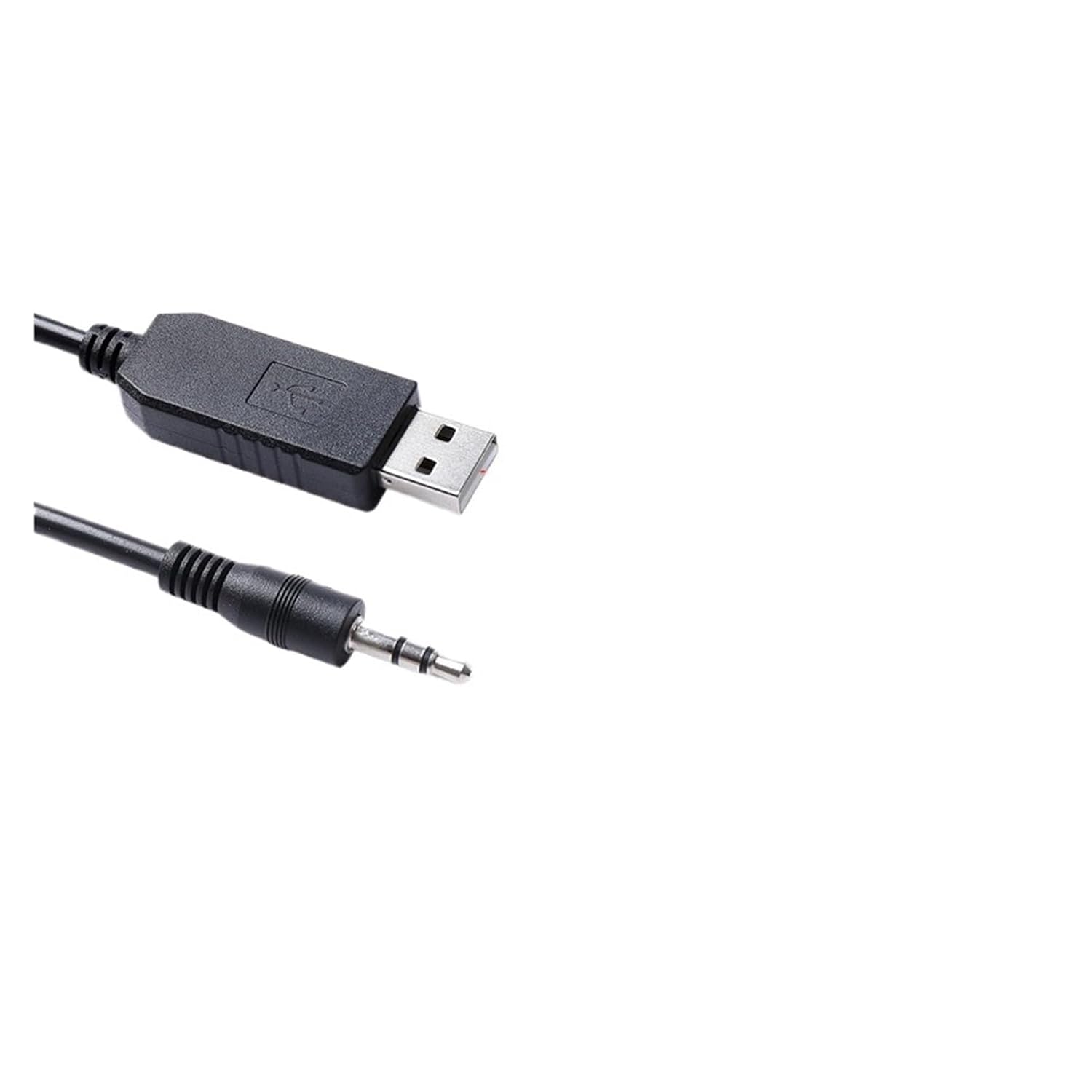
Image 2: A detailed view of the USB-A and 3.5mm jack connectors on the black cable, highlighting the chipset housing on the USB end.
Operating Instructions
This cable supports two primary methods for updating your GTMedia satellite receiver: direct firmware burning via USB and TFTP update via network.
Method 1: Firmware Burning (USB)
This method is typically used when the satellite receiver is unable to boot normally.
- Prepare Firmware: Download the specific firmware file for your GTMedia receiver model. Ensure the file is named flash.bin and place it in the root directory of a USB flash drive.
- Connect USB Drive: Insert the prepared USB flash drive into the USB port of your GTMedia satellite receiver.
- Connect Serial Cable: Connect the 3.5mm plug of the LINGQE cable to the serial port (often labeled RS232 or Service) on your GTMedia receiver. Connect the USB-A end of the cable to your computer.
- Launch Update Software: Open the appropriate update software on your computer (e.g., a specific loader tool provided by GTMedia or a generic RS232 update utility).
- Configure Software: In the update software, select the correct COM Port Number identified during driver installation. Choose the appropriate platform or device model.
- Initiate Update: Click "OK" or the equivalent button to start the update process. The software will prompt you to restart the satellite receiver.
- Restart Receiver: Power cycle your GTMedia receiver (turn it off and then on again). The update process should begin automatically.
Important: Do not disconnect the cable or power off the receiver during the firmware update process to prevent damage.
Method 2: TFTP Update (Network)
This method requires the satellite receiver to be connected to a network.
- Network Connection: Ensure your GTMedia receiver is connected to your local area network (LAN) via an Ethernet cable. Your computer should also be on the same local network.
- Prepare Firmware: Select the firmware file to be updated within the TFTP server software or update utility on your computer.
- Connect Serial Cable: Connect the 3.5mm plug of the LINGQE cable to the serial port on your GTMedia receiver. Connect the USB-A end of the cable to your computer.
- Launch Update Software: Open the TFTP update software on your computer.
- Configure Software: In the update software, select the correct COM Port Number. Choose the appropriate platform or device model.
- Initiate Update: Click "OK" or the equivalent button to start the update process. The software will prompt you to restart the satellite receiver.
- Restart Receiver: Power cycle your GTMedia receiver. The TFTP update process should commence.
Important: Maintain stable network and power connections throughout the TFTP update.

Image 3: A full-length view of the black LINGQE USB to RS232 Serial Update Cable, illustrating its overall design and length.
Maintenance
Proper care and maintenance will extend the lifespan of your LINGQE USB to RS232 Serial Update Cable.
- Storage: Store the cable in a cool, dry place away from direct sunlight and extreme temperatures. Avoid tightly coiling the cable to prevent internal wire damage.
- Cleaning: Use a soft, dry cloth to gently wipe the cable and connectors. Do not use liquid cleaners or solvents, as these can damage the insulation or electronic components.
- Handling: Always grasp the connector ends when plugging or unplugging the cable. Avoid pulling on the cable itself, which can strain the connections and lead to breakage.
- Inspection: Periodically inspect the cable for any signs of wear, fraying, or damage to the connectors. Discontinue use if any damage is observed.
Troubleshooting
If you encounter issues while using the LINGQE USB to RS232 Serial Update Cable, refer to the following troubleshooting steps:
| Problem | Possible Cause | Solution |
|---|---|---|
| Cable not recognized by PC. | Missing or incorrect drivers. | Install the PL2303GT driver from the provided link. Verify installation in Device Manager. |
| No COM port appears in Device Manager. | Driver installation failed or cable is faulty. | Reinstall drivers. Try a different USB port on your PC. Test the cable on another computer if possible. |
| Update software cannot detect the receiver. | Incorrect COM port selected, receiver not in update mode, or incorrect cable connection. | Ensure the correct COM port is selected in the software. Verify the 3.5mm plug is fully inserted into the receiver's serial port. Ensure the receiver is powered off before initiating the update and then power cycled as instructed. |
| Firmware update fails or freezes. | Corrupted firmware file, unstable connection, or power interruption. | Download the firmware again from a reliable source. Ensure stable power to both PC and receiver. Do not disturb the cable during the update. Try a different USB port on your PC. |
Specifications
Detailed technical specifications for the LINGQE USB to RS232 Serial Update Cable:
- Model Number: 000013 (BE-2303GT-232-353P)
- Type: Serial Cable
- Connector A: USB 2.0 Type A Male
- Connector B: 3.5mm plug (RS232 level)
- Chipset: PL2303GT
- Cable Length: Available in 1.0M, 1.8M, 300cm (3.0M)
- Color: Black / Gray
- Compatibility: GTMedia V7S, V7Plus, V8Nova, V8Honor, V8Pro2, iFire, V7Pro, V7TT, V8X, V8TURBO satellite receivers.
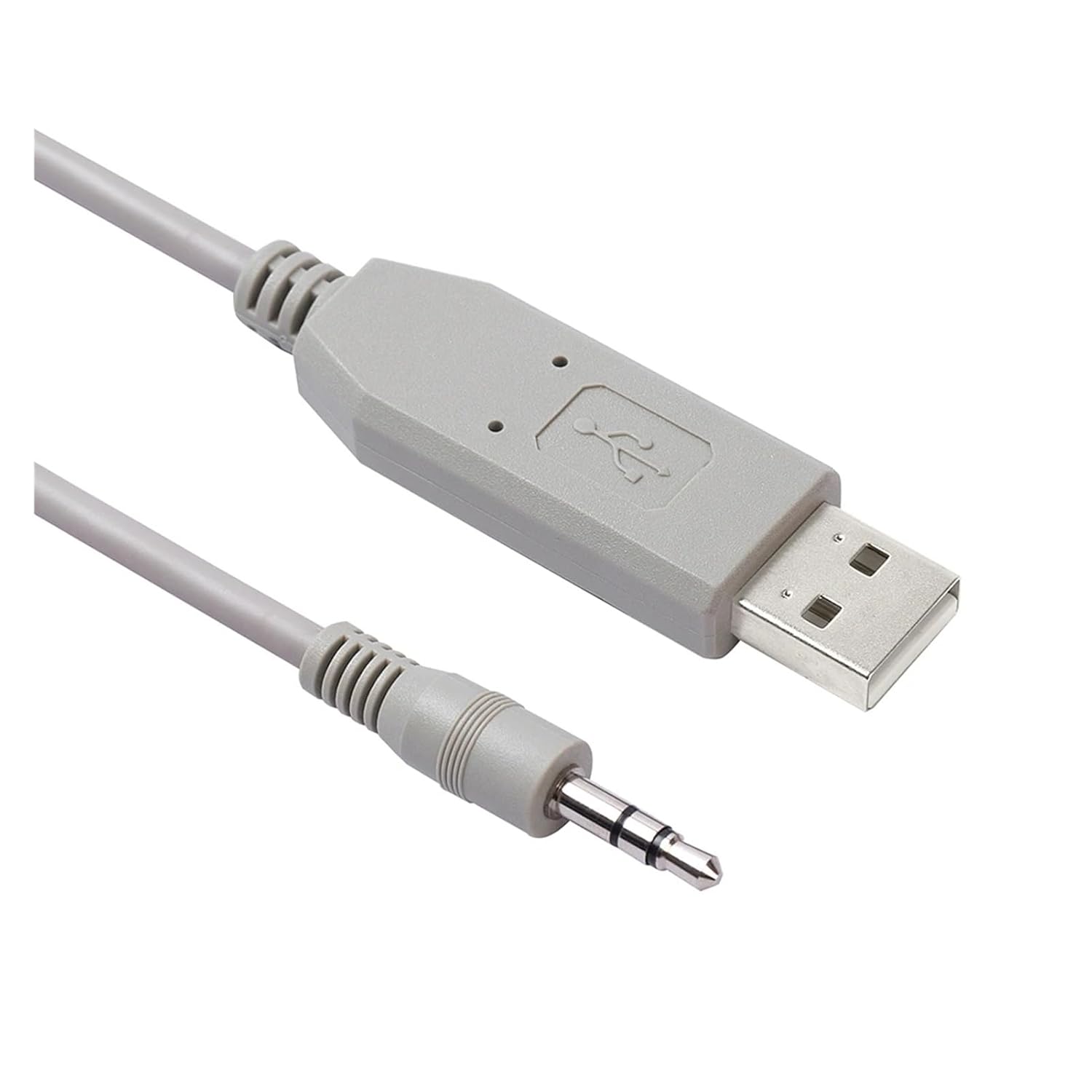
Image 4: A detailed view of the USB-A and 3.5mm jack connectors on the gray cable variant.
Warranty and Support
Specific warranty information for this product is not provided in the available documentation. For support inquiries, technical assistance, or warranty claims, please contact the retailer or manufacturer directly. Refer to your purchase documentation for contact details.
Manufacturer: ZMDELE
Brand: LINGQE