
1. Product Overview
This manual provides detailed instructions for the moseiny 10 Inch Touch Screen Car Stereo, designed for Ford F150 and F250 Super Duty models from 2004 to 2014. This Android 14 head unit features wireless Carplay and Android Auto, Bluetooth connectivity, FM radio, and supports a backup camera. It is equipped with a 4-core CPU and a 2.5D tempered glass protected HD capacitive touch screen.
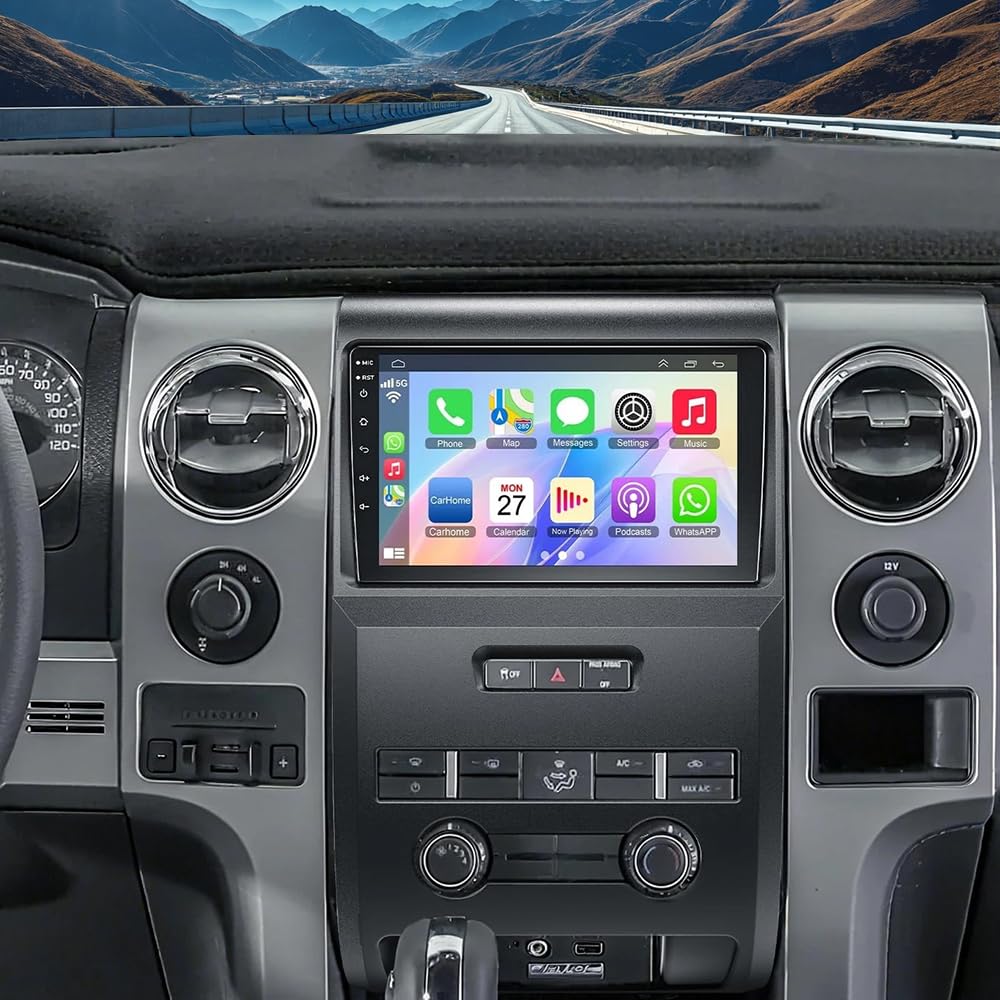
Image: Front view of the moseiny 10 Inch Touch Screen Car Stereo.
2. What's in the Box
The package includes the following components:
- 1 x Car MP5 Player (Main Head Unit)
- 1 x Power Cable
- 1 x GPS Antenna
- 1 x AHD Backup Camera
- 1 x RCA Input and Output Cable
- 1 x External Microphone
- 2 x USB Cables
- 1 x Instruction Manual
- 1 x Protocol Box (if applicable)
- 1 x Radio Adapter Cable (if applicable)

Image: All components included in the moseiny car stereo package.
3. Compatibility
This car stereo is compatible with Ford F150 and F250 Super Duty models manufactured between 2004 and 2014. Please verify your vehicle's dashboard configuration matches the compatible designs shown below before installation.

Image: Visual guide indicating compatible and incompatible dashboard types for Ford F150 models from 2009-2014 (STX, XLT, XL fit; Lariat, FX4, Platinum, SVT RAPTOR do not fit).
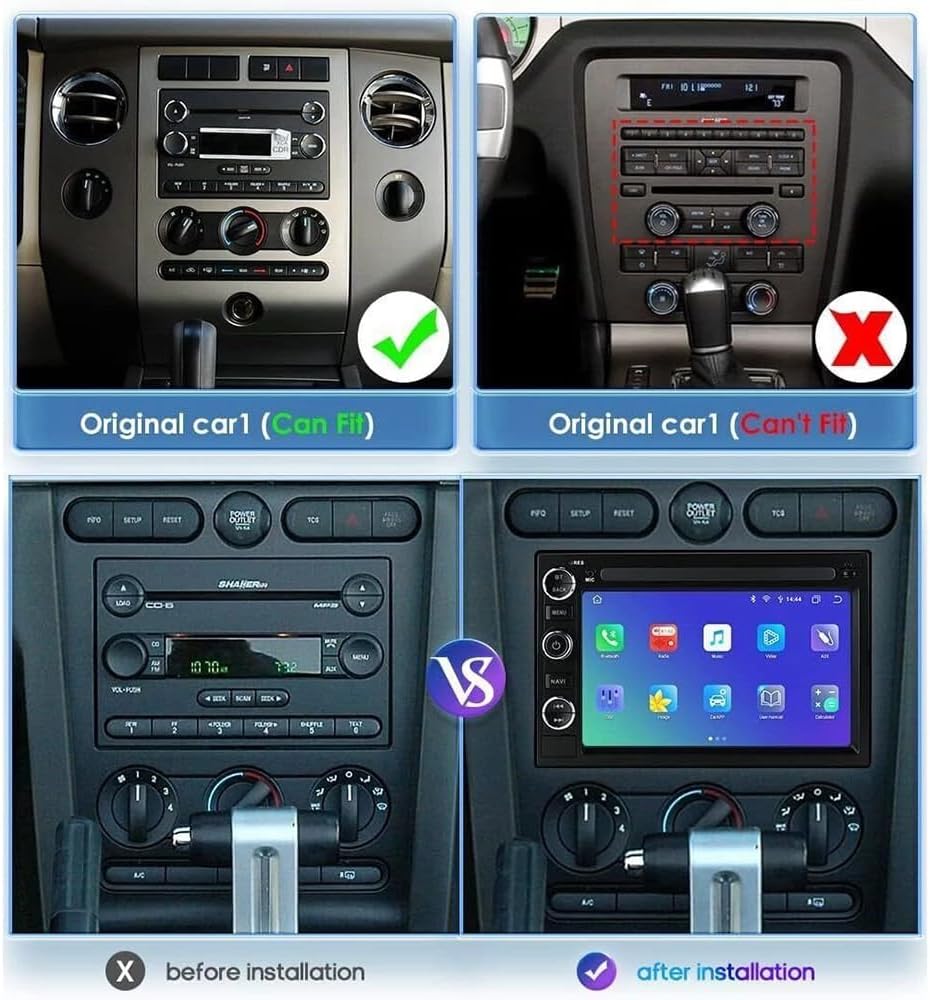
Image: Comparison of a car's original dashboard (left) and the dashboard after installation of the moseiny car stereo (right).
4. Setup & Installation
Important Note: This unit is NOT plug and play. Wiring modifications are required for installation. Professional installation is recommended.
Refer to the included wiring diagram and consult a qualified technician if you are unsure about any steps. Ensure all connections are secure to prevent damage to the unit or vehicle electrical system.

Image: The moseiny 10-inch car stereo seamlessly integrated into a Ford F150 dashboard.
5. Operating Instructions
5.1. Wireless Carplay & Android Auto & Mirrorlink
The head unit supports wireless CarPlay for iOS devices and Android Auto for Android devices, offering both Bluetooth and USB connectivity. This allows for hands-free operation of navigation, music, calls, and messages via voice commands.

Image: Visual representation of wireless Apple CarPlay and Android Auto connections via Bluetooth and USB, along with Mirror Link functionality.
Mirrorlink allows your phone screen to be displayed on the car stereo. For Android, it supports two-way control (phone can display machine interface, machine can display phone interface). For iOS, it supports one-way connection (phone can cast screen to the machine).

Image: The Mirror Link feature displaying a navigation map on the car stereo screen, with a smartphone mirroring the display.
5.2. Bluetooth Connection
To connect your smartphone via Bluetooth:
- On the car stereo, navigate to the Bluetooth settings.
- On your smartphone, enable Bluetooth and search for available devices.
- Select "CarBT" from the list of devices on your phone.
- Enter the PIN "0000" (default) if prompted.
- Once connected, "Phone audio, music audio" will be displayed on the car stereo, indicating a successful connection. If not, restart the Bluetooth on both devices.
Video: Demonstrates how to connect your smartphone to the car stereo via Bluetooth for phone and music audio. This video also covers ZLINK and manual WiFi connection steps.
5.3. ZLINK Connection (for Wireless Carplay/Android Auto)
After successful Bluetooth connection, open the ZLINK application on the car stereo. The system will attempt to connect to your smartphone for wireless CarPlay or Android Auto functionality.
If the connection is not successful, proceed to manual WiFi connection as described in the next section.
5.4. Manual WiFi Connection (if ZLINK fails)
If ZLINK does not connect automatically, you may need to manually connect the car stereo to your phone's WiFi hotspot:
- On the car stereo, go to Settings > Android Settings > Network & Internet > Hotspot & tethering > Wi-Fi hotspot.
- Enable the Wi-Fi hotspot on the car stereo. Note the Network name (e.g., AndroidAP_B442) and Password.
- On your smartphone, enable Wi-Fi and search for the car stereo's hotspot network.
- Connect to the car stereo's hotspot using the noted password.
- Once connected, the device name (e.g., iPhone-3-mobile) will be displayed under "Connected users" on the car stereo's hotspot settings, indicating a successful WiFi connection.
- After manually connecting to the vehicle's WiFi, delete any history records in the ZLINK app on the car stereo, then click ZLINK again to establish the connection.
5.5. Steering Wheel Control (SWC)
The car stereo supports steering wheel controls, allowing for convenient operation of audio functions without taking your hands off the wheel. Refer to the wiring diagram for proper connection of SWC wires.
5.6. GPS Navigation & WiFi Connectivity
The unit features a built-in GPS for navigation. With WiFi connectivity, you can download maps, stream music, and access online content. The Android 14 system ensures smooth performance.

Image: The 10-inch Android car stereo displaying a navigation map and media playback interface.
5.7. Backup Camera
The included AHD backup camera provides clear reversing images, assisting with parking, especially at night. Ensure the camera is properly installed and connected to the designated input on the head unit.
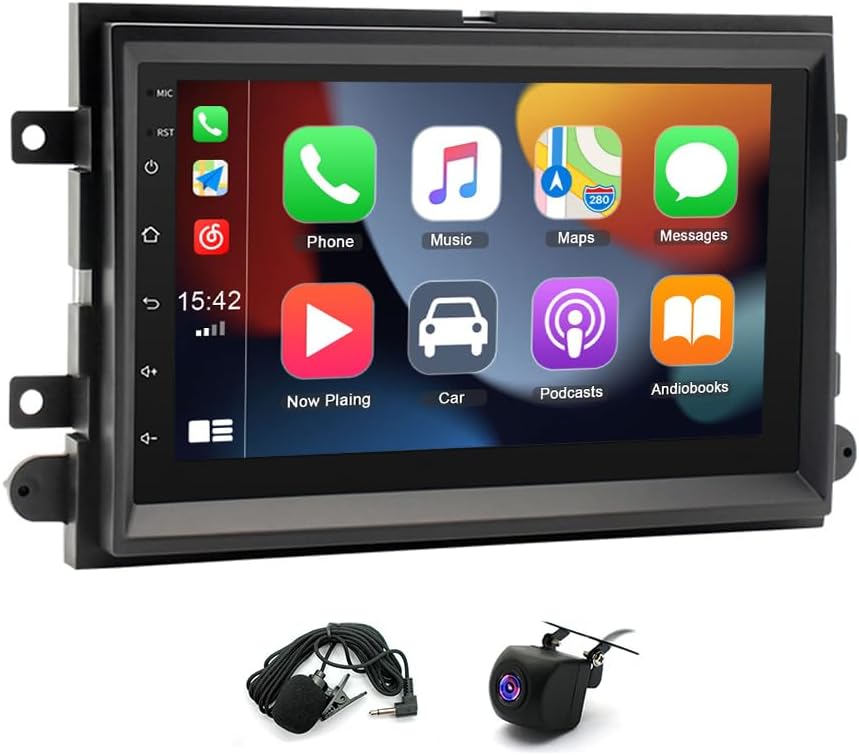
Image: The moseiny car stereo shown with its external microphone and backup camera accessories.
5.8. Dual Screen Display
The unit supports dual screen display, allowing different functions to be operated simultaneously. For example, you can view navigation on one part of the screen while playing video or music on another.

Image: The car stereo screen demonstrating dual display functionality, with navigation on one side and video playback on the other.
5.9. Other Features
The Android 14 system provides access to various applications and functions:
- Radio: FM tuner for local radio stations.
- Google Play Store: Download and install additional apps.
- Spotify, YouTube, etc.: Access popular media streaming services.
- Split Screen: Run two applications side-by-side.

Image: A collage of features including Radio, Bluetooth, Mirror Link, Google Play Store, Split Screen, Google Maps, Spotify, Play Games, and YouTube, demonstrating the versatility of the car stereo.
6. Maintenance
- Keep the screen clean using a soft, lint-free cloth. Avoid abrasive cleaners.
- Ensure proper ventilation around the unit to prevent overheating.
- Regularly check wiring connections for security.
- Update software as recommended by the manufacturer to ensure optimal performance and security.
7. Troubleshooting
- No Power:
- Check all power connections and fuses. Ensure the vehicle's ignition is on.
- No Sound:
- Verify speaker connections. Check volume levels and audio settings. Ensure the correct audio source is selected.
- Bluetooth Connection Issues:
- Ensure Bluetooth is enabled on both the stereo and your phone. Try restarting Bluetooth on both devices. Verify the correct PIN (0000) is entered. Delete previous pairings and try again.
- CarPlay/Android Auto Not Connecting:
- Ensure Bluetooth is connected first. If using ZLINK, try manually connecting to the car stereo's WiFi hotspot as described in section 5.4.
- Backup Camera Not Displaying:
- Check the camera's power and video signal connections. Ensure the vehicle is in reverse gear.
- Touch Screen Unresponsive:
- Restart the unit. If the issue persists, contact customer support.
8. Specifications
| Feature | Detail |
|---|---|
| Model Number | HU-NOWPLALS-64XX |
| Operating System | Android 14 |
| Display Size | 10 Inches |
| Display Resolution | 1280x720 (3rd Generation IPS Screen) |
| Connectivity Technology | Bluetooth, USB, Wi-Fi |
| Special Features | Touchscreen, Wireless Carplay, Android Auto, Mirrorlink, GPS Navigation, FM Radio, Backup Camera Support, Steering Wheel Control, Dual Screen Display |
| Audio Output Mode | Stereo |
| Mounting Type | Dashboard Mount |
| Item Weight | 3.97 pounds |
| Product Dimensions | 14.17 x 10.24 x 4.72 inches |

Image: Diagram illustrating the improved resolution of the 3rd Generation IPS Screen (1280x720) compared to earlier generations.
9. Warranty & Support
For warranty information and technical support, please refer to the contact details provided with your purchase or visit the moseiny official website. Keep your purchase receipt for warranty claims.


