
Introduction
The ANSAITE C8 is a high-performance mid-tower gaming PC case designed to showcase your internal hardware with its panoramic tempered glass panels. This case features optimized airflow, pre-installed ARGB fans, and convenient connectivity options, making it suitable for both gaming and professional environments. This manual provides essential information for the proper setup, operation, and maintenance of your ANSAITE C8 PC case.
Safety Information
- Always disconnect power from all components before installation or maintenance.
- Handle tempered glass panels with care to prevent breakage.
- Ensure proper grounding to prevent electrostatic discharge (ESD) damage to components.
- Keep small parts and accessories out of reach of children.
Package Contents
Verify that all components are present in the package:
- ANSAITE C8 PC Case x 1
- Pre-installed ARGB Fans x 6
- User Manual x 1
- Accessory Kit (screws, cable ties, etc.) x 1

Image: Exploded view showing the PC case, fans, and various panels included in the package.
Setup and Installation
1. Preparing the Case
The ANSAITE C8 features advanced quick-release panels for easy access to internal components. To open the side tempered glass panel, gently pull it from the designated area. No screws are required for removal, minimizing the risk of accidental breakage.

Image: Illustration of the quick-release mechanism for the tempered glass side panel.
2. Component Compatibility and Clearance
Ensure your components fit within the case's specifications:
- Motherboard Support: ATX, Micro-ATX, ITX
- CPU Cooler Max Height: 165 mm
- GPU Max Length: 410 mm (16.14 inches)
- PSU Max Length: 200 mm

Image: Diagram illustrating maximum dimensions for CPU cooler, GPU, and PSU, along with motherboard form factor support.

Image: Detailed layout of the ATX tower case, highlighting dimensions and component placement areas.
3. Drive Installation
The case supports up to four drives:
- 3 x 2.5-inch SSD mounts
- 1 x 3.5-inch HDD tray
Install your SSDs and HDDs into the designated trays and mounting points. Refer to your drive's manual for specific installation instructions.

Image: Rear interior view of the PC case, showing dedicated slots for 2.5" SSDs and 3.5" HDDs, along with cable management space.
4. Fan and Radiator Configuration
The ANSAITE C8 comes with 6 pre-installed ARGB fans for efficient cooling. Additional fan and radiator configurations are supported as follows:
| Location | Fan Support | Radiator Support |
|---|---|---|
| Rear | 1 x 120mm | 1 x 120mm |
| Top | 3 x 120mm / 3 x 140mm | 1 x 360mm / 1 x 280mm / 1 x 240mm / 1 x 120mm |
| Bottom | 3 x 120mm | 1 x 360mm / 1 x 240mm / 1 x 120mm |
| Side | 2 x 120mm | 1 x 240mm / 1 x 120mm |
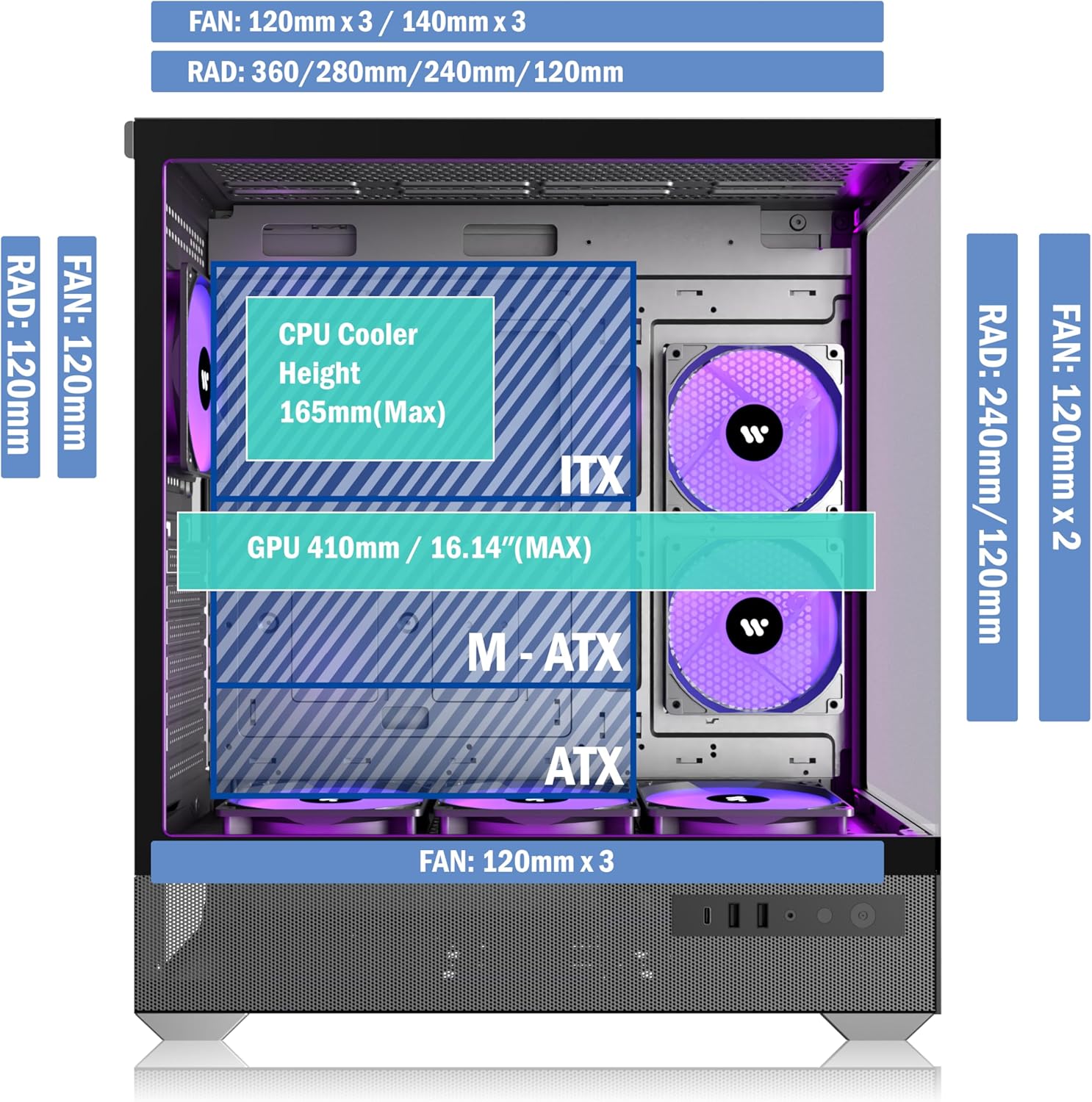
Image: Visual guide detailing the fan and radiator compatibility for different sections of the PC case.

Image: Interior view of the ANSAITE C8 case, showcasing the pre-installed 6-fan system for superior airflow.
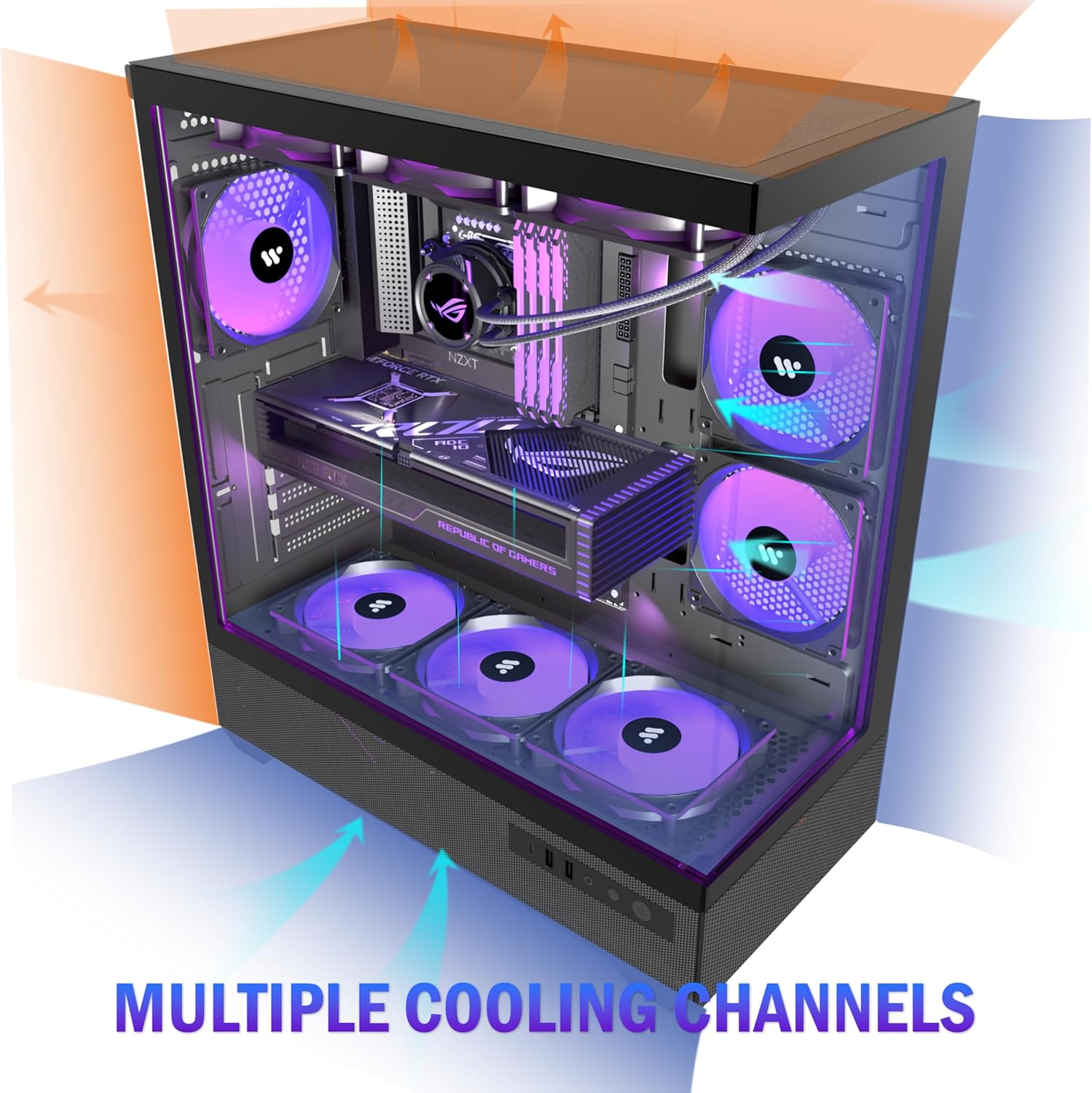
Image: Diagram highlighting the multiple cooling channels and airflow paths within the ANSAITE C8 PC case.
5. Cable Management
The ANSAITE C8 features a large space behind the motherboard tray for hidden cable management. The 6 ARGB case fans require only two advanced cable connections, simplifying the routing process. Utilize the provided cable ties to secure cables and maintain optimal airflow.
Operating Instructions
1. Front I/O Panel
The front I/O panel provides convenient access to various ports and controls:
- USB 3.0: High-speed data transfer.
- USB Type-C: High-speed data transfer for modern devices.
- USB 2.0: Standard data transfer.
- Audio Jack: For headphones and microphones.
- Power Button: To turn the system on or off.
- Reset Button: To restart the system.
Important Note on USB Ports:
USB ports are primarily for data transfer and are not recommended for power charging, as most motherboards' USB ports support a maximum voltage of 5V.
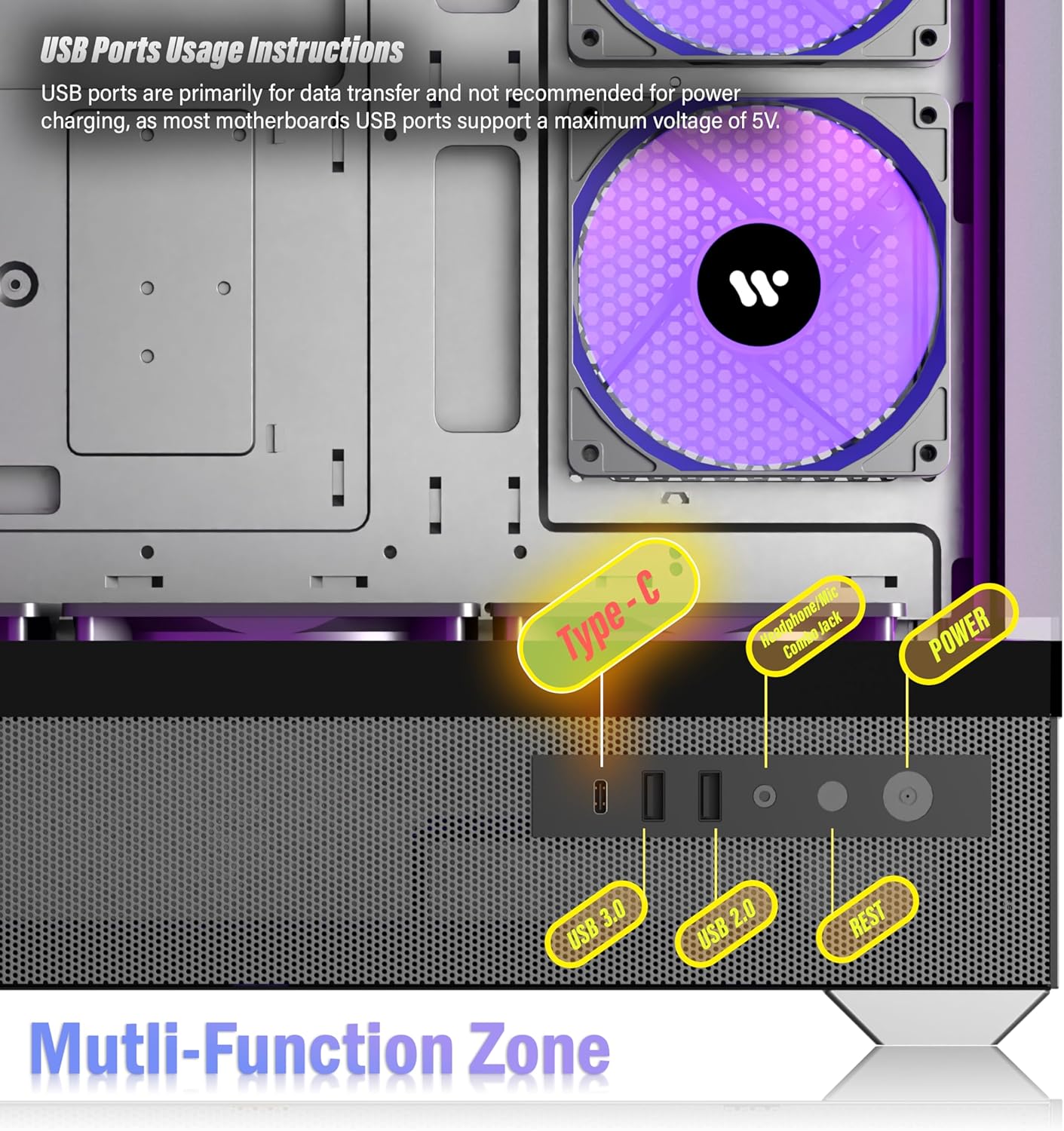
Image: Close-up of the multi-function front I/O panel, indicating USB 3.0, USB Type-C, USB 2.0, Audio, Power, and Reset buttons.
2. ARGB Fan Control
The pre-installed ARGB fans can be controlled via motherboard software. Connect the fan ARGB cables to a compatible +5V ARGB header on your motherboard. This allows for customization of various lighting modes and fan speeds, enhancing both aesthetics and cooling performance.
Maintenance
1. Dust Filter Cleaning
The ANSAITE C8 features high-quality dust filters on the top and bottom of the case. These magnetic filters are designed for easy removal and cleaning. Regularly clean the dust filters to maintain optimal airflow and prevent dust accumulation inside the case, which can affect component performance and longevity.
- Gently remove the magnetic dust filters.
- Use a soft brush or compressed air to remove accumulated dust.
- Reattach the filters securely.

Image: Diagram showing the location and design of the magnetic dust filters on the ANSAITE C8 PC case.
2. General Cleaning
- Use a soft, damp cloth to wipe down the exterior surfaces and tempered glass panels. Avoid abrasive cleaners.
- For internal cleaning, use compressed air to remove dust from fans and components. Ensure the system is powered off and unplugged before cleaning.
Troubleshooting
System Does Not Power On
- Power Connections: Ensure the power supply unit (PSU) is properly connected to the motherboard and all components. Verify the PSU switch is in the 'ON' position.
- Front Panel Connectors: Double-check that the front panel power switch connector is correctly attached to the motherboard's front panel header. Refer to your motherboard manual for the correct pinout. Note: Some users have reported confusion with front panel connectors; ensure the 'POWER SW' pins are correctly identified and connected.
- PSU Functionality: Test the PSU independently if possible, or try a known working PSU.
- Component Seating: Reseat the CPU, RAM, and GPU to ensure they are properly seated in their respective slots.
Fans Not Spinning or ARGB Not Working
- Fan Power Connections: Verify that all fan power cables are securely connected to the motherboard fan headers or a fan controller.
- ARGB Connections: Ensure the ARGB cables are connected to a compatible +5V ARGB header on the motherboard. Incorrect connection (e.g., to a 12V RGB header) can damage the LEDs.
- Motherboard Software: Check your motherboard's ARGB control software to ensure fans are enabled and lighting effects are configured.
Poor Airflow or High Temperatures
- Dust Filters: Clean the dust filters as described in the Maintenance section.
- Fan Orientation: Ensure fans are oriented correctly for optimal airflow (intake and exhaust).
- Cable Management: Improve cable management to reduce obstructions to airflow.
- Component Placement: Verify that components are not blocking critical airflow paths.
Specifications
| Feature | Detail |
|---|---|
| Brand | ANSAITE |
| Model Name | C8 |
| Item Model Number | C770 |
| Case Type | Mid-Tower Desktop |
| Motherboard Compatibility | ATX, Micro-ATX, ITX |
| Dimensions (L x W x H) | 16.5 x 12.2 x 15.9 inches (425mm x 212mm x 490mm) |
| Item Weight | 15.52 pounds |
| Material | Steel, Tempered Glass |
| Pre-installed Fans | 6 x ARGB PWM Fans |
| Radiator Support | Up to 360mm (Top/Bottom), 240mm (Side), 120mm (Rear) |
| Drive Bays | 3 x 2.5" SSD, 1 x 3.5" HDD |
| Front I/O Ports | 2 x USB 3.0, 1 x USB Type-C, 1 x USB 2.0, Audio Jack, Power, Reset |
| CPU Cooler Clearance | Max 165mm |
| GPU Clearance | Max 410mm |
| PSU Clearance | Max 200mm |
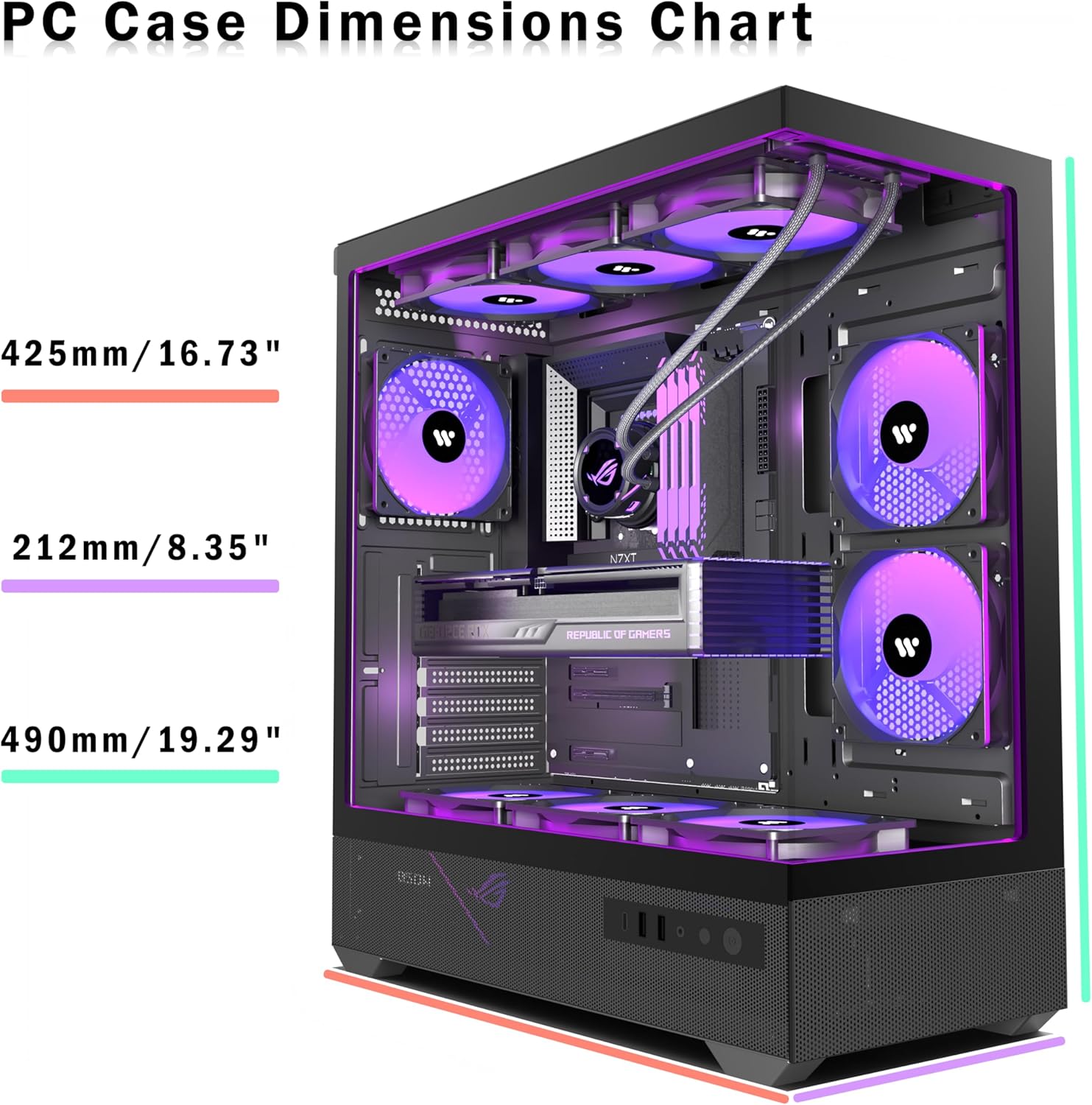
Image: Diagram showing the overall dimensions of the ANSAITE C8 PC case.
Warranty and Support
For warranty information and technical support, please refer to the official ANSAITE website or contact your retailer. Keep your proof of purchase for warranty claims.