
Introduction
This manual provides comprehensive instructions for the Kakamoden 8 Core 4G RAM 64G ROM Car Radio Stereo, designed for Ford Mustang models from 2015 to 2025. It covers essential information regarding installation, operation, maintenance, troubleshooting, and technical specifications to ensure optimal performance and user experience. This head unit features a 9.7-inch display, wireless CarPlay/Android Auto, GPS navigation, 5G WiFi, and high-fidelity DSP audio.
Product Features
- 9.7-inch Touch Screen Display: High-definition 1080P, full capacitance touch screen for easy operation and a well-designed user interface.
- Wireless CarPlay & Android Auto: Supports wired and wireless connectivity for seamless integration with your smartphone, allowing access to maps, calls, texts, and music via voice control.
- GPS Navigation & 5G WiFi: Built-in online and offline GPS navigation with 5G WiFi support for accurate maps and live traffic updates. Access apps like Spotify and Google Maps from the Play Store.
- Premium RDS FM/AM Radio with DSP Audio: Features a built-in 48-band digital signal processor (DSP) and RDS technology for customizable, high-quality sound and stable radio reception.
- 1080P Rear-View Camera & SWC: Supports a 1080P AHD backup camera with a 170° field of view. Retains full functionality of factory steering wheel controls (SWC).
- Bluetooth 5.0 & Split Screen: Built-in Bluetooth 5.0 for faster pairing, hands-free calls, and music streaming. Split-screen function allows simultaneous use of two applications.
Package Contents
Verify all items are present in the package before beginning installation.
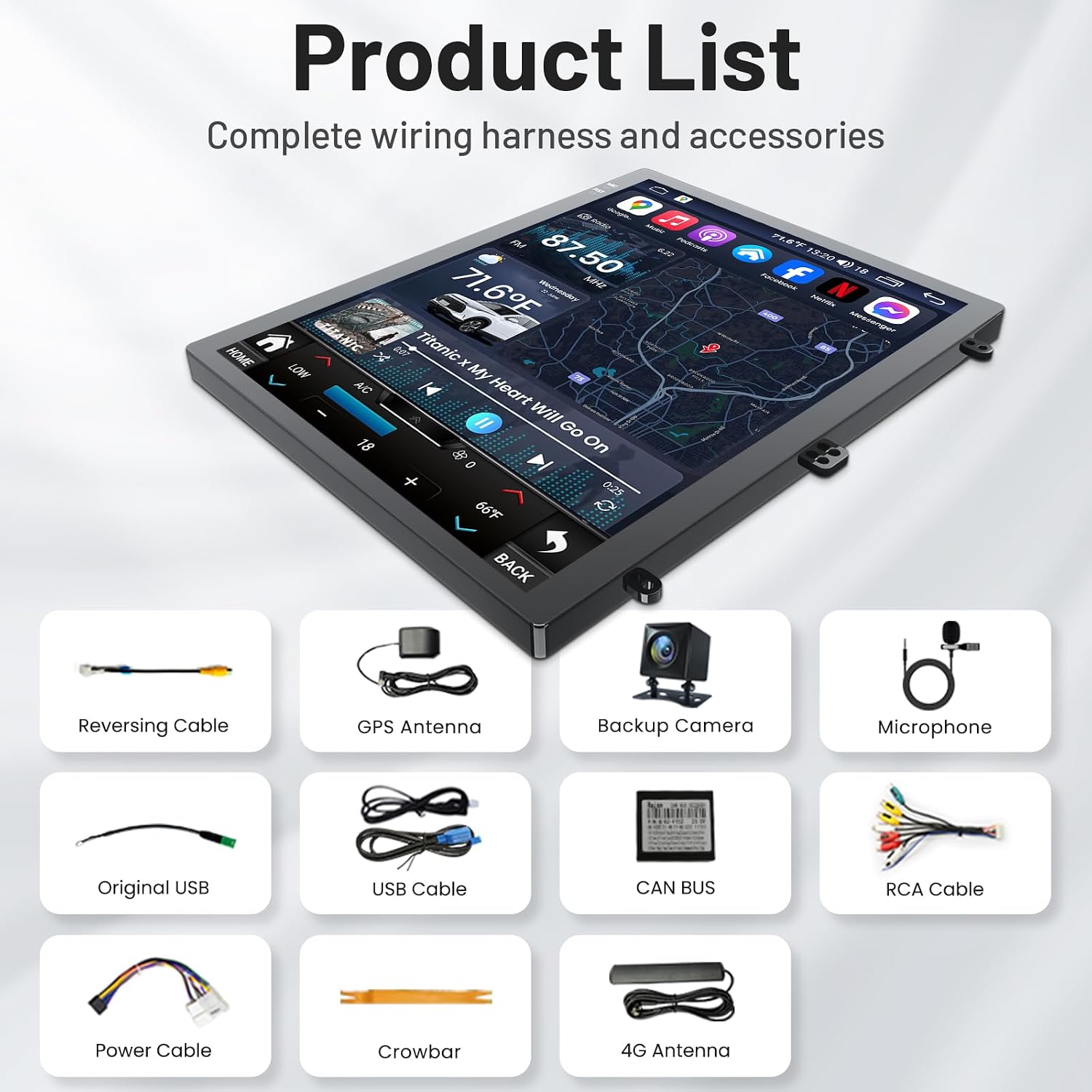
Image: A detailed view of the product packaging, displaying the main head unit and all accompanying cables and accessories laid out on a white surface. This includes the reversing cable, GPS antenna, backup camera, microphone, original USB cable, additional USB cable, CAN BUS decoder, RCA cables, power cable, and a crowbar tool.
- Main Head Unit (9.7-inch display)
- Reversing Cable
- GPS Antenna
- Backup Camera
- Microphone
- Original USB Cable
- USB Cable (additional)
- CAN BUS Decoder
- RCA Cables
- Power Cable
- Crowbar Tool
- 4G Antenna
Installation and Setup
Professional installation is recommended. Ensure the vehicle's battery is disconnected before starting. This head unit is designed for plug-and-play installation, retaining factory features.
1. Preparing for Installation
Before removing the factory radio, familiarize yourself with the dashboard layout. Use the provided crowbar tool to carefully pry open trim pieces to avoid damage.

Image: A comparison showing the Ford Mustang dashboard before and after the installation of the new 9.7-inch car radio. The 'Before' image shows the smaller factory radio, while the 'After' image displays the larger, integrated Kakamoden head unit.
2. Removing the Factory Radio
Carefully remove the dashboard trim surrounding the factory radio. Disconnect all cables from the back of the original head unit. Refer to the detailed installation video for specific steps.
Video: A step-by-step guide demonstrating the removal of the factory car stereo and the installation of the new head unit in a Ford Mustang (2015-2021). The video highlights the process of detaching trim pieces, disconnecting wiring, and securing the new unit.
3. Connecting the New Head Unit
Connect the provided wiring harnesses to the new head unit and the vehicle's factory connectors. Ensure all connections are secure. Connect the GPS antenna, 4G antenna, and microphone.

Image: A visual representation of the various wiring harnesses and accessories included with the car radio, showing how they connect to the main unit. Labels indicate the purpose of each cable, such as reversing cable, GPS antenna, and power cable.
4. Testing and Reassembly
Before fully reassembling the dashboard, power on the vehicle and test all functions of the new head unit, including audio, touch screen response, CarPlay/Android Auto, GPS, and backup camera. Once confirmed working, carefully reassemble the dashboard trim.
Video: A demonstration of the Kakamoden car radio's features and responsiveness after installation in a Ford Mustang. The video shows the user navigating through various apps, using CarPlay, and interacting with the touch screen interface.
Operating Instructions
1. Wireless CarPlay & Android Auto
Connect your smartphone via Bluetooth to enable wireless CarPlay or Android Auto. This allows you to access navigation, music, calls, and messages directly from the head unit's screen. Voice commands can be used for hands-free operation.

Image: The car radio display showing both Apple CarPlay and Android Auto interfaces. Icons for phone, music, maps, and messages are visible, demonstrating smartphone integration.
Video: A demonstration of how to use CarPlay on the car radio. The video shows connecting a phone via Bluetooth, accessing CarPlay features like navigation and music, and interacting with the interface.
2. GPS Navigation & 5G WiFi
The head unit includes built-in GPS navigation that functions both online and offline. Connect to 5G WiFi for real-time traffic updates and to download additional apps from the Google Play Store. The system supports various map applications.

Image: The car radio screen displaying GPS navigation with a map showing routes and points of interest. The image also highlights 5G WiFi connectivity for enhanced online features.
3. Bluetooth 5.0
Utilize Bluetooth 5.0 for stable and fast connections with your smartphone. This enables hands-free calling, phonebook synchronization, and wireless audio streaming for music and podcasts.

Image: The car radio screen showing the Bluetooth interface with options for phone calls, music playback, and phonebook access. A smartphone is depicted connecting to the head unit via Bluetooth.
4. Premium RDS FM/AM Radio with DSP Audio
The integrated DSP (Digital Signal Processor) allows for precise sound customization across 48 bands, delivering rich and clear audio. RDS (Radio Data System) provides automatic station identification and dynamic tuning for an enhanced radio experience.

Image: The car radio screen displaying the DSP audio settings, showing various equalizer adjustments and sound field controls for optimizing audio output.
5. Split Screen Function
The split-screen feature allows you to run two applications simultaneously on the display. For example, you can have navigation open on one side while controlling music or other media on the other side.

Image: The car radio screen demonstrating the split-screen feature, with a navigation map on one side and music playback controls on the other.
6. Steering Wheel Control (SWC)
The head unit is fully compatible with your vehicle's factory steering wheel controls. This allows you to manage audio volume, track selection, and answer calls without taking your hands off the wheel.

Image: A diagram showing a steering wheel with control buttons and how they correspond to functions on the car radio display, such as volume adjustment and track skipping.
7. 1080P Rear-View Camera
When shifting into reverse, the display automatically switches to the 1080P AHD backup camera feed. The camera provides a wide 170° field of view and is waterproof, enhancing safety during parking and reversing maneuvers.

Image: The car radio screen displaying the view from a backup camera, showing parking guidelines and a wide-angle perspective of the area behind the vehicle.
Maintenance
- Screen Cleaning: Use a soft, lint-free cloth to clean the touch screen. For stubborn smudges, lightly dampen the cloth with a screen cleaner designed for electronics. Avoid harsh chemicals.
- Software Updates: Periodically check for software updates via the system settings to ensure optimal performance and access to the latest features. Connect to a stable WiFi network for updates.
- General Care: Avoid exposing the unit to extreme temperatures or direct sunlight for prolonged periods. Ensure all cables are securely connected to prevent intermittent issues.
Troubleshooting
- No Power: Check all power cable connections. Ensure the vehicle's battery is charged. Verify the fuse for the head unit is intact.
- No Sound: Check speaker connections and RCA cables. Verify volume settings on the head unit and steering wheel. Ensure the DSP settings are correctly configured.
- Touch Screen Unresponsive: Perform a system restart. If the issue persists, check for firmware updates.
- CarPlay/Android Auto Not Connecting: Ensure Bluetooth is enabled on both the phone and head unit. Forget and re-pair the device. Check USB cable connection if using wired mode.
- GPS Signal Lost: Ensure the GPS antenna is properly installed and has a clear view of the sky. Check antenna connection to the head unit.
- Backup Camera Not Displaying: Verify the camera's power and video signal connections. Ensure the reversing cable is correctly connected to trigger the display.
Specifications
| Brand | Kakamoden |
| Vehicle Service Type | Car |
| Screen Size | 9.7 Inches |
| Special Feature | Bluetooth, Text-to-Speech, Touchscreen |
| Connectivity Technology | Bluetooth, USB, Wi-Fi |
| Map Type | North America |
| Audio Output Mode | Stereo |
| Operating System | Android, iOS |
| Memory Storage Capacity | 64 GB |
| Touch Screen Type | Capacitive |
| Display Type | LED |
| Control Method | App, Remote, Touch, Voice |
| Supported Satellite Navigation System | GPS |
Warranty and Support
For warranty information or technical support, please refer to the contact details provided with your purchase or visit the Kakamoden official website. Keep your proof of purchase for any warranty claims.