
Karbor MF833-4G Hotspot
Karbor 4G LTE WiFi Mobile Hotspot User Manual
Model: MF833-4G Hotspot
Your portable internet solution for seamless connectivity.
Introduction
Thank you for choosing the Karbor 4G LTE WiFi Mobile Hotspot. This device provides reliable, high-speed internet access on the go, without the need for a physical SIM card or a contract. It is designed for portability and ease of use, allowing you to connect up to 10 devices simultaneously. This manual will guide you through the setup, operation, and maintenance of your new mobile hotspot.

Image: The Karbor 4G LTE WiFi Mobile Hotspot, a compact white device with a color LCD screen displaying signal strength, Wi-Fi status, and battery level.
Setup Guide
1. Initial Device Activation
To turn on your Karbor Mobile Hotspot, press and hold the power button for 3-5 seconds. The device's LCD screen will illuminate, displaying the WiFi network name (SSID) and password. If the device does not power on, it may require charging. Please connect it to a power source using the included USB cable.
2. Connecting to the WiFi Network
To connect your devices to the hotspot:
- Locate the WiFi name and password displayed on the hotspot's LCD screen or on the product packaging.
- On your phone or computer, open your WiFi settings.
- Select the Karbor WiFi network from the list of available networks.
- Enter the provided password to establish the connection.

Image: A person comfortably using a laptop and phone inside a tent, with the Karbor hotspot visible on a small table, illustrating portable internet access.
3. Downloading the Karbor WiFi App and Claiming Free Data
The Karbor WiFi app enhances your device management and allows you to claim 1GB of free data:
- Scan the QR code provided in the user manual or on the device packaging to download the "Karbor WiFi" app from the App Store or Google Play.
- Create your account within the app.
- Follow the in-app steps to claim your free 1GB data (typically found under User > Device Manage > Claim). Ensure you enter any required information, including dashes and no spaces.
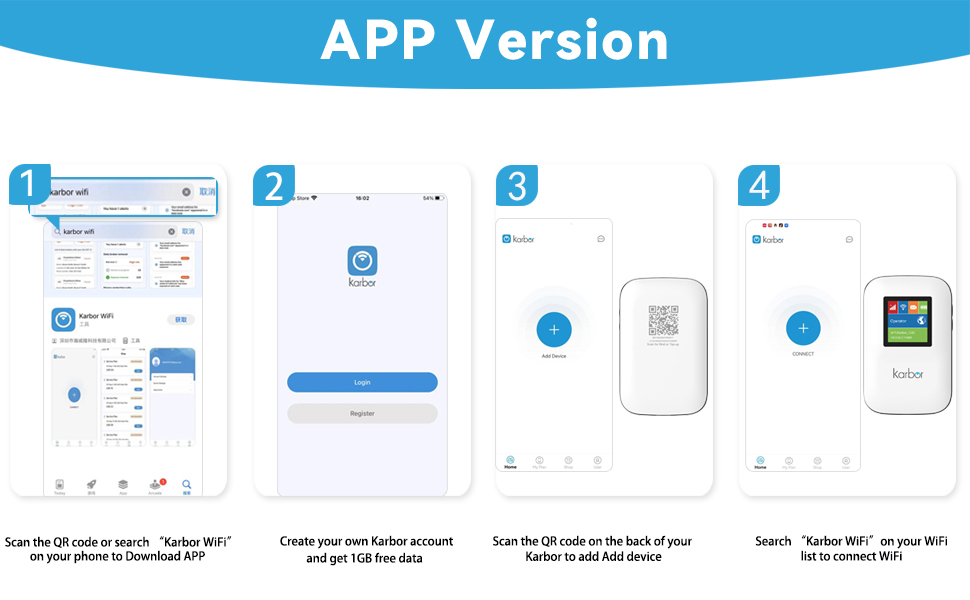
Image: A visual guide showing four steps to download the Karbor WiFi app, create an account, add the device by scanning a QR code, and connect to WiFi.
Operating Instructions
1. Connecting Multiple Devices
The Karbor Mobile Hotspot supports connecting up to 10 smart devices simultaneously, including laptops, tablets, and smartphones. Use the same connection method as described in the setup section for each device. You can also manage the number of connected devices through the Karbor WiFi app.
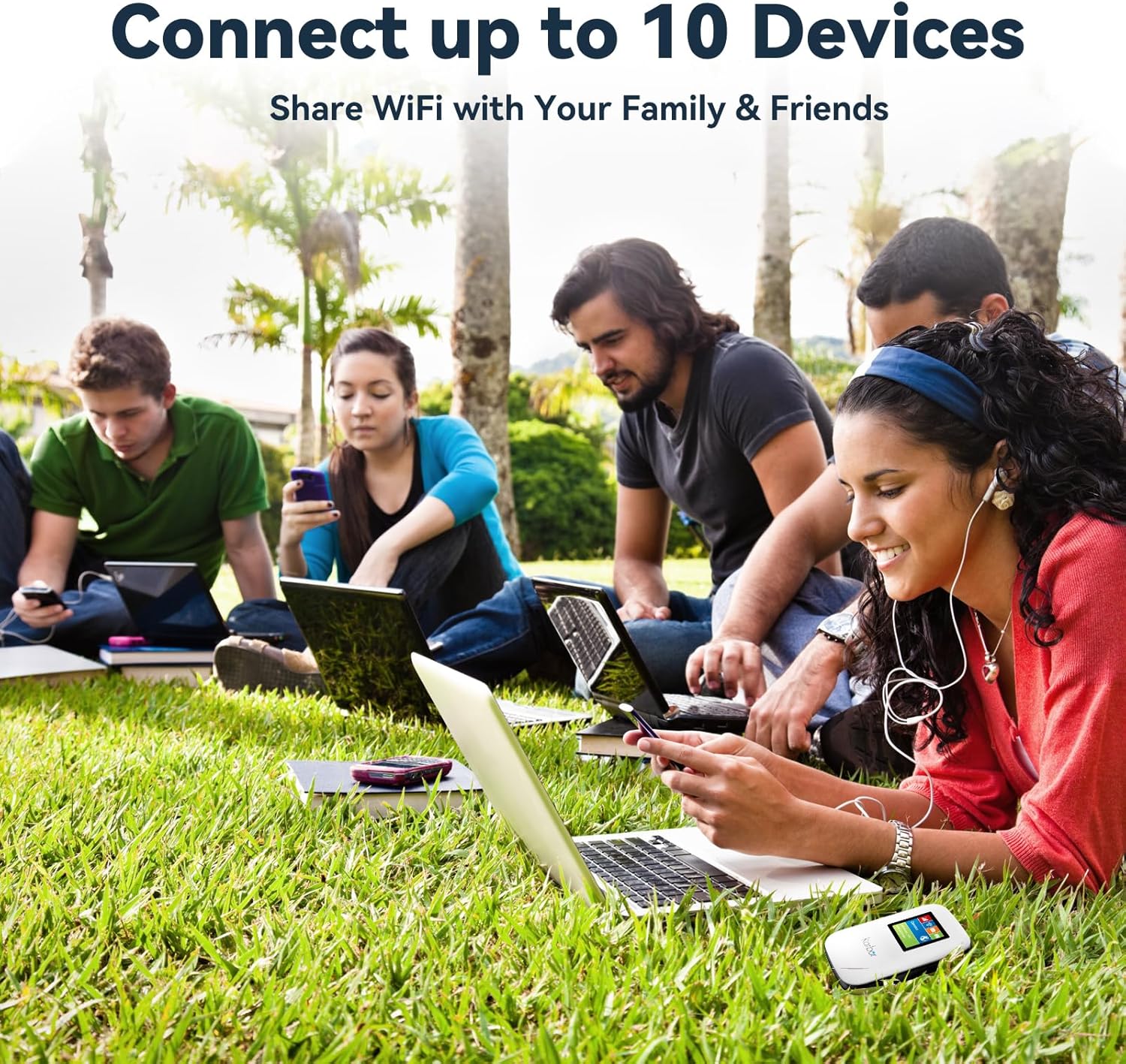
Image: A diverse group of people sitting outdoors, each engaged with a laptop or smartphone, demonstrating the hotspot's ability to connect multiple users.
2. Changing WiFi Name and Password
To customize your WiFi network settings:
- Open the "Karbor WiFi" app and log in to your account.
- Navigate to the WiFi Setting option on the Home interface.
- You can then change your WiFi name (SSID) and WiFi password.
- Note: The new password must be at least 8 characters long to be valid.
3. Purchasing Data Plans
To top up your data:
- Scan the QR code labeled "Top-up" on the back cover of your device using your phone's camera. This will direct you to the data plan selection page.
- Alternatively, open the "Karbor WiFi" app and select the data plan option.
- Choose your desired WiFi plan. Payment can be made via Credit Card or PayPal. Debit cards are not accepted.

Image: A table displaying various data plan options for the Karbor hotspot, including 1GB, 3GB, 5GB, 10GB, and 30GB, with their corresponding prices and a 30-day validity period.
For direct data plan purchases, visit the official top-up portal: https://topup.karbor.shop
4. International Travel and Storage
While the device has a built-in SIM for USA use, it also features a SIM card slot for international travel. You can insert your own international or local SIM card for connectivity outside the USA. Additionally, the device supports Micro SD cards for extra storage.

Image: An illustration highlighting key features: 'No SIM Required' for built-in USA connectivity, a 'SIM Card Slot' for international travel, and 'Support Micro SD' for expandable storage.
Maintenance
1. Battery Care
The Karbor Mobile Hotspot is equipped with a Lithium Ion battery. To ensure optimal battery life:
- Charge the device using the provided USB cable.
- Avoid exposing the device to extreme temperatures (very hot or very cold).
- If storing for an extended period, charge the battery to about 50% before storage.
2. Cleaning and Storage
To keep your device in good condition:
- Wipe the device with a soft, dry cloth. Do not use liquid cleaners or abrasive materials.
- Store the device in a cool, dry place away from direct sunlight and moisture.
- Keep it away from strong magnetic fields.
Troubleshooting
Common Issues and Solutions
- Device does not turn on:
Ensure the device is charged. Connect it to a power source using the USB cable and allow it to charge for a period before attempting to power on again. - Cannot connect to WiFi:
Verify that the WiFi name (SSID) and password entered are correct. Check the hotspot's LCD screen for the current credentials. Ensure your device's WiFi is enabled. - Slow internet speed or no signal:
Relocate the hotspot to an area with better cellular signal. Ensure no physical obstructions are blocking the signal. Check the signal indicator on the hotspot's LCD screen. - Karbor WiFi App issues:
Ensure your app is updated to the latest version. Try restarting the app or your mobile device. If issues persist, reinstall the app. - New WiFi password not saving:
Confirm that the new password is at least 8 characters long. Passwords shorter than 8 characters will be invalid. - Payment for data plan declined:
Please note that debit cards are not accepted for data plan purchases. Use a Credit Card or PayPal.
Specifications
| Feature | Detail |
|---|---|
| Model Number | MF833-4G Hotspot |
| Brand | Karbor |
| Model Name | MiFi |
| Connectivity Technology | LTE |
| Wireless Communication Standard | 802.11b, 802.11g, 802.11n |
| Frequency Band Class | Single-Band |
| Compatible Devices | Mobile WiFi enabled devices |
| Recommended Uses | Outdoor/Indoor |
| Special Feature | LED Indicator |
| Color | White |
| Item Weight | 3.42 ounces |
| Package Dimensions | 5.98 x 3.54 x 1.65 inches |
| Battery | 1 Lithium Ion battery (included) |
| Included Components | USB cable |
Warranty and Support
Warranty Information
For specific warranty details regarding your Karbor 4G LTE WiFi Mobile Hotspot, please refer to the warranty card included with your product or contact Karbor customer support directly. Standard warranty typically covers manufacturing defects for a specified period from the date of purchase.
Customer Support
If you encounter any issues not covered in this manual or require further assistance, please contact Karbor customer support. You can also utilize the Karbor WiFi app for device management and access to support resources.
For data plan purchases and account management, visit: https://topup.karbor.shop
Related Documents - MF833-4G Hotspot
 |
MIFI Portable WiFi Hotspot Operation Manual User guide for MIFI portable WiFi hotspots, detailing SIM card installation, WiFi connection, device management, and network settings configuration for optimal internet access. |
 |
MUAMA Ryoko 4G LTE Pocket WiFi User Manual User manual for the MUAMA Ryoko 4G LTE Pocket WiFi device, covering appearance, installation, Wi-Fi connection, charging, internet connection, and troubleshooting. |
 |
DBIT 4G User Manual: Portable 4G LTE WiFi Hotspot Router User manual for the DBIT 4G portable 4G LTE WiFi hotspot router, featuring 150Mbps speed, SIM card slot, and a 6000mAh power bank. Includes setup, usage, and specifications. |
 |
MIFI Router WiFi Device Quick Start Guide - ZTE Concise quick start guide for the ZTE MIFI Router WiFi Device. Learn about device appearance, indicator lights, SIM card installation, and Wi-Fi connection steps for up to 6 devices. |
 |
WebStore4 WL4 MIFI-4G-2600 Quick Start Guide - Mobile WiFi Hotspot Setup Get started quickly with the WL4 MIFI-4G-2600 mobile 4G LTE MiFi hotspot. This guide covers installation, setup, and basic troubleshooting for your device. |
 |
Huawei Mobile WiFi Quick Start Guide This Quick Start Guide provides essential information for setting up and using the Huawei Mobile WiFi device. It covers connecting to various networks (LTE, 3G, 2G, Wi-Fi, Ethernet), understanding device appearance and screen indicators, charging the battery, and troubleshooting common issues. Learn how to connect computers, game consoles, and tablet computers to your Mobile WiFi. |