
1. Introduction
This user manual provides comprehensive instructions for the LINGQE PL2303GT USB to RS232 Serial to RJ45 8P8C Communication Cable. This cable is designed to facilitate reliable serial communication between a computer's USB port and devices requiring an RS232 serial connection via an RJ45 8P8C interface, such as Easun/MPP Solar Inverters. Please read this manual carefully before use to ensure proper installation and operation.
2. Product Overview
The LINGQE communication cable integrates a PL2303GT USB to RS232 Serial Bridge Controller, offering a robust solution for converting USB signals to RS232 serial data. It is specifically designed for applications requiring an RJ45 8P8C connector for serial communication.
Key Features:
- PL2303GT Chipset: Features a built-in RS232 transceiver for reliable data conversion.
- USB 2.0 Compliance: Fully compliant with USB 2.0 specification (Full-Speed Mode).
- Broad Host Controller Compatibility: Compatible with UHCI/OHCI (USB 1.1), EHCI (USB 2.0), and xHCI (USB 3.1) host controllers.
- Virtual COM Port (VCP) Drivers: Royalty-free drivers available for Windows, macOS, Linux, and Android operating systems.
- Integrated Design: Highly integrated USB 1.1 FS Transceiver with built-in termination resistors and pull-up resistor to minimize external components.
- UART Interface: Supports flexible baud rates up to 1Mbps, with configurable data bits (5, 6, 7, or 8), parity modes (Odd, Even, Mark, Space, None), and stop bits (1, 1.5, or 2).
- RS232 Transceiver: Meets EIA/TIA-232F standards with 5.0V power supply, guaranteeing 1000kbps transmission rate under load.
Product Images:
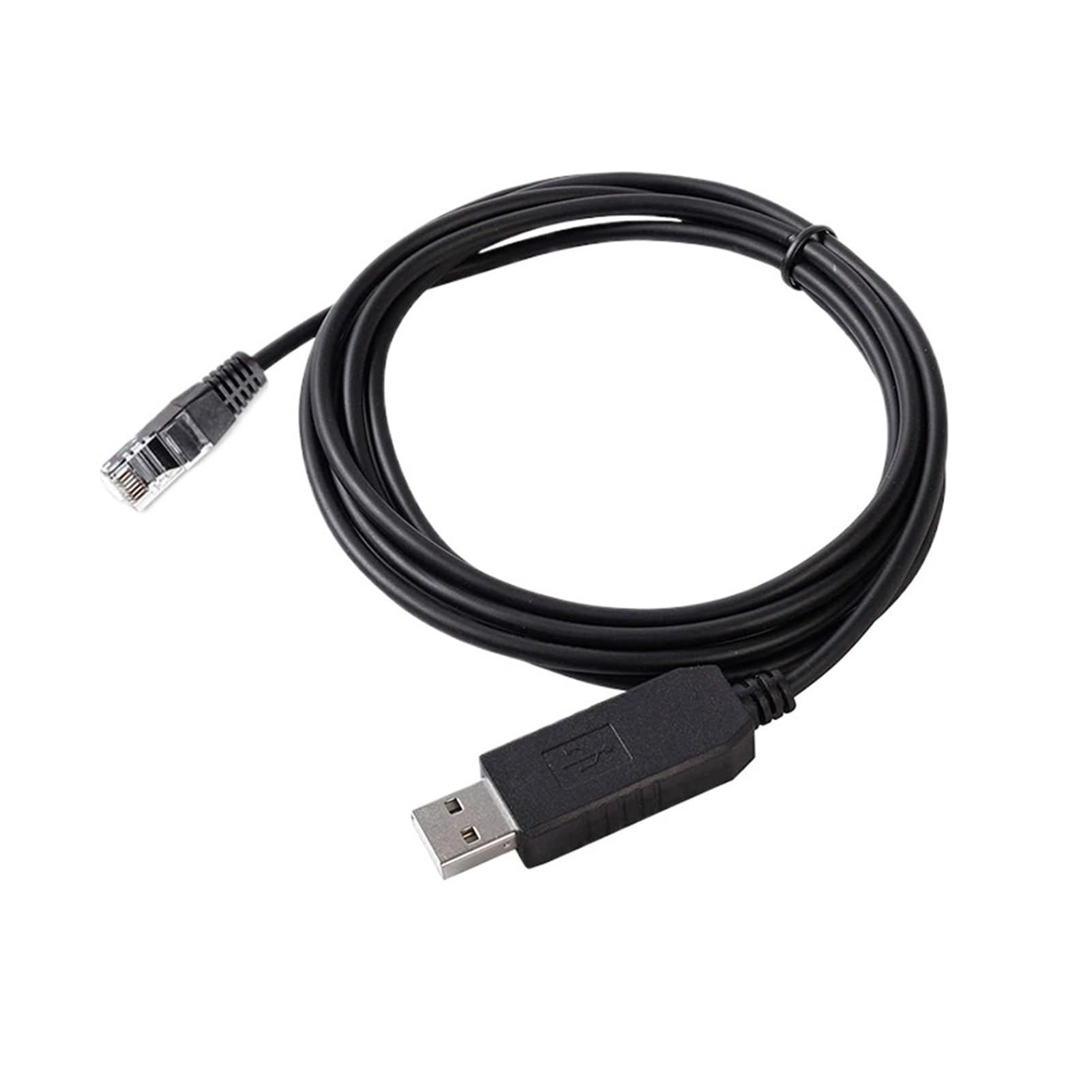
Image 1: The LINGQE USB to RJ45 communication cable, showing both the USB-A connector and the RJ45 8P8C connector.

Image 2: The LINGQE communication cable coiled, illustrating its overall length and black PVC jacket.
3. Setup Instructions
3.1 Driver Installation
- Download Drivers: Obtain the latest PL2303GT Virtual COM Port (VCP) drivers from the official Prolific Technology website or the LINGQE product support page. Ensure you download the correct version for your operating system (Windows, macOS, Linux, Android).
- Install Drivers: Follow the on-screen instructions to install the drivers. Administrator privileges may be required.
- Restart (if prompted): If prompted, restart your computer after installation to ensure drivers are properly loaded.
3.2 Physical Connection
- Connect to Computer: Plug the USB-A connector of the cable into an available USB port on your computer.
- Connect to Device: Plug the RJ45 8P8C connector into the serial communication port of your Easun/MPP Solar Inverter or other compatible device. Ensure the connection is secure.
3.3 Verify Installation
- Windows: Open Device Manager (right-click 'This PC' or 'My Computer' > 'Manage' > 'Device Manager'). Expand 'Ports (COM & LPT)'. You should see an entry like 'Prolific USB-to-Serial Comm Port (COMx)', where 'x' is the assigned COM port number.
- macOS/Linux: Use terminal commands like
ls /dev/tty.*ordmesg | grep ttyto identify the assigned serial port.
4. Operating Instructions
Once the cable is physically connected and drivers are installed, you can use serial communication software to interact with your connected device.
- Identify COM Port: Note the COM port number assigned to the cable from the Device Manager (Windows) or equivalent system tools.
- Launch Communication Software: Open your preferred serial communication software (e.g., PuTTY, RealTerm, HyperTerminal, or specific inverter monitoring software).
- Configure Settings: In your software, select the identified COM port and configure the serial communication parameters to match those required by your Easun/MPP Solar Inverter or other device. Common settings include:
- Baud Rate: (e.g., 9600, 19200, 115200)
- Data Bits: (e.g., 8)
- Parity: (e.g., None, Even, Odd)
- Stop Bits: (e.g., 1)
- Flow Control: (e.g., None, Hardware, Software)
- Establish Connection: Initiate the connection within your software. You should now be able to send and receive data from your connected device.
Refer to the specific user manual of your Easun/MPP Solar Inverter or other device for detailed information on its serial communication protocol and required settings.
5. Maintenance
To ensure the longevity and optimal performance of your LINGQE communication cable, follow these maintenance guidelines:
- Storage: Store the cable in a cool, dry place away from direct sunlight and extreme temperatures. Avoid tightly coiling or bending the cable, especially near the connectors.
- Handling: Always grasp the connector housing when plugging or unplugging the cable. Avoid pulling directly on the cable itself, as this can damage internal wires.
- Cleaning: If necessary, gently wipe the cable and connectors with a soft, dry cloth. Do not use harsh chemicals or abrasive cleaners.
- Inspection: Periodically inspect the cable for any signs of damage, such as frayed insulation, bent pins, or cracked connectors. Discontinue use if damage is observed.
6. Troubleshooting
If you encounter issues with your communication cable, refer to the following troubleshooting steps:
6.1 Cable Not Recognized by Computer
- Check Connections: Ensure the USB connector is fully inserted into a working USB port on your computer. Try a different USB port.
- Driver Installation: Verify that the PL2303GT drivers are correctly installed. Reinstall them if necessary.
- Device Manager: Check Device Manager (Windows) to see if the device appears under 'Ports (COM & LPT)' or if there are any unknown devices with exclamation marks.
- Try Another Computer: Test the cable on a different computer to rule out a computer-specific issue.
6.2 Communication Errors or No Data
- Verify COM Port: Ensure your communication software is configured to use the correct COM port number assigned to the cable.
- Match Serial Settings: Double-check that the baud rate, data bits, parity, and stop bits in your software exactly match the requirements of your connected device (e.g., Easun/MPP Solar Inverter). Incorrect settings are a common cause of communication failure.
- Device Status: Ensure the connected device (inverter) is powered on and in a state ready for communication.
- Cable Integrity: Inspect the cable for any physical damage.
- Software Issues: Try a different serial communication software to rule out software-specific problems.
7. Specifications
| Feature | Specification |
|---|---|
| Brand | LINGQE |
| Model Number | 000013 |
| Chipset | PL2303GT |
| USB Interface | USB 2.0 Full-Speed (backward compatible) |
| UART Interface | RS232 (TXD, RXD, RTS, CTS, DTR, DSR, DCD, RI) |
| Connector Type (Computer) | USB-A |
| Connector Type (Device) | RJ45 8P8C |
| Cable Material | PVC Jacket, Copper Conductor |
| Cable Length | 1.0M (other lengths may be available) |
| Baud Rate Support | Up to 1Mbps |
| Data Bits | 5, 6, 7, or 8 |
| Parity | Odd, Even, Mark, Space, None |
| Stop Bits | 1, 1.5, or 2 |
| Operating System Support | Windows, macOS, Linux, Android (with VCP drivers) |
| Power Supply | Bus-powered (USB) |
8. Warranty Information
Warranty terms for the LINGQE PL2303GT USB to RS232 Serial to RJ45 8P8C Communication Cable are typically provided by the retailer or manufacturer at the time of purchase. Please retain your proof of purchase for any warranty claims. For specific details regarding warranty coverage, duration, and conditions, refer to the documentation included with your product or contact the seller directly.
9. Support
For technical assistance, troubleshooting beyond the scope of this manual, or inquiries about your LINGQE communication cable, please contact the seller or manufacturer through their official support channels. When contacting support, please provide your product model number (000013) and a detailed description of the issue you are experiencing.