1. Introduction
Welcome to the user manual for your new Generic HK10 Ultra 3 Smart Watch. This guide provides essential information on setting up, operating, and maintaining your device to ensure optimal performance. The HK10 Ultra 3 is a versatile smartwatch featuring a vibrant AMOLED display, extensive health and fitness tracking, Bluetooth calling, NFC access control, and 2GB of internal storage for media and applications.
Package Contents:
- 1 x HK10 Ultra 3 Smart Watch
- 2 x Watch Straps
- 1 x Magnetic Wireless Charging Cable
- 1 x User Manual (this document)

Image 1.1: HK10 Ultra 3 Smart Watch on wrist with its packaging box.

Image 1.2: Close-up of the HK10 Ultra 3 Smart Watch retail box, highlighting key features.
2. Initial Setup
2.1 Charging the Smart Watch
Before first use, fully charge your HK10 Ultra 3 Smart Watch. Use the provided magnetic wireless charging cable. Connect the USB end of the cable to a standard USB power adapter (not included) or a computer USB port. Place the watch on the magnetic charging pad; it will automatically align and begin charging. The watch display will indicate charging status.
2.2 Downloading the Companion App
The HK10 Ultra 3 Smart Watch requires the WearFit Pro application for full functionality and synchronization with your smartphone. The app is compatible with Android 5.0 and above, and iOS 10.0 and above.
- Scan the QR code provided in the watch's quick start guide or search for "WearFit Pro" in your smartphone's app store (Google Play Store for Android, Apple App Store for iOS).
- Download and install the application.
- Follow the on-screen instructions to create an account or log in.
2.3 Pairing with Your Smartphone
Ensure your smartphone's Bluetooth is enabled and the watch is sufficiently charged.
- Open the WearFit Pro app on your smartphone.
- Navigate to the device pairing section (usually indicated by a device icon or "Add Device").
- The app will search for available devices. Select "HK10 Ultra 3" from the list.
- Confirm the pairing request on both your smartphone and the smartwatch if prompted.
- Once paired, the watch will synchronize time and data with your phone.
3. Operating the Smart Watch
3.1 Basic Navigation
The HK10 Ultra 3 features a touch-sensitive AMOLED display and physical buttons for navigation.
- Touch Screen: Swipe up, down, left, or right to navigate through menus and notifications. Tap to select items.
- Crown Button: Rotate to scroll through lists or zoom in/out. Press to return to the home screen or access the app menu.
- Side Button: Typically used for quick access to specific functions or as a back button.
The watch offers 4 different menu styles, which can be changed in the settings.

Image 3.1: HK10 Ultra 3 Smart Watch displaying the current time and date on its main watch face.
3.2 Communication Features
- Bluetooth Call Function: Make and receive calls directly from your watch when connected to your smartphone.
- Phone Call Reminder: Get alerts for incoming calls.
- Message Reminder & APP Information Notification: Receive notifications from apps like WeChat, Facebook, and WhatsApp directly on your watch.
- Voice Assistant: Access your smartphone's voice assistant through the watch.
3.3 Multimedia & Utility
- Music Control: Play, pause, skip tracks on your smartphone's music player.
- Camera Control: Remotely trigger your smartphone's camera.
- Photo Album: View photos stored on the watch's 2GB memory.
- Voice Recording: Utilize the built-in voice recorder.
- Games: Access pre-installed games.
- NFC Access Control: Use the watch for NFC-based access control (check compatibility with your system).
- Always-on Display: Keep the time visible on the screen.
- Clock Face Screen Off: Configure the screen to turn off after a set period.
- Calculator: Basic arithmetic functions.
- Weather: Get real-time weather updates.
- Alarm Clock, Stopwatch, Timer: Standard timekeeping utilities.
4. Health and Fitness Tracking
The HK10 Ultra 3 Smart Watch is equipped with various sensors to monitor your health and track your physical activities.
4.1 Activity Tracking
- Sports History: Records steps, calories burned, and distance covered.
- Indoor Sports Modes: Includes tracking for Running, Cycling, Sit-Ups, Push-Ups, and Free Movement.
- Outdoor Sports Modes: Supports Walking, Mountaineering, and other outdoor activities.
4.2 Health Monitoring
- Breathing Training: Guided breathing exercises for relaxation.
- Real Compass: Provides directional information.
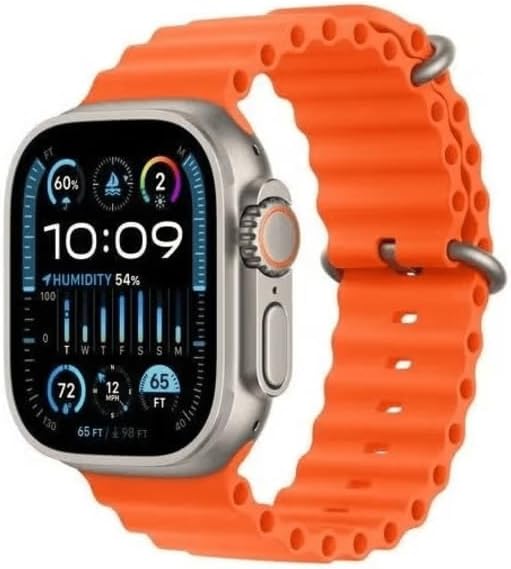
Image 4.1: HK10 Ultra 3 Smart Watch displaying various health and activity metrics.
5. WearFit Pro App Integration
The WearFit Pro app enhances your smartwatch experience by providing detailed data analysis and additional features:
- AI Watch: Advanced features powered by artificial intelligence.
- GBT Chat: Integrated chat functionality.
- 2GB ROM: Manage the watch's internal storage for photos, music, and apps.
- Calendar: Sync and view your schedule.
- Activity Recording: Detailed logs of your sports and health data.
- Find Phone: Locate your paired smartphone.
- Alipay: Support for mobile payments (region-dependent).
- Video Control: Control video playback on your phone.
- Setting Up Next to the clock position, position Active Wake-up, Do Not Disturb Mode, Screen Off Timer, Brightness Adjustment: Customize various watch settings.
6. Maintenance
6.1 Waterproof Level
The HK10 Ultra 3 Smart Watch has a "lifetime waterproof" rating, which generally means it is resistant to splashes, sweat, and light rain. It is not suitable for swimming, diving, or prolonged submersion in water. Avoid exposing the watch to hot water, steam, or high-pressure water jets.
6.2 Cleaning and Care
- Wipe the watch screen and body with a soft, lint-free cloth.
- If necessary, dampen the cloth slightly with water. Do not use harsh chemicals or abrasive cleaners.
- Clean the charging contacts regularly to ensure efficient charging.
- Keep the watch dry when not in use.
7. Troubleshooting
7.1 Connectivity Issues
- Watch not connecting to phone: Ensure Bluetooth is enabled on your phone and the watch. Restart both devices. Check if the WearFit Pro app is running in the background and has necessary permissions. Try unpairing and re-pairing the device through the app.
- Notifications not appearing: Verify that app notifications are enabled in the WearFit Pro app and in your phone's system settings for the specific apps. Ensure the watch is within Bluetooth range of your phone.
7.2 Watch Not Turning On/Charging
- Ensure the charging cable is properly connected to a power source and the magnetic contacts on the watch are clean and aligned.
- Try a different USB power adapter or port.
- If the watch has been completely discharged, it may take a few minutes for the charging indicator to appear.
7.3 Inaccurate Data
- Ensure the watch is worn snugly on your wrist, but not too tight.
- For activity tracking, ensure your personal information (height, weight) is accurately entered in the WearFit Pro app.
8. Specifications
| Feature | Detail |
|---|---|
| Model | HK10 Ultra 3 |
| Display | 5 cm AMOLED Display |
| Screen Refresh Rate | 240MHz + 48MHz |
| Watch Size | 46 x 39.2 x 11 mm |
| Bluetooth Version | Bluetooth 5.2 Low Energy |
| CPU | Dual-core processor |
| Memory | 1.4MB Operating Memory + 2GB Storage |
| Battery Capacity | 220mAh |
| Charging Method | Magnetic Wireless Charging |
| Waterproof Level | Lifetime Waterproof (Splash/Sweat Resistant) |
| Compatibility | Android 5.0+ / iOS 10.0+ |
| App | WearFit Pro |
| Item Weight | 200 Grams |
9. Warranty and Support
For information regarding warranty coverage, technical support, or service inquiries, please refer to the warranty card included with your product or contact the retailer where you purchased the device. Keep your proof of purchase for any warranty claims.