
1. Introduction
Thank you for choosing the PEEIPM CA45 Indoor Security Camera. This manual provides essential information for the safe and efficient operation of your device. Please read it thoroughly before use and retain it for future reference.
The PEEIPM CA45 is a 1080P indoor security camera featuring AI tracking, two-way audio, and Wi-Fi connectivity, designed to provide reliable surveillance for your home or office.
2. Package Contents
Please check the package contents upon opening. If any items are missing or damaged, contact customer support.
- PEEIPM CA45 Indoor Security Camera Unit
- USB Power Adapter
- USB Power Cable
- User Manual (this document)
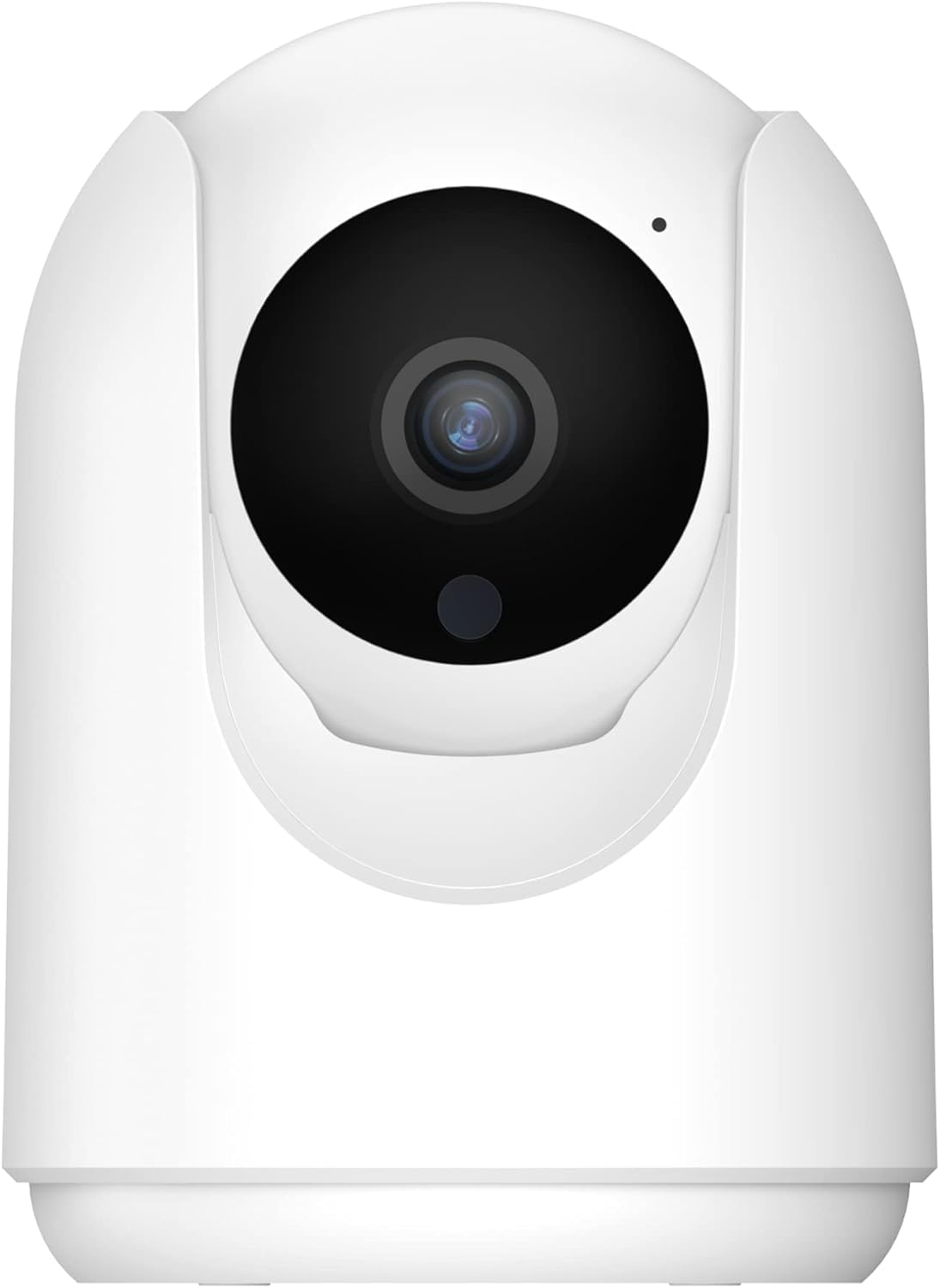
Image 1: PEEIPM CA45 Indoor Security Camera with included accessories. The camera is compact, black, and designed for indoor use, typically placed on a flat surface.
3. Setup
3.1 Initial Placement
Place the camera on a stable, flat surface indoors, such as a shelf, desk, or table. Ensure it has a clear line of sight to the area you wish to monitor and is within range of your Wi-Fi router.
3.2 Powering On
- Connect the USB power cable to the camera's power port.
- Plug the USB power adapter into a standard electrical outlet.
- The camera will power on, and an indicator light will typically flash, indicating it's ready for pairing.
3.3 App Installation and Pairing
The PEEIPM CA45 uses the CloudEdge app for control and monitoring.
- Download the CloudEdge app from your smartphone's app store (iOS App Store or Google Play Store).
- Open the CloudEdge app and create an account or log in.
- Tap the "Add Device" or "+" icon within the app.
- Select "Smart Camera" or the appropriate camera type.
- Follow the on-screen instructions to connect the camera to your 2.4GHz Wi-Fi network. This usually involves scanning a QR code generated by the app with the camera lens.
- Once connected, you can name your camera and begin live viewing.
4. Operating the Camera
4.1 Live View
From the CloudEdge app, select your camera to access the live video feed. You can view the 1080P video stream in real-time.
4.2 Two-Way Audio
To use the two-way audio feature, tap the microphone icon in the live view interface. Speak into your smartphone to transmit audio through the camera's speaker. Tap the speaker icon to listen to audio from the camera's surroundings.
4.3 AI Tracking
The camera features AI tracking to detect and follow human motion. Enable this feature in the camera settings within the CloudEdge app. When enabled, the camera will automatically pan and tilt to keep a detected person in view.
4.4 Motion Detection and Alerts
Configure motion detection sensitivity and alert preferences in the app settings. You will receive push notifications on your smartphone when motion is detected.
4.5 Video Recording and Storage
The camera supports local storage via a microSD card (not included) and/or cloud storage (subscription may be required). Insert a microSD card into the designated slot on the camera for local recording. Manage recording settings and view playback through the CloudEdge app.
5. Maintenance
5.1 Cleaning
Gently wipe the camera lens and body with a soft, dry cloth. Do not use liquid cleaners or abrasive materials, as they may damage the camera.
5.2 Firmware Updates
Periodically check the CloudEdge app for available firmware updates. Keeping your camera's firmware up-to-date ensures optimal performance and security.
5.3 Optimal Performance
Ensure the camera is placed in an area with good Wi-Fi signal strength. Avoid placing it near strong electromagnetic interference sources.
6. Troubleshooting
| Problem | Possible Cause | Solution |
|---|---|---|
| Camera not powering on | Power cable loose; power adapter faulty; no power at outlet. | Check all power connections. Try a different outlet. Ensure the power adapter is working. |
| Cannot connect to Wi-Fi | Incorrect Wi-Fi password; camera too far from router; 5GHz Wi-Fi network used; router issues. | Verify Wi-Fi password. Move camera closer to router. Ensure you are connecting to a 2.4GHz Wi-Fi network. Restart your router. |
| Poor video quality | Weak Wi-Fi signal; dirty lens; insufficient lighting. | Improve Wi-Fi signal strength. Clean the camera lens. Ensure adequate lighting in the monitored area. |
| Two-way audio not working | Microphone/speaker muted in app; app permissions. | Check audio settings in the CloudEdge app. Ensure the app has microphone permissions on your smartphone. |
7. Specifications
| Feature | Detail |
|---|---|
| Model | CA45-W |
| Video Resolution | 1080p |
| Connectivity | Wi-Fi (2.4GHz only) |
| Special Features | AI Tracking, 2-Way Audio |
| Indoor/Outdoor Usage | Indoor |
| Compatible App | CloudEdge |
| Mount Type | Tabletop Mount |
| Power Source | Wired (USB Power Adapter) |
| Dimensions | 2 x 2 x 2 inches (approximate) |
| Weight | 0.02 Kilograms (approximate) |
8. Warranty and Support
PEEIPM products come with a standard manufacturer's warranty. For detailed warranty information, please refer to the warranty card included in your product packaging or visit the official PEEIPM website.
For technical support, troubleshooting assistance, or any inquiries regarding your PEEIPM CA45 camera, please contact PEEIPM customer service through their official website or the contact information provided in your product documentation.