
Maizic Smarthome Srihome Dual lens outdoor
Maizic Smarthome Srihome Supercam Dual Lens Outdoor CCTV Camera User Manual
Model: Srihome Dual lens outdoor
1. Introduction
This manual provides detailed instructions for the installation, operation, and maintenance of your Maizic Smarthome Srihome Supercam Dual Lens Outdoor CCTV Camera. Please read this manual thoroughly before using the product to ensure proper functionality and safety.
The Maizic Smarthome Srihome Supercam is an advanced outdoor surveillance camera featuring a dual-lens system (5MP + 5MP) for comprehensive monitoring. It includes features such as 360° PTZ control, color night vision, AI motion detection, and two-way audio communication, designed for reliable outdoor security.
2. Package Contents
Verify that all items are present in the package:
- 1 x Maizic Smarthome Srihome Supercam Dual Lens Outdoor CCTV Camera
- 1 x Power Adapter (Corded Electric)
- 1 x Mounting Screw Kit
- 1 x User Manual (This Document)
If any items are missing or damaged, please contact customer support.
3. Product Overview
The Maizic Smarthome Srihome Supercam is designed for robust outdoor surveillance. It integrates two lenses for enhanced coverage and detailed imaging.

Figure 3.1: Maizic Smarthome Srihome Supercam Dual Lens Outdoor CCTV Camera and its mobile application interface.
3.1 Key Features
- Dual 5MP High-Resolution Lenses: Two independent 5-megapixel lenses provide a combined high-definition view for detailed surveillance.
- 360° PTZ Control: Pan, Tilt, and Zoom functionality allows for remote adjustment of the camera's viewing angle, covering a full 360-degree horizontal range.
- Color Night Vision: Utilizes intelligent dual light sources (infrared lights + high-power white lights) to provide full-color video footage even in low-light or complete darkness.
- Two-Way Audio Communication: Built-in microphone and speaker enable real-time voice interaction through the mobile application.
- AI Motion Detection: Advanced artificial intelligence distinguishes human movement from other motion triggers, reducing false alarms and sending instant alerts to your smartphone.
- Seamless WiFi Connectivity: Supports wireless connection for remote monitoring via smartphone or tablet.
- 128GB SD Card Support: Expandable storage for local recording of video footage.
- Weatherproof Design (IP66): Constructed to withstand outdoor environmental conditions including rain, heat, and dust.
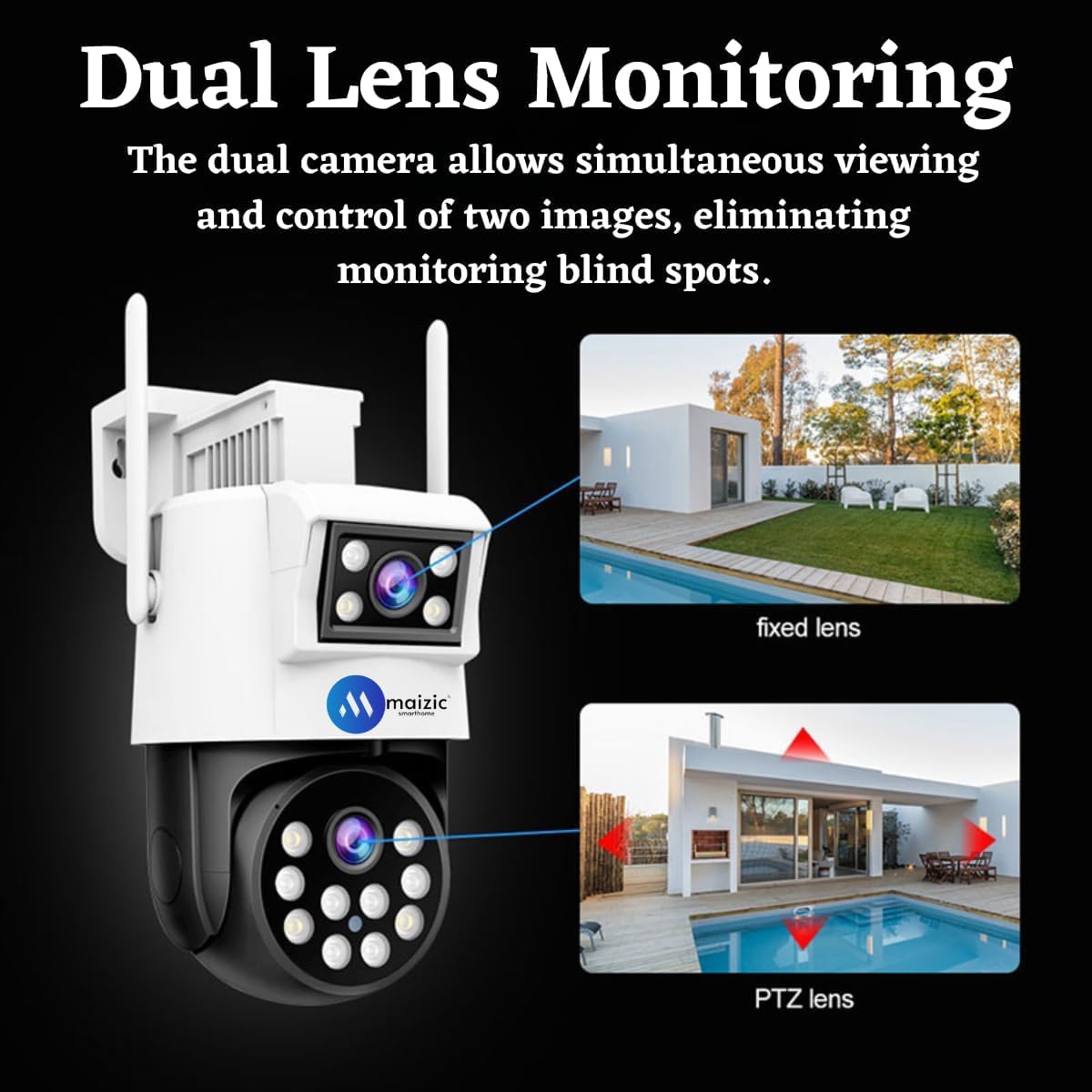
Figure 3.2: Dual lens monitoring capability, illustrating simultaneous viewing from a fixed lens and a PTZ (Pan-Tilt-Zoom) lens.

Figure 3.3: The camera's 360-degree panoramic monitoring, achieved by combining views from a fixed lens and a pan-tilt lens.

Figure 3.4: Visual comparison demonstrating the clarity and detail provided by the camera's high-definition CMOS sensor, compared to lower resolution cameras.
4. Specifications
| Feature | Specification |
|---|---|
| Model Name | Srihome Dual lens outdoor |
| Indoor/Outdoor Usage | Outdoor |
| Connectivity Technology | Wireless (Wi-Fi) |
| Power Source | Corded Electric |
| Controller Type | App |
| Mounting Type | Wall Mount (Screw In) |
| Video Capture Resolution | 1080p (Effective Video Resolution: 10MP combined from dual 5MP lenses) |
| Viewing Angle | 360 Degrees (Pan) |
| Night Vision Range | 10 Meters |
| IP Rating | IP66 (Weatherproof) |
| Storage Support | Up to 128GB SD Card |
| Product Dimensions (L x W x H) | 7.87 x 7.48 x 7.48 inches |
| Item Weight | 1.76 pounds |
5. Setup and Installation
5.1 Before Installation
- Ensure your Wi-Fi network is stable and within range of the installation location.
- Prepare necessary tools: drill, screwdriver, pencil.
- Unpack the camera and verify all components are present.
5.2 Mobile App Download and Account Creation
- Scan the QR code provided in the quick start guide or search for "Srihome" or "Maizic Smarthome" in your mobile app store (iOS App Store or Google Play Store).
- Download and install the application.
- Open the app and follow the on-screen instructions to create a new account or log in if you already have one.
5.3 Camera Connection to Wi-Fi
- Power on the camera by connecting it to the provided power adapter.
- Wait for the camera to initialize. This may take a few moments.
- In the mobile app, tap "Add Device" or the "+" icon.
- Select your camera model or scan the QR code located on the camera.
- Follow the in-app instructions to connect the camera to your Wi-Fi network. This typically involves entering your Wi-Fi password and allowing the app to generate a QR code for the camera to scan.
- Once connected, you will hear a confirmation sound from the camera, and its status indicator light will change.
5.4 Physical Installation (Wall Mount)
- Choose a suitable outdoor location for mounting, ensuring good Wi-Fi signal strength and a clear view of the area to be monitored.
- Use the mounting template (if provided) or the camera base to mark the drill holes on the wall.
- Drill holes and insert wall anchors if necessary.
- Secure the camera base to the wall using the provided screws.
- Adjust the camera's physical orientation if needed before tightening all screws.
6. Operating Instructions
6.1 Live View and PTZ Control
- Open the Maizic Smarthome app and select your camera from the device list.
- The app will display the live video feed from both lenses.
- Use the on-screen controls to pan (horizontal movement), tilt (vertical movement), and zoom the PTZ lens to adjust the viewing area.
6.2 Two-Way Audio

Figure 6.1: Demonstrates the two-way audio function, allowing communication with individuals near the camera.
- While in live view, tap the microphone icon in the app to speak through the camera's speaker.
- Tap the speaker icon to listen to audio from the camera's microphone.
6.3 Motion Detection and Alerts

Figure 6.2: Illustrates the camera's white light warning and mobile alarm push notification upon detecting an intruder.
- Access the camera settings in the app to configure motion detection sensitivity and areas.
- Enable AI Human Detection to minimize false alarms from pets or environmental factors.
- Set up notification preferences to receive alerts on your smartphone when motion is detected.
- The camera can activate a white light warning upon detection, which can deter unwanted activity.
6.4 Night Vision Modes
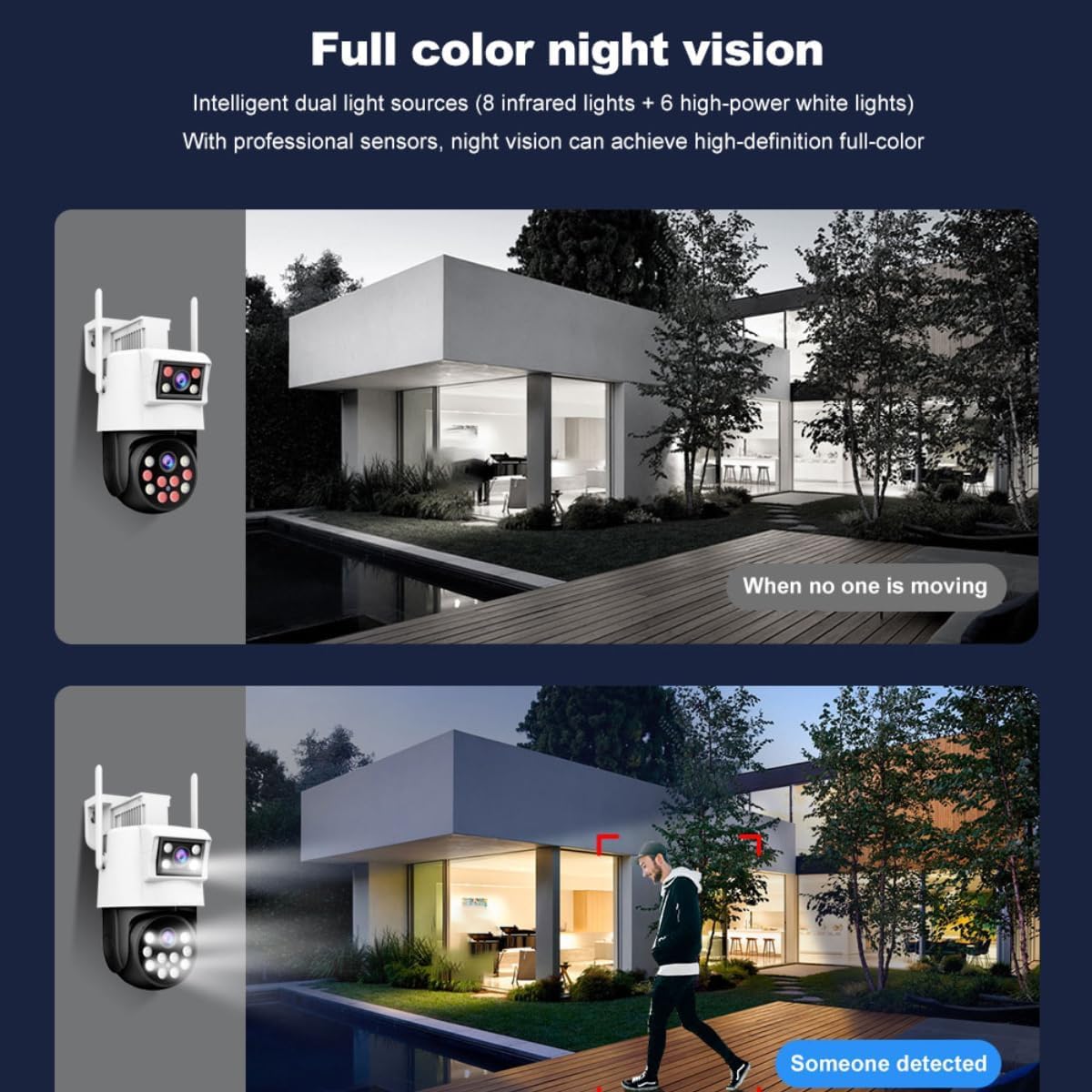
Figure 6.3: Depicts the camera's full-color night vision capability, showing clear, colored images even in darkness when motion is detected.
- The camera automatically switches to night vision in low-light conditions.
- It supports full-color night vision using its integrated white lights, providing more detailed and identifiable footage than traditional infrared black-and-white night vision.
- Settings for night vision mode (e.g., automatic, infrared only, full-color) can be adjusted in the app.
6.5 Recording and Playback
- Insert a microSD card (up to 128GB, not included) into the designated slot on the camera for local storage.
- Configure recording settings (e.g., continuous recording, motion-triggered recording) in the app.
- Access recorded footage through the app's playback feature, selecting the desired date and time.
7. Maintenance
7.1 Cleaning the Camera
- Ensure the camera is powered off before cleaning.
- Use a soft, damp cloth to wipe the camera body.
- For the lenses, use a specialized lens cleaning cloth and solution to avoid scratches.
- Do not use harsh chemicals or abrasive cleaners.
7.2 Weather Resistance
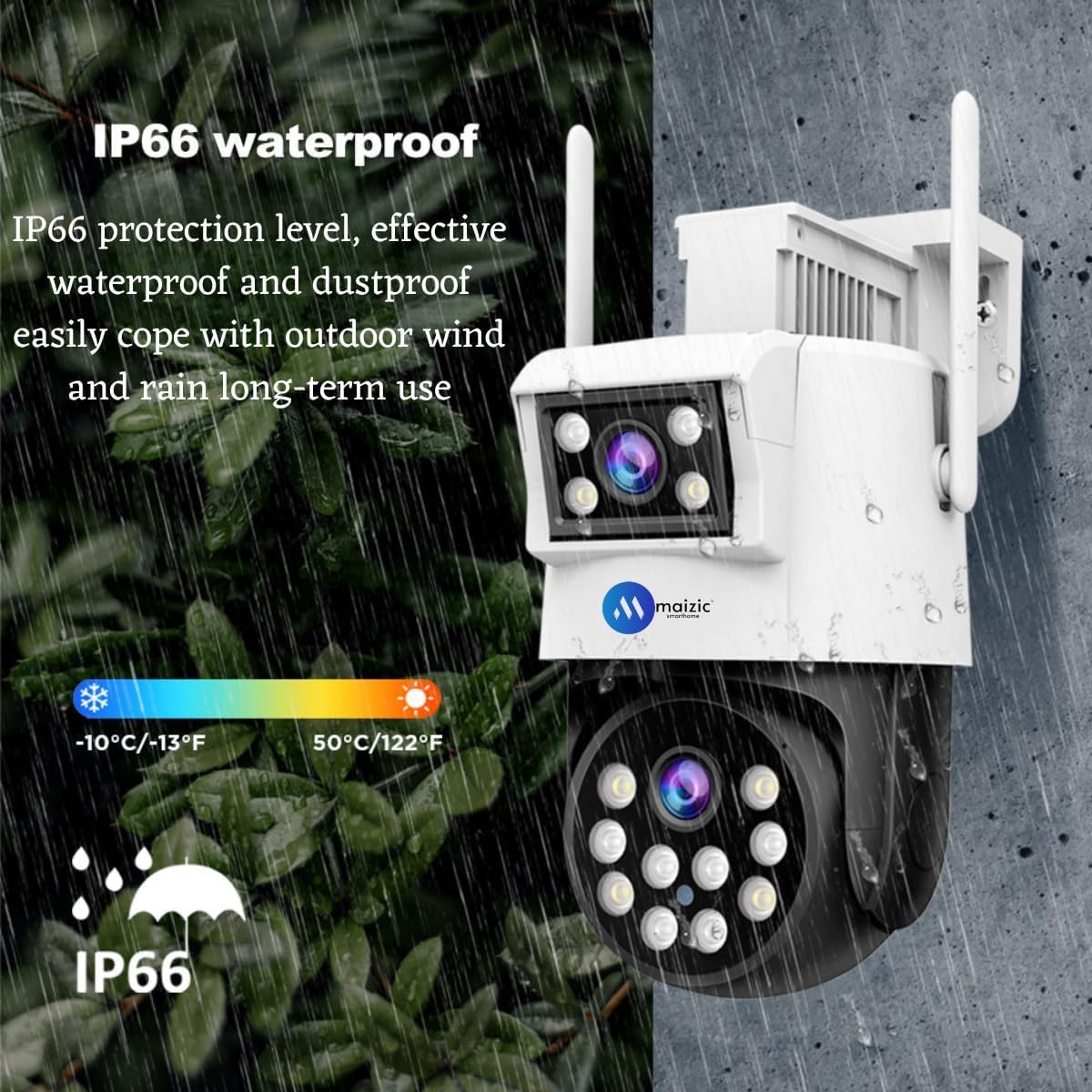
Figure 7.1: The camera's IP66 weatherproof rating, indicating its resistance to dust and water, suitable for outdoor use in various weather conditions and temperatures.
- The camera has an IP66 rating, meaning it is protected against dust ingress and powerful water jets.
- While designed for outdoor use, avoid submerging the camera in water.
- Operating temperature range is typically between -10°C (14°F) and 50°C (122°F).
7.3 Firmware Updates
- Periodically check the mobile app for available firmware updates.
- Follow the in-app instructions to update the camera's firmware to ensure optimal performance and access to new features.
8. Troubleshooting
| Problem | Possible Cause | Solution |
|---|---|---|
| Camera not powering on | No power supply; faulty adapter. | Check power connection; try a different power outlet; ensure adapter is working. |
| Unable to connect to Wi-Fi | Incorrect Wi-Fi password; camera too far from router; weak signal; 5GHz Wi-Fi network. | Verify Wi-Fi password; move camera closer to router; ensure router is 2.4GHz compatible (most cameras do not support 5GHz); reset camera and try again. |
| No live video feed | Network issue; camera offline; app glitch. | Check internet connection; restart camera; restart mobile app; ensure camera is connected to Wi-Fi. |
| Motion detection alerts are too frequent/infrequent | Sensitivity settings incorrect; AI detection not enabled. | Adjust motion detection sensitivity in the app; enable AI Human Detection for more accurate alerts. |
| Two-way audio not working | Microphone/speaker muted in app; network latency. | Ensure microphone and speaker icons are enabled in the app; check network stability. |
9. Warranty and Support
For warranty information and technical support, please refer to the warranty card included with your product or visit the official Maizic Smarthome website. You may also contact customer service through the mobile application or the contact details provided on the product packaging.
Please retain your proof of purchase for warranty claims.
Related Documents - Srihome Dual lens outdoor
 |
SMTKEY & SUFCO M12 5MP Camera Lens Product Manual Detailed product manual and specifications for SMTKEY & SUFCO M12 mount 5MP camera lenses, including models M12-5MP-8MM, M12-5MP-12MM, and M12-5MP-16MM. Covers resolution, aperture, focal length, field of view, optical distortion, dimensions, and operating temperature. |
 |
SriHome WiFi Camera Setup Guide: WiFi QR Connect Method A comprehensive guide to setting up your SriHome WiFi IP camera using the WiFi QR Connect feature. Learn how to install the SriHome app, create an account, connect your camera to your network, and troubleshoot common issues. |
 |
Honeywell Split Pin-hole Camera Lens Installation Guide: HA35P2L28, HA35P5L37, HA35P5F12 This document provides a quick installation guide for Honeywell Split Pin-hole Camera Lenses, including models HA35P2L28 (2MP), HA35P5L37 (5MP), and HA35P5F12 (5MP Fisheye). It details the installation process, software configuration using the Honeywell Unified Tool, important safety precautions, and regulatory compliance information. The guide also specifies the requirement for the Honeywell Split Pin-hole Base HC35WP5B. |
 |
Godrej ACE Pro 4G Dual Lens User Manual - Installation and Operation Guide Comprehensive user manual for the Godrej ACE Pro 4G Dual Lens security camera, covering safety instructions, package contents, product features, specifications, software installation, mounting, app usage, warranty, and e-waste information. |
 |
HD CCTV IR Board Lens User Manual User manual and technical specifications for the HD CCTV IR Board Lens, featuring M12x0.5 thread compatibility for 1/3 inch and 1/4 inch CCD sensors. |
 |
VERYHDSN Camera Linkage and Correction Guide Guide to using the Camera Linkage and Linkage Correction features on VERYHDSN surveillance cameras for enhanced positioning and error resolution. |
Ask a question about this manual
Ask about setup, troubleshooting, compatibility, parts, safety, or missing instructions. Manuals+ will review the question and use this page’s manual context to help answer it.