Introduction
This manual provides detailed instructions for the setup, operation, and maintenance of your Magnetic Detachable Keyboard and Mouse Combo Case. This product is designed to enhance the functionality and protection of your Samsung Galaxy Tab S10+ (12.4"). Please read this manual thoroughly before use to ensure proper functionality and to maximize your product experience.
Important: This case is exclusively designed for Samsung Galaxy Tab S10+ (12.4") models SM-X820 and SM-X826B. Please verify your tablet model number before attempting to install or use this product. Incompatible models may result in improper fit or damage.
Product Overview
The Magnetic Detachable Keyboard & Mouse Combo Case transforms your tablet into a versatile workstation. It includes a protective leather cover, a detachable Bluetooth keyboard with a touchpad, and a Bluetooth/2.4G dual-mode mouse.
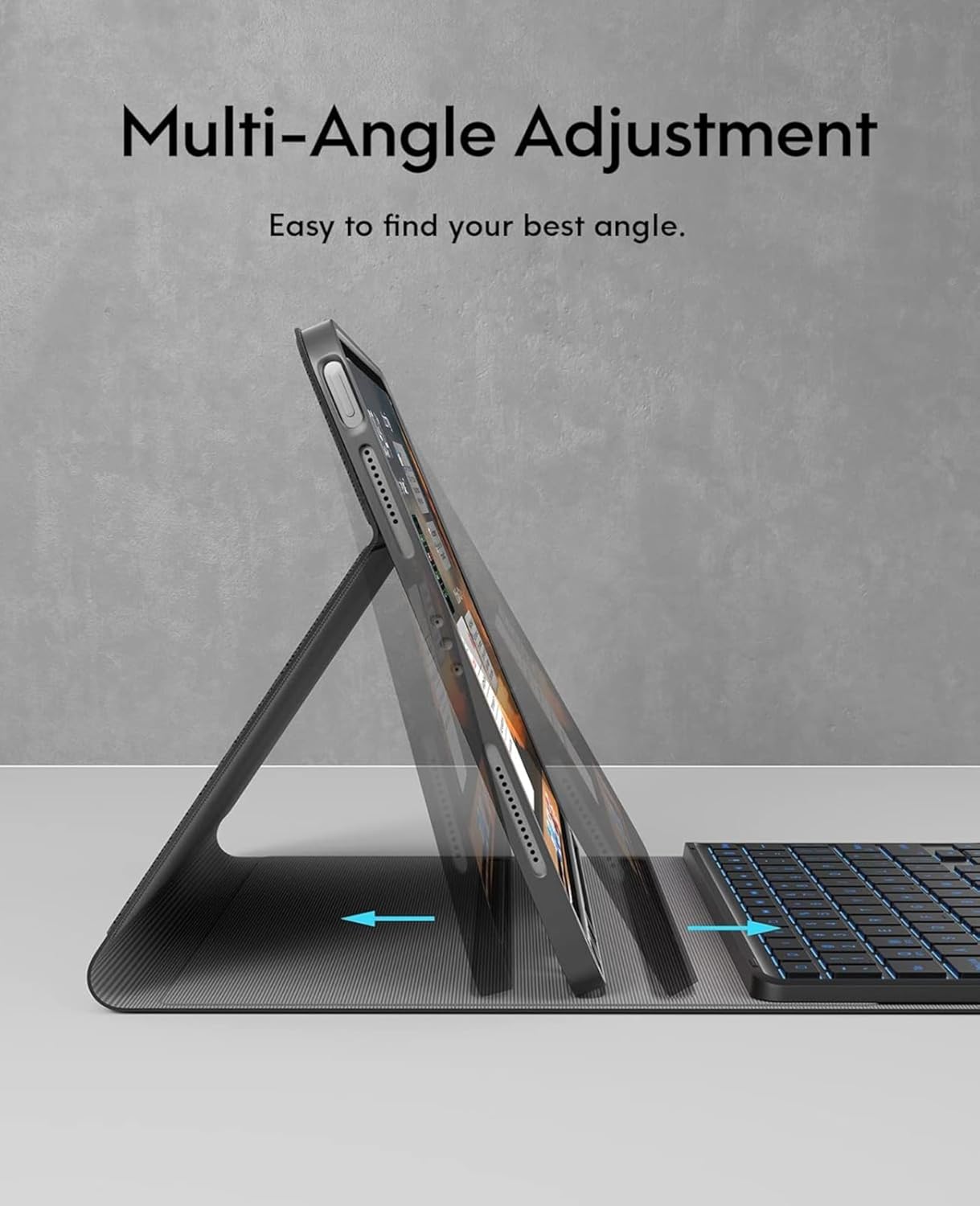
Image: Overview of the Magnetic Detachable Keyboard and Mouse Combo Case, showing the tablet in the case, the detachable keyboard, and the mouse.
Setup Instructions
1. Initial Charging
Before first use, ensure both the keyboard and mouse are fully charged. Connect the provided charging cables to the respective charging ports on the keyboard and mouse, and then to a USB power source. Charging typically takes 2-3 hours.
2. Tablet Installation
Carefully place your Samsung Galaxy Tab S10+ (12.4") into the protective case. Ensure all ports and buttons align correctly with the case cutouts. The case provides a secure fit and protection against impacts and scratches.
3. Keyboard Bluetooth Pairing
Follow these steps to connect your detachable keyboard to your tablet via Bluetooth:
- Power On: Slide the power switch on the keyboard to the 'ON' position. The power indicator light will illuminate.
- Activate Pairing Mode: Press the 'Connect' button on the keyboard. The Bluetooth indicator light will begin to flash, indicating it is in pairing mode. For some models, you may need to press Fn + C simultaneously to activate Bluetooth pairing.
- Tablet Settings: On your Samsung Galaxy Tab S10+, go to Settings > Connections > Bluetooth and turn Bluetooth 'On'.
- Select Device: In the list of available devices, locate and select "Bluetooth Keyboard" (or a similar name).
- Confirm Connection: Your tablet may display a pairing code. Enter this code on the keyboard and press 'Enter'. Once connected, the Bluetooth indicator light on the keyboard will stop flashing.
- System Selection (if applicable): If your keyboard has a system switch (e.g., Fn+Android/Windows/iOS), press the appropriate combination for Android to optimize key functions for your Samsung tablet.
After the initial pairing, the keyboard will automatically connect to your tablet when powered on and within range.

Image: Visual guide for connecting the keyboard and mouse via Bluetooth, including steps for normal and touchpad keyboards.

Image: Illustration of the keyboard Bluetooth connection process, highlighting the Fn+C key combination for pairing.
4. Mouse Bluetooth Pairing
The mouse supports dual-mode connection (Bluetooth 5.0 and 2.4G). For tablet use, Bluetooth connection is recommended:
- Power On & Mode Select: Slide the power switch on the bottom of the mouse to the Bluetooth icon position (usually marked with a Bluetooth symbol).
- Activate Pairing Mode: Press and hold the three keys (left click, scroll wheel, right click) simultaneously for a few seconds until the indicator light on the mouse starts flashing, indicating pairing mode.
- Tablet Settings: On your Samsung Galaxy Tab S10+, go to Settings > Connections > Bluetooth and ensure Bluetooth is 'On'.
- Select Device: In the list of available devices, locate and select the mouse (e.g., "Bluetooth Mouse").
- Confirm Connection: Once connected, the indicator light on the mouse will stop flashing.

Image: Diagram illustrating the dual-mode connection options for the mouse, focusing on Bluetooth pairing for tablets.
Operating Instructions
1. Multi-Angle Adjustment
The case features a clamshell magnetic design that allows for multiple viewing angles. Simply adjust the tablet's position on the magnetic stand to find your preferred angle for typing, viewing, or drawing. The magnetic design ensures stability.

Image: The tablet case demonstrating its multi-angle adjustment capability, allowing users to set various viewing positions.
2. Keyboard Backlight Control
The keyboard features a 7-color backlight with 3 levels of brightness adjustment. Use the dedicated backlight key (often marked with a light bulb icon) to cycle through colors and adjust brightness levels. This feature enhances visibility in low-light conditions.

Image: A user typing on the keyboard with its 7-color backlight illuminated, showing the visual effect in a dim environment.
3. S Pen Holder
The case includes a dedicated holder for your S Pen, ensuring it is securely stored and easily accessible. The holder is designed to allow for magnetic charging of the S Pen if your tablet model supports it.

Image: Close-up view of the S Pen holder integrated into the case, alongside details of the magnetic keyboard attachment and scissor-style keys.
4. Touchpad Functionality
The integrated touchpad on the keyboard allows for precise cursor control, similar to a laptop. Use standard multi-touch gestures for navigation, scrolling, and clicking. Ensure the touchpad is enabled in your tablet's settings if it does not respond.
Maintenance
1. Cleaning
- Case: Wipe the leather case with a soft, damp cloth. Avoid harsh chemicals or abrasive cleaners.
- Keyboard & Mouse: Use a dry, soft cloth to clean the surfaces. For dust between keys, use compressed air. Do not immerse in water or spray cleaners directly onto electronic components.
2. Storage
When not in use for extended periods, store the case, keyboard, and mouse in a cool, dry place. Ensure the keyboard and mouse are powered off to conserve battery life.
Troubleshooting
- Keyboard/Mouse Not Connecting:
- Ensure both devices are fully charged and powered on.
- Verify Bluetooth is enabled on your tablet.
- Repeat the pairing process as described in the 'Setup Instructions'.
- If previously paired, try 'forgetting' the device in your tablet's Bluetooth settings and re-pairing.
- Keys/Touchpad Not Responding:
- Check if the keyboard is connected via Bluetooth.
- Ensure the keyboard battery is not depleted.
- Restart your tablet and the keyboard.
- Backlight Not Working:
- Press the backlight key to cycle through modes and brightness levels.
- Ensure the keyboard has sufficient battery charge.
- Tablet Not Fitting Correctly:
- Double-check your tablet model number against the compatible models (SM-X820, SM-X826B).
- Ensure the tablet is inserted correctly and all edges are seated within the case.
Specifications
| Feature | Detail |
|---|---|
| Compatible Devices | Samsung Galaxy Tab S10+ (12.4") SM-X820 SM-X826B |
| Connectivity Technology | Bluetooth |
| Keyboard Description | Multi Functional, Scissor-style mechanical keys |
| Special Features | Backlit (RGB, 7 colors, 3 brightness levels), Detachable Case, Ergonomic, Portable, Rechargeable, Trackpad, S Pen Holder |
| Color | Black |
| Item Weight | Approximately 1.32 pounds (0.6 kg) |
| Manufacturer | NuLian |
Warranty and Support
For warranty information or technical support, please refer to the product packaging or contact the seller directly through your purchase platform. Keep your purchase receipt as proof of purchase.


