
OHAANYY OH-51
User Manual for OHAANYY OH-51 Cat Ear Bluetooth Headphones
Model: OH-51

Image: The OHAANYY OH-51 Cat Ear Bluetooth Headphones in purple, shown alongside their product packaging, highlighting the design and branding.
1. Introduction
Thank you for choosing the OHAANYY OH-51 Cat Ear Bluetooth Headphones. These headphones are designed for kids, featuring a fun cat ear design with LED lights, comfortable wear, and versatile connectivity options including Bluetooth, TF card, and wired audio. This manual provides detailed instructions on how to set up, operate, and maintain your headphones to ensure optimal performance and longevity.
2. Safety Information
- Volume Control: To protect hearing, especially for children, always ensure the volume is set to a safe level. These headphones are designed with a volume limit for safe listening.
- Choking Hazard: Keep small parts away from young children.
- Water Exposure: Do not expose the headphones to water or excessive moisture.
- Cleaning: Use a soft, dry cloth for cleaning. Avoid harsh chemicals.
- Temperature: Avoid extreme temperatures. Do not store in direct sunlight or very cold environments.
- Disassembly: Do not attempt to disassemble or modify the headphones. This will void the warranty.
3. Product Overview
Familiarize yourself with the components and controls of your OHAANYY OH-51 headphones.
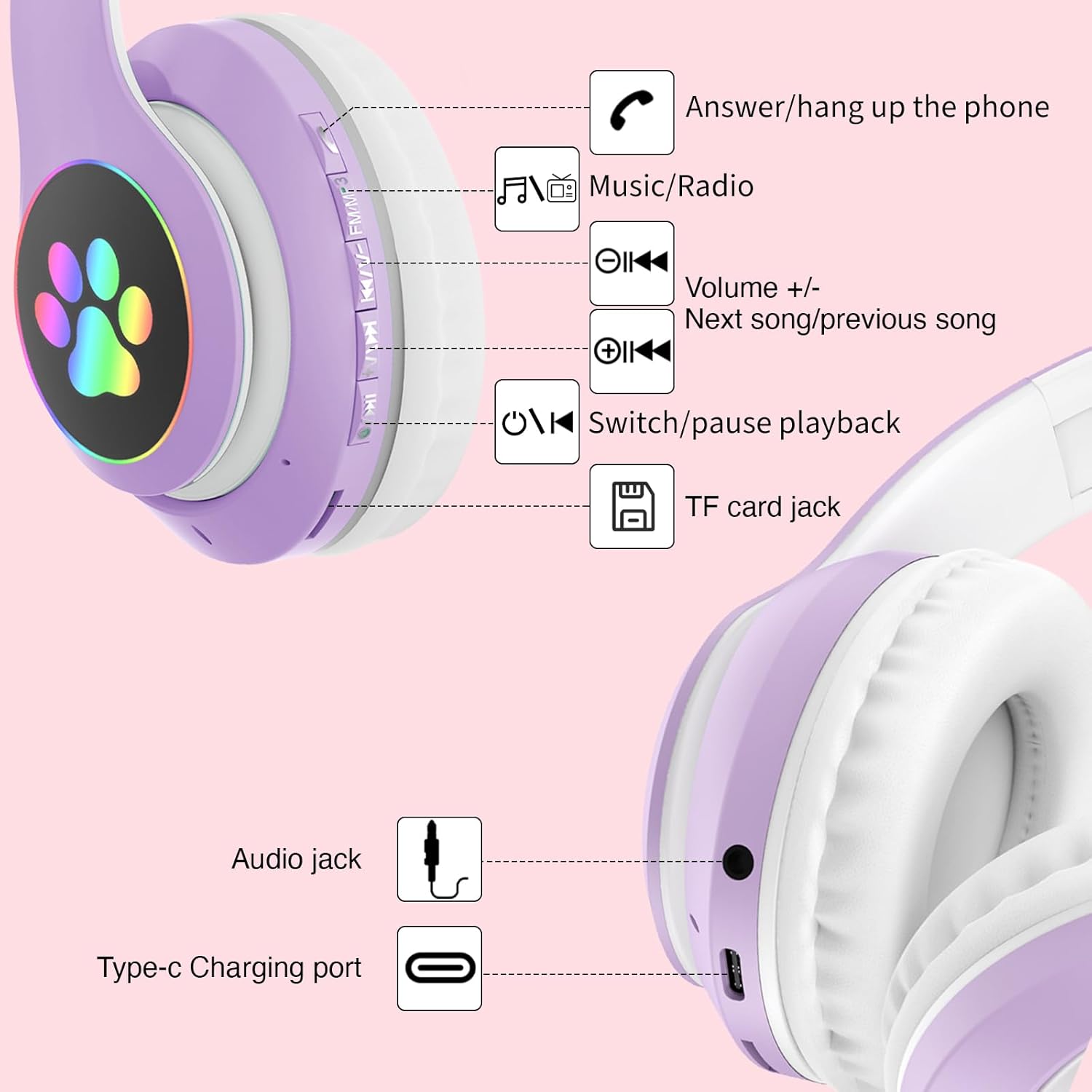
Image: Close-up view of the right ear cup, highlighting the control buttons and ports. Labels indicate functions such as Answer/Hang up, Music/Radio, Volume +/-, Next/Previous song, Switch/Pause playback, TF card jack, Audio jack, and Type-C Charging port.
Controls and Ports:
- Answer/Hang up button: For managing phone calls.
- Music/Radio button: To switch between music and radio modes.
- Volume +/- buttons: Adjusts audio volume.
- Next song/Previous song buttons: Navigates through tracks.
- Switch/Pause playback button: Powers the headphones on/off and controls music playback.
- TF Card Jack: For inserting a MicroSD/TF card to play music directly.
- Audio Jack: 3.5mm port for wired connection.
- Type-C Charging Port: For charging the headphones.
4. Setup
4.1. Charging the Headphones
Before first use, fully charge your headphones. A full charge takes approximately 2.5 hours and provides up to 10 hours of working time.
- Connect the provided USB Type-C charging cable to the Type-C Charging Port on the headphones.
- Connect the other end of the cable to a USB power adapter (not included) or a computer's USB port.
- The LED indicator will show charging status (e.g., red for charging, off when fully charged).

Image: An illustration indicating "10h Max Working Time" and "2.5h Time need for fully charging" for the headphones.
4.2. Powering On/Off
- To Power On: Press and hold the "Switch/Pause playback" button until the LED indicator lights up.
- To Power Off: Press and hold the "Switch/Pause playback" button until the LED indicator turns off.
4.3. Bluetooth Pairing
Pair your headphones with a Bluetooth-enabled device (e.g., smartphone, tablet, computer).
- Ensure the headphones are powered off.
- Press and hold the "Switch/Pause playback" button for approximately 5 seconds until the LED indicator flashes blue and red alternately, indicating pairing mode.
- On your device, enable Bluetooth and search for available devices.
- Select "OH-51" from the list of found devices.
- Once paired, the LED indicator will flash blue slowly.
4.4. TF Card Mode
Play music directly from a MicroSD/TF card.
- Insert a MicroSD/TF card (pre-loaded with MP3 music files) into the TF Card Jack.
- The headphones will automatically switch to TF Card Mode and begin playing music.
4.5. Wired Mode (Audio Jack)
Use the headphones with non-Bluetooth devices or when the battery is low.
- Connect one end of a 3.5mm audio cable (not included) to the Audio Jack on the headphones.
- Connect the other end to the audio output port of your device.
- The headphones will automatically switch to wired mode.
5. Operating Instructions
5.1. Music Playback
- Play/Pause: Press the "Switch/Pause playback" button once.
- Next Song: Press the "Next song" button once.
- Previous Song: Press the "Previous song" button once.
- Volume Up: Press the "Volume +" button.
- Volume Down: Press the "Volume -" button.
5.2. Call Management
- Answer Call: Press the "Answer/Hang up" button once when a call comes in.
- End Call: Press the "Answer/Hang up" button once during a call.
- Reject Call: Press and hold the "Answer/Hang up" button for 2 seconds.
5.3. LED Light Control
The headphones feature dynamic LED lights on the cat ears and paw prints.

Image: The headphones displaying a "NEW DYNAMIC MAGIC LIGHT EFFECT" with breathing and gradual lighting effects on the cat ears and paw prints.

Image: The headphones showcasing "HIFL STEREO SOUND EFFECT" and "RGB colorful glare" on the earcups, emphasizing the visual appeal.
Specific instructions for turning the LED lights on/off or changing modes are not provided in the product description. Typically, this is controlled by a dedicated button or a long press of a volume/power button. Please refer to the quick start guide included with your product for exact instructions if available.
6. Maintenance
6.1. Cleaning
- Use a soft, dry, lint-free cloth to clean the surface of the headphones.
- Do not use abrasive cleaners, alcohol, or chemical solvents.
- Avoid getting moisture into any openings.
6.2. Storage
When not in use, store the headphones in a cool, dry place, away from direct sunlight and extreme temperatures. The headphones are foldable for easy storage and portability.

Image: A composite image demonstrating the headphones' features including easy folding, comfortable and breathable earcups, adjustable headband, cute cat ear shape, and colorful cat's paw lighting.
7. Troubleshooting
| Problem | Possible Cause | Solution |
|---|---|---|
| Headphones do not power on. | Low battery. | Charge the headphones fully. |
| Cannot pair via Bluetooth. | Headphones not in pairing mode; Device Bluetooth off; Too far from device. | Ensure headphones are in pairing mode (flashing blue/red). Turn on Bluetooth on your device. Move headphones closer to the device (within 10 meters). |
| No sound. | Volume too low; Headphones not connected; Incorrect mode. | Increase volume on headphones and device. Re-pair Bluetooth or check wired connection. Ensure correct mode (Bluetooth, TF card, or wired). |
| Sound distortion. | Too far from device; Interference. | Move closer to the device. Avoid strong electromagnetic interference. |
8. Specifications
| Feature | Detail |
|---|---|
| Model Name | OH-51 |
| Brand | OHAANYY |
| Connectivity Technology | Wireless (Bluetooth), Wired (3.5mm Audio Jack) |
| Wireless Communication Technology | Bluetooth |
| Ear Placement | Over Ear |
| Form Factor | Over Ear, Foldable |
| Special Features | LED Light Up Cat Ears, Microphone, TF Card Support, Foldable Design |
| Battery | 1 Lithium Ion battery (included) |
| Charging Time | Approx. 2.5 hours |
| Max Working Time | Approx. 10 hours |
| Item Weight | 10.6 ounces (0.32 Kilograms) |
| Color | Purple |
| UPC | 752844784317 |
9. Warranty and Support
OHAANYY is committed to providing reliable after-sales service. If you encounter any issues with your product, such as damage during transportation, please contact us immediately. We recommend taking a photo or recording a short video of the issue to assist with your claim.
For support, please contact the seller directly through the platform where you purchased the product. They will assist you with refunds, replacements, or troubleshooting as per their policy.
Please retain your proof of purchase for warranty claims.
Ask a question about this manual
Ask about setup, troubleshooting, compatibility, parts, safety, or missing instructions. Manuals+ will review the question and use this page’s manual context to help answer it.