
1. Introduction
The InnoView 15.6-inch Portable Monitor is designed to enhance your productivity and entertainment experience. Featuring a Full HD 1080P IPS A+ screen with a 1200:1 contrast ratio, HDR, and low blue light technology, it delivers vivid images and comfortable viewing. Its ultra-thin and lightweight design, combined with a built-in 90° adjustable stand, makes it an ideal companion for various scenarios, including work, gaming, and travel.

Image 1.1: The InnoView 15.6-inch Portable Monitor showcasing its display quality with a scenic view.
Video 1.1: An overview of the InnoView 15.6-inch Portable Monitor's features, including its metal body, connectivity, and display modes.
2. Package Contents
Verify that all items are present in the package:
- 1 x InnoView 15.6-inch Portable Monitor
- 1 x Full-featured USB-C to USB-C Cable
- 1 x Standard HDMI to HDMI Cable
- 1 x User Manual

Image 2.1: Illustration of the items included in the product package.
3. Product Overview
3.1 Physical Features
The monitor features an ultra-slim profile and lightweight design, weighing approximately 1.5 pounds and measuring 0.25 inches thick, making it highly portable.

Image 3.1: The monitor's lightweight and slim design for easy portability.
3.2 Ports and Buttons
The monitor is equipped with multiple ports and control buttons for versatile connectivity and easy navigation:
- 2 x Full-featured USB Type-C Ports: Supports power, video, and data transmission via a single cable for compatible devices.
- 1 x Standard HDMI Port: For video signal input. Requires separate power when used.
- 1 x Headphone Jack: For audio output.
- Menu Button: Accesses the On-Screen Display (OSD) menu.
- Up/Down Buttons: Navigates through OSD menu options and adjusts settings.
- Power Button: Turns the monitor on/off.

Image 3.2: Labeled diagram of the monitor's ports and buttons.
3.3 Integrated Adjustable Stand
The monitor features a built-in metal stand that can be adjusted up to 90 degrees, providing stable support and allowing for various viewing angles without the need for an external cover or stand.

Image 3.3: The monitor's integrated adjustable stand.
4. Setup
4.1 Connecting via USB-C (Full-featured)
For devices with a full-featured USB-C port (supporting Thunderbolt 3.0/4.0 or USB 3.1 Type-C DP ALT-MODE), you can connect the monitor using a single USB-C to USB-C cable. This cable will transmit both video signal and power to the monitor.
- Connect one end of the USB-C to USB-C cable to a full-featured USB-C port on your device (e.g., laptop, phone, tablet).
- Connect the other end of the USB-C to USB-C cable to either of the Type-C ports on the portable monitor.
- The monitor should automatically detect the signal and power on.
4.2 Connecting via HDMI
When connecting via HDMI, the monitor requires a separate power source.
- Connect one end of the HDMI cable to the HDMI port on your device (e.g., PC, game console).
- Connect the other end of the HDMI cable to the Standard HDMI port on the portable monitor.
- Connect a USB-C power adapter (not included, recommended 15W+) to one of the monitor's Type-C ports for power.
- The monitor should power on and display the signal.

Image 4.1: Connection options for the portable monitor.
4.3 Device Compatibility
The monitor is compatible with a wide range of devices, including:
- Laptops (MacBook, HP, Lenovo, Dell, Asus, etc.)
- Smartphones (with full-featured USB-C)
- Tablets (with full-featured USB-C)
- PCs
- Game Consoles (PS4/5, Xbox, Switch)
4.4 Mac mini M4 Series Connection
When connecting to a Mac mini M4 series, ensure you connect the monitor to the Thunderbolt port. Do not use the front USB-C port as it does not provide video signal output. Connecting to the incorrect port may result in a "No Signal/Power Saving" message.

Image 4.2: Correct connection for Mac mini M4 series devices.
5. Operating Instructions
5.1 Display Modes
The monitor supports various display modes to suit your needs:
- Duplicate Mode: Mirrors your primary screen.
- Extend Mode: Expands your desktop workspace.
- Portrait Mode: Rotates the display for vertical viewing.
These modes can typically be configured through your device's display settings (e.g., Windows Display Settings, macOS System Settings).
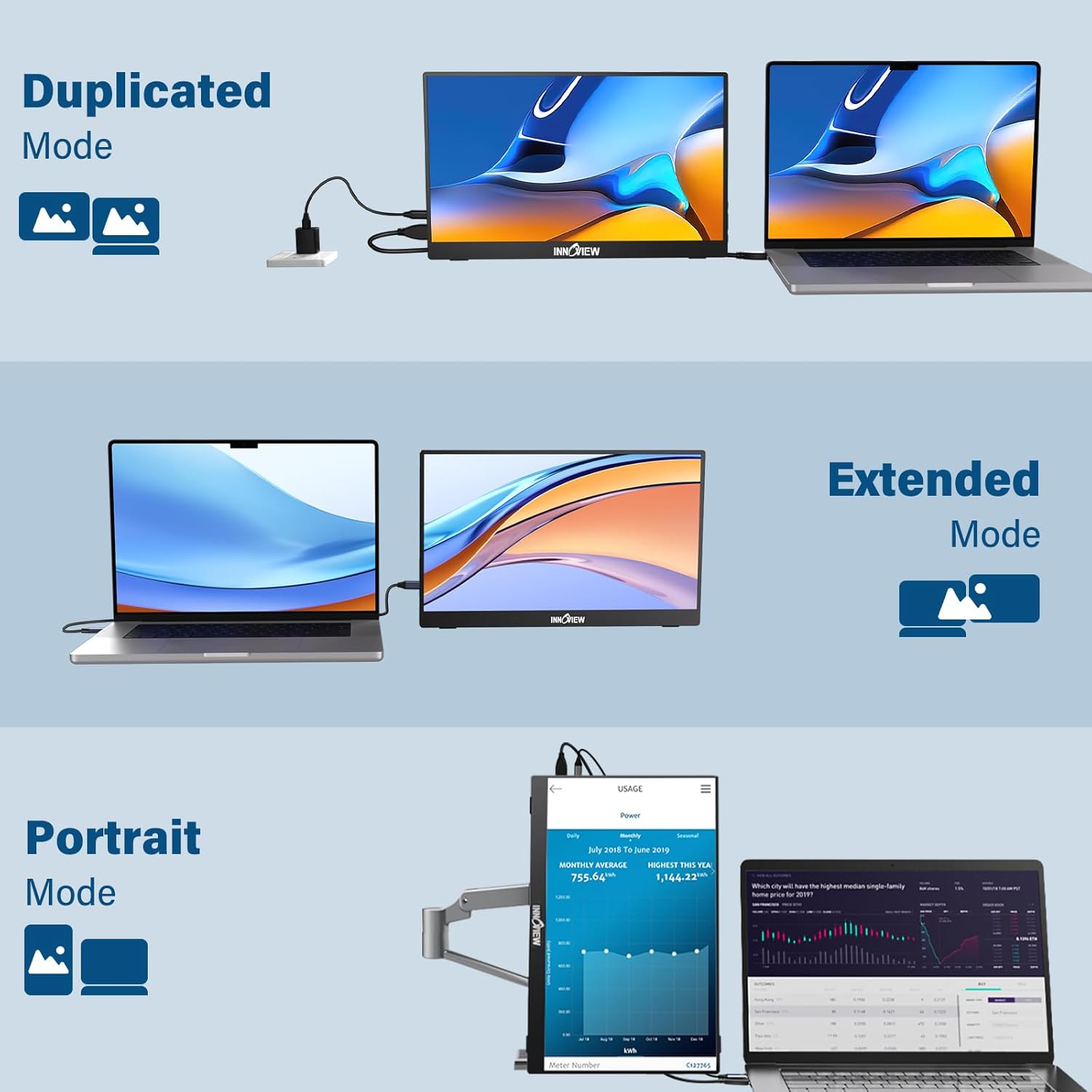
Image 5.1: Various display modes supported by the monitor.
5.2 OSD Menu Navigation
The On-Screen Display (OSD) menu allows you to adjust various monitor settings. Use the Menu, Up, and Down buttons located on the side of the monitor to navigate and select options.
- Press the Menu button to open the OSD menu.
- Use the Up/Down buttons to scroll through options.
- Press the Menu button again to select an option or confirm a setting.
- Press the Power button to exit the OSD menu.
5.3 Display Settings
Within the OSD menu, you can adjust settings such as:
- Brightness/Contrast: Adjust image luminance and distinction.
- Color Settings: Fine-tune color temperature, hue, and saturation.
- HDR Mode: Enable or disable High Dynamic Range for enhanced visual quality.
- Low Blue Light: Reduce blue light emission to minimize eye strain.
- Aspect Ratio: Select between 16:9 or other available ratios.
6. Maintenance
To ensure the longevity and optimal performance of your InnoView portable monitor, follow these maintenance guidelines:
- Cleaning the Screen: Gently wipe the screen with a soft, lint-free cloth. For stubborn marks, slightly dampen the cloth with water or a screen-specific cleaning solution. Avoid harsh chemicals or abrasive materials.
- Cleaning the Body: Use a soft, dry cloth to clean the monitor's metal body.
- Storage: When not in use, store the monitor in a cool, dry place away from direct sunlight and extreme temperatures.
- Handling: Avoid dropping the monitor or subjecting it to strong impacts. Do not place heavy objects on top of it.
- Ventilation: Ensure the monitor's vents are not obstructed to allow for proper heat dissipation.
7. Troubleshooting
If you encounter issues with your monitor, refer to the following common troubleshooting steps:
7.1 Screen Flickering or Restarting
If the screen flickers or restarts intermittently, it may be due to insufficient power supply.
- Solution: Connect the monitor to an external power source using a USB-C power adapter. A 15W or higher adapter is recommended for stable operation, especially for the 1080p model.
7.2 No Signal Displayed
If the monitor displays a "No Signal" message or remains blank:
- Check Cables: Ensure all cables (USB-C or HDMI) are securely connected to both the monitor and your device.
- Power Source: Verify that the monitor is receiving adequate power. If using HDMI, ensure an external power adapter is connected.
- Device Compatibility: Confirm your device's port supports video output (e.g., full-featured USB-C).
- Mac mini M4 Series: If using a Mac mini M4, ensure the monitor is connected to the Thunderbolt port, not the front USB-C port.
- Restart Devices: Try restarting both your connected device and the portable monitor.
7.3 Image Quality Issues
If the image appears distorted, blurry, or has incorrect colors:
- Adjust OSD Settings: Access the OSD menu to adjust brightness, contrast, color temperature, and other display settings.
- Check Device Resolution: Ensure your device's display settings are configured to the monitor's native resolution (1920x1080).
- Cable Quality: Try using a different USB-C or HDMI cable to rule out cable defects.
8. Specifications
| Feature | Specification |
|---|---|
| Model Number | INVPM001-07Black |
| Screen Size | 15.6 Inches |
| Resolution | FHD 1080p (1920 x 1080 Pixels) |
| Panel Type | IPS |
| Aspect Ratio | 16:9 |
| Contrast Ratio | 1200:1 |
| Image Brightness | 250 Candela |
| Screen Surface | Matte |
| Connectivity | 2 x USB Type-C (Full-featured), 1 x Standard HDMI |
| Product Dimensions | 0.26 x 13.99 x 8.7 inches |
| Item Weight | 1.5 pounds (approx. 0.68 kg) |
| Manufacturer | InnoView |
9. Warranty and Support
InnoView provides the following support for your portable monitor:
- 18-Month Warranty: The product is covered by an 18-month warranty, excluding physical damage.
- 30-Day Returns: You may return the product within 30 days of purchase.
For any questions or technical assistance, please contact InnoView customer support. Contact information can typically be found on the back of the monitor or in the included documentation.
Optional Protection Plans
Extended protection plans are available for purchase separately:
- 3-Year Protection Plan: Available for $7.99.
- 4-Year Protection Plan: Available for $10.99.
- Complete Protect: A monthly plan for $16.99/month covering all eligible past and future purchases.