
1. Introduction
This manual provides detailed instructions for the installation, operation, and maintenance of your Hodozzy Android Car Radio. This unit is designed for specific Renault and Dacia models, offering advanced features such as CarPlay, Android Auto, GPS navigation, Bluetooth connectivity, Digital Sound Processor (DSP), Wi-Fi, and FM/RDS radio.
The 6GB+128GB model features an 8-core processor for fast and fluid performance, allowing for multiple applications to be downloaded and installed.
2. Compatible Vehicle Models
This Hodozzy Android Car Radio is compatible with the following vehicle models and years:
- Dacia: Logan (2012-2017), Dokker (2012-2017), Sandero (2012-2017), Lodgy (2012-2017), Duster (2011-2017)
- Renault: Captur (2013-2017), Symbol (2013-2017), Duster (2013-2017)
- LADA: Xray 2 (Note: Some steering wheel control buttons may not function with LADA Xray 2)

Figure 2.1: Compatible vehicle models and years.
3. What's in the Box
Upon unpacking, please ensure all the following components are present:
- Hodozzy Android Car Radio Unit
- Power Cable
- Radio Antenna
- RCA Cable
- Rear Camera Input Cable
- 6-Pin USB Cable
- GPS Antenna
- User Manual
- Canbus Decoder
- Reversing Camera
- Microphone (MIC)
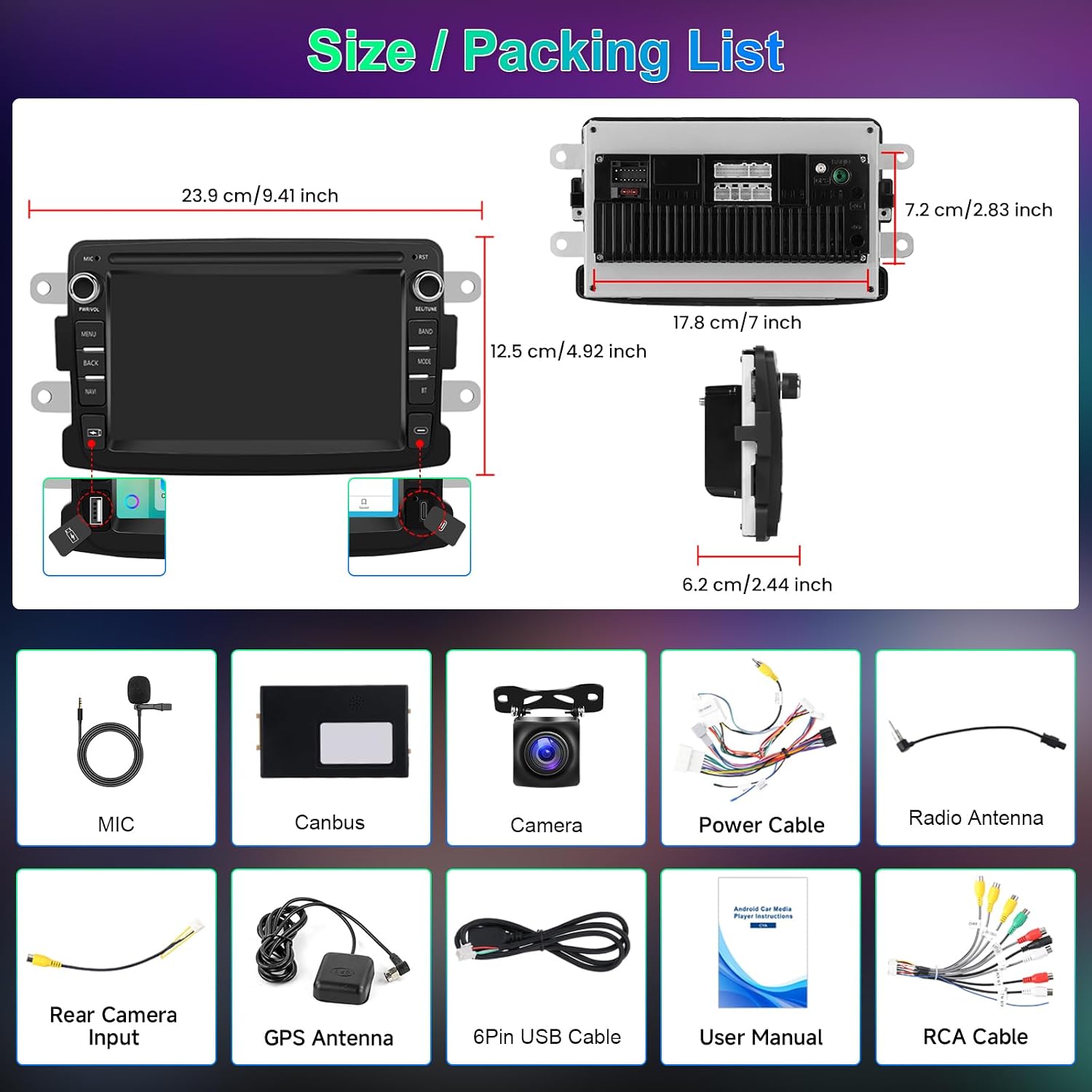
Figure 3.1: Product dimensions and included accessories.
4. Installation and Setup
4.1 Wiring Diagram
Refer to the wiring diagram below for proper connection of the car radio components. Ensure all connections are secure before powering on the unit.

Figure 4.1: Detailed wiring diagram for the car radio system.
4.2 Rear Camera Installation
The included reversing camera can be connected to the dedicated input. This provides a visual aid when reversing your vehicle. Ensure the camera is mounted securely and has a clear view of the rear.
4.3 GPS Antenna Placement
Install the GPS antenna in a location with an unobstructed view of the sky, typically on the dashboard or under the windshield, to ensure optimal satellite signal reception for navigation.
5. Operating Instructions
5.1 CarPlay and Android Auto (Wired & Wireless)
The unit supports both wired and wireless CarPlay and Android Auto via Zlink. This allows seamless integration of your smartphone's features onto the 7-inch display.
- Wireless Connection: Connect your smartphone via Bluetooth.
- Wired Connection: Connect your smartphone using a USB cable to the provided USB port.
Once connected, you can manage GPS navigation, messages, phone calls, and music directly from the car radio screen.

Figure 5.1: CarPlay, Android Auto, and Mirror Link functionality.
5.2 Mirror Link (Airplay)
Mirror Link functionality is available for both Android (wireless or USB cable) and iOS (wireless) devices. This feature duplicates your phone's screen onto the car radio display.
5.3 Bluetooth Connectivity
The integrated Bluetooth with A2DP supports hands-free calling, phonebook synchronization, and music streaming. Pair your phone to make and receive calls safely and enjoy your audio library wirelessly.

Figure 5.2: Bluetooth, DSP, and FM Radio features.
5.4 Digital Sound Processor (DSP) and Audio Settings
The built-in DSP features a 36-band equalizer, allowing for precise audio customization. Choose from various preset styles (Rock, Pop, Jazz, Classical) or create your own custom sound profile. The unit includes a 4*50W amplifier and a subwoofer output port.
5.5 GPS Navigation and Wi-Fi Hotspot
The car radio comes with pre-installed offline maps for navigation without an internet connection. For online maps and real-time traffic updates, connect to Wi-Fi or use your phone's hotspot. You can also download additional navigation apps from the app store.

Figure 5.3: System performance, GPS navigation, and Wi-Fi features.
5.6 FM/RDS Radio
Enjoy high-quality FM radio reception with RDS (Radio Data System) for displaying station information.
5.7 User Interface (UI) Customization
The unit features an IPS touchscreen display. You can customize the brightness, choose from 59 different UI themes, and select from 19 wallpaper options. The split-screen function allows you to run two applications simultaneously.

Figure 5.4: User interface customization options.
5.8 Steering Wheel Controls
The car radio is compatible with steering wheel controls, allowing you to manage functions conveniently without taking your hands off the wheel. (Note: For LADA Xray 2, some controls may not function).
6. Specifications
| Feature | Specification |
|---|---|
| Brand | Hodozzy |
| Model Number | 6GB+128GB (Variant) |
| Processor | 8 Cores |
| RAM | 6GB |
| ROM (Internal Storage) | 128GB |
| Screen Size | 7 Inches |
| Connectivity Technology | Bluetooth, HDMI, USB, Wi-Fi |
| Special Features | Android Auto, Apple CarPlay, GPS Navigation, DSP |
| Compatible Devices | Smartphone |
| Audio Output Mode | Stereo |
| Surround Sound Channel Configuration | 5.1 |
| Video Encoding | H.264 |
| Output Power | 45 Watts (per channel), 180 Watts (total) |
| Control Method | Touchscreen |
| Digital Media Format | AVI, WAV, WMA |
| Item Weight | 1.24 Kilograms |
7. Troubleshooting
If you encounter any issues with your Hodozzy Android Car Radio, please refer to the following common troubleshooting steps:
- No Power: Check all power connections and fuses. Ensure the car's ignition is on.
- No Sound: Verify speaker connections. Check volume levels and audio output settings. Ensure the DSP equalizer is not set to an extreme.
- GPS Signal Loss: Ensure the GPS antenna is correctly installed and has a clear view of the sky.
- Bluetooth Connection Issues: Ensure Bluetooth is enabled on both the car radio and your smartphone. Try unpairing and re-pairing the devices.
- CarPlay/Android Auto Not Connecting: Check USB cable connection (if wired). Ensure Bluetooth is enabled (if wireless). Verify Zlink application is running.
- Steering Wheel Controls Not Working: Confirm compatibility with your specific vehicle model. For LADA Xray 2, some controls may not be supported. Check wiring connections for steering wheel control.
For persistent issues, please contact Hodozzy customer support.
8. Warranty and Support
Your Hodozzy Android Car Radio comes with a 2-year warranty. Please retain your proof of purchase for warranty claims.
For technical support, warranty inquiries, or further assistance, please visit the official Hodozzy website or contact their customer service department.


