
Introduction
This user manual provides essential information for the setup, operation, maintenance, and troubleshooting of your HP Elite SFF 805 G9 Desktop Computer. Please read this manual thoroughly before using your new computer to ensure proper functionality and longevity. Keep this manual for future reference.
Setup
Follow these steps to set up your HP Elite SFF 805 G9 Desktop Computer.
1. Unboxing and Component Check
Carefully remove all components from the packaging. Ensure the following items are present:
- HP Elite SFF 805 G9 Desktop Unit
- Wired USB Keyboard
- Wired USB Mouse
- Power Cable
- Documentation (this manual, warranty information)
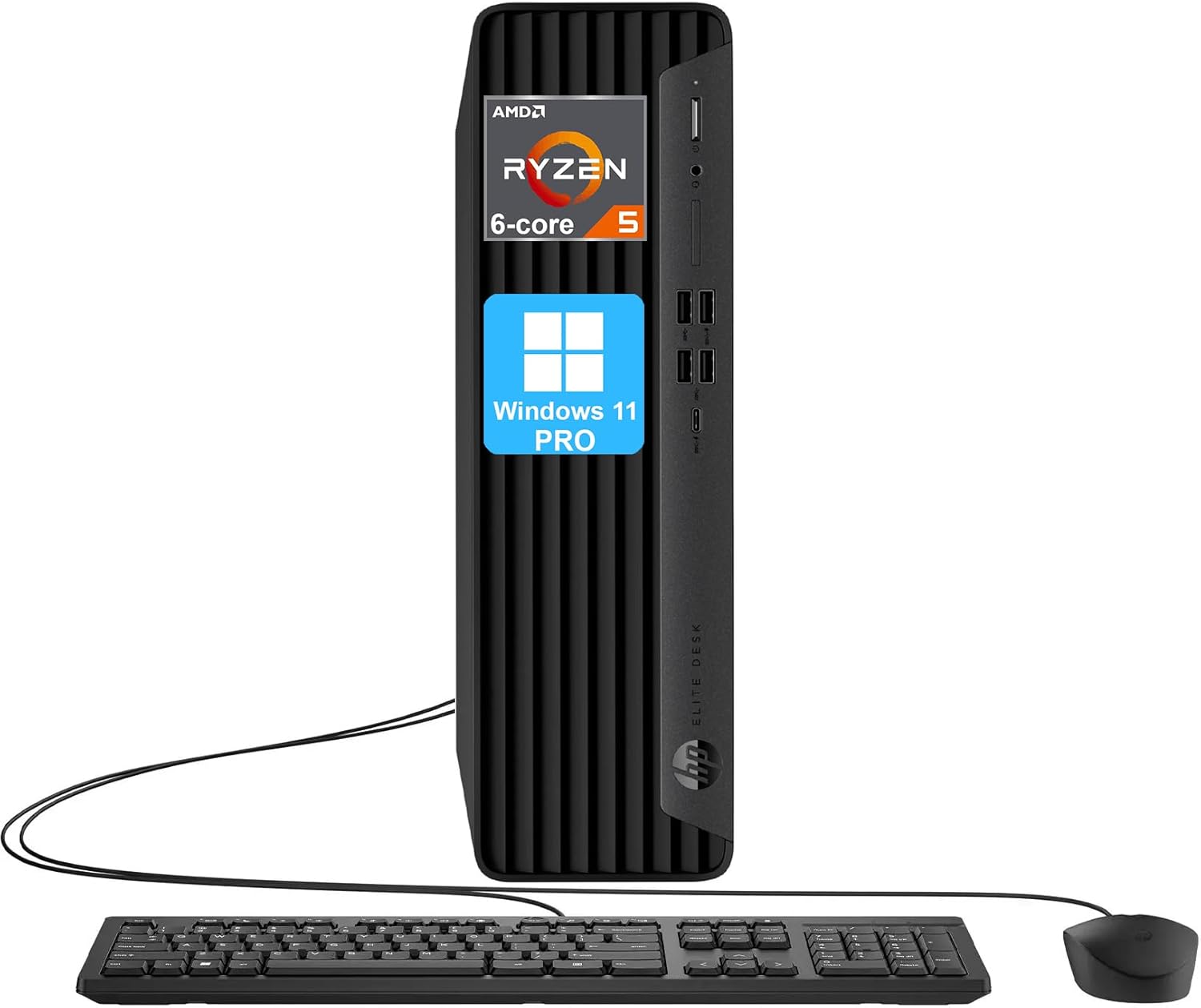
Figure 1: HP Elite SFF 805 G9 Desktop Computer with included wired keyboard and mouse.
The desktop unit is designed for compact spaces. An optional stand may be purchased separately for vertical orientation.

Figure 2: The HP Elite SFF 805 G9 Desktop Computer can be used horizontally or vertically with an optional stand.
2. Connecting Peripherals
Connect your keyboard, mouse, and monitor to the appropriate ports on the desktop unit.
- Keyboard and Mouse: Connect the USB cables of the keyboard and mouse to any available USB ports on the front or rear of the computer.
- Monitor: Connect your monitor using either the DisplayPort 1.4a or HDMI 2.1 port located on the rear of the computer. The system supports dual monitor setups.
- Network: For wired internet access, connect an Ethernet cable from your router or modem to the RJ45 Ethernet port on the rear. For wireless access, the system supports WiFi 5.
3. Powering On
Connect the power cable to the power connector on the rear of the computer and then to a wall outlet. Press the power button located on the front of the desktop unit to turn on the computer.
4. Initial Operating System Setup
Upon first boot, the Windows 11 Pro operating system will guide you through the initial setup process, including language selection, network connection, user account creation, and privacy settings. Follow the on-screen prompts to complete the setup.
Operating
This section details the various ports and basic operational aspects of your HP Elite SFF 805 G9 Desktop Computer.
Front Ports Overview

Figure 3: Front panel ports for easy access.
- 4x SuperSpeed USB Type-A 10Gbps signaling rate: For connecting high-speed USB devices.
- 1x SuperSpeed USB Type-C 10Gbps signaling rate: A versatile port for modern USB-C devices.
- 1x Microphone/Headphone 3.5mm Jack: For connecting headsets or external microphones/speakers.
Rear Ports Overview
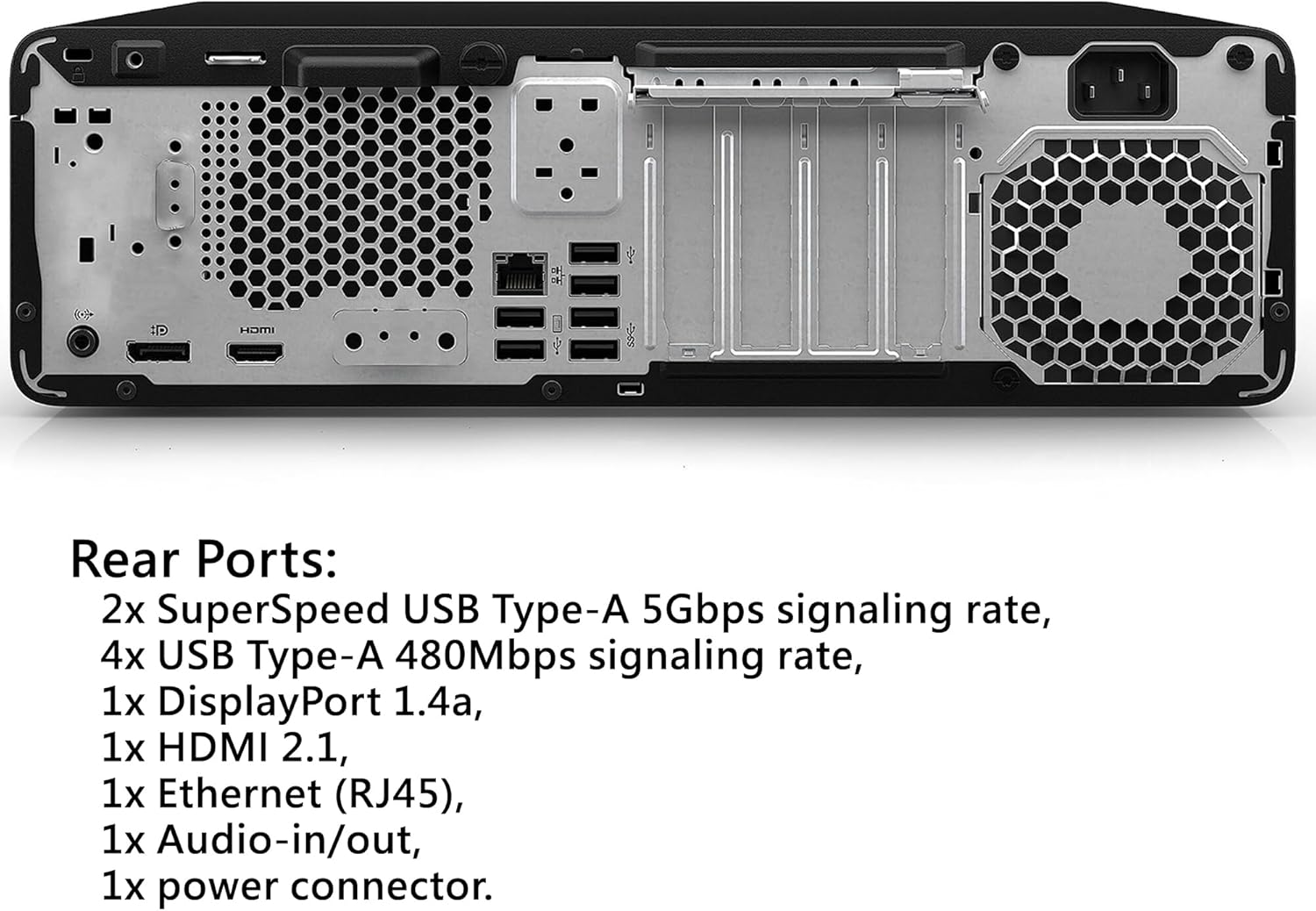
Figure 4: Rear panel ports for primary connections.
- 2x SuperSpeed USB Type-A 5Gbps signaling rate: For connecting standard USB devices.
- 4x USB Type-A 2.0: For connecting legacy USB devices.
- 1x DisplayPort 1.4a: For connecting a primary display.
- 1x HDMI 2.1: For connecting a secondary display or another display device.
- 1x Ethernet (RJ45): For wired network connection.
- 1x Audio-in/out: For connecting external audio devices.
- 1x Power Connector: For connecting the power cable.

Figure 5: The desktop computer integrated into a typical workspace.

Figure 6: The system supports a dual monitor setup for enhanced productivity.
Maintenance
Regular maintenance helps ensure the optimal performance and longevity of your HP Elite SFF 805 G9 Desktop Computer.
1. Cleaning
- Exterior: Use a soft, lint-free cloth slightly dampened with water or a mild cleaning solution to wipe down the exterior surfaces. Avoid harsh chemicals.
- Vents: Periodically use compressed air to clear dust from the ventilation grilles to prevent overheating. Ensure the computer is powered off before cleaning vents.
- Keyboard and Mouse: Clean regularly to remove dust and debris.
2. Software Updates
Keep your operating system and drivers updated to ensure security, stability, and performance.
- Windows Updates: Regularly check for and install updates via Windows Update settings.
- Driver Updates: Ensure graphics, chipset, and other hardware drivers are up-to-date. These can often be found on the HP support website or through Windows Update.
Troubleshooting
This section provides solutions to common issues you might encounter.
1. Computer Does Not Power On
- Ensure the power cable is securely connected to both the computer and a working electrical outlet.
- Verify the power outlet is functional by plugging in another device.
- If using a power strip or surge protector, ensure it is turned on and functioning.
2. No Display on Monitor
- Check that the monitor's power cable is connected and the monitor is turned on.
- Ensure the video cable (DisplayPort or HDMI) is securely connected to both the computer and the monitor.
- Try connecting the monitor to a different video port on the computer, if available.
- Test the monitor with another device to confirm it is working correctly.
3. Keyboard or Mouse Not Responding
- Ensure the USB cables for the keyboard and mouse are firmly plugged into the computer's USB ports.
- Try plugging the keyboard and mouse into different USB ports.
- Restart the computer.
4. Bluetooth Connectivity Issues
- Ensure Bluetooth is enabled in Windows settings. Go to Settings > Bluetooth & devices.
- Restart the Bluetooth service. You can do this via the Services application in Windows.
- Update your Bluetooth drivers from the HP support website.
- Remove and re-pair the Bluetooth device.
Specifications
Below are the detailed technical specifications for the HP Elite SFF 805 G9 Desktop Computer (AMD Ryzen 5 8500G, 16GB RAM, 256GB SSD configuration).
| Feature | Detail |
|---|---|
| Processor | AMD Ryzen 5 8500G (6 Cores, 12 Threads, 16MB L3 Cache, Base 3.5 GHz, Max Turbo 5.0 GHz) |
| Operating System | Windows 11 Pro, 64-bit, English |
| Graphics | Integrated AMD Radeon 740M Graphics |
| Memory (RAM) | 16GB DDR5 (Up to 128GB DDR5 RAM supported) |
| Storage | 256GB PCIe NVMe M.2 Solid State Drive (Up to 8TB PCIe M.2 SSD supported) |
| Optical Drive | None |
| Wireless Connectivity | WiFi 5, Bluetooth 5 |
| Front Ports | 4x SuperSpeed USB Type-A 10Gbps, 1x SuperSpeed USB Type-C 10Gbps, 1x Microphone/Headphone 3.5mm Jack |
| Rear Ports | 2x SuperSpeed USB Type-A 5Gbps, 4x USB Type-A 2.0, 1x DisplayPort 1.4a, 1x HDMI 2.1, 1x Ethernet (RJ45), 1x Audio-in/out, 1x Power Connector |
| Keyboard & Mouse | Wired keyboard and mouse combo included |
| Color | Black |
| Dimensions (W x D x H) | 13.3 x 12.13 x 3.94 inches |
| Weight | 11.11 lbs |
Warranty and Support
Your HP Elite SFF 805 G9 Desktop Computer comes with a standard return policy and options for extended protection plans.
Return Policy
The product is eligible for a refund or replacement within 30 days of purchase. Please refer to your retailer's specific return policy for detailed terms and conditions.
Protection Plans
Extended protection plans are available for purchase to cover your device beyond the standard warranty period. These plans offer additional coverage for repairs and support.
- 3-Year Protection Plan: Provides extended coverage for 36 months.
- Complete Protect: A monthly subscription plan covering eligible past and future purchases.
For specific details on protection plans, including pricing and terms, please consult the retailer or HP's official support channels.
Technical Support
For technical assistance, driver downloads, or further support, please visit the official HP support website or contact HP customer service. Have your product model number and serial number ready when contacting support.
Note: Always refer to the latest information available on the official HP website for the most up-to-date support resources and contact details.