
Samsung SM-X510NZSAXAR
Samsung Galaxy Tab S9 FE User Manual
Model: SM-X510NZSAXAR
Introduction
This manual provides comprehensive instructions for the Samsung Galaxy Tab S9 FE, a versatile Android tablet designed for productivity, entertainment, and creativity. It covers essential information regarding setup, operation, maintenance, and troubleshooting to help you maximize your device's potential.
The Galaxy Tab S9 FE features a stunning 10.9-inch display, a durable water- and dust-resistant design (IP68), and is powered by an efficient Exynos 1380 processor. It comes with an S Pen for enhanced interaction and offers long-lasting battery life.
Getting Started & Setup
What's in the Box
- Samsung Galaxy Tab S9 FE Tablet
- S Pen
- Data Cable (USB-C)
- Ejection Pin
Note: A power adapter is not included in the box. Use a compatible Samsung fast charging adapter for optimal charging performance.
Initial Setup
- Power On: Press and hold the Power button until the Samsung logo appears.
- Language Selection: Choose your preferred language from the list.
- Wi-Fi Connection: Connect to a Wi-Fi network to proceed with the setup. This is required for software updates and Google account synchronization.
- Google Account: Sign in with your Google account or create a new one. This is essential for accessing the Google Play Store and other Google services.
- Samsung Account: Sign in with your Samsung account for access to Samsung-specific features and services.
- Data Transfer: If you have a previous device, follow the on-screen prompts to transfer your data.
- Security Setup: Set up a screen lock (PIN, pattern, password, or biometrics like fingerprint).
- Software Updates: The tablet may prompt you to download and install the latest software updates. It is recommended to do this for optimal performance and security.
Inserting a microSD Card (Optional)
The Galaxy Tab S9 FE supports expandable storage up to 1TB via a microSD card.
- Locate the SIM/microSD card tray on the side of the tablet.
- Insert the ejection pin into the small hole next to the tray to open it.
- Place the microSD card into the tray with the gold contacts facing down.
- Gently push the tray back into the slot until it clicks into place.
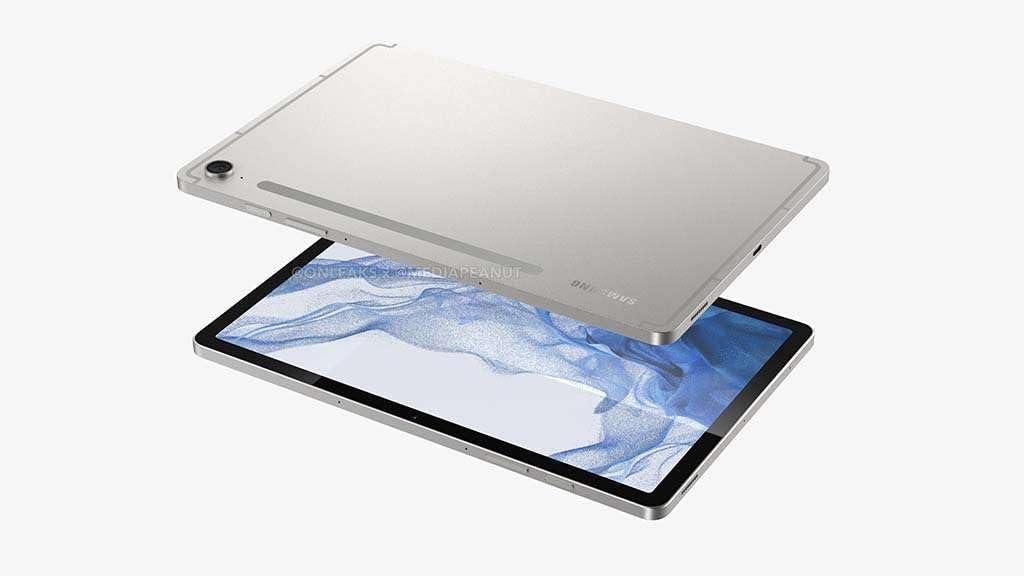
Image: Samsung Galaxy Tab S9 FE with S Pen, illustrating the tablet's side profile where the S Pen attaches and ports are located.
Operating Your Tablet
Basic Navigation
- Home Screen: The main screen where you can access apps and widgets.
- App Drawer: Swipe up from the Home screen to view all installed applications.
- Notifications Panel: Swipe down from the top of the screen to access notifications and quick settings.
- Recent Apps: Tap the Recent Apps button (usually a square icon) to view and switch between recently used applications.
S Pen Usage
The included S Pen offers enhanced interaction with your Galaxy Tab S9 FE.
- Writing and Drawing: Use the S Pen to write notes, sketch, or draw directly on the screen. The pen's responsive design mimics writing on paper.
- Air Command: Hover the S Pen over the screen and press the button on the S Pen to open the Air Command menu, providing quick access to features like Create note, Smart select, Screen write, and Live message.
- Marking Documents: Easily mark up PDFs and other documents for review or annotation.
- Circle to Search with Google: Circle any object, text, or image on your screen with the S Pen to instantly search for information about it using Google.
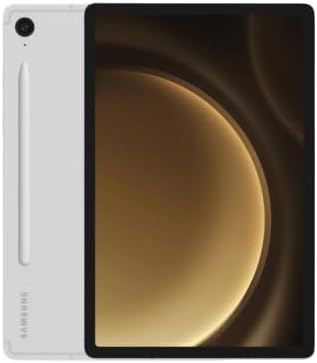
Image: Samsung Galaxy Tab S9 FE in vertical orientation, showcasing the S Pen attached to the side.
Multitasking and Productivity
- Multi-Window: Open up to three apps simultaneously on the large display for efficient multitasking.
- Quick Share: Easily share files, photos, and videos with other Galaxy devices and even non-Galaxy devices.
- Camera Features: The camera automatically adjusts to keep focus on you during video calls, enhancing collaboration.
Battery Management
The Galaxy Tab S9 FE offers up to 18 hours of battery life.
- Charging: Use a compatible USB-C cable and a Samsung fast charging adapter (45W recommended) for quick recharging. A full charge can be achieved in less than 90 minutes.
- Battery Saving Modes: Access battery settings to enable power-saving modes and optimize app usage to extend battery life.
Maintenance
- Cleaning: Use a soft, lint-free cloth to clean the screen and body. Avoid abrasive materials or harsh chemicals.
- Water and Dust Resistance (IP68): The tablet is rated IP68 for water and dust resistance. This means it can withstand submersion in up to 1.5 meters of fresh water for up to 30 minutes. However, it is not recommended for beach or pool use. If the device gets wet, dry it thoroughly before charging.
- Software Updates: Regularly check for and install software updates to ensure optimal performance, security, and access to new features.
- Storage Management: Periodically review your storage usage. Delete unnecessary files, clear app caches, or transfer data to a microSD card or cloud storage to free up space.
Troubleshooting
Common Issues and Solutions
| Issue | Possible Solution |
|---|---|
| Tablet does not power on | Ensure the battery is charged. Connect the tablet to a charger for at least 10 minutes, then try powering on again. If it still doesn't turn on, perform a forced restart by holding the Power button and Volume Down button simultaneously for about 7-10 seconds. |
| Apps are crashing or freezing | Close and reopen the app. Clear the app's cache and data in Settings > Apps. Ensure the app and your tablet's software are up to date. If the issue persists, uninstall and reinstall the app. |
| Wi-Fi connection issues | Restart your Wi-Fi router and the tablet. Forget the network in tablet settings and reconnect. Ensure you are within range of the Wi-Fi signal. |
| S Pen is not responding | Ensure the S Pen is properly attached to the tablet for charging. Restart the tablet. Check S Pen settings in Settings > Advanced features > S Pen. |
| Slow performance | Close unused apps. Clear cache from apps and system. Check for available storage space and free up if necessary. Restart the tablet regularly. |
For more detailed troubleshooting or issues not listed here, please refer to the official Samsung support website or contact customer service.
Specifications
| Feature | Detail |
|---|---|
| Model Name | Samsung Galaxy Tab S9 FE |
| Model Number | SM-X510NZSAXAR |
| Display | 10.9-inch LCD, 2560 x 1600 pixels resolution |
| Processor | Exynos 1380 (2400 MHz) |
| Operating System | Android |
| Internal Storage | 128GB (up to 256GB variants available) |
| Expandable Storage | microSD up to 1TB |
| RAM | Up to 8GB |
| Rear Camera | 8 MP |
| Front Camera | Not specified (implied by video chat features) |
| Wireless Connectivity | 802.11ax (Wi-Fi 6) |
| Battery Life | Up to 18 hours (typical usage) |
| Charging | Super Fast Charging (45W supported) |
| Dimensions (LxWxH) | 9.98 x 6.51 x 0.26 inches |
| Weight | 1.25 pounds |
| Water & Dust Resistance | IP68 rated |
| Included Accessories | S Pen, Data Cable, Ejection Pin |
Warranty and Support
For information regarding your product's warranty, please refer to the warranty card included with your purchase or visit the official Samsung support website.
Samsung Customer Service: For technical assistance, troubleshooting, or service inquiries, please visit the Samsung Support website or contact their customer service hotline.
Keep your proof of purchase for warranty claims.
Ask a question about this manual
Ask about setup, troubleshooting, compatibility, parts, safety, or missing instructions. Manuals+ will review the question and use this page’s manual context to help answer it.