
1. Introduction
Welcome to the user manual for your new Dell Inspiron 14 7740 2-in-1 Laptop. This guide provides essential information for setting up, operating, maintaining, and troubleshooting your device. Please read this manual thoroughly to ensure optimal performance and longevity of your laptop.
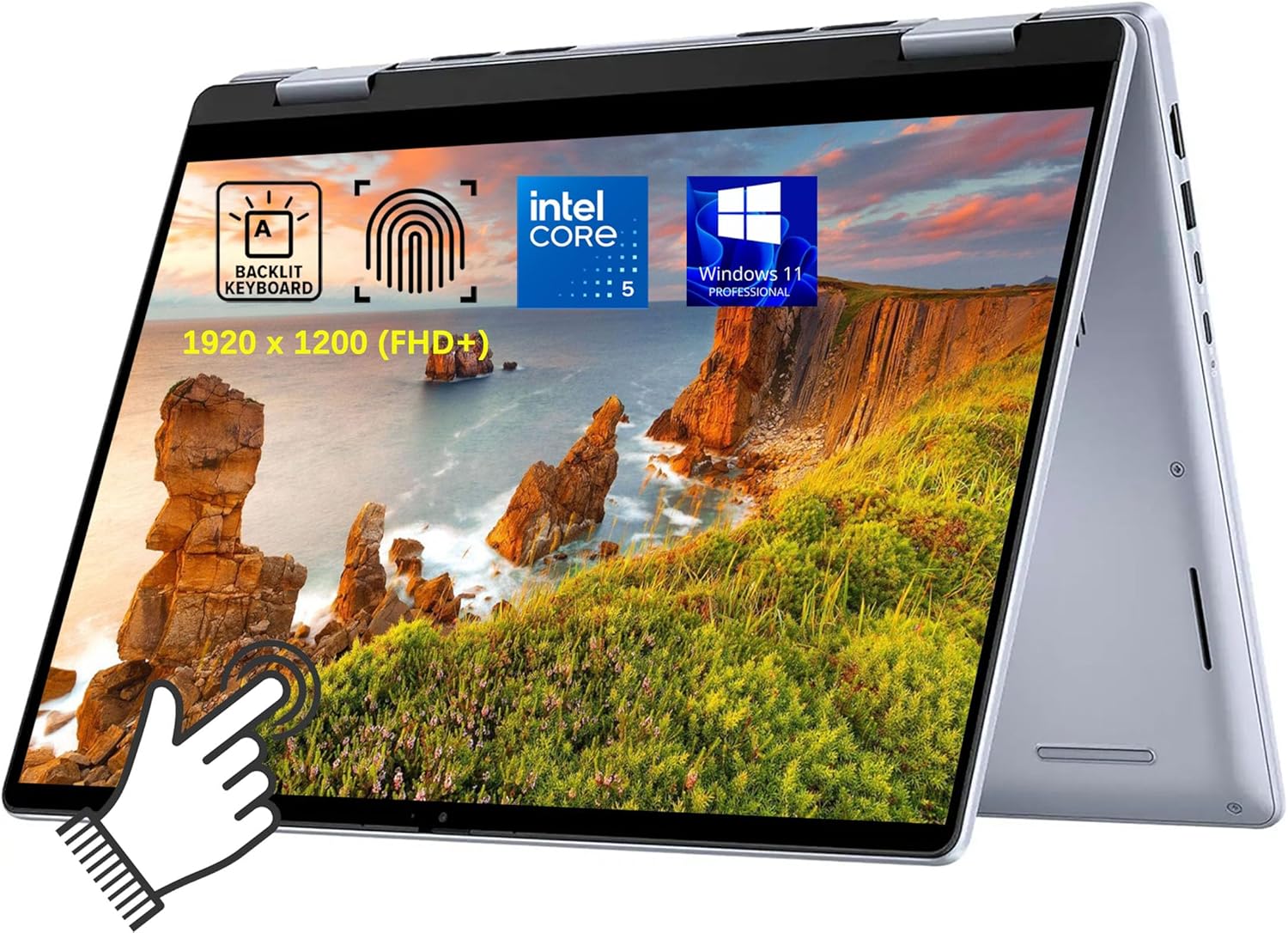
Image: The Dell Inspiron 14 7740 in a flexible 2-in-1 configuration, highlighting its key features.
2. Setup
2.1 Unboxing and Initial Inspection
- Carefully remove the laptop and all accessories from the packaging.
- Inspect the laptop for any physical damage. If damage is found, contact your retailer immediately.
- Ensure all components are present: Dell Inspiron 14 7740 Laptop, 65W USB Type-C AC adapter, and documentation.
2.2 Connecting the Power Adapter
- Connect the USB Type-C end of the AC adapter to one of the USB Type-C ports on your laptop.
- Plug the power cable into a wall outlet.
- Allow the battery to charge for at least 30 minutes before initial use, or until the battery indicator shows sufficient charge.
2.3 First-Time Power On and Windows Setup
- Open the laptop lid. The laptop may power on automatically. If not, press the power button located on the side or keyboard deck.
- Follow the on-screen instructions to complete the Windows 11 Pro setup process. This includes selecting your region, language, connecting to a Wi-Fi network, and creating a user account.
- Register your product with Dell for warranty and support services.
3. Operating Your Laptop
3.1 Power On/Off and Sleep Modes
- Power On: Press the power button.
- Shut Down: Click the Start button, then Power > Shut down.
- Sleep: Close the lid or click the Start button, then Power > Sleep.
3.2 Using the 2-in-1 Functionality
Your Dell Inspiron 14 7740 features a 360-degree hinge, allowing it to transform into multiple modes:
- Laptop Mode: Traditional laptop use for typing and productivity.
- Tent Mode: Ideal for watching videos or presentations in confined spaces.
- Stand Mode: Perfect for media consumption or touch-based applications.
- Tablet Mode: Fold the screen back completely for a full tablet experience, utilizing the touchscreen.
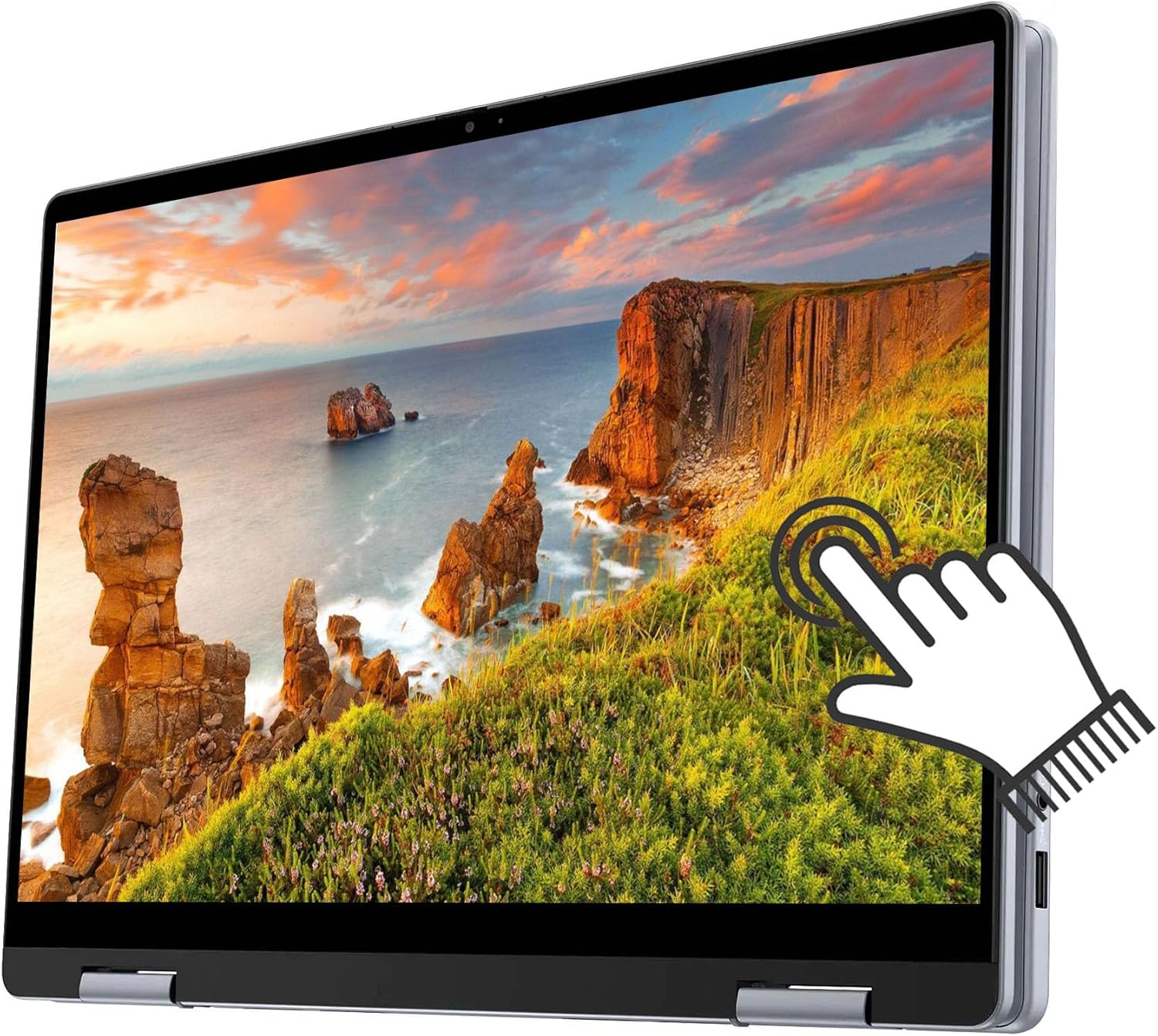
Image: The laptop configured in tablet mode, demonstrating touchscreen interaction.
3.3 Keyboard and Touchpad
- Backlit Keyboard: Press Fn + F10 (or the key with the backlight icon) to cycle through backlight brightness levels.
- Touchpad: Supports multi-touch gestures for navigation. Refer to Windows settings for customization.
- Fingerprint Reader: Integrated for secure login via Windows Hello. Set up in Windows Settings > Accounts > Sign-in options.
3.4 Ports and Connectivity
Familiarize yourself with the various ports on your laptop:

Image: Detailed view of the laptop's side ports, including USB, HDMI, and SD card slot.
- USB Type-C 3.2 Gen 2 (10 Gbps): Two ports with Power Delivery and DisplayPort 1.4 support. Use for charging, data transfer, and external displays.
- USB 3.2 Gen 1 Type-A: Two ports for connecting standard USB devices.
- HDMI 1.4: For connecting to external displays or projectors.
- SD Card Reader: For reading and writing to SD memory cards.
- Headphone/Microphone Combo Jack: For connecting headsets or external audio devices.
- Wireless: Integrated Intel Wi-Fi 6E and Bluetooth for network and peripheral connectivity.
3.5 Audio and Camera
- Audio: Features 2 tuned speakers with audio processing by Dolby Atmos Core and Waves MaxxAudio Pro for enhanced sound quality.
- Camera: Integrated Widescreen FHD (1080p) Webcam with Dual Digital Microphone Array and Temporal Noise Reduction for clear video calls.

Image: The laptop highlighting its enhanced audio capabilities with Dolby Atmos.
4. Maintenance
4.1 Cleaning Your Laptop
- Screen: Use a soft, lint-free cloth lightly dampened with water or a screen cleaner. Do not spray liquid directly onto the screen.
- Chassis and Keyboard: Use a soft, dry cloth. For stubborn dirt, a slightly damp cloth can be used. Avoid harsh chemicals.
- Ports: Use compressed air to gently clear dust from ports.
4.2 Battery Care
- To maximize battery lifespan, avoid consistently draining the battery to 0% or keeping it at 100% for extended periods.
- Store the laptop in a cool, dry place when not in use.
- The laptop offers up to 10 hours and 20 minutes of battery life under optimal conditions.
4.3 Software Updates
- Regularly check for and install Windows updates to ensure system stability and security. Go to Settings > Windows Update.
- Keep Dell drivers and firmware updated using the Dell SupportAssist application or by visiting the Dell support website.
5. Troubleshooting
This section addresses common issues you might encounter with your Dell Inspiron 14 7740.
5.1 Power Issues
- Laptop not turning on: Ensure the AC adapter is securely connected and the outlet is functional. Try a different outlet. If the battery is completely drained, allow it to charge for a while before attempting to power on.
- Battery not charging: Verify the AC adapter is correctly connected to both the laptop and the power outlet. Check for any damage to the adapter or cable.
5.2 Display Issues
- No display on screen: Connect an external monitor via HDMI or USB-C to check if the issue is with the laptop's internal display. Restart the laptop.
- Touchscreen not responding: Ensure the display drivers are up to date. Restart the laptop.
5.3 Performance Issues
- Slow performance: Close unnecessary applications. Check Task Manager for processes consuming high CPU or RAM. Ensure sufficient free storage space on the SSD.
- Overheating: Ensure the laptop's vents are not obstructed. Use the laptop on a hard, flat surface.
5.4 Connectivity Issues
- Wi-Fi not connecting: Verify Wi-Fi is enabled. Restart your router and modem. Update wireless drivers.
- Bluetooth device not pairing: Ensure Bluetooth is enabled on both devices. Place devices close to each other. Remove and re-add the device in Bluetooth settings.
For more advanced troubleshooting or issues not covered here, please refer to the Dell Support website or contact Dell technical support.
6. Specifications
Detailed technical specifications for the Dell Inspiron 14 7740 2-in-1 Laptop:
| Feature | Specification |
|---|---|
| Processor | Intel Core 5 120U (up to 5.00 GHz Turbo, 10 Cores, 12 Threads, 12 MB Cache) |
| Memory (RAM) | 16GB DDR5 RAM |
| Storage | 1TB PCIe SSD |
| Display | 14" WUXGA (1920 x 1200), IPS, 16:10, Touch, 250 nits, WVA, ComfortView Display |
| Graphics | Integrated Intel Graphics |
| Operating System | Windows 11 Professional |
| Ports | 2x USB Type-C 3.2 Gen 2 (10 Gbps) with Power Delivery and DisplayPort 1.4, 2x USB 3.2 Gen 1 Type-A, HDMI 1.4, SD card reader, Headphone/Microphone Combo |
| Wireless Connectivity | Intel Wi-Fi 6E + Bluetooth |
| Audio | 2 tuned speakers, Dolby Atmos Core, Waves MaxxAudio Pro |
| Camera | Integrated Widescreen FHD (1080p) Webcam with Dual Digital Microphone Array |
| Battery Life | Up to 10 hours, 20 minutes |
| Power Adapter | 65W AC adapter, USB Type-C |
| Dimensions (W x D x H) | 12.36 x 8.90 x 0.74 inches |
| Weight | 3.77 lbs |
| Color | Ice Blue |
| Keyboard | Backlit, English US, Copilot key |
| Security | Fingerprint Reader |
7. Warranty and Support
7.1 Manufacturer's Warranty
Your Dell Inspiron 14 7740 Laptop is covered by Dell's standard limited hardware warranty. The specific terms and duration of your warranty may vary by region and purchase agreement. Please refer to the warranty documentation included with your product or visit the official Dell support website for detailed information.
7.2 Technical Support
For technical assistance, driver downloads, troubleshooting guides, and service requests, please visit the official Dell Support website:
When contacting support, please have your laptop's Service Tag readily available. This can usually be found on a sticker on the bottom of your laptop or accessed through the Dell SupportAssist application.