
1. Introduction
This manual provides detailed instructions for the setup, operation, and maintenance of your momen Wireless PC Gaming Controller. Designed for versatile gaming, this controller features Hall Effect joysticks and triggers, dynamic RGB lighting, and triple connectivity options for a seamless gaming experience across multiple platforms.
2. Package Contents
Please verify that all items are present in your package:
- momen Wireless PC Gaming Controller
- 2.4G Wireless Dongle (USB-A with USB-C adapter)
- USB-C Charging Cable
- User Manual (this document)
- Thumb Grips (optional, for joysticks)

Image: The momen Wireless PC Gaming Controller, showcasing its transparent design, included 2.4G wireless dongle, and detachable back paddles.
3. Product Overview
Familiarize yourself with the controller's layout and key features:
- Hall Effect Joysticks: Provide precise, drift-free control.
- Hall Effect Triggers: Offer responsive and accurate input.
- ABXY Buttons: Standard action buttons with dynamic RGB lighting.
- D-Pad: Directional pad for precise movement.
- Programmable Back Buttons (M1/M2): Customizable for macros or complex commands.
- Home Button: Power on/off and system menu access.
- Share/Screenshot Button: Capture in-game moments.
- Turbo Button: Adjust rapid-fire settings.
- Vibration Button: Adjust vibration intensity.
- Light Button: Control RGB lighting modes and colors.
- USB-C Port: For charging and wired connection.

Image: A detailed view of the Hall Effect joysticks, highlighting their internal mechanism for enhanced precision and durability.

Image: A close-up of the Hall Effect triggers, illustrating their design for quick and accurate response.
4. Setup and Connection
4.1. 2.4G Wireless Connection (for PC, Steam Deck)
- Insert the 2.4G wireless dongle into an available USB port on your PC or Steam Deck.
- Press and hold the Home button on the controller until the RGB lights illuminate.
- The controller will automatically pair with the dongle. The indicator lights will become solid when connected.
Video: Demonstration of connecting the momen controller to a PC using the 2.4G wireless dongle, highlighting the pairing process and Hall Effect joysticks.
4.2. Bluetooth Connection (for Switch 2, Android, iOS, PC)
- Ensure the controller is powered off.
- On your device (Switch, Android, iOS, PC), navigate to Bluetooth settings and enable Bluetooth.
- For Switch: Go to "Controllers" -> "Change Grip/Order".
- Press and hold the Home button on the controller until the RGB lights illuminate and flash rapidly, indicating pairing mode.
- Select "momen Controller" or similar from the list of available devices on your screen.
- The indicator lights on the controller will become solid when successfully connected.
Video: Step-by-step guide on connecting the momen controller to a Nintendo Switch console via Bluetooth, showing the pairing sequence and successful connection.
4.3. Wired Connection (for PC)
- Connect the USB-C end of the charging cable to the controller and the USB-A end to your PC.
- The controller will automatically be recognized as a wired gamepad.
5. Operating Instructions
5.1. RGB Lighting Adjustment
The controller features 8 customizable RGB colors and 3 lighting modes (Always-on, Breathing, Lights off).
- To change lighting mode: Press the Light button (located on the back) repeatedly.
- To change RGB color: Hold the Light button and move the left joystick to cycle through colors.

Image: The controller displaying its adjustable LED lights, illustrating the "Always-on", "Breathing", and "Lights off" modes.
5.2. Vibration Adjustment
The controller offers 5 vibration levels (0%, 25%, 50%, 75%, 100%).
- To adjust vibration intensity: Press the Vibration button (located on the back) repeatedly to cycle through levels.

Image: Visual representation of the controller's 5 adjustable vibration levels, from 0% to 100% intensity.
5.3. Programmable Back Buttons (M1/M2)
The two back buttons (M1 and M2) can be programmed to replicate single buttons, multi-button combos, or macros.
- Press and hold the MR (Macro Record) button (located on the back) until the indicator light flashes.
- Press the M1 or M2 button you wish to program.
- Input the desired button sequence or macro.
- Press the MR button again to save the programming. The indicator light will stop flashing.
- To clear a programmed button, repeat steps 1-2, then press the MR button without inputting any sequence.
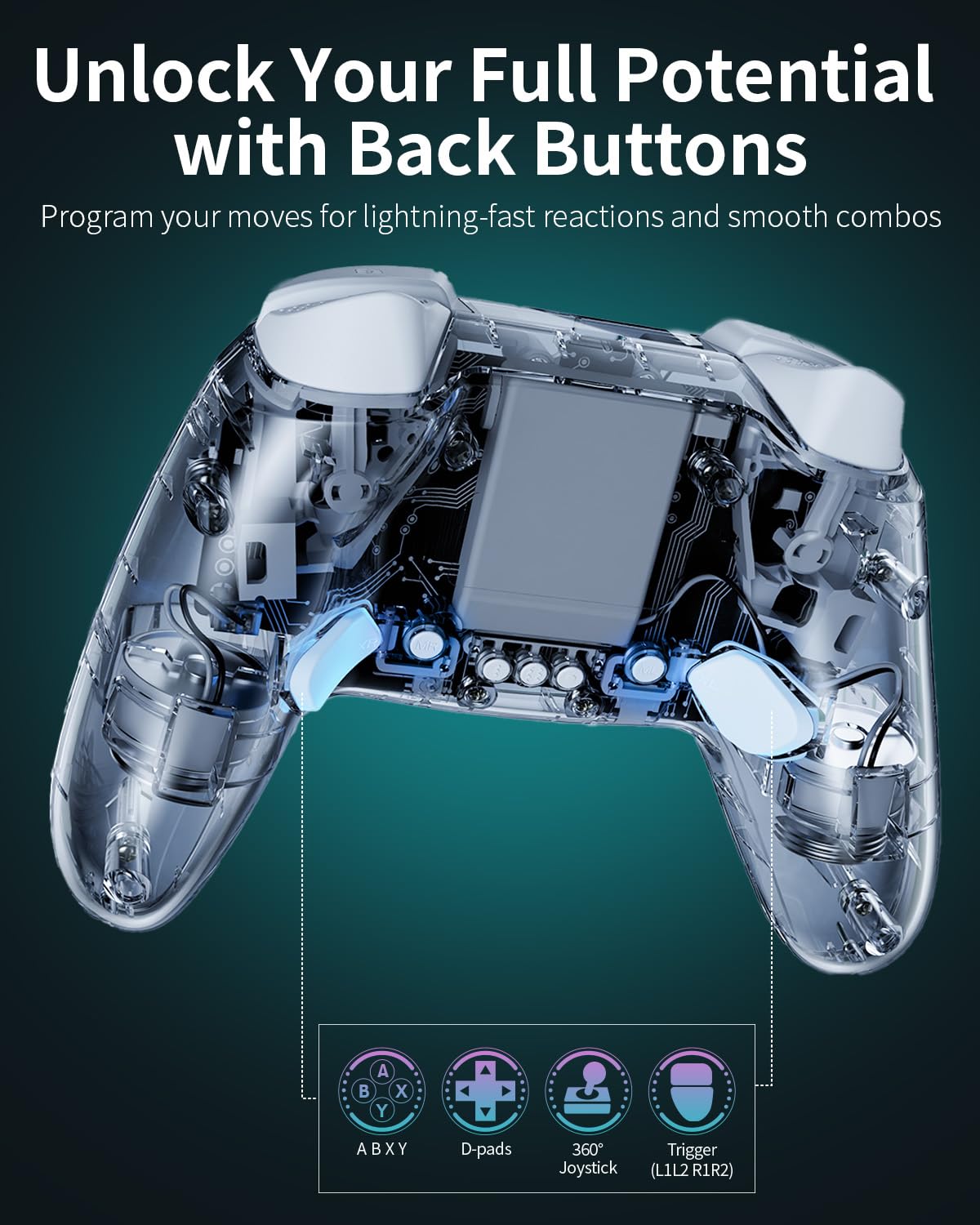
Image: The underside of the controller, highlighting the programmable M1 and M2 back buttons and their associated macro programming buttons.
5.4. Joystick Dead Zone Calibration
Adjust the joystick dead zone to eliminate drift and fine-tune responsiveness. Available settings: 0°, 2°, 4°, 6°.
- To adjust dead zone: Press the Dead Zone button (located on the back, typically marked with a joystick icon) repeatedly to cycle through the settings.
5.5. Charging
The controller is equipped with a 600mAh Lithium Polymer battery, providing approximately 8 hours of playtime on a full charge.
- Connect the controller to a USB power source (PC, wall adapter) using the provided USB-C cable.
- The indicator lights will show charging status and turn off when fully charged.

Image: An internal view of the controller highlighting the 600mAh rechargeable battery and its estimated 8-hour playing time.
6. Compatibility
The momen Wireless PC Gaming Controller is compatible with a wide range of platforms:
- Windows PC: Via 2.4G wireless dongle, Bluetooth, or USB-C wired connection.
- Nintendo Switch 2: Via Bluetooth connection.
- Steam Deck: Via 2.4G wireless dongle or Bluetooth connection.
- Android Devices: Via Bluetooth connection.
- iOS Devices: Via Bluetooth connection.

Image: The controller in use, illustrating its multi-platform compatibility with PC, Switch, iOS, and Android devices.
7. Maintenance
To ensure the longevity and optimal performance of your controller:
- Keep the controller clean by wiping it with a soft, dry cloth.
- Avoid exposing the controller to extreme temperatures, humidity, or direct sunlight.
- Do not disassemble the controller, as this may void the warranty.
- Store the controller in a safe place when not in use to prevent damage.
8. Troubleshooting
- Controller not connecting:
- Ensure the controller is fully charged.
- Verify the correct connection method (2.4G dongle, Bluetooth, or wired) is selected and followed.
- For Bluetooth, ensure your device's Bluetooth is enabled and the controller is in pairing mode.
- Try restarting both the controller and the device you are connecting to.
- Joystick drift:
- Perform joystick dead zone calibration as described in Section 5.4.
- Ensure the controller firmware is up to date (check manufacturer's website if applicable).
- Lights not working/adjusting:
- Ensure the controller is powered on.
- Refer to Section 5.1 for RGB lighting adjustment instructions.
- Vibration not working/adjusting:
- Refer to Section 5.2 for vibration adjustment instructions.
- Some games may not support vibration feedback.
If you encounter persistent issues, please contact momen customer support for assistance.
9. Specifications
| Model Number: | KC07 |
| Connectivity: | 2.4G Wireless, Bluetooth, USB-C Wired |
| Compatibility: | Windows PC, Switch 2, Steam Deck, Android, iOS |
| Joysticks: | Hall Effect |
| Triggers: | Hall Effect |
| Battery: | 600mAh Lithium Polymer (included) |
| Playtime: | Approximately 8 hours |
| Dimensions: | 6.1 x 4.13 x 2.56 inches |
| Weight: | 8.11 ounces |
10. Warranty and Support
momen products are designed for quality and reliability. For warranty information, technical support, or any product-related inquiries, please refer to the contact details provided on the product packaging or visit the official momen website.
We are committed to assisting you with any issues you may encounter.