
1. Introduction
Thank you for choosing the Koilboane Wireless Lavalier Microphone M22. This manual provides detailed instructions for setting up, operating, and maintaining your microphone system. Please read this manual carefully before use to ensure optimal performance and longevity of your device.
The Koilboane M22 is designed for clear audio recording, ideal for video recording, vlogging, live streaming, interviews, and online conferences. It features plug-and-play functionality, automatic connection, and effective noise reduction.
2. What's in the Box
Carefully unpack your Koilboane Wireless Lavalier Microphone M22 and ensure all items are present:
- 2 x Wireless Microphones
- 1 x USB-C Receiver
- 1 x Lightning Adapter
- 1 x USB Adapter (USB-A)
- 2 x Windproof Caps (Furry Windscreen)
- 1 x USB-A to USB-C Charging Cable

Image: All components included in the Koilboane M22 Wireless Microphone package.
3. Product Overview
Familiarize yourself with the main components of your wireless microphone system:
3.1 Wireless Microphone
- Microphone Head: Captures audio.
- Power/Pairing Button: Turns the microphone on/off and initiates pairing.
- Indicator Light: Displays status (pairing, connected, charging).
- Charging Port: USB-C port for charging the microphone.
- Clip: For attaching the microphone to clothing.
3.2 Receiver
- USB-C Connector: Plugs directly into your device (phone, tablet, PC).
- Indicator Light: Displays connection status.
- USB-C Charging Port (Pass-through): Allows charging your device while the receiver is connected.
3.3 Adapters
- Lightning Adapter: For Apple devices with a Lightning port.
- USB Adapter (USB-A): For computers or other devices with a standard USB-A port.


Image: Individual components of the Koilboane M22 system: microphone, receiver, and adapters.
4. Setup Guide
The Koilboane M22 features a simple plug-and-play setup. No applications or Bluetooth pairing are required.
- Connect the Receiver: Plug the USB-C receiver directly into your recording device (smartphone, tablet, laptop). If your device uses a Lightning port, attach the Lightning adapter to the USB-C receiver first, then plug it into your device. For USB-A ports, use the provided USB-A adapter.
- Power On the Microphone: Press and hold the power button on the wireless microphone for 2 seconds. The indicator light on the microphone will flash green and red, indicating it is searching for the receiver.
- Automatic Pairing: Once the microphone and receiver are successfully paired, the indicator light on both devices will turn solid green. This indicates a stable connection.
- Android OTG Setting: For some Android devices, you may need to enable the "OTG" (On-The-Go) function in your device settings before connecting the receiver. Refer to your Android device's manual for specific instructions on enabling OTG.
- Start Recording: Open your preferred video recording, audio recording, or live streaming application. The microphone will now be recognized as the audio input source.
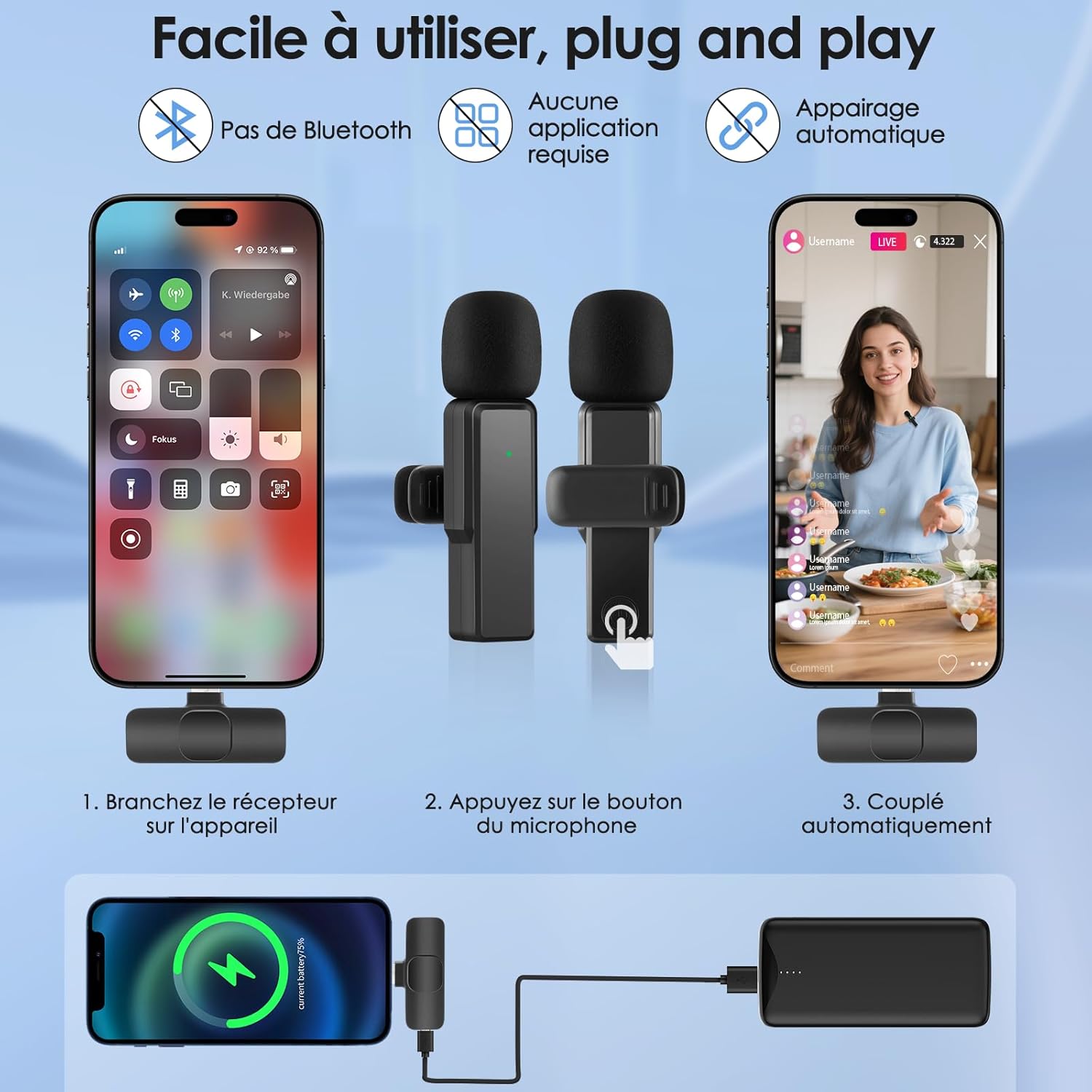
Image: Visual guide for connecting and pairing the Koilboane M22 microphone system.
5. Operating Instructions
5.1 Wearing the Microphone
Clip the wireless microphone to your clothing, ideally near your mouth (e.g., on a lapel or collar), to capture the clearest audio. Ensure the microphone head is facing the sound source.
5.2 Indicator Light Status
- Microphone Flashing Green/Red: Searching for receiver (pairing mode).
- Microphone Solid Green: Successfully connected to receiver.
- Receiver Solid Green: Successfully connected to microphone.
- Microphone Solid Red: Charging.
- Microphone Light Off (after charging): Fully charged.
5.3 Noise Reduction
The Koilboane M22 features an intelligent noise reduction chip that effectively filters out up to 95% of ambient noise, ensuring clear and crisp audio recordings even in noisy environments.

Image: Visual representation of the noise reduction feature, comparing audio waveforms before and after processing.
5.4 Transmission Range
The microphone offers an effective transmission range of up to 20 meters (approximately 65 feet) in open environments, providing flexibility for various recording scenarios.

Image: Demonstrating the 20-meter wireless transmission range in an outdoor setting.
5.5 Dual Microphone Use
This system includes two wireless microphones, allowing two individuals to record simultaneously. Both microphones will automatically pair with the single receiver when powered on.
6. Compatibility
The Koilboane M22 Wireless Lavalier Microphone is broadly compatible with a variety of devices:
- iPhone/iPad: Compatible with devices featuring a Lightning port (using the Lightning adapter) or a USB-C port (for iPhone 15 and newer, using the USB-C receiver directly).
- Android Phones/Tablets: Compatible with most Android devices featuring a USB-C port. Remember to enable OTG function on some Android devices if needed.
- Laptops/PCs: Compatible with computers featuring a USB-C port or a standard USB-A port (using the USB-A adapter).
Important Note: This microphone system is NOT compatible with Samsung devices.

Image: Overview of device compatibility for the Koilboane M22 system.
7. Charging
7.1 Charging the Microphones
Use the provided USB-A to USB-C charging cable to charge the wireless microphones. Connect the USB-C end to the microphone's charging port and the USB-A end to a power source (e.g., USB wall adapter, computer USB port). The indicator light will be solid red during charging and turn off when fully charged.
A full charge provides approximately 6 hours of operating time.
7.2 Charging Your Device While Recording
The USB-C receiver features a pass-through USB-C charging port. This allows you to charge your smartphone or tablet while the receiver is connected and you are recording. Simply plug your device's charging cable into the USB-C port on the receiver.

Image: Demonstrating how to charge your device while the microphone receiver is connected.
8. Maintenance
- Keep the microphones and receiver clean and dry.
- Avoid exposing the devices to extreme temperatures, humidity, or direct sunlight.
- Use a soft, dry cloth for cleaning. Do not use harsh chemicals or abrasive materials.
- Store the components in a protective case when not in use to prevent damage.
- Regularly check the charging ports for dust or debris and clean gently if necessary.
9. Troubleshooting
| Problem | Possible Cause | Solution |
|---|---|---|
| Microphone not connecting/pairing. |
|
|
| No audio recorded. |
|
|
| Poor audio quality/static. |
|
|
| Device not charging via receiver pass-through. |
|
|
10. Specifications
| Feature | Detail |
|---|---|
| Model Number | M22 |
| Dimensions (L x W x H) | 12.8 x 7.5 x 1.8 cm |
| Item Weight | 90 grams |
| Material Type | Plastic |
| Connectivity Type | USB Type-C, Lightning, USB-A (via adapters) |
| Battery Type | Lithium-ion (2 C batteries included) |
| Power Source | Battery Powered |
| Operating Time | Approximately 6 hours (per full charge) |
| Transmission Range | Up to 20 meters (65 feet) |
| Noise Reduction | Intelligent Noise Cancellation |
11. Warranty and Support
Koilboane products are designed for reliability and performance. For warranty information, please refer to the specific terms provided at the time of purchase or contact your retailer. If you encounter any issues or have questions regarding your Koilboane Wireless Lavalier Microphone M22, please contact customer support through your purchase platform or the official Koilboane website for assistance.
Please retain your proof of purchase for warranty claims.


