
1. Introduction
This manual provides detailed instructions for the proper use, setup, and maintenance of your Yealink UH44 Teams Certified USB Wired Headset. Designed for professional communication, this headset offers high-quality audio and comfort for extended use in various environments, including office, call center, and home office settings.

Figure 1: Yealink UH44 Dual Teams USB-C/A Headset with inline controls and USB-C/A adapter.
2. Package Contents
Verify that all items are present in your product package:
- UH44 Dual Headset
- Carrying Case
- Quick Start Guide
3. Product Overview
3.1 Key Features
- Dual Noise-Cancelling Microphones: Professional-grade dual-microphone array intelligently filters background noise for clear communication.
- High-Resolution 35mm Audio Driver: Features 35mm high-fidelity speakers with a frequency range of 20Hz-20KHz and automatic equalization for balanced sound.
- All-Day Comfort: Lightweight 5.7 oz frame with larger dual-ear pads, ergonomic design, and rotatable ear cups for extended wear.
- Smart Office Control: Inline controls for one-touch mute (via microphone boom lift or button), volume adjustment, and call management.
- Busy Indicator & Bilateral Wear: Single-sided red busy indicator activates during calls. The microphone rod rotates 280 degrees for flexible wearing on either side.

Figure 2: Illustration of the dual noise-cancelling microphone technology.
3.2 Inline Controls
The inline control unit provides convenient access to essential functions:
- Mute Button: Press to mute or unmute the microphone. Lifting the microphone boom also mutes the microphone.
- Teams Button: For Microsoft Teams integration, allows for quick call answer/end or launching the Teams application.
- Volume Buttons (+/-): Adjust the listening volume.
- Call Control Button: Answer or end calls.

Figure 3: Detailed view of the inline control unit and headset adjustable features.
4. Setup
The Yealink UH44 headset is designed for plug-and-play functionality, requiring no additional drivers for most operating systems.
- Connect the Headset: Locate an available USB-A or USB-C port on your PC or laptop. The UH44 comes with a 2.15m (7ft) cable and includes a USB-C/A adapter for versatile connectivity.
- Plug In: Insert the USB connector into the chosen port.
- System Recognition: Your operating system (Windows, macOS) should automatically detect and install the necessary drivers. This process may take a few moments.
- Select as Default Device: In your computer's sound settings or your communication application (e.g., Microsoft Teams, Zoom, Google Meet), select the Yealink UH44 as the default audio input (microphone) and output (speaker) device.

Figure 4: Plug-and-play connectivity with various devices and platforms.
5. Operating Instructions
5.1 Wearing the Headset
- Adjust the headband for a comfortable fit on your head.
- Position the microphone boom approximately 2 cm (0.8 inches) from the corner of your mouth for optimal voice pickup. The boom can be rotated 280 degrees to be worn on either the left or right side.
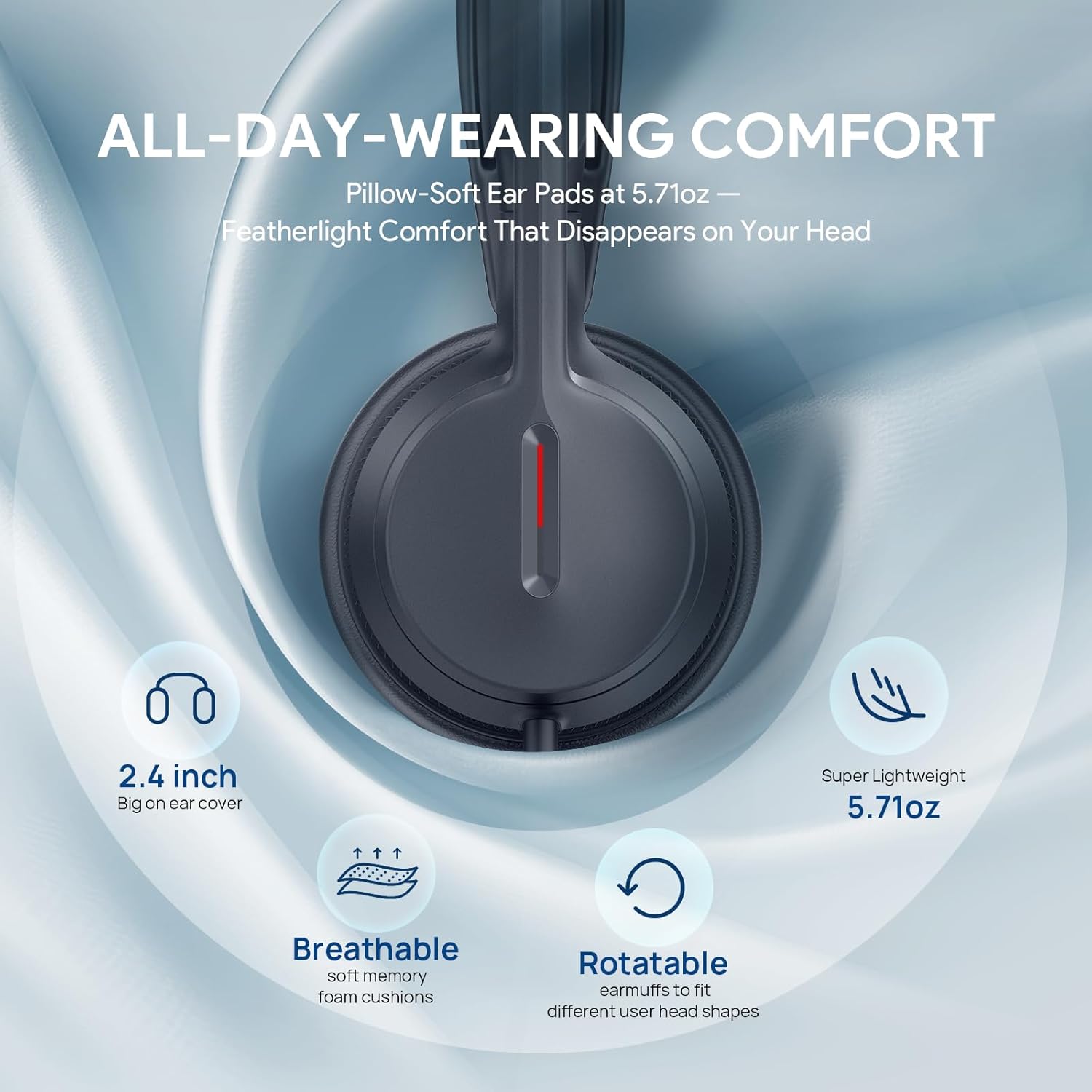
Figure 5: Comfort features and wearing adjustments for the UH44 headset.
5.2 Call Management
- Answer/End Call: Press the Call Control button on the inline unit.
- Adjust Volume: Use the Volume + or - buttons on the inline unit.
- Mute Microphone: Press the Mute button on the inline unit, or lift the microphone boom upwards. The busy light will turn red to indicate mute status.
- Unmute Microphone: Press the Mute button again, or lower the microphone boom.
5.3 Busy Light Functionality
The integrated busy light on the earcup automatically illuminates red when you are on a call, signaling to others that you are occupied and reducing interruptions.
6. Maintenance
To ensure the longevity and optimal performance of your Yealink UH44 headset, follow these maintenance guidelines:
- Cleaning: Use a soft, dry cloth to clean the headset. Avoid using harsh chemicals or abrasive materials.
- Storage: When not in use, store the headset in its provided carrying case to protect it from dust and damage.
- Cable Care: Avoid sharp bends or excessive pulling on the cable to prevent internal wire damage.
- Environmental Conditions: Do not expose the headset to extreme temperatures, humidity, or direct sunlight. The headset is not water resistant.
7. Troubleshooting
If you encounter issues with your Yealink UH44 headset, refer to the following common problems and solutions:
| Problem | Possible Cause | Solution |
|---|---|---|
| No sound from headset speakers. | Headset not properly connected; volume too low; incorrect audio output device selected. | Ensure USB cable is securely plugged in. Increase volume using inline controls or computer settings. Verify Yealink UH44 is selected as the default playback device in your computer's sound settings. |
| Microphone not working. | Microphone muted; incorrect audio input device selected; microphone boom not positioned correctly. | Press the Mute button on the inline control or lower the microphone boom to unmute. Verify Yealink UH44 is selected as the default recording device in your computer's sound settings. Ensure the microphone boom is close to your mouth. |
| Busy light not activating. | Not on an active call; software integration issue. | Ensure you are on an active call using a compatible communication platform (e.g., Teams, Zoom). Check for software updates for your communication platform or Yealink device management software. |
| Sound quality is poor or distorted. | Loose connection; interference; outdated drivers. | Check USB connection. Avoid placing the headset near other electronic devices that may cause interference. While plug-and-play, ensure your operating system is up to date. |
8. Specifications
| Feature | Specification |
|---|---|
| Model Name | UH44 Dual Teams |
| Connectivity Technology | Wired (USB-C/A) |
| Headphones Jack | USB-C/A |
| Noise Control | Passive Noise Cancellation |
| Frequency Response | 20Hz-20KHz |
| Audio Driver Type | Dynamic Driver |
| Impedance | 32 Ohm |
| Ear Placement | On Ear |
| Form Factor | On Ear |
| Control Type | Button Control |
| Compatible Devices | PC, Laptop, Teams, Zoom, Google |
| Material | Plastic |
| Item Weight | 250 Grams (8.8 ounces) |
| Package Dimensions | 8.27 x 7.01 x 2.2 inches |
| UPC | 841885126597 |
9. Warranty Information
Yealink products typically come with a limited manufacturer's warranty. For specific warranty terms, duration, and conditions applicable to your UH44 headset, please refer to the warranty card included in your product packaging or visit the official Yealink website. Retain your proof of purchase for warranty claims.
10. Support
For further assistance, technical support, or to download the latest firmware and software for your Yealink UH44 headset, please visit the official Yealink support website:
You may also contact Yealink customer service directly through the contact information provided on their website.


