1. Introduction
Thank you for choosing the OidoZac SL392 Black 13-Inch Laminator Machine. This device is designed for both thermal and cold lamination, accommodating documents up to 13 inches wide, including A3, Letter, Legal, and Tabloid sizes. It features an automatic paper feed, an intelligent anti-jam system, and a mica heating system for consistent, bubble-free results. This manual provides essential information for safe and efficient operation, maintenance, and troubleshooting.
2. Important Safety Instructions
- Read all instructions before use.
- Keep the laminator away from water or wet environments.
- Do not insert metal objects or foreign materials into the machine.
- Ensure the power cord is not damaged and is properly plugged into a grounded outlet.
- Unplug the laminator when not in use or before cleaning.
- Allow the machine to cool down completely before storing.
- Do not attempt to open or repair the laminator yourself. Contact customer support for assistance.
- Keep out of reach of children.
3. Package Contents
Verify that all items are present in the package:
- OidoZac SL392 Black 13-Inch Laminator Machine
- 20 Laminating Pouches (various sizes: A3, A4, A5, A6)
- 3 Interchangeable Cutters (for straight, dashed, and wavy edges)
- 1 Corner Rounder
- 1 Hole Puncher
- 3 Iron Rings

Image: The OidoZac SL392 Black laminator machine shown with its included accessories: 20 laminating pouches, three orange interchangeable cutters, a black corner rounder, a white hole puncher, and three silver binder rings.
4. Product Overview
Familiarize yourself with the components of your laminator:
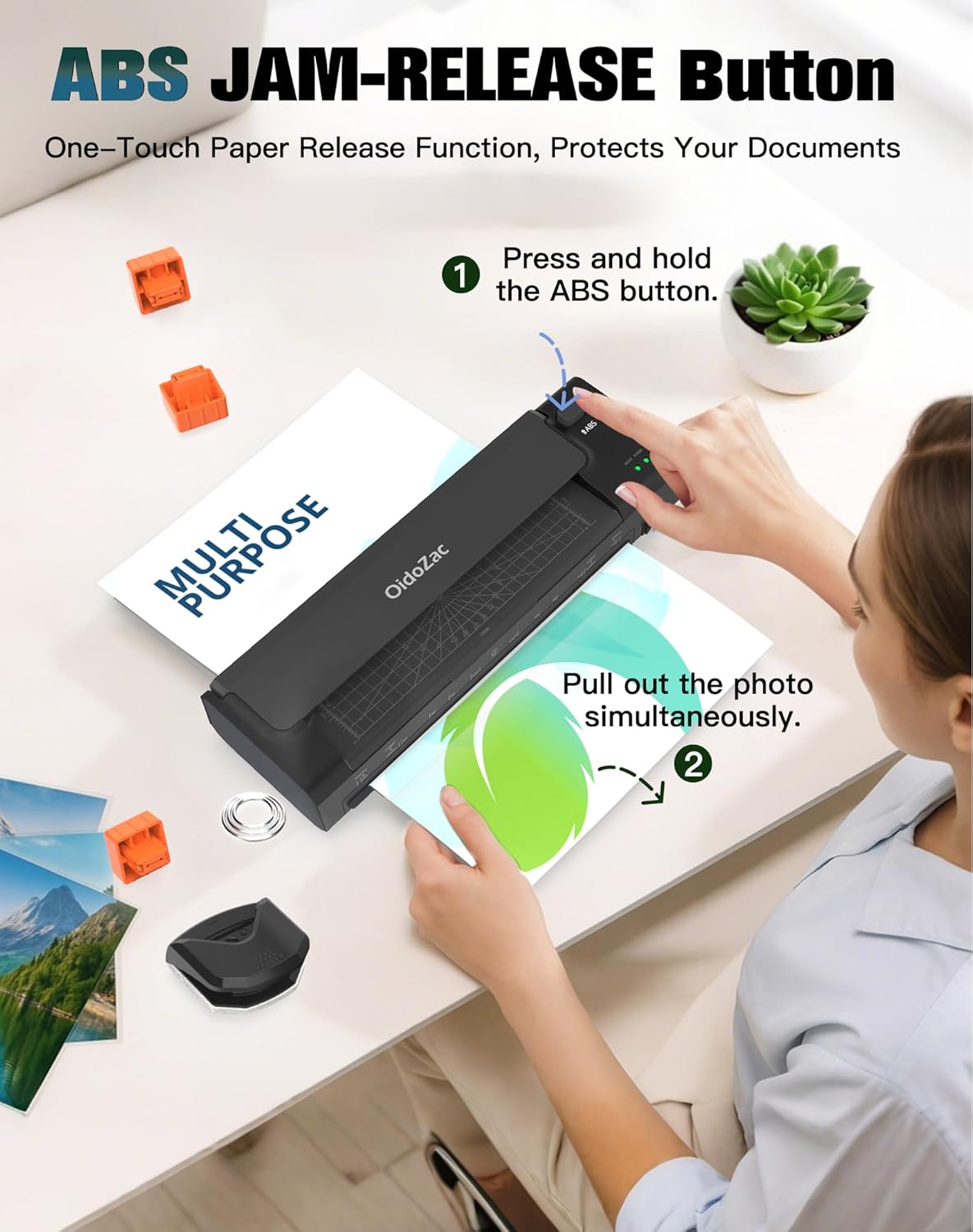
Image: A detailed diagram of the OidoZac SL392 laminator, highlighting key features such as the power switch, mode selection (Hot/Off/Cold), ready/power indicator lights, paper entry slot, built-in trimmer, and ABS jam release button.
- Power Switch: Turns the machine On/Off.
- Mode Selector: Choose between HOT, OFF, or COLD lamination.
- Ready/Power Indicators: Lights indicate power status and when the machine is ready for use.
- Paper Entry Slot: Where laminating pouches are inserted.
- Built-in Paper Trimmer: Integrated tool for cutting documents.
- ABS Jam Release Button: Used to clear paper jams.
- Anti-Bending Support Plate: Guides laminated sheets out smoothly.
- Accessory Storage Compartment: Located on the machine for cutters, corner rounder, and hole puncher.
5. Setup
- Unpack: Carefully remove the laminator and all accessories from the packaging.
- Placement: Place the laminator on a stable, flat surface with adequate ventilation around it. Ensure there is enough space behind the machine for laminated documents to exit freely.
- Power Connection: Plug the power cord into a standard electrical outlet.
6. Operating Instructions
6.1. Basic Lamination Steps

Image: A visual guide demonstrating the three simple steps for lamination: 1. Plug in, select mode, and heat up. 2. Insert the pouch when the ready light turns green. 3. Pull out the finished laminated document.
- Power On & Select Mode: Turn on the laminator and select either HOT or COLD mode using the mode selector switch.
- Warm-up (Hot Mode Only): For hot lamination, wait approximately 2 minutes for the machine to warm up. The "Ready" indicator light will turn green when it's prepared for use. Cold lamination does not require warm-up.
- Prepare Document: Place your document inside a laminating pouch, ensuring it is centered and there is an even border around the edges.
- Insert Pouch: Insert the sealed edge of the laminating pouch into the paper entry slot. The automatic paper feed will draw the pouch through the machine.
- Retrieve Laminated Document: Once the pouch has passed completely through the machine, retrieve the laminated document from the exit slot. Allow it to cool on a flat surface for a few moments.
6.2. Hot Lamination
Hot lamination uses heat to seal documents within thermal pouches. This mode provides a strong, durable seal, ideal for preserving important papers, photos, and cards for long-term protection (10+ years durability).
- Select HOT mode.
- Wait for the "Ready" light to turn green (approx. 2 minutes).
- Use thermal laminating pouches (3-5 mil thickness recommended).
6.3. Cold Lamination
Cold lamination uses pressure to seal documents within self-adhesive cold laminating pouches. This mode is suitable for heat-sensitive materials, stickers, or prints that might be damaged by heat.
- Select COLD mode.
- No warm-up time is required.
- Use cold laminating pouches.

Image: A graphic illustrating the differences between Hot and Cold lamination modes, including warm-up time, seal strength, and suitable materials for each.
6.4. Using Included Accessories

Image: A visual demonstration of how to use the three types of paper cutters (linear, dashed, wave line), the hole puncher with binder rings, and the corner rounder for finishing laminated documents.
- Paper Trimmer & Cutters: The laminator includes a built-in paper trimmer and three interchangeable cutters (straight, dashed, wavy). To use, select the desired cutter and slide it along the guide rail to trim your document. Ensure the document is flat and properly aligned.
- Corner Rounder: After lamination, use the corner rounder to create smooth, rounded corners on your documents for a professional finish and enhanced safety.
- Hole Puncher & Binder Rings: Use the hole puncher to create holes in your laminated documents, then secure them with the included binder rings for organization.
7. Maintenance
- Cleaning: Ensure the laminator is unplugged and completely cool before cleaning. Wipe the exterior with a soft, dry cloth. Do not use abrasive cleaners or solvents.
- Roller Cleaning: Occasionally, run a folded piece of paper through the laminator to help clean the rollers.
- Storage: Store the laminator in a dry, dust-free environment when not in use. Keep accessories in the built-in compartment.
8. Troubleshooting
| Problem | Possible Cause | Solution |
|---|---|---|
| Paper Jam | Pouch inserted incorrectly, wrinkled document, or incorrect pouch size. | Press and hold the ABS Release Button while gently pulling the pouch out. Ensure pouches are inserted straight and sealed edge first. |
| Bubbles or Wrinkles | Insufficient heat (Hot mode), incorrect pouch thickness, or uneven insertion. | Ensure the machine is fully warmed up (green "Ready" light). Use appropriate pouch thickness (3-5 mil for hot lamination). Insert pouches smoothly and straight. |
| Laminator Not Heating | Not plugged in, power switch off, or incorrect mode selected. | Check power connection. Ensure power switch is ON and HOT mode is selected for thermal lamination. |
| Laminated Document is Curved | Lack of support during cooling. | Allow the laminated document to cool on a flat surface. The anti-bending support plate helps guide documents out flat. |

Image: An illustration demonstrating the use of the ABS jam release button. Press and hold the button while gently pulling the jammed document out of the machine.
9. Specifications
- Brand: OidoZac
- Model: SL392 Black
- Lamination Width: Up to 13 inches
- Supported Sheet Sizes: A3, Letter, Legal, Tabloid
- Lamination Modes: Thermal (Hot) and Cold
- Warm-up Time (Hot Mode): Approximately 2 minutes
- Pouch Thickness: 3-5 mil (recommended for hot lamination)
- Item Weight: 2.65 pounds (approx. 1.2 kg)
- Product Dimensions: 4.25 x 2.76 x 16.93 inches
- Noise Level: Approximately 20dB (whisper-quiet design)
- Heating System: Mica Heating Technology
- Anti-Jam System: Automatic Paper Feed & ABS Release Button
10. Warranty and Support
The OidoZac SL392 Laminator Machine comes with a 12-Month Hassle-Free Warranty for returns and replacements. For any questions, issues, or technical support, please contact OidoZac Customer Support. We offer 24/7 online support to ensure you receive prompt assistance.
When you purchase OidoZac products, you receive a commitment to service. Please refer to your purchase documentation for specific contact details or visit the official OidoZac website for support information.