
1. Introduction
This manual provides essential instructions for the safe and effective operation of your mcokoe S197 Foldable HD Camera Drone. Please read this manual thoroughly before using the drone to ensure proper setup, flight, and maintenance. Retain this manual for future reference.
2. Product Overview
The mcokoe S197 is a foldable quadcopter equipped with an HD camera, designed for both indoor and outdoor aerial photography. It features fixed height hovering, one-key takeoff and landing, and real-time video transmission to a remote control with an integrated screen.
2.1. Package Contents

Image 2.1: Contents of the mcokoe S197 drone package, including the drone, remote control with screen, three batteries, eight propellers, a USB charging cable, a screwdriver, and a storage bag.
- S197 Foldable Drone
- Remote Control with Integrated Screen
- Rechargeable Drone Batteries (Quantity: 3)
- Spare Propellers (Quantity: 8)
- USB Charging Cable
- Screwdriver
- Storage Bag (Waterproof)
- User Manual (This document)
2.2. Key Features
- HD Camera & Real-Time Transmission: Capture 720P photos and videos with WiFi FPV to your smartphone or the remote's screen.
- User-Friendly Design: One-key takeoff/landing, altitude hold, and 3-speed modes make it suitable for beginners.
- Foldable & Durable: Compact folding design for portability, with an ABS high-toughness chassis and emergency stop for safety.
- Extended Playtime: Includes 3 rechargeable batteries for a total of 60+ minutes flight time.
- Integrated Display: Remote control features its own screen for direct viewing of the FPV feed.
- Advanced Positioning: GPS positioning for outdoor flights and optical flow positioning for stable indoor flight.
- Intelligent Flight Modes: One-key return, low power return, and lost return functions.
- Obstacle Avoidance: 360° obstacle avoidance camera for enhanced safety, especially in indoor environments.
- Dual Camera System: Allows switching between front and bottom cameras for varied perspectives.
- Brushless Motors: Provides strong wind resistance (Level 7) for stable flight.
- Fast Charging: Drone batteries support Type-C fast charging protocol.
3. Setup
3.1. Unfolding the Drone
Gently unfold the drone arms until they are fully extended and locked into position. Ensure all arms are securely in place before flight.

Image 3.1: The mcokoe S197 drone in its unfolded state, ready for flight, alongside its remote control and accessories.
3.2. Battery Installation and Charging
- Drone Battery: Insert a fully charged drone battery into the battery compartment on the rear of the drone until it clicks into place.
- Remote Control Battery: The remote control has a built-in rechargeable lithium battery. Connect the USB charging cable to the remote control's Type-C port and a suitable USB power source (e.g., computer, USB wall adapter). The charging indicator will show the charging status.
- Charging Drone Batteries: Use the provided USB charging cable to charge the drone batteries. Connect the battery to the cable and the cable to a USB power source. Charging typically takes about 4 hours per battery.
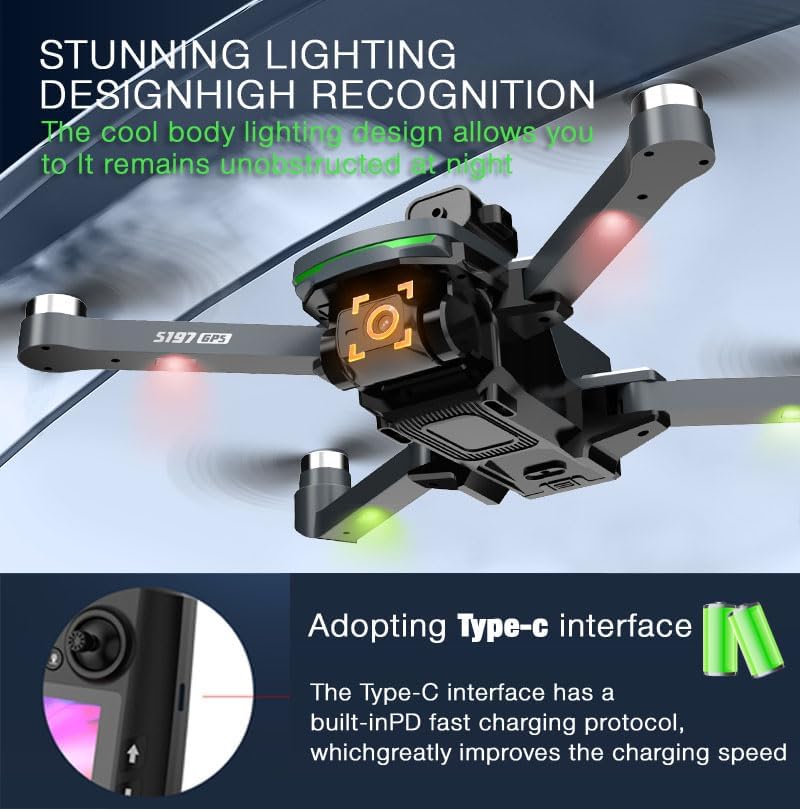
Image 3.2: Close-up view of the drone highlighting its Type-C charging interface, which supports fast charging protocols.
3.3. Propeller Installation
If propellers are not pre-installed or need replacement, use the provided screwdriver to attach them. Ensure each propeller is installed on the correct motor according to the markings (usually A and B) to ensure proper flight direction.
4. Operating Instructions
4.1. Remote Control Overview

Image 4.1: Detailed diagram of the mcokoe S197 remote control, showing button functions, joysticks, and the integrated LCD display screen.
- Throttle Control (Left Joystick): Controls altitude and rotation.
- Direction Control (Right Joystick): Controls forward, backward, left, and right movement.
- Short Press Unlock: Initiates motor spin.
- Long Press Avoid Obstacles: Activates obstacle avoidance.
- Short Press Takeoff/Landing: One-key takeoff or landing.
- Long Press Headless Mode: Activates headless flight mode.
- Short Press Take Photo: Captures a still image.
- Long Press Video Recording: Starts/stops video recording.
- Short Press Return: Initiates one-key return to home.
- Long Press GPS Off: Disables GPS functionality.
- Roller Servo Adjustment (Left Roller): Adjusts camera angle.
- Roller Speed Adjustment (Right Roller): Changes flight speed (low/medium/high).
- Aircraft Power Indicator: Displays drone battery level.
- Remote Control Battery Indicator: Displays remote control battery level.
- LCD Display Screen: Shows real-time flight data, FPV feed, and settings.
4.2. Powering On and Pairing
- Place the drone on a flat, level surface.
- Press and hold the power button on the drone until the indicator lights turn on.
- Turn on the remote control. The remote and drone will automatically attempt to pair. A successful pairing is indicated by stable lights on the drone and a confirmation on the remote's screen.
4.3. Basic Flight Operations
- One-Key Takeoff: After pairing, short press the "Takeoff/Landing" button. The drone will automatically ascend to a safe altitude and hover.
- Altitude Hold: The drone maintains a fixed altitude automatically, allowing for stable flight.
- Speed Modes: Use the "Speed Adjustment" roller on the remote to switch between low, medium, and high-speed modes.
- One-Key Landing: Short press the "Takeoff/Landing" button again. The drone will slowly descend and land.
4.4. Camera and FPV Functions

Image 4.2: Illustration of the drone's dual camera system, showing the front camera with 90° angle adjustment and the bottom wide-angle camera with 120° view.
- Taking Photos: Short press the "Take Photo" button on the remote.
- Recording Videos: Long press the "Video Recording" button to start, and long press again to stop.
- Real-Time Transmission (FPV): The drone's camera feed is displayed directly on the remote control's integrated screen. For smartphone FPV, connect your smartphone to the drone's WiFi network and use the dedicated app (if applicable).
- Camera Angle Adjustment: Use the "Servo Adjustment" roller to change the angle of the front camera.
- Dual Camera Switching: The drone supports switching between the front and bottom cameras. Refer to the remote control diagram for the specific button or menu option.
4.5. Advanced Flight Features (GPS Mode)

Image 4.3: Visual representation of the drone's GPS outdoor mode capabilities, including low power return, missing and returning, and one-click return functions.
- GPS Positioning: For outdoor flights, ensure the drone has acquired sufficient GPS satellites for accurate positioning.
- Optical Flow Positioning: Provides stable hovering and flight assistance for indoor environments where GPS is unavailable.
- One-Key Return: Short press the "Return" button. The drone will automatically fly back to its takeoff point.
- Low Power Return: The drone will automatically initiate a return to home when its battery level is critically low.
- Lost Return: If the signal is lost, the drone may automatically return to its takeoff point.
- Obstacle Avoidance: In indoor mode, the 360° obstacle avoidance camera helps prevent collisions. Long press the "Avoid Obstacles" button to activate.
5. Maintenance
- Cleaning: Regularly clean the drone body, propellers, and camera lens with a soft, dry cloth. Avoid using liquids or solvents.
- Propeller Inspection: Before each flight, inspect propellers for any damage (cracks, bends). Replace damaged propellers immediately using the provided screwdriver.
- Battery Care:
- Do not overcharge or over-discharge batteries.
- Store batteries in a cool, dry place away from direct sunlight.
- If not used for an extended period, charge batteries to approximately 50% capacity.
- Storage: When not in use, fold the drone and store it in the provided storage bag to protect it from dust and damage.
6. Troubleshooting
| Problem | Possible Cause | Solution |
|---|---|---|
| Drone does not respond to remote control. | Not paired; low battery on drone or remote; out of range. | Ensure drone and remote are powered on and paired. Charge batteries. Fly within operational range. |
| Drone drifts during flight. | Improper calibration; windy conditions. | Perform gyroscope calibration. Fly in calm conditions. |
| Camera feed freezes or is unstable. | Weak WiFi signal; interference. | Ensure strong WiFi connection. Avoid areas with high interference. Restart drone and remote. |
| One-key return does not work accurately. | Insufficient GPS signal; takeoff point not recorded. | Ensure drone acquires sufficient GPS satellites before takeoff. Fly in open areas. |
7. Specifications

Image 7.1: Dimensions of the mcokoe S197 drone in both folded and unfolded configurations, along with the size of its carrying bag.

Image 7.2: Parameter table detailing key specifications of the mcokoe S197 drone, including size, flight system, performance, and battery information.
| Feature | Detail |
|---|---|
| Brand | mcokoe |
| Model Name | S197 |
| Special Feature | Foldable |
| Age Range (Description) | Kid, Teen |
| Color | Grey |
| Video Capture Resolution | 4K (Note: FPV streaming is 720P) |
| Connectivity Technology | Wi-Fi |
| Skill Level | Beginner |
| Video Capture Format | MP4 |
| Remote Control Technology | Radio Control |
| Material | ABS |
| Flight System | GPS Positioning + Optical Flow Positioning |
| Flight Performance | Brushless Power (Level 7 Strong Wind Resistance) |
| Drone Battery | 3.7V 2200mAh Lithium Ion |
| Remote Control Battery | Built-in Rechargeable Lithium Ion |
| Drone Product Dimensions (Folded) | 14.5cm L x 10cm W x 6cm H (approx. 5.7"L x 3.9"W x 2.36"H) |
| Drone Product Dimensions (Expanded) | 32cm L x 27cm W x 6cm H (approx. 12.6"L x 10.6"W x 2.36"H) |
| Item Weight | Approx. 2.53 pounds (Note: Stated as under 249g for FAA/CAA registration in some visuals) |
| Flight Endurance | Approximately 25 minutes per battery |
| Charging Time | Approximately 4 hours |
Note: All specifications are approximate and subject to change without notice.
8. Warranty and Support
For warranty information, technical support, or inquiries regarding your mcokoe S197 drone, please contact the manufacturer or seller directly. Refer to your purchase documentation for specific contact details.
You can visit the official mcokoe store on Amazon for additional product information and support: mcokoe Store