
1. Introduction
This manual provides detailed instructions for the installation, configuration, and operation of the Intelbras iNVD 5232 32-Channel IP Digital Video Recorder. Please read this manual thoroughly before using the device to ensure proper functionality and to prevent damage.
The Intelbras iNVD 5232 is designed for professional surveillance applications, offering advanced features for recording, monitoring, and managing IP camera feeds.
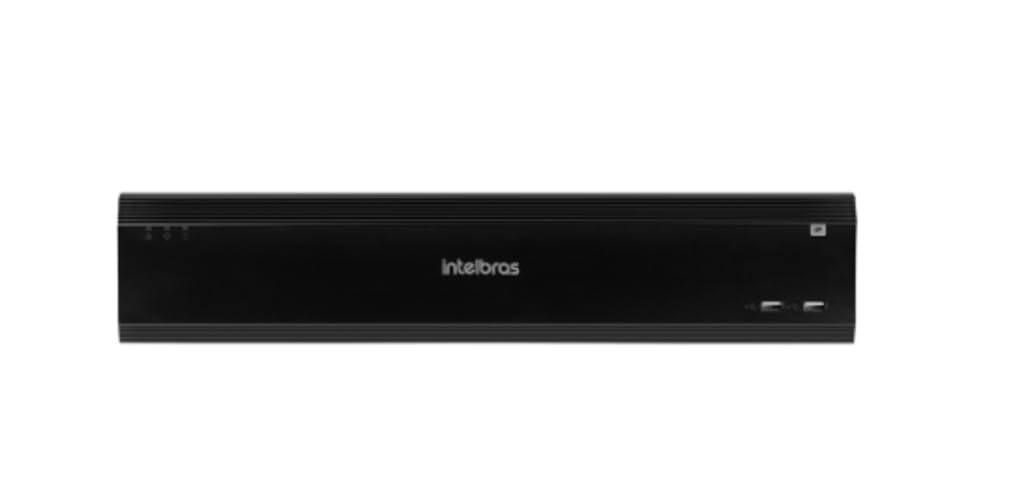
Figure 1: Intelbras iNVD 5232 Digital Video Recorder. This image shows the front panel of the iNVD 5232 unit, featuring a sleek black design with the Intelbras logo and USB ports.
2. Safety Information
Observe the following safety precautions to prevent injury and damage to the device:
- Ensure the power supply voltage matches the device's requirements.
- Do not expose the device to moisture, rain, or extreme temperatures.
- Avoid placing the device in direct sunlight or near heat sources.
- Do not open the device casing. Refer all servicing to qualified personnel.
- Use only accessories specified by the manufacturer.
- Properly ground the device to prevent electrical shock.
3. Package Contents
Verify that all items are present in the package:
- Intelbras iNVD 5232 Digital Video Recorder Unit
- Power Adapter
- USB Mouse
- Screws for HDD Installation
- Quick Start Guide
- CD-ROM (containing software and full manual)
4. Product Overview
4.1 Front Panel
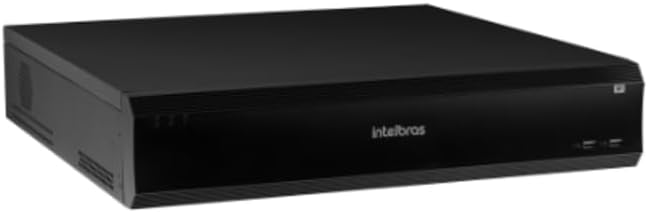
Figure 2: Front Panel of the iNVD 5232. This image displays the front of the DVR, showing LED indicators for power and status, along with two USB ports for peripheral connections.
- Power LED: Indicates power status.
- Status LED: Indicates system operational status.
- USB Ports: For connecting a mouse, USB drive, or other peripherals.
4.2 Rear Panel

Figure 3: Rear Panel of the iNVD 5232. This image details the rear connections, including power input, network ports, video outputs (HDMI, VGA), audio inputs/outputs, and alarm terminals.
- Power Input: Connect the provided power adapter.
- HDMI Output: Connect to an HDMI-compatible monitor.
- VGA Output: Connect to a VGA-compatible monitor.
- LAN Ports: Connect to your network for IP camera communication and remote access.
- Audio In/Out: For connecting external audio devices.
- Alarm In/Out: For connecting external alarm sensors and actuators.
- USB Ports: Additional USB ports for peripherals.
5. Setup
5.1 Hardware Installation
- Install Hard Drive (if not pre-installed): Open the DVR casing, mount the hard drive using the provided screws, and connect the SATA power and data cables.
- Connect Monitor: Connect a monitor to the HDMI or VGA output port.
- Connect Mouse: Plug the USB mouse into one of the USB ports.
- Connect Network: Connect an Ethernet cable from the LAN port to your network router or switch.
- Connect Power: Plug the power adapter into the DVR's power input and then into a power outlet. The device will power on automatically.
5.2 Initial Configuration
Upon first boot, the system will guide you through an initial setup wizard:
- Language Selection: Choose your preferred language.
- Password Setup: Create a strong administrator password.
- Network Settings: Configure IP address, subnet mask, gateway, and DNS. DHCP is usually enabled by default.
- Date and Time: Set the correct date, time, and time zone.
- HDD Initialization: Format the installed hard drive for recording.
- IP Camera Search and Add: The system will scan for available IP cameras on the network. Select and add your cameras.
6. Operating
6.1 Live View
After initial setup, the system will display the live view of connected cameras. You can switch between single-camera view, multi-camera grids, and sequence views using the on-screen controls or mouse.
6.2 Recording Management
- Recording Schedule: Configure continuous, motion-detection, or alarm-triggered recording schedules for each camera.
- Manual Recording: Initiate recording manually from the live view interface.
- Playback: Access recorded footage by date, time, and event type. Use the playback controls to navigate through recordings.
- Backup: Export recorded video clips to a USB drive or network storage.
6.3 Remote Access
The iNVD 5232 supports remote access via a web browser or dedicated mobile application. Ensure your network is configured for remote access (e.g., port forwarding or P2P cloud service activation).
- Web Browser: Enter the DVR's IP address into a web browser on a computer connected to the same network.
- Mobile App: Download the official Intelbras surveillance app from your device's app store. Scan the QR code on the DVR (if available) or manually enter the device ID for connection.
7. Maintenance
7.1 Cleaning
Regularly clean the exterior of the DVR with a soft, dry cloth. Do not use liquid cleaners or aerosols. Ensure ventilation openings are free from dust and obstructions.
7.2 Firmware Updates
Periodically check the Intelbras website for firmware updates. Firmware updates can provide new features, performance improvements, and security enhancements. Follow the instructions provided with the firmware update package carefully.
7.3 Hard Drive Management
Monitor the health of your hard drives through the system's HDD management menu. Replace failing drives promptly to avoid data loss. Configure automatic overwriting of old footage to ensure continuous recording.
8. Troubleshooting
| Problem | Possible Cause | Solution |
|---|---|---|
| No power | Power cable disconnected; faulty power adapter; power outlet issue. | Check power connections; test power adapter; try a different outlet. |
| No video output | Monitor off/disconnected; incorrect video output settings; faulty cable. | Ensure monitor is on and connected; check video cable; try a different output port or cable. |
| Cannot connect IP cameras | Network issue; incorrect camera IP address/credentials; camera not powered. | Verify network connectivity; ensure cameras are powered and configured correctly; check camera credentials. |
| No recording | HDD not initialized/full; recording schedule not set; camera disconnected. | Initialize HDD; check recording schedule; verify camera connection and status. |
9. Specifications
| Feature | Description |
|---|---|
| Model | iNVD 5232 |
| Video Input | 32 IP Channels |
| Video Output | 1 HDMI, 1 VGA |
| Audio Input/Output | Specific ports (e.g., RCA) |
| Recording Resolution | Up to 8MP (depending on camera) |
| Playback Capability | Multi-channel synchronous playback |
| Storage | Multiple SATA HDD bays (HDDs not included) |
| Network Interface | Gigabit Ethernet ports |
| USB Interface | USB 2.0/3.0 ports |
| Power Supply | DC 12V (adapter included) |
| Operating Temperature | 0°C to 50°C (32°F to 122°F) |
10. Warranty and Support
For warranty information, please refer to the warranty card included with your product or visit the official Intelbras website. Technical support is available through Intelbras authorized service centers and online resources.
Intelbras Official Website: www.intelbras.com.br
Please have your product model and serial number ready when contacting support.


