
WACLA M40TRW
WACLA M40TRW Action Camera User Manual
Model: M40TRW
Introduction
Thank you for choosing the WACLA M40TRW Action Camera. This manual provides essential information for setting up, operating, and maintaining your camera to ensure you capture every thrilling moment. Start recording the wonders of your life with this high-performance action camera.
What's in the Box
Please check the contents of your package to ensure all items are present:
- WACLA M40TRW Action Camera
- Microphone
- Waterproof Case
- Dome
- Bicycle Bracket
- Short Bracket
- Fixed Base
- Back Clip
- Remote Control
- Steel Wire Rope
- Cable Tie
- USB Charger
- 3M Tape
- Instruction Manual
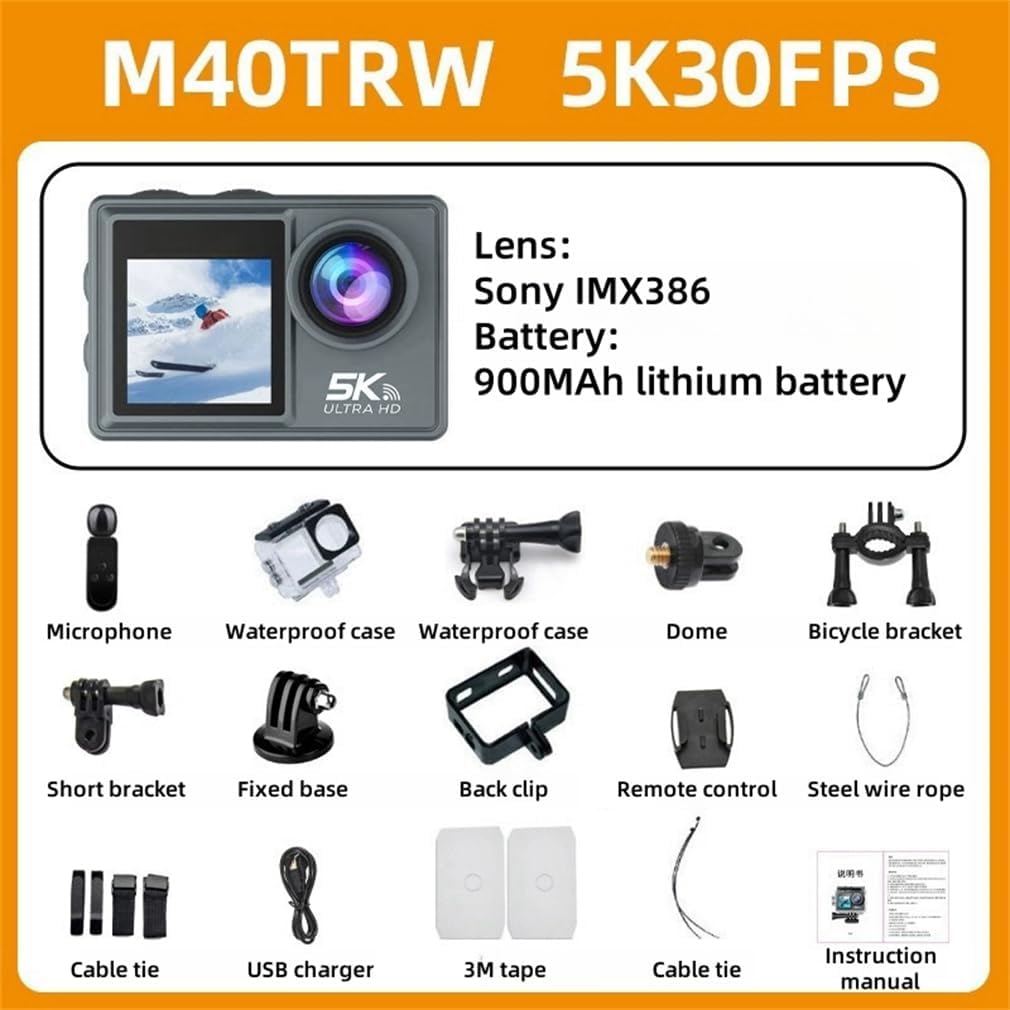
Image: All accessories included with the WACLA M40TRW Action Camera.
Product Overview
Familiarize yourself with the various parts of your WACLA M40TRW Action Camera:
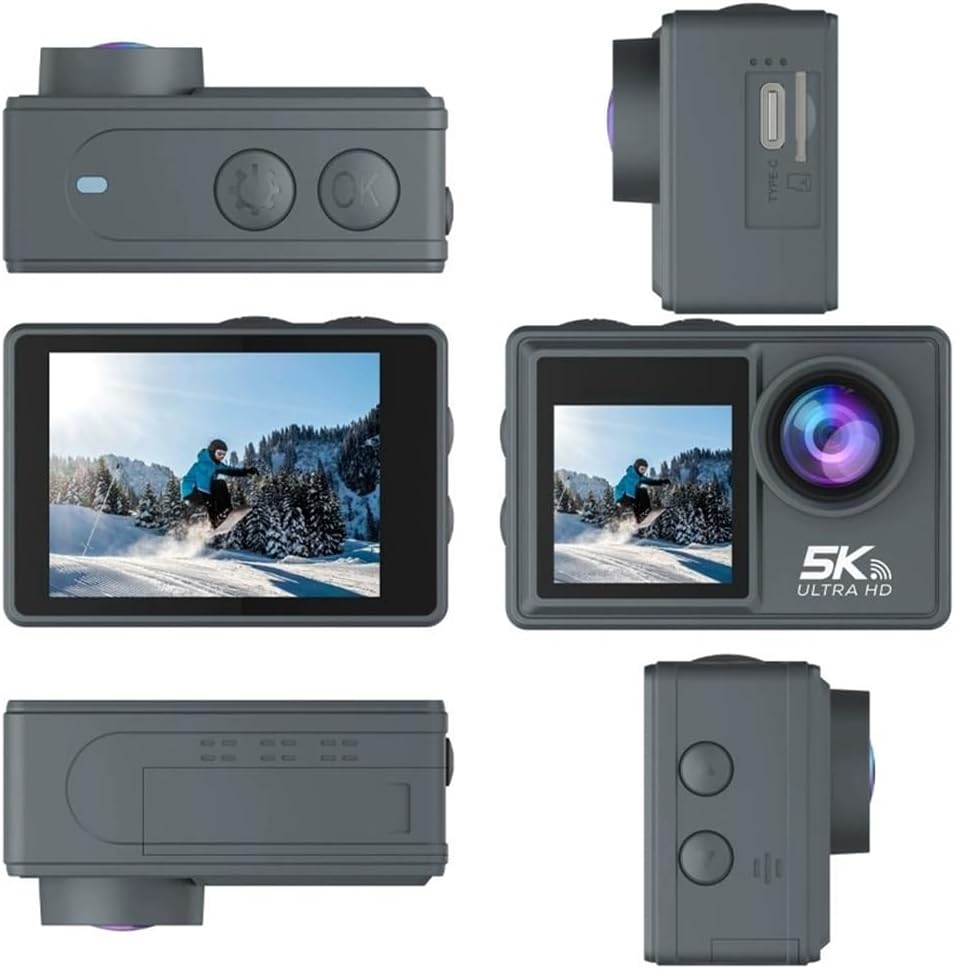
Image: Various angles of the WACLA M40TRW Action Camera, highlighting its compact design and button layout.
- Front Screen: 1.4-inch display for live preview, especially useful for selfies.
- Rear Screen: 2.0-inch IPS touch screen for navigation and playback.
- Lens: High-quality 6-glass lens with 170° ultra-wide angle.
- Buttons: Power/Mode, Shutter/OK, Up/Down navigation.
- Ports: TYPE-C interface for charging and data transfer, memory card slot.
Setup
Follow these steps for initial setup of your camera:
- Charge the Battery: Insert the 900mAh Li-ion battery into the camera. Connect the camera to a power source using the provided TYPE-C USB cable. The charging indicator will show the charging status.
- Insert Memory Card: Open the memory card slot cover. Insert a compatible microSD card (not included) with the contacts facing the correct direction. Ensure it clicks into place. A high-speed card (U3 or higher) is recommended for 5K recording.
- Power On: Press and hold the Power/Mode button for a few seconds until the screen lights up.
Operating Instructions
Power On/Off
- Power On: Press and hold the Power/Mode button.
- Power Off: Press and hold the Power/Mode button again until the screen turns off.
Recording Video
- Ensure the camera is in video mode (indicated by an icon on the screen). If not, press the Power/Mode button repeatedly to cycle through modes.
- Press the Shutter/OK button to start recording. A red dot or timer will appear on the screen.
- Press the Shutter/OK button again to stop recording.
- Supported video resolutions include 5K 30fps, 2.7K 30fps, 1080P (120/60/30fps), and 720P (240/120/60/30fps).
Taking Photos
- Switch to photo mode by pressing the Power/Mode button.
- Frame your shot using the screen.
- Press the Shutter/OK button to take a photo.
- Supported photo resolutions include 24M, 20M, 16M, 13M, and 8M.
Mode Switching
Press the Power/Mode button repeatedly to cycle between Video, Photo, Playback, and Settings modes.
Adjustable View Angle
The camera allows you to adjust the view angle between 170°, 140°, 110°, and 70° to suit your needs. This setting can typically be found in the camera's video or photo settings menu.

Image: Illustration of the 170° ultra-wide angle capability, capturing a broad scene with strong spatial depth.
Dual Screen Operation
The M40TRW features a 1.4-inch front screen and a 2.0-inch rear IPS screen. The front screen provides a live preview, making it ideal for framing selfies or vlogs, while the rear screen offers detailed control and playback.
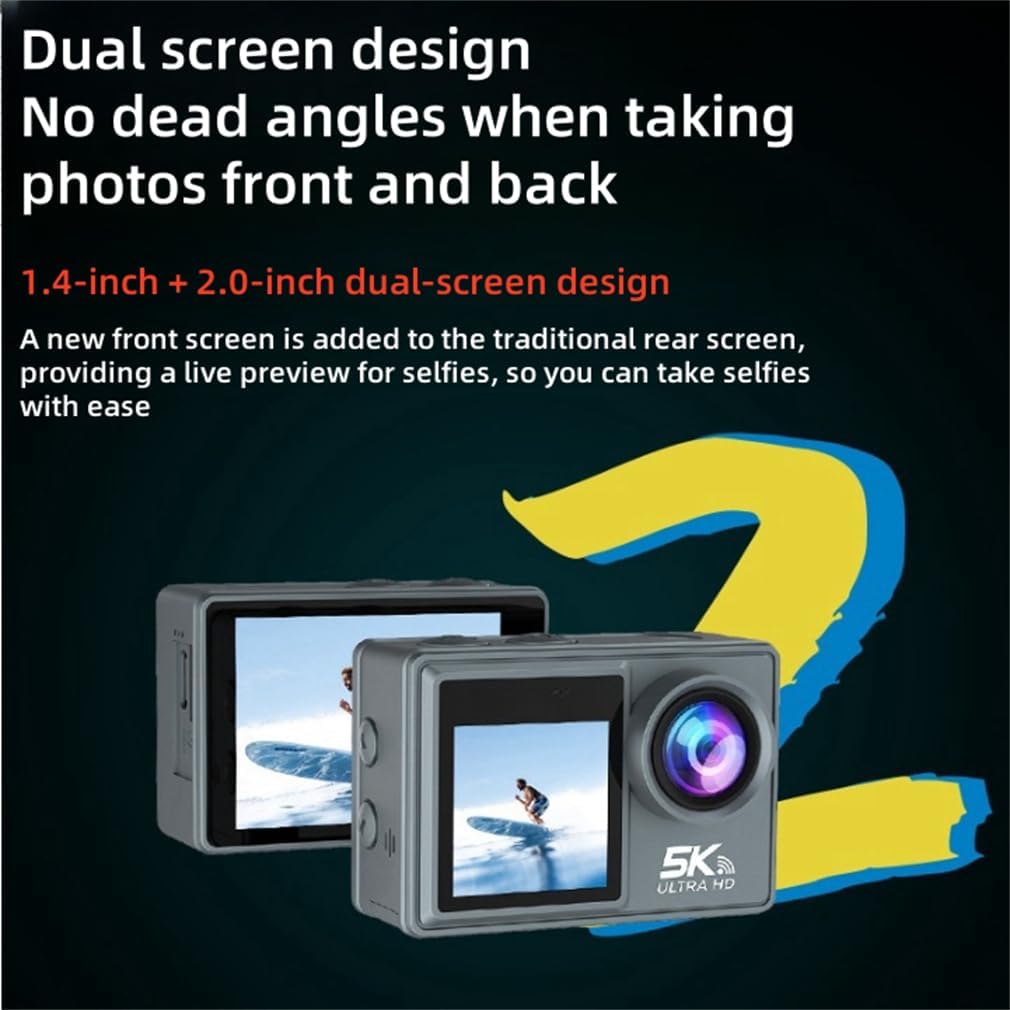
Image: Visual representation of the camera's dual-screen design, allowing for versatile shooting perspectives.
Electronic Image Stabilization (EIS)
The camera is equipped with an advanced electronic EIS image stabilizer. This feature significantly improves video stability and smoothness, ensuring clear footage even during strenuous activities like cycling or other outdoor sports.
Shooting Modes
Explore various creative shooting modes to enhance your content:
- Slow Motion
- Fast Motion
- Loop Recording
- Time-Lapse Recording
- Self-Timer
- Burst Photo (Normal burst, 30-shot burst)
- Long Exposure
- Beauty Mode

Image: Visual guide to the six primary shooting modes available on the camera.
Connectivity
Wi-Fi Connection
Connect your camera to a smartphone or tablet via Wi-Fi using the dedicated app (compatible with Android and iOS). This allows for easy import and export of images and videos, live preview, and remote control of camera functions.
Remote Control
The included remote control provides convenient operation of the camera from a distance, ideal for capturing shots when the camera is mounted out of reach.

Image: Connectivity options for the camera, including Wi-Fi for Android and iOS devices, and remote control functionality.
Maintenance
- Cleaning: Use a soft, lint-free cloth to clean the camera body and lens. For stubborn smudges on the lens, use a specialized lens cleaning solution. Do not use harsh chemicals.
- Waterproof Case: When using the waterproof case, ensure the seals are clean and free of debris before closing. The case is waterproof to a depth of 30 meters.
- Storage: Store the camera in a cool, dry place away from direct sunlight and extreme temperatures. Remove the battery if storing for extended periods.
- Lens Protection: The durable and scratch-resistant lens cover adds protection and can be easily replaced if needed.
- Audio: The camera features a smart wind-reduction algorithm to optimize audio quality in windy conditions.

Image: The camera in its waterproof case, demonstrating its ability to withstand depths of up to 30 meters.
Troubleshooting
If you encounter issues with your camera, refer to the following common problems and solutions:
| Problem | Possible Cause | Solution |
|---|---|---|
| Camera does not power on | Low battery; Battery not inserted correctly; Camera frozen | Charge the battery; Reinsert battery; Press and hold power button for 10 seconds to force restart. |
| Cannot record video/take photos | No memory card; Memory card full; Memory card error; Incorrect mode | Insert memory card; Delete files or use new card; Format card (backup data first); Switch to correct mode. |
| Poor video/photo quality | Dirty lens; Low light conditions; Incorrect settings | Clean the lens; Use in well-lit conditions; Adjust resolution/settings. |
| Wi-Fi connection issues | Incorrect password; Distance too far; App issue | Re-enter password; Move closer to camera; Restart app/camera. |
Specifications
Detailed technical specifications for the WACLA M40TRW Action Camera:
| Feature | Detail |
|---|---|
| Model Number | 66353584-M40TRW |
| Material | Black Plastic |
| Camera Angle | 170° wide-angle 6-glass lens |
| Touch Screen | 2.0 inch IPS (Rear), 1.4 inch (Front) |
| Video Format | MOV |
| Image Format | JPG |
| Interface | TYPE-C / Wi-Fi |
| Battery | 900mAh Li-ion Batteries |
| Video Resolution | 5K 30fps, 2.7K 30fps, 1080P (120/60/30fps), 720P (240/120/60/30fps) |
| Photo Resolution | 24M / 20M / 16M / 13M / 8M |
| Battery Life | Approx. 60 min (4K Video) / 90 min (1080P Video) |
| Item Weight | 1.1 pounds |
| Product Dimensions | 2.56 x 1.22 x 1.65 inches |

Image: Detailed view of the 6-layer glass lens system, designed for professional-grade image clarity and 48 million pixel field of view.
Warranty and Support
Your WACLA M40TRW Action Camera is designed for durability and performance. In the unlikely event of an issue, please refer to the following:
- Return Policy: The product is eligible for a refund or replacement within 30 days of purchase, subject to the seller's return policy.
- Customer Support: If you have any questions or require assistance, please feel free to contact us. We aim to respond to all inquiries within 12 hours.
Ask a question about this manual
Ask about setup, troubleshooting, compatibility, parts, safety, or missing instructions. Manuals+ will review the question and use this page’s manual context to help answer it.