
1. Introduction
Thank you for choosing the WACLA G40 Action Camera. This manual provides essential information for setting up, operating, and maintaining your camera. Please read it thoroughly before use to ensure optimal performance and longevity of your device.
The WACLA G40 is designed to capture high-resolution videos and photos, featuring 5K 30fps video recording, 48MP photos, a 170° ultra-wide-angle lens, and six-axis electronic image stabilization (EIS). Its dual-screen design allows for easy framing, and the robust construction, including a waterproof case, makes it suitable for various outdoor activities.
2. Package Contents
Please check the package to ensure all items are present:
- WACLA G40 Action Camera
- Waterproof Case
- Remote Control
- 900mAh Li-ion Battery
- USB Type-C Charging Cable
- Various Mounts and Brackets (e.g., Bicycle Bracket, Helmet Mounts, Adhesive Mounts)
- Back Clip
- 3M Adhesive Tapes
- Cable Ties
- User Manual
3. Camera Overview
3.1 Dual Screen Design
The G40 features a dual-screen design, including a 1.4-inch front screen and a 2.0-inch rear IPS touch screen. The front screen is ideal for live previews during selfies or vlogging, while the rear screen provides comprehensive control and playback.

Image: A visual representation of the WACLA G40 Action Camera's dual-screen design. The image highlights both the front and rear screens, emphasizing their utility for capturing photos and videos from various angles without blind spots.
3.2 Waterproof Capability
When enclosed in its waterproof case, the camera is submersible up to 30 meters (98 feet), allowing for underwater photography and videography. The case also protects the camera from dust, dirt, and impacts.
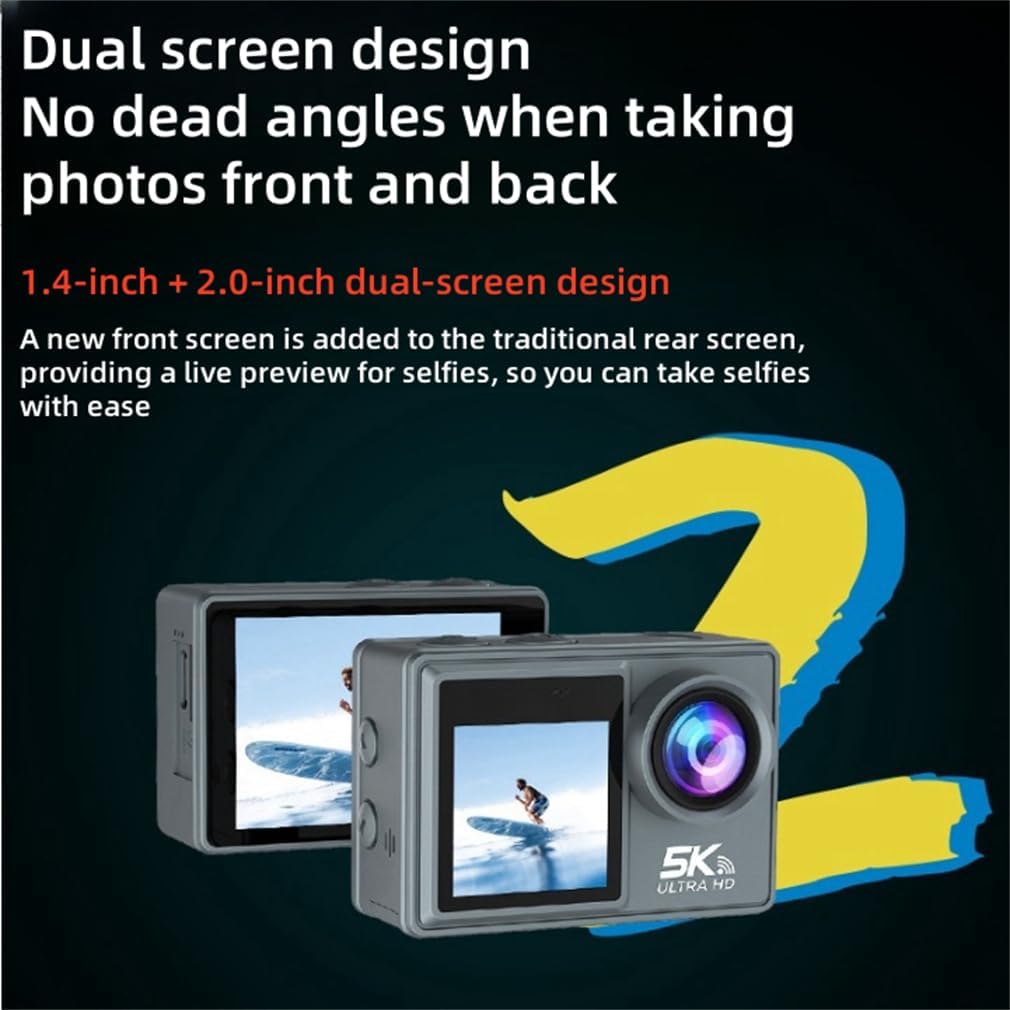
Image: The WACLA G40 Action Camera encased in its transparent waterproof housing, partially submerged in water. This image illustrates the camera's capability to operate in wet environments, highlighting its 30-meter depth waterproof rating.
4. Setup
4.1 Charging the Battery
- Open the battery compartment cover.
- Insert the 900mAh Li-ion battery.
- Connect the camera to a USB power source (e.g., computer, wall adapter) using the provided USB Type-C cable.
- The charging indicator light will illuminate during charging and turn off when fully charged.
Note: Ensure the camera is turned off during charging. A full charge typically takes approximately 2-3 hours.
4.2 Inserting a MicroSD Card
- Locate the microSD card slot on the side of the camera.
- Insert a Class 10 or higher microSD card (up to 128GB recommended) with the contacts facing the front of the camera.
- Gently push the card until it clicks into place.
- To remove, push the card again until it springs out.
Important: Format the microSD card in the camera's settings before first use to ensure compatibility and optimal performance.
4.3 Powering On/Off
- To Power On: Press and hold the Power/Mode button for 3-5 seconds.
- To Power Off: Press and hold the Power/Mode button for 3-5 seconds until the screen turns off.
5. Operating Instructions
5.1 Basic Operation
- Mode Switching: Press the Power/Mode button repeatedly to cycle through video, photo, playback, and settings modes.
- Shutter/Select Button: Press this button to start/stop recording, take a photo, or confirm a selection in the menu.
- Navigation Buttons: Use the Up/Down buttons (if present, or touch screen gestures) to navigate menu options.
5.2 Video Recording
In video mode, the camera supports resolutions up to 5K at 30 frames per second (fps) and features a 170° ultra-wide-angle lens to capture expansive scenes.

Image: An action camera capturing a dynamic scene of a cyclist on a mountain trail, demonstrating the 5K/30fps and 170° ultra-wide-angle capabilities. The image highlights the camera's ability to record high-definition video with a broad field of view, ideal for sports and outdoor activities.
- Enter Video Mode.
- Press the Shutter button to start recording. A red indicator light will flash, and a recording icon will appear on the screen.
- Press the Shutter button again to stop recording. The indicator light will stop flashing.
Adjustable View Angle: You can adjust the view angle between 170°, 140°, 110°, and 70° through the camera settings to suit your recording needs.
5.3 Photo Capture
The camera is equipped with a 6-glass lens system and a 48-megapixel sensor for clear, professional-quality photos.

Image: A detailed diagram illustrating the internal structure of the camera's 6-glass lens system. This visual emphasizes the advanced optics designed for clearer and more professional photographic results, supporting up to 48 million pixels.
- Enter Photo Mode.
- Frame your shot using the screen.
- Press the Shutter button to take a photo.
5.4 Wi-Fi Connection and Remote Control
Connect your camera to a smartphone or tablet via Wi-Fi using the dedicated app (available for Android and iOS). This allows for remote control, live preview, and easy transfer of media.

Image: The WACLA G40 Action Camera highlighting its Wi-Fi and remote control capabilities. The image displays "Android" and "iOS" logos, indicating compatibility with both mobile operating systems for app-based control and media management.
- Download the official camera app from your device's app store.
- Turn on Wi-Fi on your camera (usually found in settings).
- On your smartphone, connect to the camera's Wi-Fi network (SSID and password displayed on the camera screen).
- Open the app to control the camera remotely.
The included remote control also allows for convenient start/stop recording and photo capture from a distance.
5.5 Shooting Modes
The WACLA G40 offers a variety of shooting modes to enhance your creative possibilities.

Image: A visual display of six distinct shooting modes available on the action camera: Normal burst, 30-shot burst, Timer, Demo, Long exposure, and Beauty. Each mode is represented by an icon and a brief description, illustrating the camera's versatility for different photographic scenarios.
- Normal Burst: Captures multiple photos in quick succession.
- 30-Shot Burst: Captures an extended sequence of photos.
- Timer: Sets a delay before taking a photo.
- Loop Recording: Overwrites the oldest footage when the memory card is full (for video).
- Time-Lapse Recording: Captures frames at set intervals to create a time-lapse video.
- Slow Motion: Records video at a higher frame rate for slow-motion playback.
- Fast Motion: Records video at a lower frame rate for fast-motion playback.
- Long Exposure: Allows for longer shutter speeds in photo mode.
- Self-Timer: Delays photo capture.
- Beauty: Applies enhancements to photos.
Navigate to the camera's settings menu to select and customize these modes.
6. Maintenance
6.1 Cleaning the Camera
- Use a soft, lint-free cloth to clean the camera body.
- For the lens, use a specialized lens cleaning cloth and solution. Avoid touching the lens with your fingers.
- Ensure the camera is dry before storing or using the waterproof case.
6.2 Battery Care
- Store batteries in a cool, dry place.
- Do not expose batteries to extreme temperatures.
- If not using the camera for an extended period, remove the battery.
- Charge batteries fully before long-term storage and periodically recharge them every few months to maintain battery health.
6.3 Storage
Store the camera and its accessories in a protective case when not in use to prevent damage from dust, moisture, and impacts.
7. Troubleshooting
| Problem | Possible Cause | Solution |
|---|---|---|
| Camera does not power on. | Battery is depleted or not inserted correctly. | Charge the battery. Ensure the battery is inserted with correct polarity. |
| Cannot record video/take photos. | MicroSD card is full, corrupted, or not inserted. | Insert a formatted microSD card. Delete unnecessary files or replace the card. Format the card in camera settings. |
| Wi-Fi connection fails. | Incorrect password, camera Wi-Fi not enabled, or app issue. | Ensure Wi-Fi is enabled on the camera. Re-enter the password. Restart both camera and smartphone. Reinstall the app. |
| Footage is shaky. | EIS (Electronic Image Stabilization) is off or extreme movement. | Ensure EIS is enabled in camera settings. Use appropriate mounts to minimize vibration. |
| Camera freezes or becomes unresponsive. | Software glitch or battery issue. | Remove and reinsert the battery to perform a hard reset. If issues persist, update firmware (if available) or contact support. |
8. Specifications
| Brand | WACLA |
| Model Name | G40 |
| Video Resolution | 5K 30fps, 2.7K 30fps, 1080P 120/60/30fps, 720P 240/120/60/30fps |
| Photo Resolution | 48MP / 24M / 20M / 16M / 13M / 8M |
| Lens | 170° Ultra Wide-Angle, 6-glass lens, Aperture F/2.8 |
| Image Stabilization | Six-Axis Electronic Image Stabilization (EIS) |
| Screens | 2.0-inch IPS Touch Screen (Rear), 1.4-inch Screen (Front) |
| Waterproof Depth | Up to 30 meters (with waterproof case) |
| Battery | 900mAh Li-ion Battery |
| Battery Life | Approx. 60 min (4K video), 90 min (1080P video) |
| Storage | MicroSD card, Class 10 or higher, up to 128GB (not included) |
| Connectivity | Wi-Fi, USB Type-C |
| Video Format | MOV |
| Image Format | JPG |
| Operating Temperature | -4°F to 140°F (-20°C to 60°C) |
| Item Weight | 0.5 Kilograms |
9. Warranty and Support
WACLA products are designed and manufactured to the highest quality standards. This product is covered by a standard manufacturer's warranty against defects in materials and workmanship. Please refer to the warranty card included in your package for specific terms and conditions.
For technical support, troubleshooting assistance, or warranty claims, please contact our customer service team. You can typically find contact information on our official website or through the retailer where you purchased the product.
Note: Keep your purchase receipt as proof of purchase for warranty purposes.