
1. Product Overview
The iszo XG-PON/XGS-PON ONU Stick SFP+ Transceiver, model LL-XS1025, is a high-performance optical network unit designed for FTTx (Fiber to the x) networks. This SFP+ module integrates ONU functionality, allowing for direct insertion into compatible network equipment. It supports both XG-PON and XGS-PON protocols, offering flexible deployment options for various network architectures.
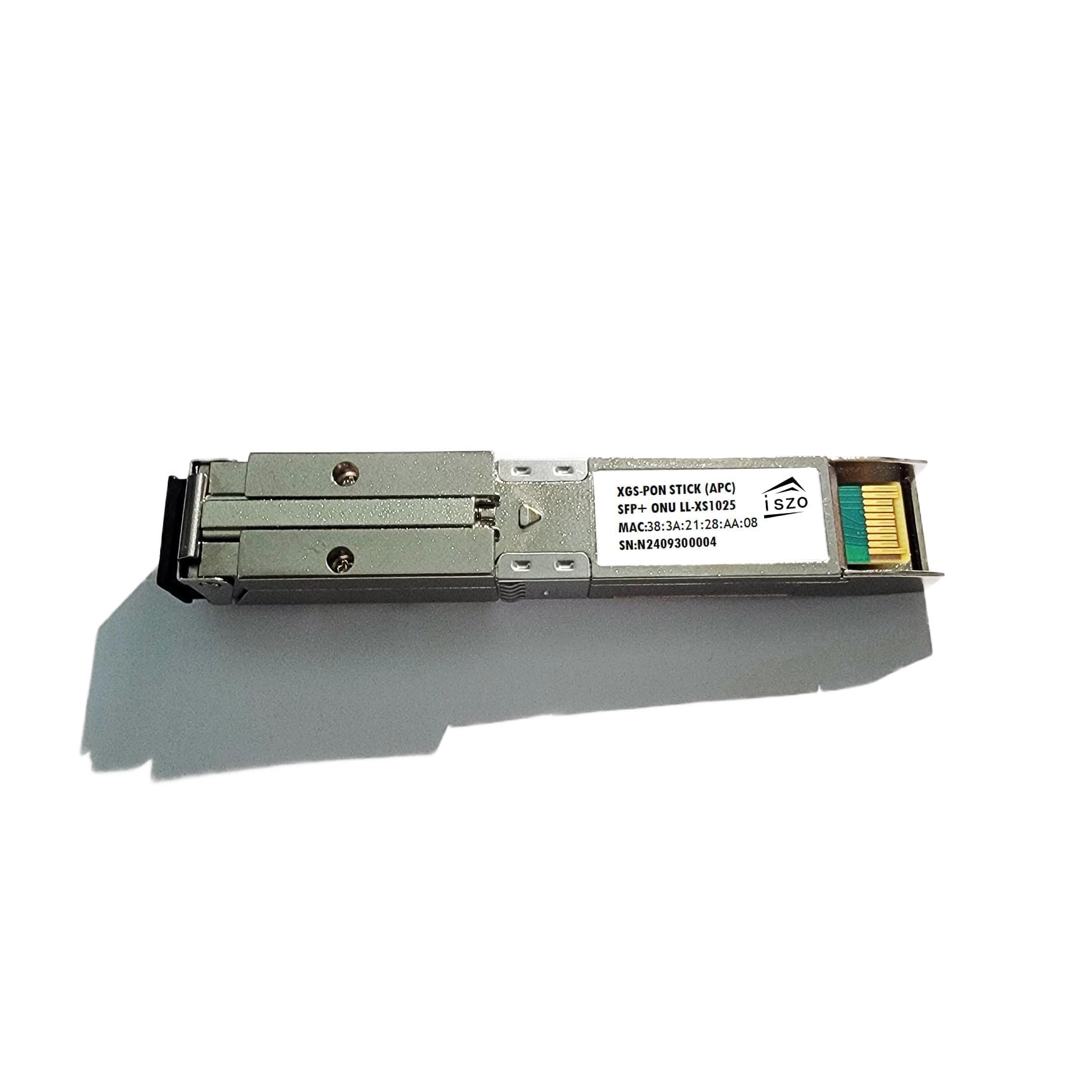
Image 1.1: The iszo XG-PON/XGS-PON ONU Stick SFP+ Transceiver, showing its compact form factor and product label with model number LL-XS1025, MAC address, and serial number.
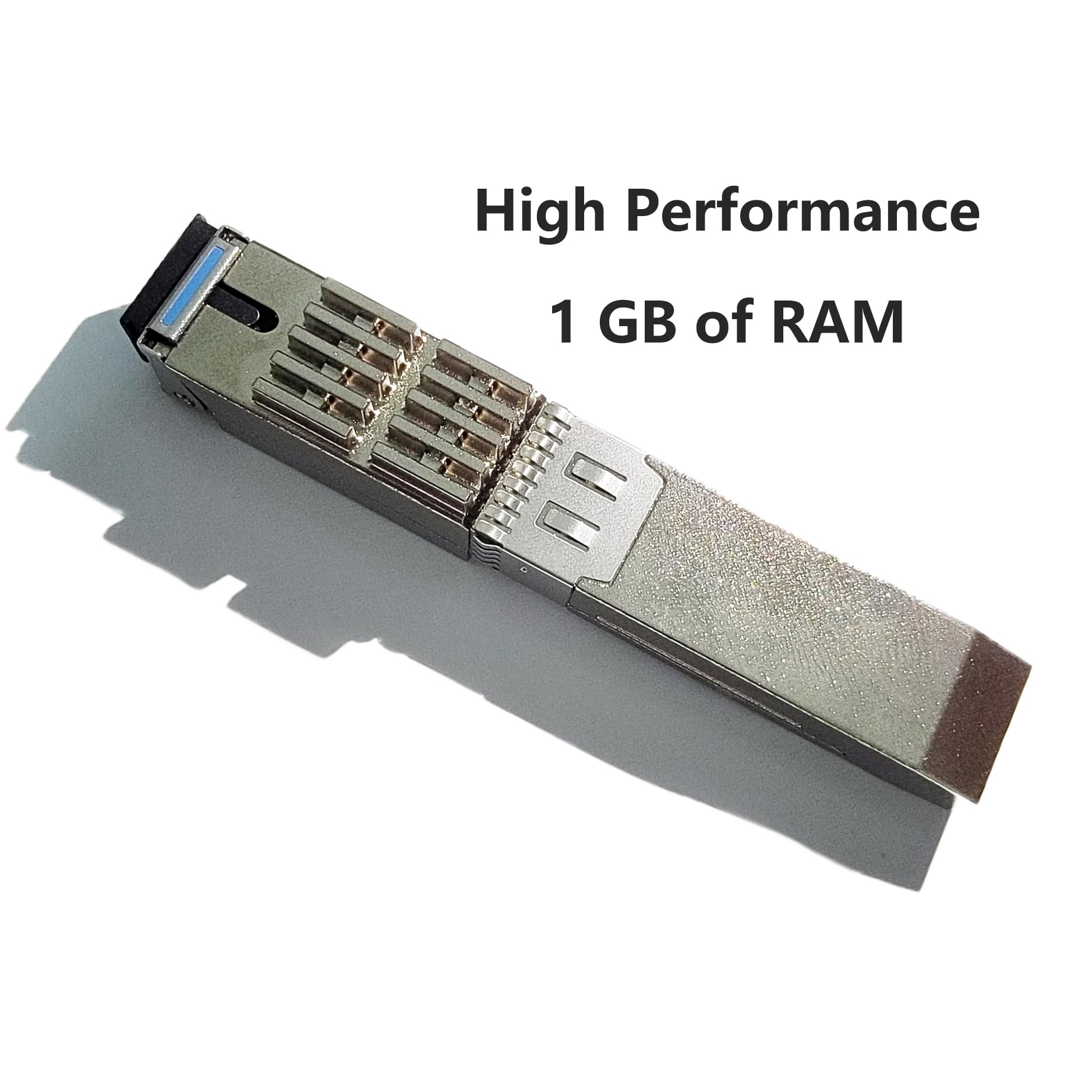
Image 1.2: A side view of the iszo XG-PON/XGS-PON ONU Stick SFP+ Transceiver, illustrating its robust metallic casing and SFP+ connector end.
Key Features:
- Supports XG-PON and XGS-PON protocols, enabling both symmetric and asymmetric data rates.
- SFP+ form factor for easy integration into existing network devices.
- Designed for FTTx networks, supporting up to 20 km transmission distance over Single Mode Fiber (SMF).
- Features an SC APC connector for optical fiber connection.
- Allows modification of critical PON parameters such as Serial Number (ONT ID), Vendor ID, Equipment ID, Logical ONU ID, Logical Password, and MAC address.
2. Specifications
| Feature | Description |
|---|---|
| Brand | iszo |
| Model | LL-XS1025 |
| Connectivity Technology | Ethernet |
| Compatible Devices | Huawei, ZTE, Ubiquiti, Mikrotik (and other SFP+ compatible devices) |
| Number of Ports | 1 (SFP+ optical port) |
| Data Transfer Rate | Up to 10 Gigabits Per Second (XGS-PON) |
| Transmission Distance | 20 km (SMF) |
| Connector Type | SC APC |
3. Setup and Installation
This section outlines the general steps for installing the iszo XG-PON/XGS-PON ONU Stick. Ensure all network equipment is powered off before installation.
- Prepare the Host Device: Ensure your router, switch, or OLT (Optical Line Terminal) has a compatible SFP+ slot. Refer to your host device's manual for SFP+ slot specifications and compatibility.
- Insert the ONU Stick: Carefully align the ONU Stick with the SFP+ slot on your host device. Gently push the stick into the slot until it clicks into place. Do not force the module.
- Connect Optical Fiber: Remove the protective dust cap from the SC APC connector on the ONU Stick and from your optical fiber cable. Connect the optical fiber cable to the ONU Stick's SC APC port. Ensure a clean connection to prevent signal loss.
- Power On and Verify: Power on your host device. The ONU Stick should be detected and initialized. Check the status indicators on your host device or the ONU Stick (if available) for proper operation.
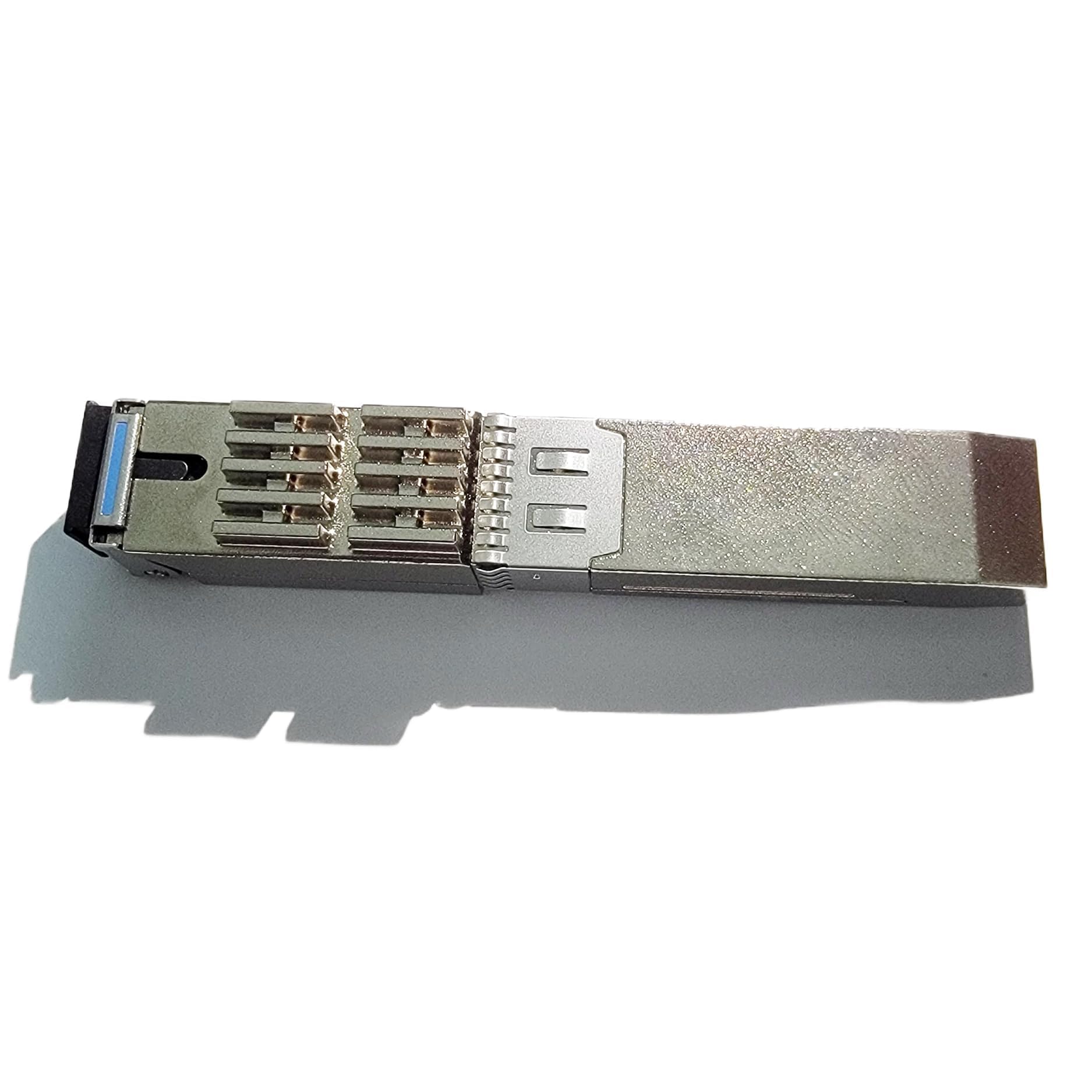
Image 3.1: A close-up view of the SFP+ ONU Stick, illustrating its physical design for insertion into a compatible SFP+ port.
4. Operating Instructions
Once installed, the iszo ONU Stick operates as an integral part of your FTTx network. Configuration and monitoring are typically performed via the host device (router, switch, or OLT) into which the ONU Stick is inserted.
4.1. Initial Configuration
The ONU Stick requires specific parameters to be set for proper registration with the OLT. These parameters are usually configured through the command-line interface (CLI) or web interface of the host device.
- PON Serial Number (ONT ID): This unique identifier is crucial for the OLT to recognize and authenticate the ONU.
- Vendor ID: Identifies the manufacturer of the ONU.
- Equipment ID: A specific identifier for the equipment type.
- Logical ONU ID: An identifier used within the PON network for logical management.
- Logical Password: Used for authentication with the OLT.
- MAC Address: The hardware address of the ONU.
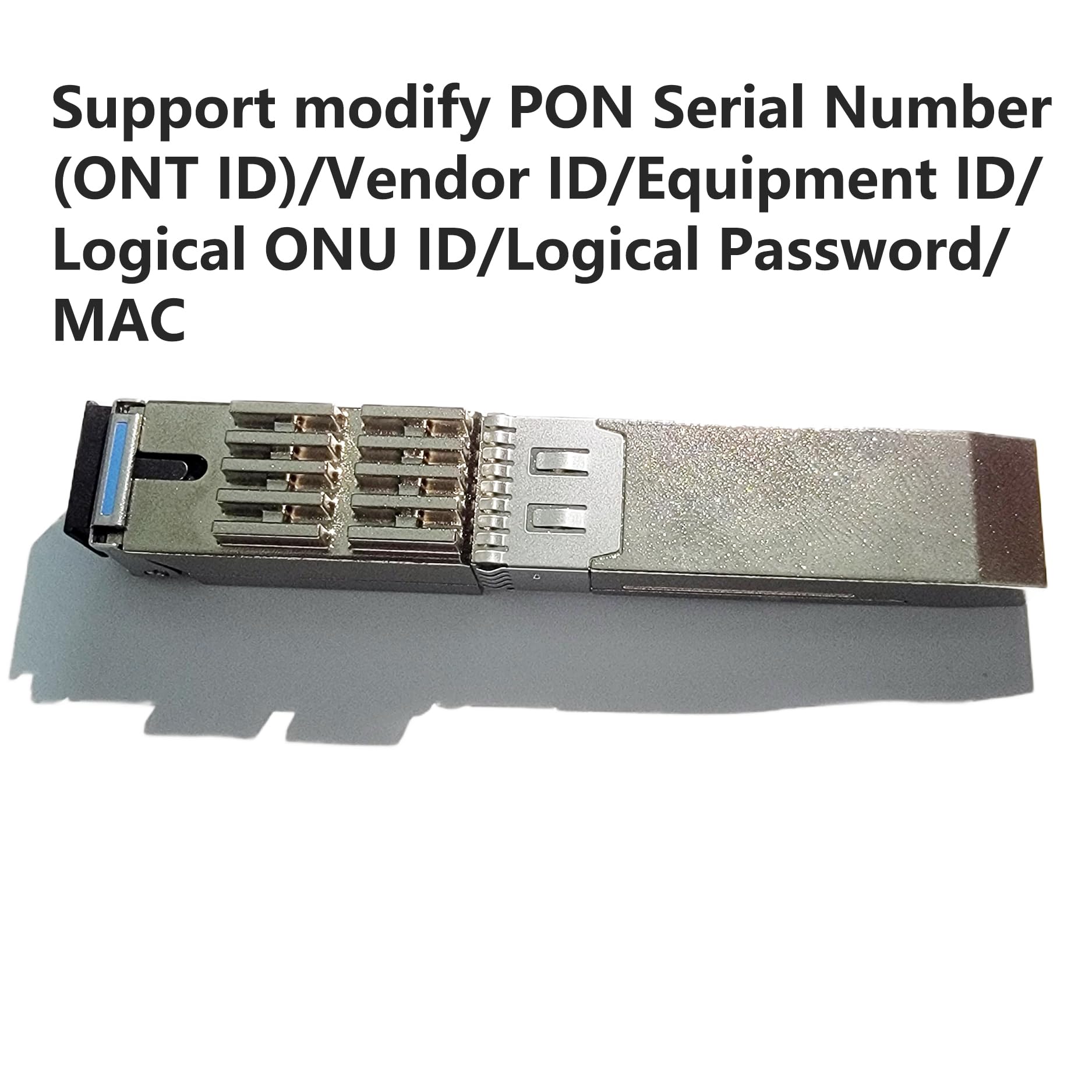
Image 4.1: The ONU Stick, highlighting its capability to support modification of PON Serial Number, Vendor ID, Equipment ID, Logical ONU ID, Logical Password, and MAC address.
Refer to your OLT or host device documentation for specific commands and procedures to configure these parameters. Incorrect configuration can prevent the ONU from registering with the network.
4.2. Network Integration
Once configured and registered, the ONU Stick will provide network connectivity through the SFP+ interface. The host device will then manage the data flow between your local network and the PON infrastructure.
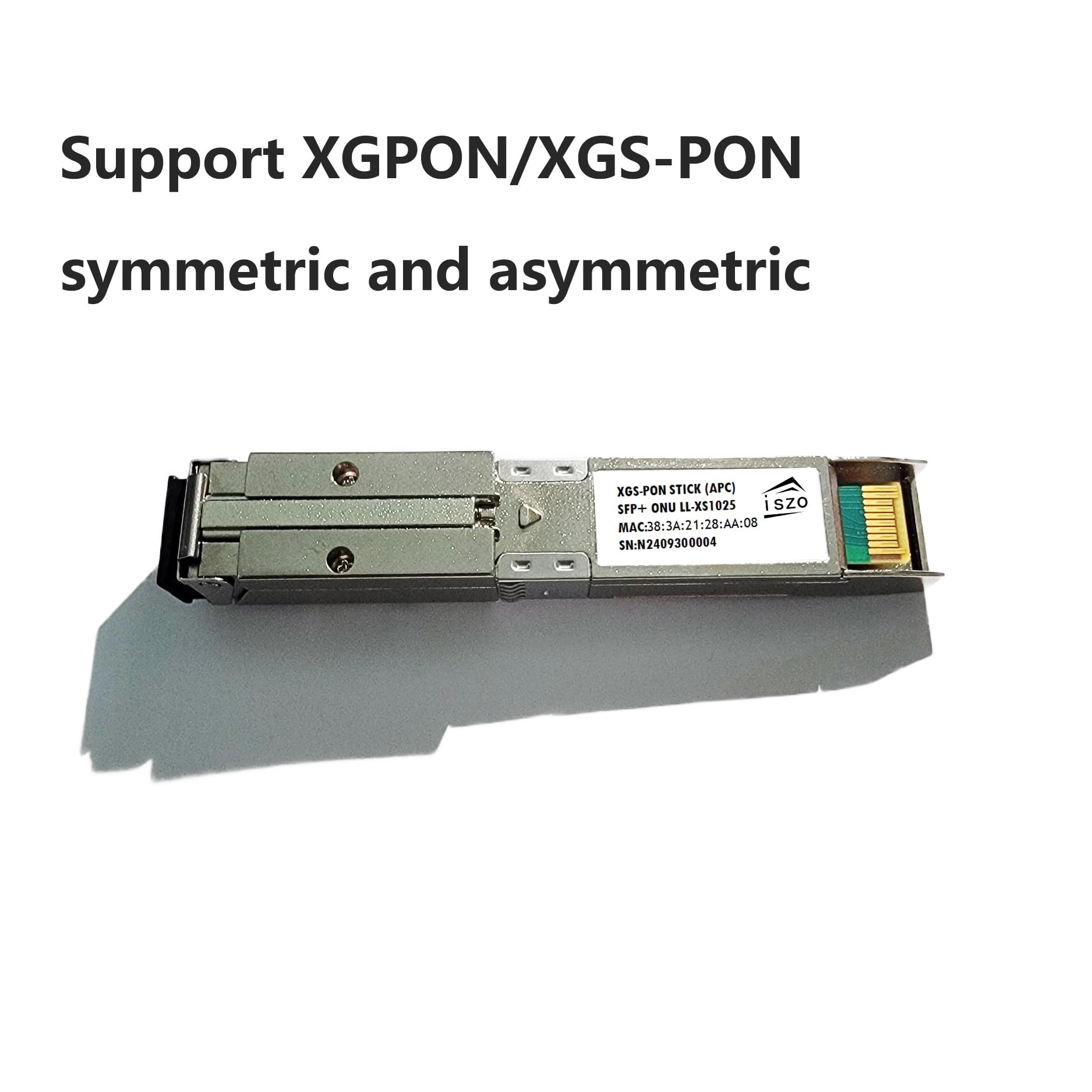
Image 4.2: The ONU Stick, emphasizing its support for both symmetric and asymmetric XG-PON/XGS-PON protocols, crucial for flexible network deployments.
5. Maintenance
The iszo XG-PON/XGS-PON ONU Stick is designed for reliable, long-term operation with minimal maintenance. Adhering to the following guidelines will help ensure optimal performance:
- Keep Connectors Clean: Optical fiber connectors are sensitive to dust and dirt. Always use appropriate fiber optic cleaning tools to clean the SC APC connector before connecting the fiber. Keep protective dust caps on when the port is not in use.
- Environmental Conditions: Operate the device within its specified temperature and humidity ranges. Avoid exposing the device to extreme temperatures, direct sunlight, or excessive moisture.
- Physical Handling: Handle the ONU Stick carefully. Avoid dropping it or subjecting it to strong impacts. Do not bend or twist the module excessively.
- Firmware Updates: While the ONU Stick itself typically does not have user-updatable firmware, ensure the firmware of your host device (router/OLT) is kept up-to-date to ensure compatibility and optimal performance with the ONU module.
6. Troubleshooting
This section provides solutions to common issues you might encounter with the iszo XG-PON/XGS-PON ONU Stick.
6.1. No Link Light / No Optical Signal
- Check Fiber Connection: Ensure the optical fiber cable is securely connected to both the ONU Stick and the OLT.
- Clean Connectors: Dust or dirt on the SC APC connectors can block the optical signal. Clean both ends of the fiber cable and the ONU Stick's port using a fiber optic cleaner.
- Verify Fiber Cable Integrity: Inspect the fiber cable for any physical damage (kinks, cuts). Replace if damaged.
- OLT Status: Confirm that the OLT port is active and configured correctly.
6.2. ONU Not Registering with OLT
- Configuration Parameters: Double-check all PON configuration parameters (Serial Number, Logical Password, etc.) on the host device/OLT. Even a single incorrect character can prevent registration.
- Compatibility: Ensure the ONU Stick is compatible with your OLT. While designed for broad compatibility, specific OLT models might require particular firmware versions or configurations.
- Optical Power Levels: Verify that the optical power levels are within the acceptable range for the ONU and OLT. Use an optical power meter if available.
6.3. Intermittent Connectivity / Low Speed
- Optical Signal Quality: Poor optical signal quality due to dirty connectors or a damaged fiber can lead to intermittent issues. Clean connectors and inspect the fiber.
- Host Device Performance: Ensure the host device (router/switch) is not overloaded or experiencing issues that could affect the ONU's performance.
- Network Congestion: High traffic on the PON network or upstream can affect perceived speeds.
7. Warranty and Support
For warranty information and technical support, please refer to the official iszo website or contact your vendor. Keep your purchase receipt and product serial number (found on the device label) handy when seeking support.
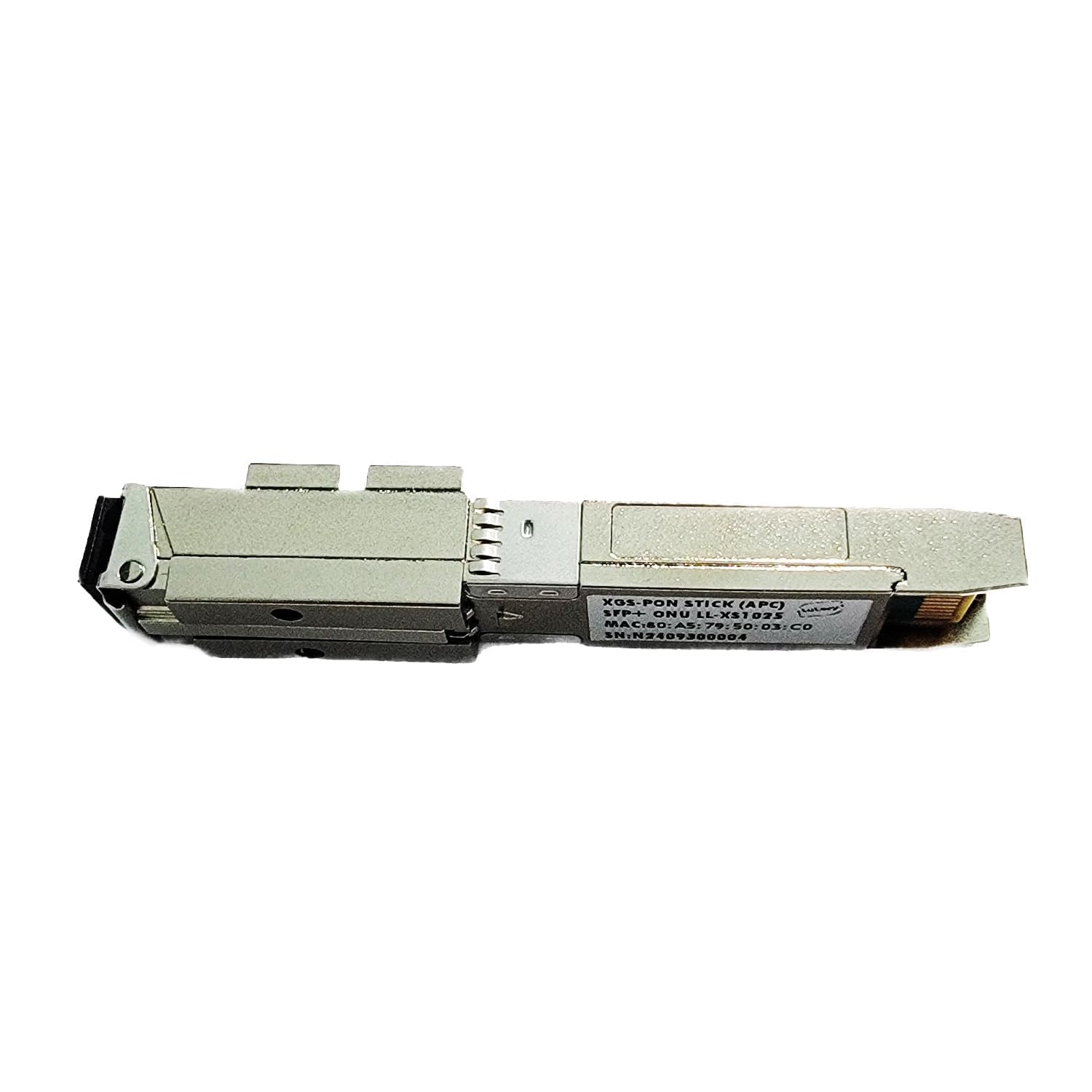
Image 7.1: A detailed view of the ONU Stick's label, showing the serial number (SN) which is important for warranty and support inquiries.