
1. Product Overview
The WACLA M40R is a high-performance action camera designed to capture your adventures in stunning detail. Featuring 5K video recording, 48MP photos, a 170° ultra-wide-angle lens, and advanced electronic image stabilization (EIS), it ensures smooth and clear footage. The camera also includes a dual-screen design, Wi-Fi connectivity, and a robust waterproof capability with its included case.
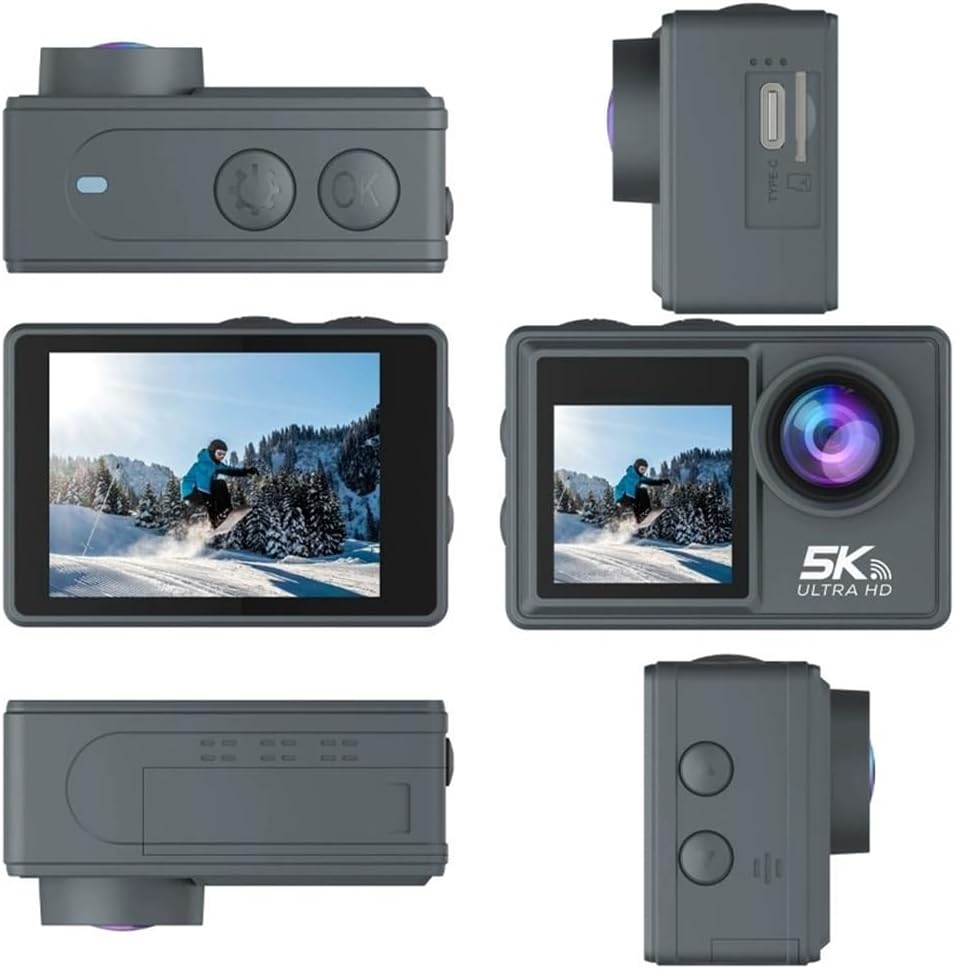
Image 1.1: The WACLA M40R Action Camera shown from various perspectives, highlighting its compact design and button layout.
2. Package Contents
Please check the box for the following items:
- WACLA M40R Action Camera
- Waterproof Box
- Remote Control
- Bicycle Bracket
- Waterproof Box Base
- Dome
- Short Bracket
- Fixed Base
- Back Clip
- Non-perforated Base
- 3M Tape
- Cable Ties
- USB Charger (Type-C cable)
- Steel Wire Rope
- Instruction Manual (this document)
- 900mAh Li-ion Batteries (pre-installed or separate)

Image 2.1: An illustration detailing the WACLA M40R camera and its complete set of accessories, including various mounts and the remote control.
3. Setup
3.1. Battery Installation and Charging
- Locate the battery compartment on the bottom of the camera.
- Open the compartment cover.
- Insert the 900mAh Li-ion battery, ensuring the contacts align correctly.
- Close the battery compartment cover securely.
- To charge, connect the camera to a power source using the provided USB Type-C cable. The charging indicator light will illuminate.
3.2. MicroSD Card Insertion
A MicroSD card (not included) is required for recording. Use a high-speed card (Class 10 or UHS-I/UHS-3 recommended) up to 128GB.
- Locate the MicroSD card slot on the side of the camera (often near the Type-C port).
- Insert the MicroSD card with the contacts facing the front of the camera until it clicks into place.
- To remove, gently push the card in until it springs out.
3.3. Powering On/Off
- Power On: Press and hold the Power/Mode button (usually on the front or top) for a few seconds until the screen illuminates.
- Power Off: Press and hold the Power/Mode button again for a few seconds until the screen turns off.
3.4. Initial Settings
Upon first use or after a reset, you may need to set the language, date, and time. Navigate through the settings menu using the mode and navigation buttons.
4. Operating the Camera
4.1. Basic Controls
The camera typically features a Power/Mode button, an OK/Shutter button, and Up/Down navigation buttons. Refer to Image 1.1 for button locations.
- Power/Mode Button: Press and hold to power on/off. Short press to cycle through modes (Video, Photo, Playback, Settings).
- OK/Shutter Button: Press to start/stop recording, take a photo, or confirm a selection in the menu.
- Up/Down Buttons: Navigate through menu options or adjust settings.
4.2. Dual Screen Operation
The M40R features a 2.0-inch IPS rear touch screen and a 1.4-inch front screen. The front screen is ideal for framing selfies or vlogs.
- To switch between screens or activate the front screen, refer to the camera's on-screen prompts or a dedicated button (if available).
- The rear screen provides full menu access and playback.
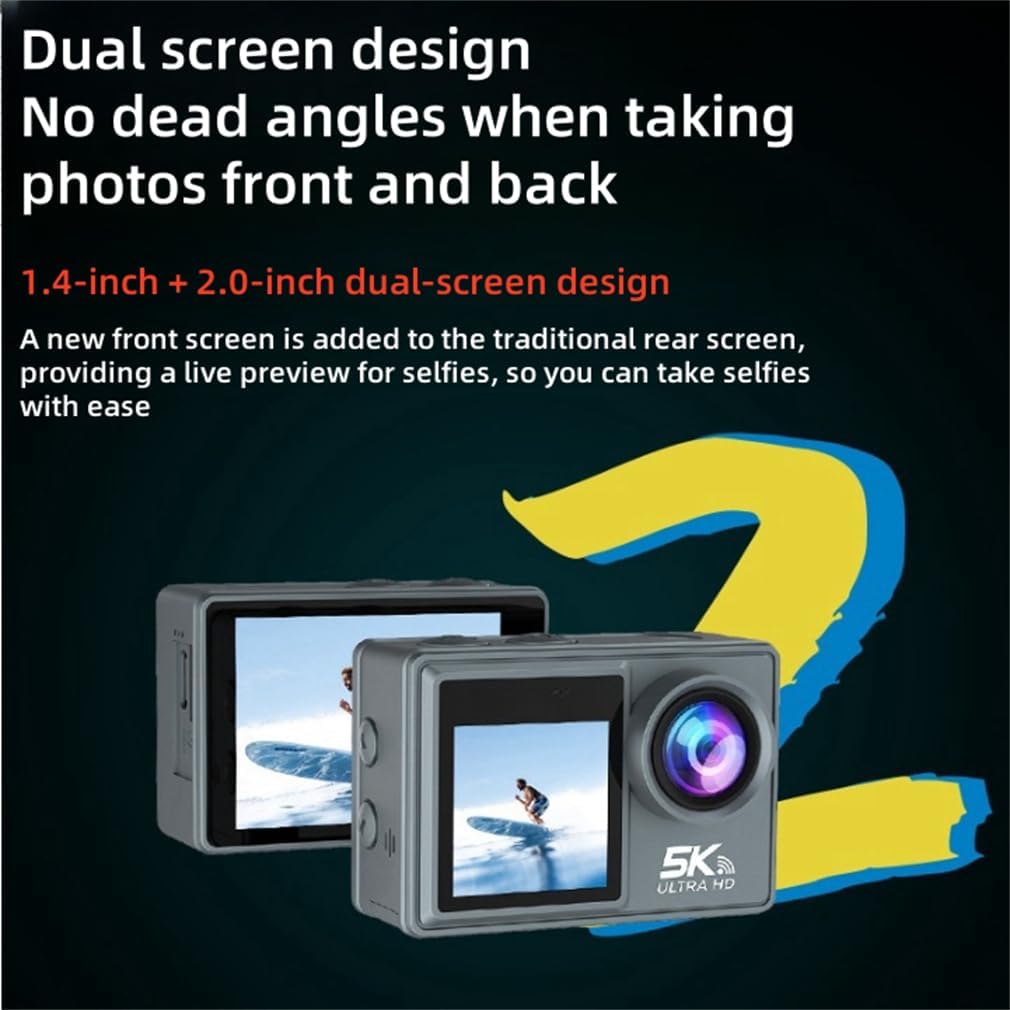
Image 4.1: A visual representation of the WACLA M40R Action Camera's dual-screen functionality, illustrating both the front and rear displays.
4.3. Video Recording
The camera supports various video resolutions and frame rates:
- 5K at 30fps
- 2.7K at 30fps
- 1080P at 120/60/30fps
- 720P at 240/120/60/30fps
- Switch to Video mode using the Mode button.
- Press the OK/Shutter button to start recording. A red indicator light or on-screen icon will show recording is in progress.
- Press the OK/Shutter button again to stop recording.
4.4. Photo Capture
Capture high-resolution photos up to 48MP.
- Photo Resolutions: 24M / 20M / 16M / 13M / 8M
- Switch to Photo mode using the Mode button.
- Frame your shot using the screen.
- Press the OK/Shutter button to take a photo.
4.5. Adjusting View Angle
The camera offers an adjustable view angle for its 170° ultra-wide lens:
- Options: 170°, 140°, 110°, and 70°
Access this setting through the camera's menu to select your desired field of view.

Image 4.2: A demonstration of the camera's 5K 170° ultra-wide-angle capability, showing a broad landscape view with a cyclist in focus.
4.6. Shooting Modes
The M40R supports various shooting modes to enhance your creativity:
- Slow Motion
- Fast Motion
- Loop Recording
- Time-Lapse Recording
- Self-Timer
- Burst Photo (Normal burst, 30-shot burst)
- Long Exposure
- Beauty Mode
These modes can be selected from the camera's menu settings.

Image 4.3: An overview of the six distinct shooting modes available on the WACLA M40R, including burst, timer, and long exposure options.
4.7. Wi-Fi and App Connection
Connect your camera to a smartphone via Wi-Fi using the dedicated app (available for Android and iOS).
- Download the WACLA app from your device's app store.
- Enable Wi-Fi on your camera through the settings menu.
- On your smartphone, connect to the camera's Wi-Fi network (SSID and password usually displayed on the camera screen).
- Open the WACLA app to control the camera, preview footage, and transfer files.

Image 4.4: An illustration demonstrating the Wi-Fi connectivity feature, allowing the camera to link with both Android and iOS devices for remote control and file management.
4.8. Remote Control Connection
The included remote control allows for convenient operation from a distance.
- Ensure the remote control has a working battery.
- Activate the remote control function in the camera's settings.
- Follow on-screen instructions to pair the remote control with the camera.
4.9. Waterproof Case Usage
The waterproof case allows the M40R to be used at depths of up to 30 meters.
- Before each use, inspect the waterproof case for any damage or debris on the seal.
- Place the camera securely inside the case, ensuring all latches are firmly closed.
- Perform a dry test without the camera if you are unsure about the seal.
- After use in water, rinse the case with fresh water and allow it to air dry.

Image 4.5: The WACLA M40R Action Camera enclosed in its waterproof housing, submerged in water, demonstrating its 30m depth capability.
5. Maintenance
5.1. Cleaning
- Camera Body: Wipe with a soft, damp cloth. Avoid harsh chemicals.
- Lens: Use a lens cleaning cloth or specialized lens cleaning solution. Do not touch the lens directly with fingers.
- Screens: Use a microfiber cloth to gently wipe the screens.
- Waterproof Case: After use in saltwater, rinse thoroughly with fresh water and dry completely.
5.2. Battery Care
- Store batteries in a cool, dry place.
- Do not expose batteries to extreme temperatures.
- Charge batteries fully before extended storage and periodically during storage to maintain health.
5.3. Storage
When not in use, store the camera and accessories in a dry, dust-free environment, away from direct sunlight and extreme temperatures.
6. Troubleshooting
6.1. Camera Not Turning On
- Ensure the battery is fully charged.
- Check if the battery is inserted correctly.
- Try charging the camera for at least 30 minutes.
6.2. Recording Issues (Stuttering, Freezing)
- Ensure you are using a high-speed MicroSD card (Class 10 or UHS-I/UHS-3).
- Format the MicroSD card in the camera's settings.
- Check if the MicroSD card has sufficient free space.
6.3. Wi-Fi Connection Problems
- Ensure Wi-Fi is enabled on both the camera and your smartphone.
- Restart both the camera and your smartphone.
- Ensure you are within the Wi-Fi range of the camera.
- Re-pair the camera with the app.
6.4. Camera Overheating
It is normal for the camera to become warm during extended use, especially when recording in high resolutions. If it becomes excessively hot or shuts down:
- Stop recording and allow the camera to cool down.
- Avoid direct sunlight exposure during operation.
6.5. Resetting the Camera
If issues persist, you may perform a factory reset through the camera's settings menu. This will revert all settings to their default values.
7. Specifications

Image 7.1: An exploded view diagram illustrating the six-layer glass lens structure of the camera, designed for clearer professional shots.
| Feature | Specification |
|---|---|
| Brand | WACLA |
| Model | M40R |
| Material | Black Plastic |
| Camera Angle | 170° wide-angle 6-glass lens |
| Touch Screen | 2.0 inch IPS (Rear) |
| Front Screen | 1.4 inch |
| Video Format | MOV |
| Image Format | JPG |
| Interface | Type-C, Wi-Fi |
| Battery | 900mAh Li-ion Batteries |
| Video Resolution | 5K 30fps, 2.7K 30fps, 1080P 120/60/30fps, 720P 240/120/60/30fps |
| Photo Resolution | 24M / 20M / 16M / 13M / 8M |
| Battery Life (Approx.) | 4K Video: 60 Min / 1080P Video: 90 Min |
| Item Weight | 1.1 pounds (approx. 0.5 kg) |
| Product Dimensions | 2.56 x 1.22 x 1.65 inches (approx. 6.5 x 3.1 x 4.2 cm) |
| Waterproof Depth | 30 meters (with waterproof case) |
8. Warranty and Support
8.1. Warranty Information
Please refer to the warranty card included with your product or visit the official WACLA website for detailed warranty terms and conditions.
8.2. Customer Support
If you have any questions, require technical assistance, or encounter issues not covered in this manual, please contact WACLA customer support. We aim to respond within 12 hours.
For the most up-to-date contact information, please visit the official WACLA website.