
1. Introduction
Thank you for choosing the TWSYOXPR 5MP/4MP WiFi PTZ Security Camera. This manual provides essential information for the proper installation, operation, and maintenance of your security camera. Please read this manual thoroughly before use and retain it for future reference.
This camera offers high-resolution surveillance with advanced features such as 360° PTZ control, two-way audio, human detection, and automatic tracking, suitable for both indoor and outdoor environments.
2. Package Contents
Please check the package contents upon receipt. If any items are missing or damaged, contact your retailer.
- 1x TWSYOXPR 5MP or 4MP WiFi PTZ Camera (Model: 530C)
- 1x 32GB TF Card (pre-installed in camera)
- 1x Power Adapter
- 1x Network Cable
- 1x Set of Mounting Screws
3. Setup and Installation
3.1 Mounting the Camera
The camera is designed for suspended ceiling installation and is rated IP66 for weather resistance, making it suitable for both indoor and outdoor use. Choose a location that provides the desired viewing angle and is within range of your WiFi network.
- Mark the drilling points on the ceiling using the camera's base as a template.
- Drill holes and insert the provided wall plugs if necessary.
- Secure the camera base to the ceiling using the mounting screws.
- Adjust the camera's orientation as needed.
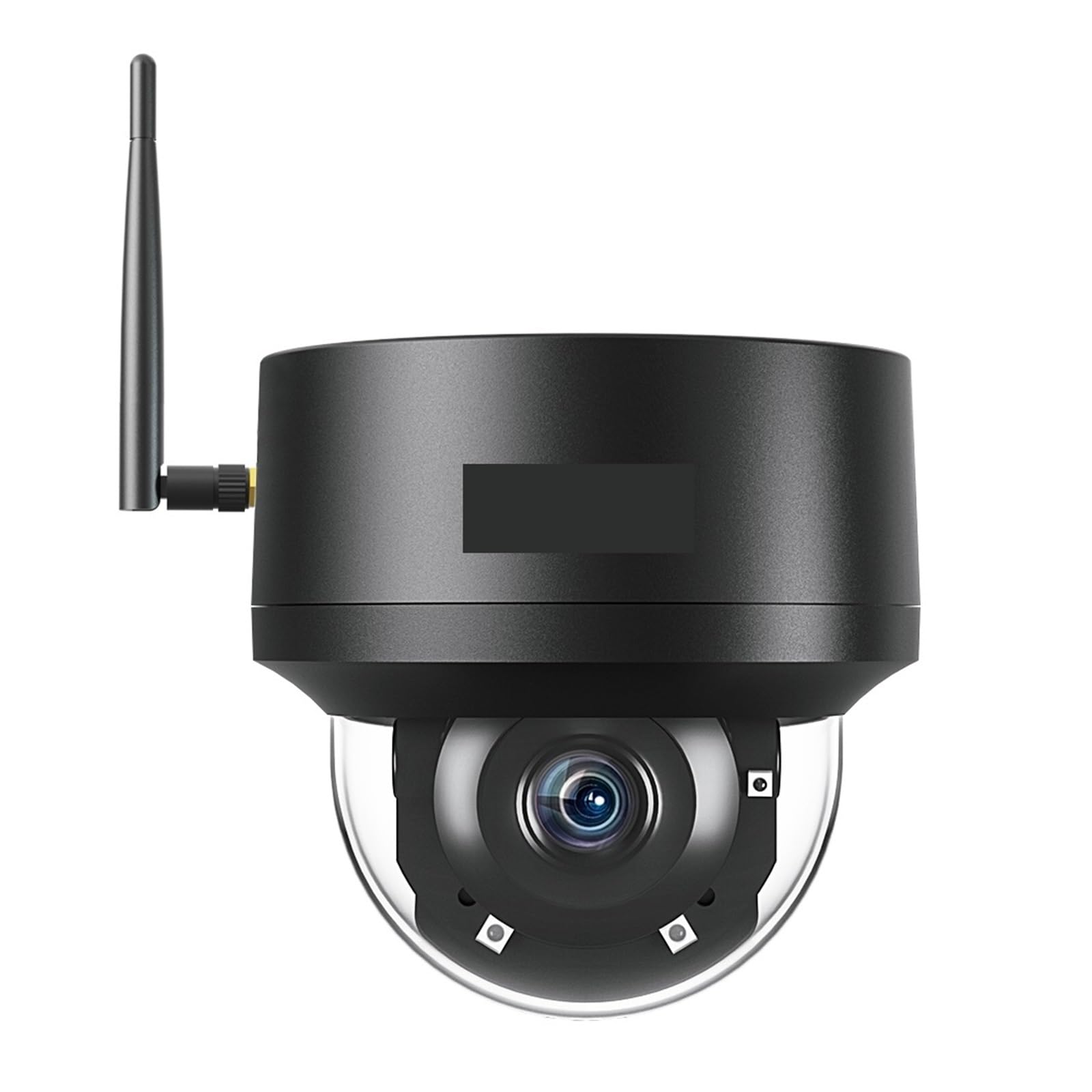
Image: The TWSYOXPR WiFi PTZ Security Camera mounted on a ceiling, illustrating its wide pan and tilt range for comprehensive coverage.
3.2 Power Connection
Connect the provided power adapter to the camera's power input port and then plug it into a standard electrical outlet. The camera requires a 12V power supply.
3.3 Network Connection
The camera supports WiFi connectivity. Follow the instructions in the mobile application to connect the camera to your home or office WiFi network. A network cable is also provided for wired connection if preferred.
3.4 Mobile App Setup
Download the official mobile application (refer to the packaging or included quick start guide for app name/QR code) from your device's app store. Register an account and follow the in-app instructions to add your camera. This typically involves scanning a QR code on the camera or using an auto-discovery feature.
4. Operating Instructions
4.1 Pan, Tilt, and Zoom (PTZ) Control
Utilize the mobile application to remotely control the camera's movement. The camera supports 360° horizontal rotation (pan) and approximately 90° vertical tilt, allowing you to adjust the viewing angle as needed.
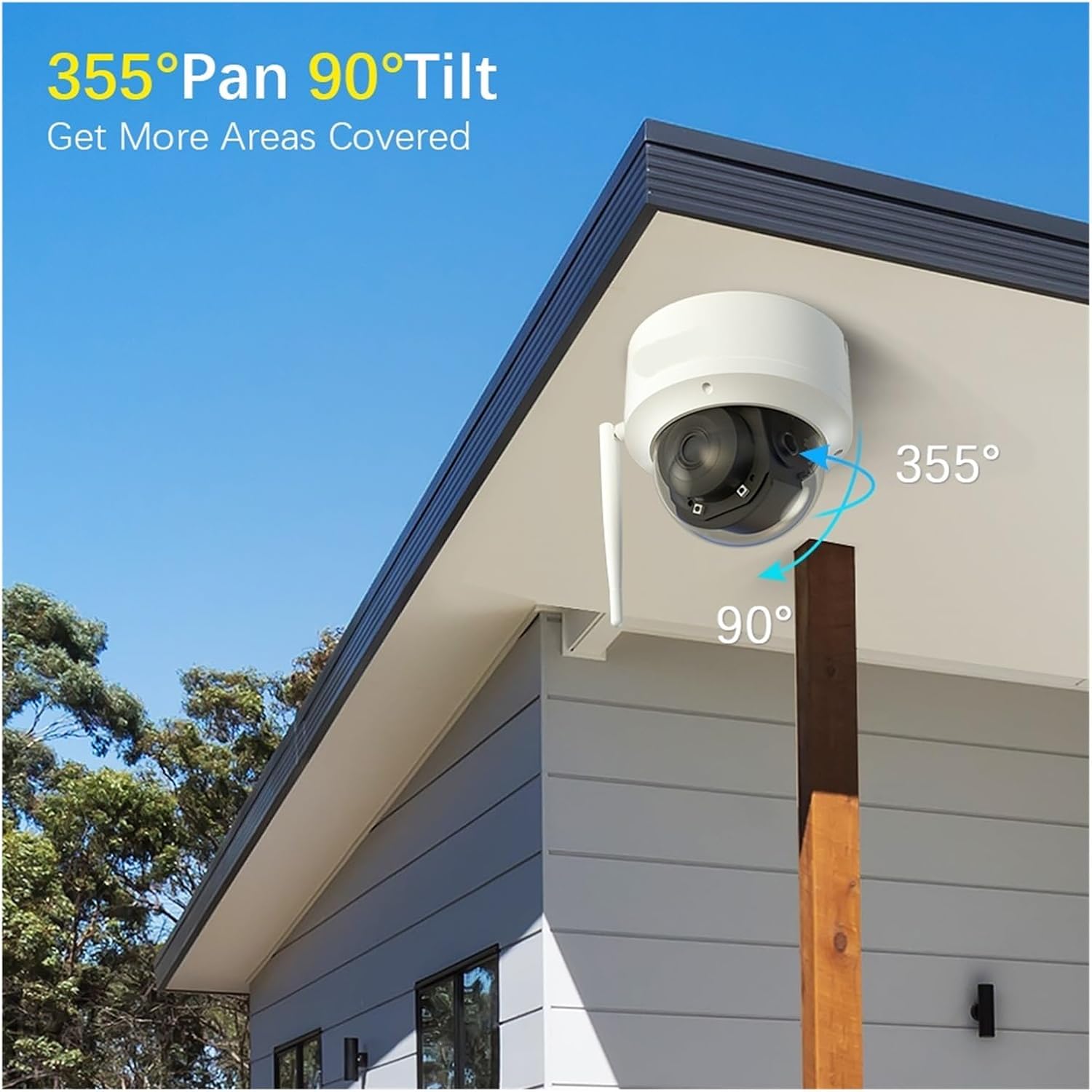
Image: The camera's pan and tilt capabilities, demonstrating its ability to cover a wide area with 355° horizontal and 90° vertical movement.
4.2 Two-Way Audio Communication
The camera features a built-in microphone and speaker, enabling two-way audio communication. Through the mobile app, you can listen to the camera's surroundings and speak through the camera's speaker.

Image: Illustration of the two-way audio feature, allowing users to communicate remotely through the camera.
4.3 Human Detection and Auto Tracking
The camera is equipped with advanced algorithms to detect human figures and differentiate them from other moving objects. Upon detection, the camera can automatically track the detected person's movement within its field of view.

Image: The camera's human detection and auto-tracking feature in action, following a person's movement.
4.4 Night Vision
The camera provides clear surveillance even in low-light or complete darkness. It automatically activates its infrared night vision, offering a clear black and white image up to 25 meters. Some models may also support full-color night vision depending on ambient light conditions.
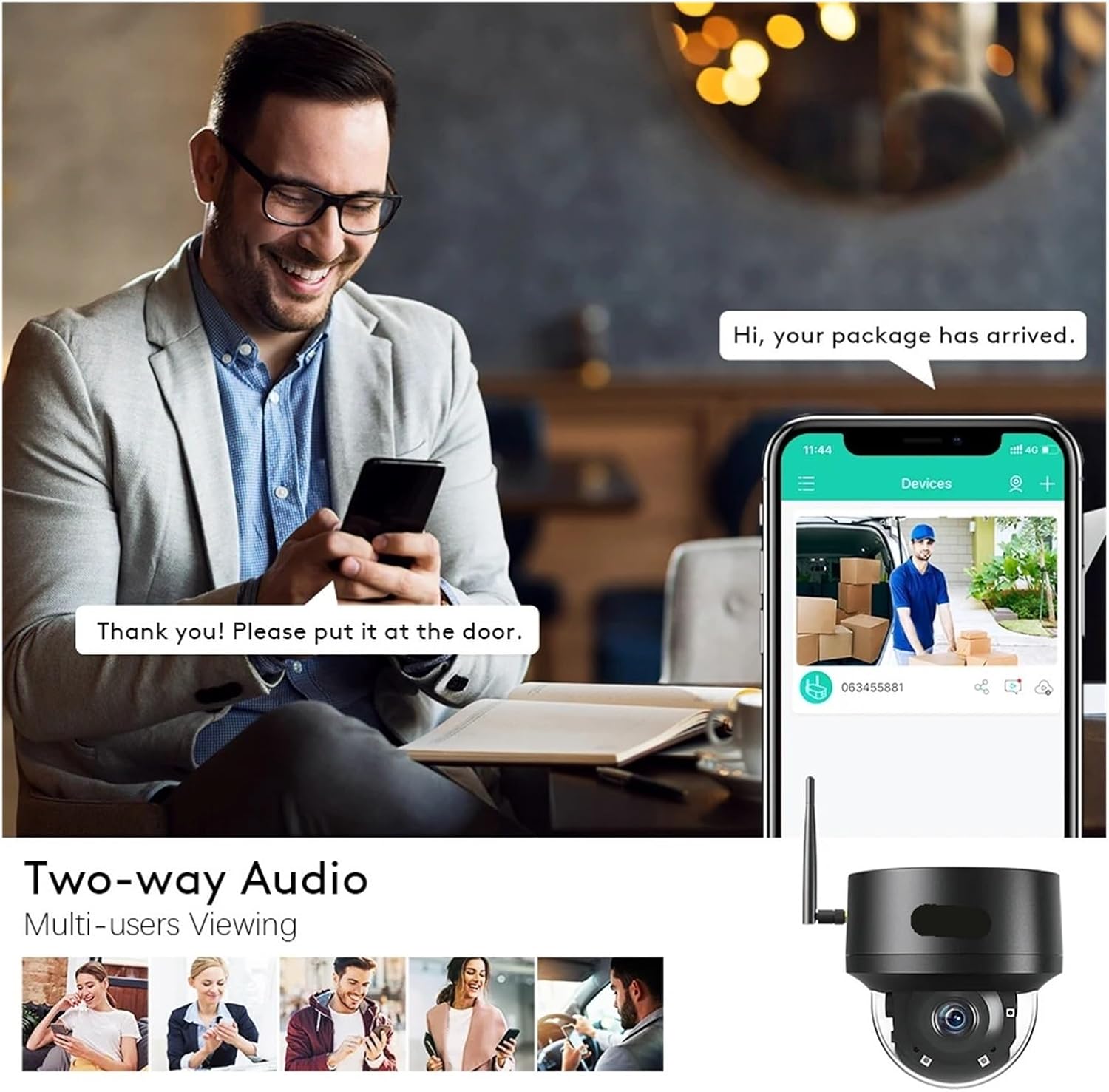
Image: The camera's night vision capability, showing a clear view of a property in darkness.
4.5 Alarm Actions and Recording
Configure alarm actions through the mobile app, including FTP photo uploads, phone alarms, email photos, and local alarms. Video footage is recorded to the built-in 32GB TF card, utilizing H.264 or H.265 video compression for efficient storage.
5. Maintenance
5.1 Cleaning
To ensure optimal performance, periodically clean the camera lens and housing. Use a soft, damp cloth to wipe away dust and dirt. Avoid using harsh chemicals or abrasive materials that could damage the lens or finish.
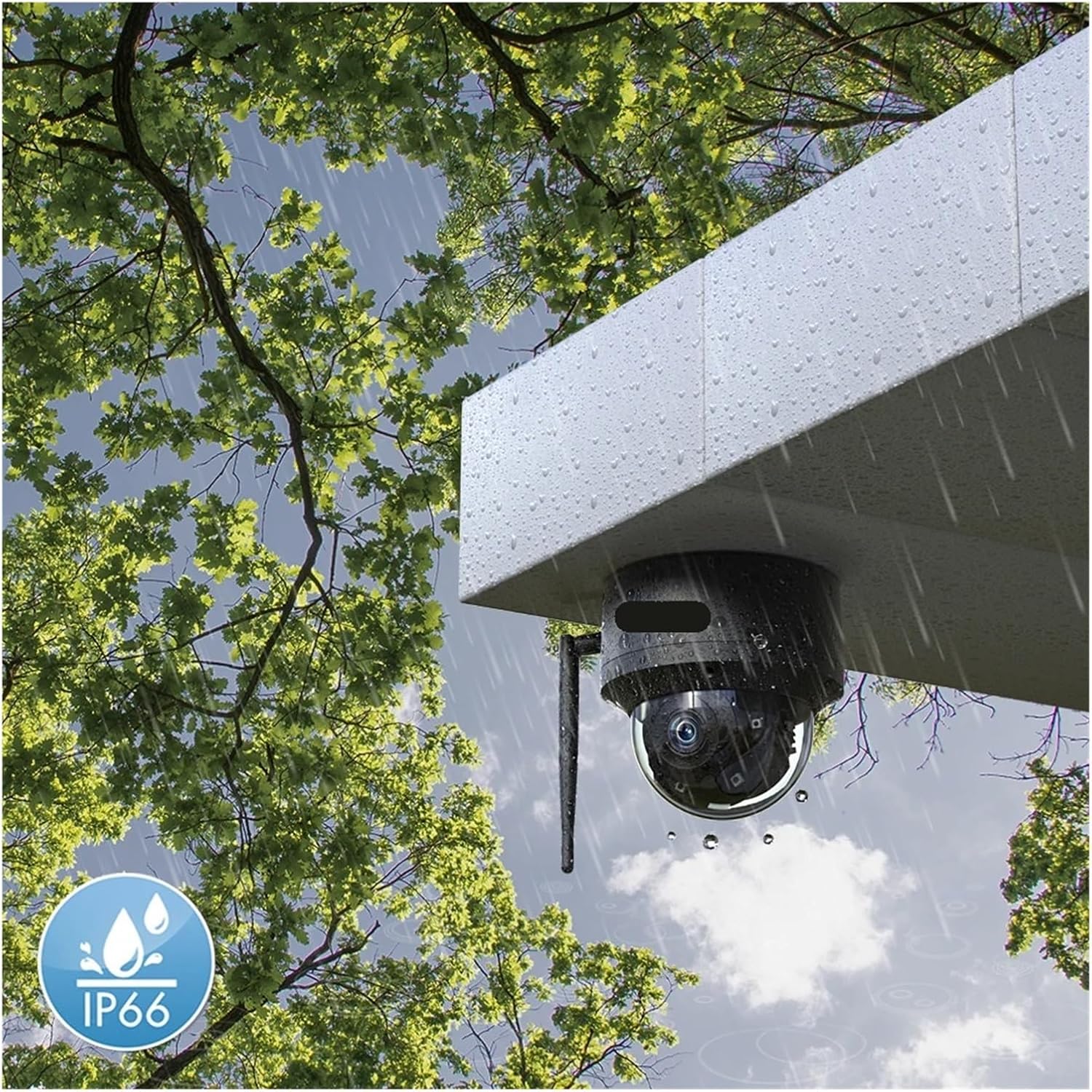
Image: The camera's IP66 weather resistance, indicating its durability against environmental elements.
5.2 Firmware Updates
Check the mobile application regularly for available firmware updates. Keeping your camera's firmware up-to-date ensures access to the latest features, security enhancements, and performance improvements.
6. Troubleshooting
- No Power: Ensure the power adapter is securely connected to both the camera and a working electrical outlet. Verify the outlet has power.
- No Network Connection: Check your WiFi router's status. Ensure the camera is within WiFi range. Re-attempt the network setup process in the mobile app. For wired connection, ensure the network cable is properly connected.
- Poor Image Quality: Clean the camera lens. Ensure there are no obstructions in the camera's field of view. Check your network speed, as low bandwidth can affect streaming quality.
- Auto Tracking Not Working: Ensure human detection is enabled in the app settings. Verify the camera's firmware is up-to-date.
- Two-Way Audio Issues: Check microphone and speaker settings in the app. Ensure volume levels are adequate on both the camera and your mobile device.
- SD Card Not Recording: Verify the 32GB TF card is properly inserted. Check the recording settings in the mobile app. The card may need to be formatted via the app.
For further assistance, refer to the FAQ section within the mobile application or contact TWSYOXPR customer support.
7. Specifications
| Feature | Specification |
|---|---|
| Model | CTIPC-530C |
| Resolution Options | 4MP or 5MP |
| Lens | 3.6mm |
| Viewing Angle | 70° |
| PTZ Range (Pan) | 0°-360° |
| PTZ Range (Tilt) | Approx. 90° |
| Digital Zoom | 4x |
| Night Vision Distance | 25m (Red Light) |
| Video Compression | H.264, H.265 |
| Storage | Built-in 32GB TF Card |
| Connectivity | WiFi |
| Power Supply | 12V (Mains Power Supply) |
| Operating Temperature | -10°C to 60°C |
| IP Rating | IP66 (Waterproof/Weatherproof) |
| Audio | Two-Way Audio |
| Key Features | Motion Detection, Intelligent Tracking, Human Detection |
| Case Material | Plastic |
| Installation Mode | Suspended Ceiling |
| Item Weight | 50 Grams (1.76 ounces) |
| Package Dimensions | 1.18 x 0.79 x 0.39 inches |
8. Warranty and Support
This product comes with a standard manufacturer's warranty. Please refer to the warranty information provided at the time of purchase or contact your retailer for details regarding warranty terms and conditions.
For technical support, product inquiries, or warranty claims, please contact the TWSYOXPR customer service team through the contact information provided on the product packaging or the official website.