
1. Introduction
Thank you for purchasing the SOLAKAKA SM820 Wireless Gaming Mouse. This high-performance gaming mouse is designed to provide an unparalleled gaming and office experience with its tri-mode connectivity, high-precision sensor, and customizable features. The SM820 features a lightweight ergonomic design and comes with an RGB magnetic charging dock for convenient charging and enhanced signal stability.

Image 1.1: The SM820 Wireless Gaming Mouse with its RGB charging dock.
2. Setup
2.1 Package Contents
- SM820 Wireless Gaming Mouse
- RGB Magnetic Charging Dock
- USB-C to USB-A Cable
- 2.4GHz USB Dongle (located inside the charging dock or mouse)
- User Manual (this document)
2.2 Initial Charging
Before first use, it is recommended to fully charge the mouse.
- Connect the USB-C end of the provided cable to the charging dock and the USB-A end to a powered USB port on your computer or a USB wall adapter.
- Place the SM820 mouse onto the RGB magnetic charging dock. Ensure the mouse aligns correctly with the charging pins. The RGB lighting on the dock will indicate charging status (e.g., changing color or pulsing).
- Alternatively, you can connect the USB-C cable directly to the mouse for wired charging and use.
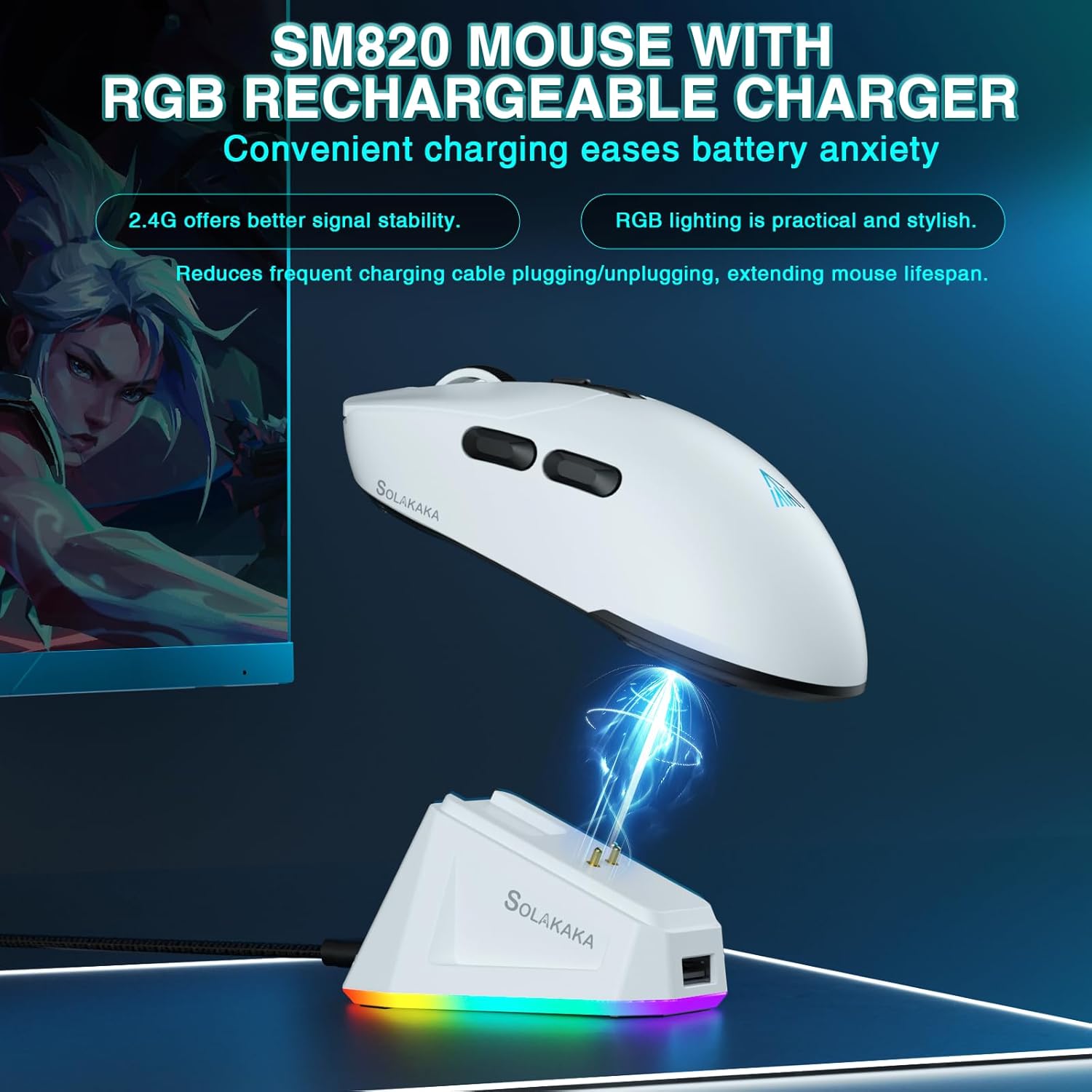
Image 2.1: Charging the SM820 mouse using the RGB magnetic charging dock.
2.3 Connecting the Mouse
The SM820 supports three connection modes: 2.4GHz Wireless, Bluetooth 5.0, and Type-C Wired.
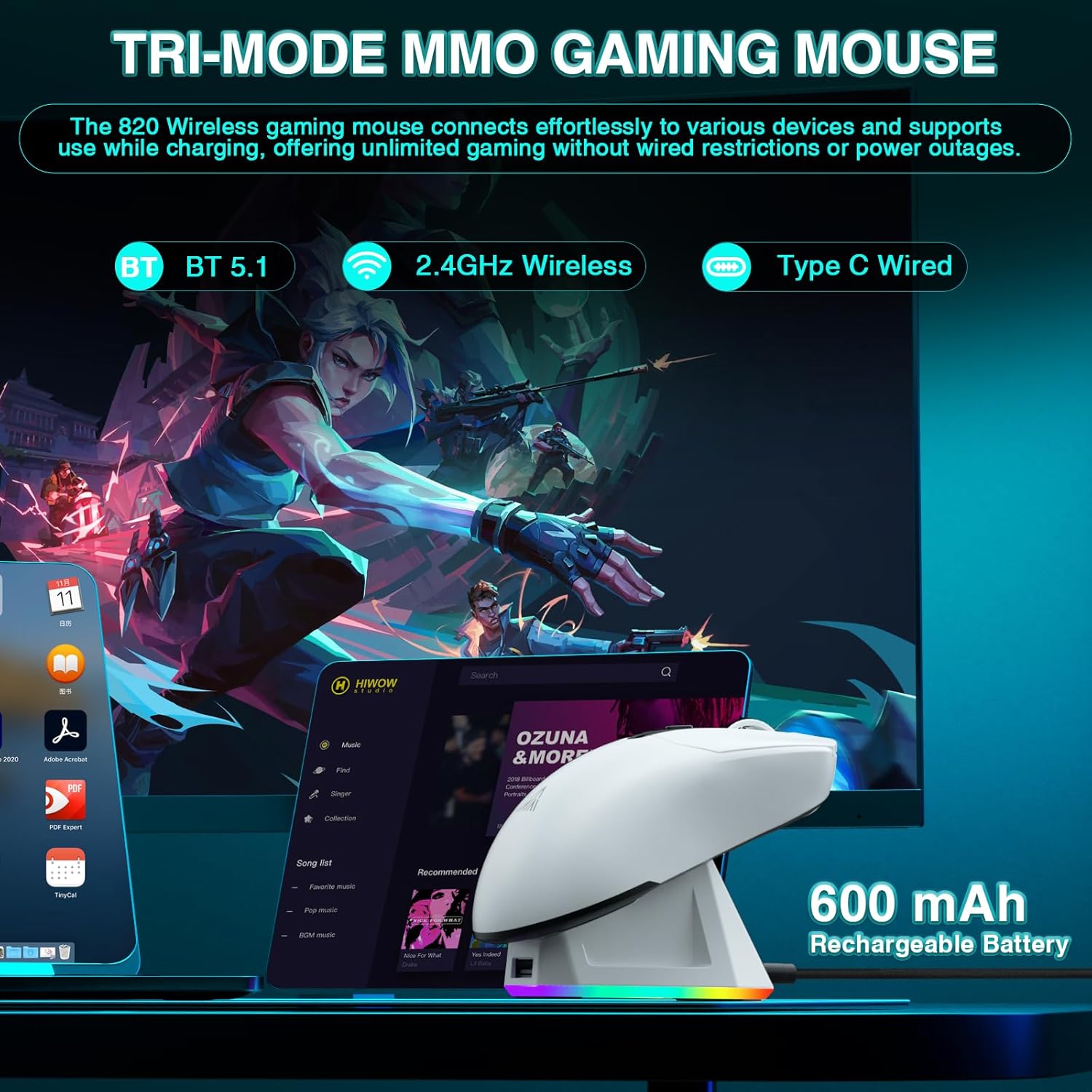
Image 2.2: The SM820 mouse supports Bluetooth, 2.4GHz Wireless, and Type-C Wired connections.
2.3.1 2.4GHz Wireless Connection
- Locate the 2.4GHz USB dongle. It is typically stored in a compartment on the underside of the mouse or within the charging dock.
- Plug the USB dongle into an available USB-A port on your computer. The charging dock also has a pass-through USB-A port for the dongle.
- On the underside of the mouse, slide the mode switch button to the "2.4G" position.
- The mouse should automatically connect to your computer.
2.3.2 Bluetooth 5.0 Connection
- On the underside of the mouse, slide the mode switch button to the "BT" position.
- The mouse's indicator light will start blinking, indicating it's in pairing mode.
- On your computer or device, go to Bluetooth settings and search for new devices.
- Select "SM820" from the list of available devices to pair.
- Once paired, the indicator light on the mouse will become solid.
2.3.3 Type-C Wired Connection
- Connect the USB-C end of the provided cable directly to the front port of the SM820 mouse.
- Connect the USB-A end of the cable to a USB port on your computer.
- The mouse will automatically switch to wired mode and begin charging.
2.4 Software Installation (Optional)
For advanced customization, including programming buttons, setting macros, and fine-tuning DPI/polling rate, download the official SOLAKAKA SM820 software from the manufacturer's website. The software is compatible with Windows operating systems.
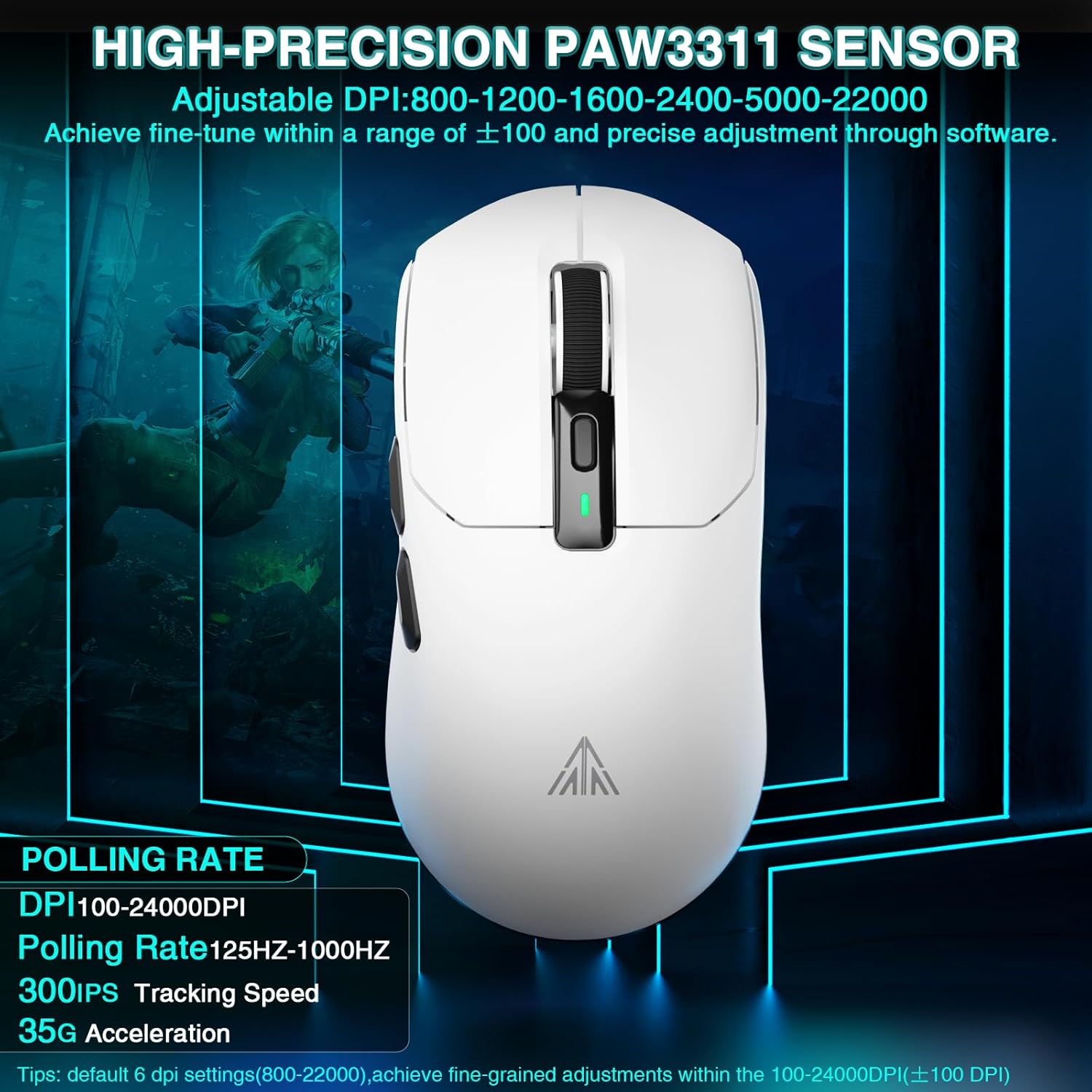
Image 2.3: The SM820 software allows for button programming, macro customization, and DPI adjustment.
3. Operating Instructions
3.1 Mouse Layout and Functions

Image 3.1: Diagram showing the various buttons and components of the SM820 mouse and charging dock.
- Left Button: Standard left-click function.
- Right Button: Standard right-click function.
- Scroll Wheel: Scrolls content up/down. Can also be pressed for middle-click.
- DPI Adjustment Button: Cycles through preset DPI levels.
- DPI Indicator: Shows the current DPI level (often via LED color).
- Forward Key: Navigates forward in web browsers or file explorers.
- Backwards Key: Navigates backward in web browsers or file explorers.
- Mode Switch Button (underside): Toggles between 2.4G, OFF, and BT modes.
- Connection Mode Indicator (underside): Shows the active connection mode.
- 2.4G Receiver: The USB dongle for 2.4GHz wireless connection.
- RGB Charging Dock: Provides magnetic charging and RGB lighting effects.
- USB to Type-C Cable Interface: For wired connection and charging.
3.2 Adjusting DPI (Dots Per Inch)
The SM820 mouse features a high-precision PAW3311 optical sensor, allowing for on-the-fly DPI adjustments.
- Press the DPI Adjustment Button (located behind the scroll wheel) to cycle through the default DPI settings.
- The DPI indicator light will change color to reflect the current DPI level.
- Default DPI settings typically include: 800, 1200, 1600, 2400, 5000, 22000.
- For fine-tuned adjustments within the 100-24000 DPI range, use the official software.
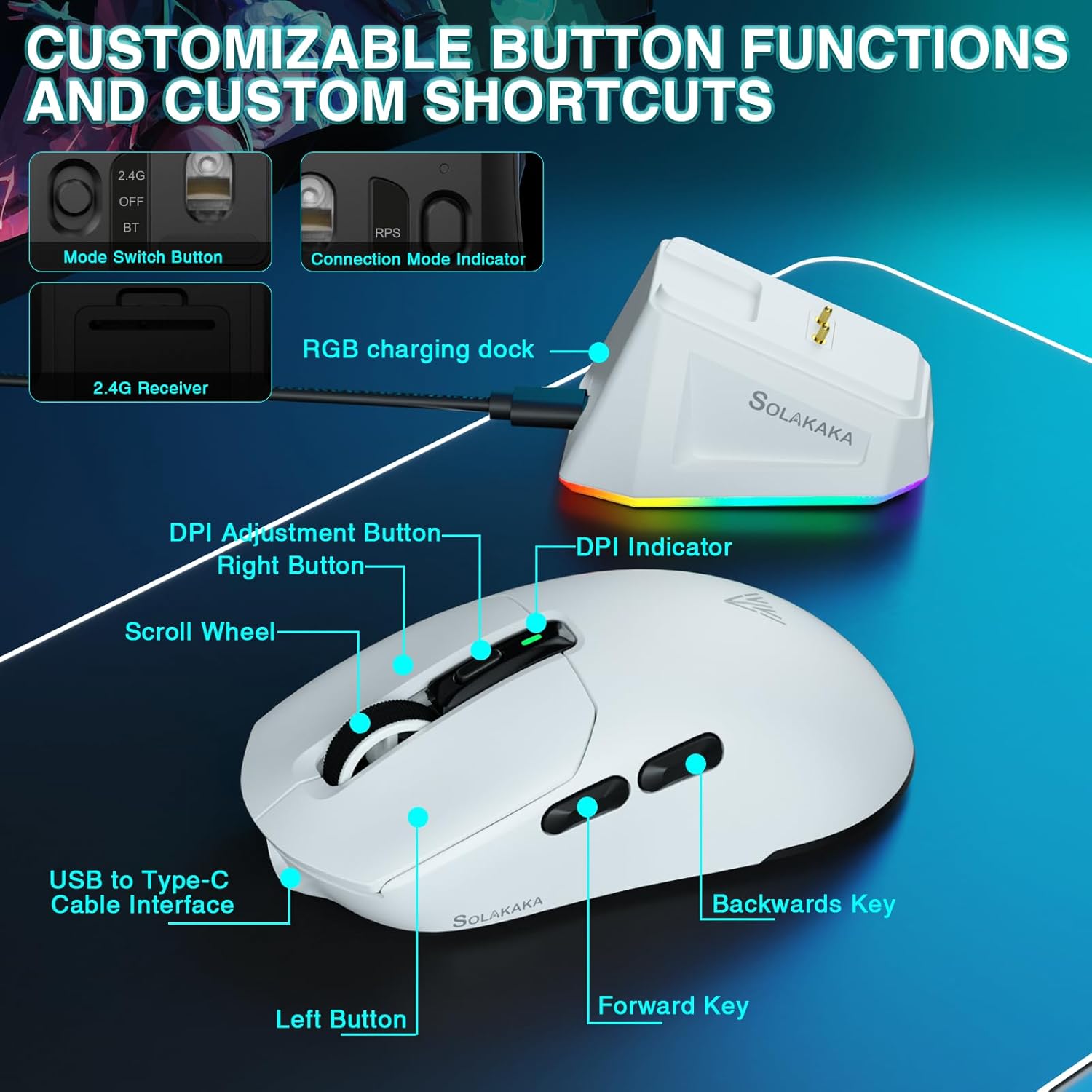
Image 3.2: The SM820 features a PAW3311 sensor with adjustable DPI up to 24000.
3.3 Programmable Buttons and Macros
The SM820 offers programmable buttons for enhanced productivity and gaming performance.
- Install the official SOLAKAKA SM820 software (refer to Section 2.4).
- Open the software to access button programming and macro customization options.
- You can assign multimedia key combinations, fire keys, and other functions to the programmable buttons (e.g., Forward and Backwards keys).
- Create and manage complex macros for repetitive tasks or in-game actions.
3.4 Ergonomic Design
The SM820 is designed for comfort during extended use. Its contoured shape fits perfectly in the palm of the right hand, and its lightweight construction (approx. 58g) reduces wrist burden.
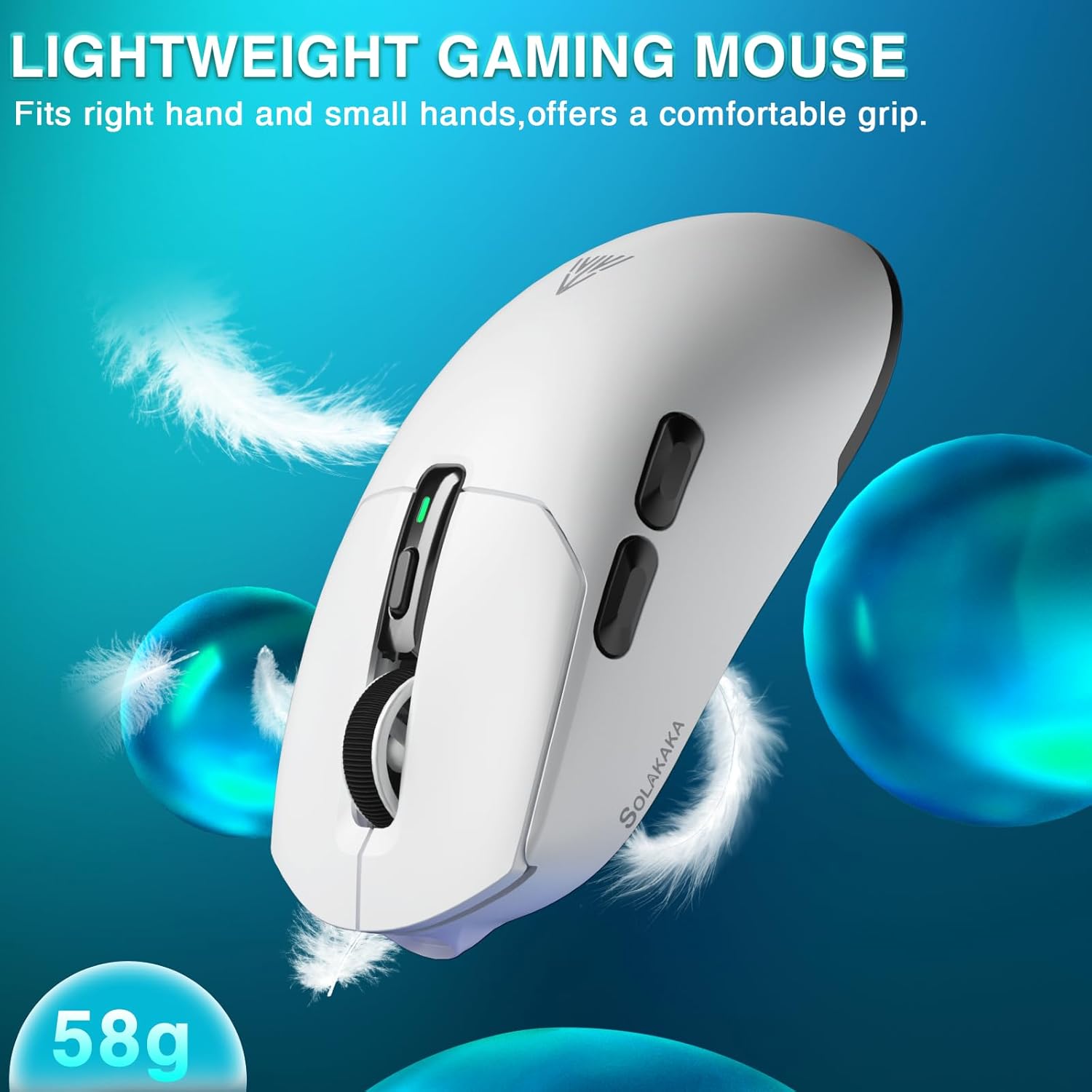
Image 3.3: The SM820 mouse features a lightweight (58g) and ergonomic design for comfortable use.
4. Maintenance
4.1 Cleaning
- Ensure the mouse is powered off or disconnected before cleaning.
- Use a soft, lint-free cloth slightly dampened with water or a mild cleaning solution to wipe the surface of the mouse and charging dock.
- Avoid using harsh chemicals, abrasive cleaners, or excessive moisture.
- Use a cotton swab or compressed air to clean around buttons, scroll wheel, and the optical sensor.
4.2 Battery Care
- The SM820 mouse uses a built-in Lithium Ion battery.
- To prolong battery life, avoid fully discharging the mouse frequently.
- Store the mouse in a cool, dry place when not in use for extended periods.
- If the mouse will not be used for a long time, charge it to about 50% before storing.
5. Troubleshooting
| Problem | Possible Cause | Solution |
|---|---|---|
| Mouse not responding (2.4GHz/Bluetooth) | Low battery; Incorrect mode selected; Dongle not connected; Bluetooth not paired; Interference. |
|
| Mouse cursor erratic or jumpy | Dirty optical sensor; Unsuitable surface; High DPI setting. |
|
| Charging dock RGB not lighting up | Power issue; Cable not connected properly. |
|
| Programmable buttons not working | Software not installed; Buttons not configured; Software conflict. |
|
6. Specifications
| Feature | Detail |
|---|---|
| Model Number | SM820 |
| Connectivity Technology | 2.4GHz Wireless, Bluetooth 5.0, Type-C Wired |
| Sensor | High-performance PAW3311 Optical Sensor |
| DPI Range | 100 - 24000 DPI (Adjustable) |
| Polling Rate | Up to 1000Hz |
| Tracking Speed | 300 IPS |
| Acceleration | 35G |
| Buttons | 6 Programmable Buttons |
| Weight | Approx. 58g (±2g) |
| Battery Type | 1 Lithium Ion battery (included) |
| Charging | RGB Magnetic Charging Dock / Type-C Wired |
| Dimensions | 7.52 x 4.09 x 1.85 inches (Package) |
| Color | White |
7. Warranty and Support
7.1 Warranty Information
SOLAKAKA products are manufactured to the highest quality standards. For detailed warranty terms and conditions, please refer to the warranty card included with your product or visit the official SOLAKAKA website. Keep your purchase receipt as proof of purchase for warranty claims.
The buybox winner information indicates a return policy duration of 30 days for refund/replacement. Please check the latest policy on the Amazon product page or SOLAKAKA's official website.
7.2 Customer Support
If you encounter any issues or have questions regarding your SOLAKAKA SM820 Wireless Gaming Mouse, please contact SOLAKAKA customer support through the following channels:
- Official Website: Visit the SOLAKAKA official website for FAQs, driver downloads, and contact information.
- Amazon Store: You can also reach out to the seller, SOLAKAKA, directly through their Amazon store page: SOLAKAKA Amazon Store.
- Email Support: Refer to your product packaging or the official website for direct email support.
When contacting support, please have your product model (SM820) and purchase details ready.
