
Product Overview
Product Description
The UniTak3D LED Light Strip Kit is designed to enhance the visibility of the printing area on your Bambu Lab A1 3D printer. This 24V, 270mm high-brightness light bar features a 480mm cable for easy connection and is engineered for durability in 3D printing environments.
Package Contents
- 1 x A1 LED Light Strip (24V, 270mm)
Setup and Installation
Important Notes Before Installation
- Clean any grease from the printer carriage before attaching the LED light strip to ensure proper adhesion.
Installation Steps
- Ensure the Bambu Lab A1 3D printer is powered off and disconnected from the power source.
- Carefully peel off the backing from the adhesive side of the LED light strip.
- Affix the LED light strip to the bottom of the X-axis aluminum profile of your Bambu Lab A1 printer. Ensure it is positioned correctly to avoid interference with moving parts.
- Connect the light strip's cable to the designated 24V power port on the 3D printer.
- Some users may find it beneficial to trim the LED strip at the marked scissor point if it is slightly too long for their specific setup, ensuring it does not collide with the print rail or wiring.
- Power on the 3D printer to verify the LED light strip is functioning correctly.

Image: The LED light strip installed on the Bambu Lab A1, demonstrating how a bracket can enhance the installation.
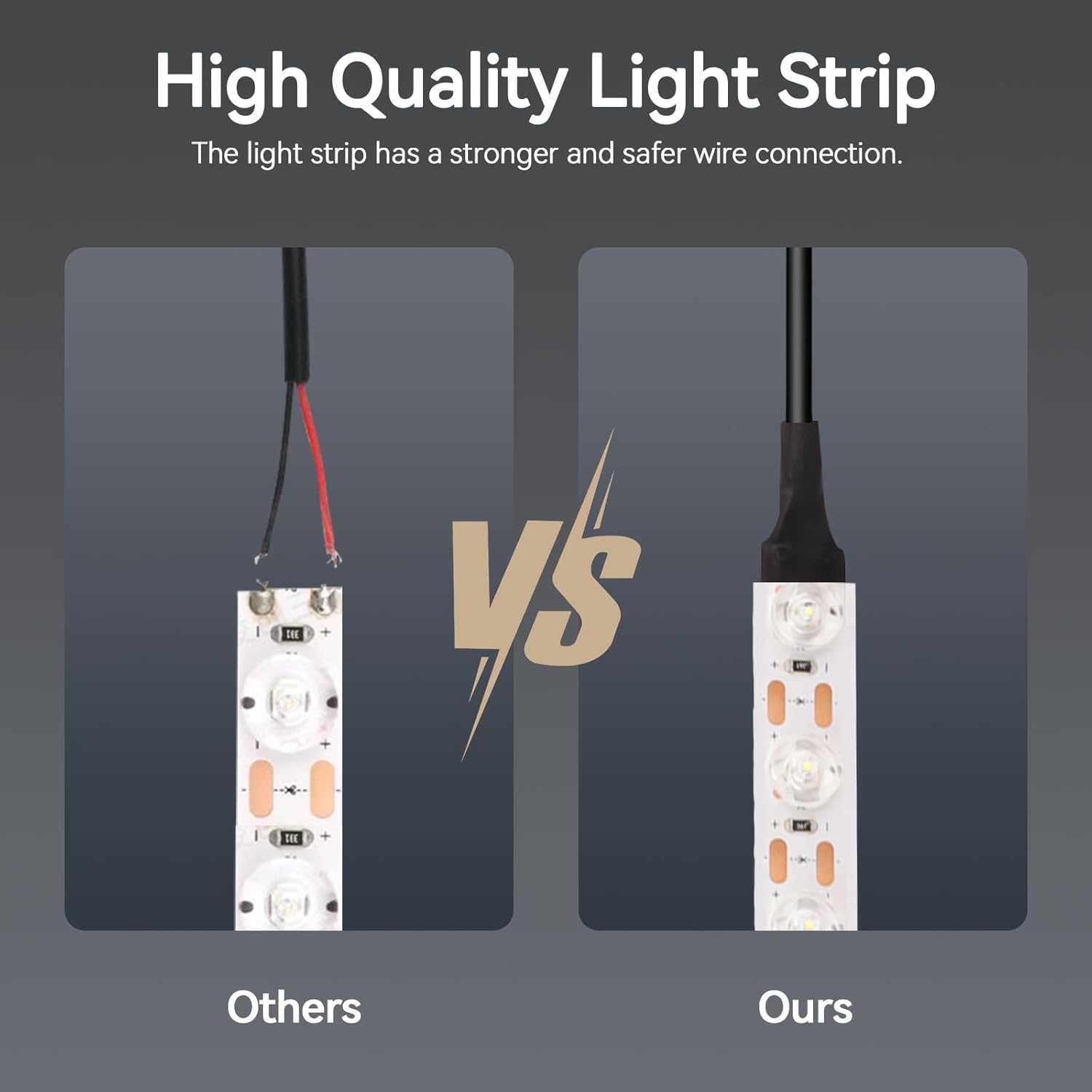
Image: A visual comparison showing the improved illumination of the print area after installing the LED light strip.
Operating Instructions
Once installed and connected, the LED light strip will illuminate the printing area when the 3D printer is powered on. The 6500K white light provides clear visibility, allowing you to monitor the printing process and identify any potential issues promptly.

Image: The LED light strip effectively illuminating the print area, even within an enclosure, providing clear visibility.
Maintenance
Cleaning
To maintain optimal brightness and longevity, periodically clean the LED light strip with a soft, dry cloth. Avoid using abrasive cleaners or solvents. Ensure the printer is powered off before cleaning.
Adhesion Check
Regularly check the adhesive backing of the light strip to ensure it remains securely attached. If the adhesive weakens, consider using a more robust mounting solution, such as a 3D printed bracket, to prevent detachment.
Troubleshooting
| Issue | Possible Cause | Solution |
|---|---|---|
| Light strip does not turn on | Incorrect connection, Power issue, Faulty strip | Verify the cable is securely connected to the 24V port. Check printer power. If issues persist, the strip may be faulty. |
| Light strip detaches | Weak adhesive, Grease on surface | Ensure the mounting surface is clean and free of grease before installation. Re-secure with stronger adhesive or use a 3D printed bracket for support. |
| Insufficient illumination | Dust or debris on LEDs | Gently clean the LED surface with a soft, dry cloth. |
Specifications
| Feature | Detail |
|---|---|
| Brand | UniTak3D |
| Model Number | Uni3D146A1 |
| Item Weight | 1.06 ounces |
| Package Dimensions | 5.83 x 3.66 x 0.71 inches |
| Light Bar Length | 270mm |
| Cable Length | 480mm |
| Voltage | 24V |
| Color Temperature | 6500K |
| Compatibility | Bambu Lab A1 3D printer (Not for A1 Mini) |
| Included Components | 1*A1 LED Light Strip 24V 270mm |
Warranty and Support
This UniTak3D product is covered by a standard manufacturer's warranty against defects in materials and workmanship. For warranty claims, technical support, or further assistance, please contact UniTak3D customer service through the retailer's platform or the official UniTak3D website.