
Introduction
This manual provides detailed instructions for the installation, operation, and maintenance of your Fuluku 4+64GB Android 15 Car Stereo. Designed specifically for Jeep Liberty Arctic models from 2008 to 2013, this unit integrates advanced features such as Wireless Carplay, Android Auto, GPS navigation, and a 10-inch HD touchscreen to enhance your driving experience. Please read this manual thoroughly before installation and use to ensure proper functionality and safety.
Product Overview
The Fuluku Android 15 Car Stereo features a 10-inch IPS HD touch screen with a resolution of 1280x720, offering a clear and responsive interface. It is equipped with 4GB RAM and 64GB ROM, providing ample space for applications and smooth multitasking. The system runs on the latest Android operating system, ensuring compatibility with a wide range of apps and services.

Figure 1: Main view of the Fuluku Android Car Stereo unit, designed for Jeep Liberty Arctic 2008-2013.
Package Contents
Verify that all items listed below are included in your package. If any items are missing or damaged, please contact customer support.
- Fuluku Android Stereo Unit (for Jeep Liberty 2008-2012)
- Canbus Decoder
- AHD Backup Camera
- Microphone
- Power Cable
- GPS Antenna
- Rear Camera Input Cable
- RCA Cable
- USB Cable (x2)
- User Manual
- Installation Tool
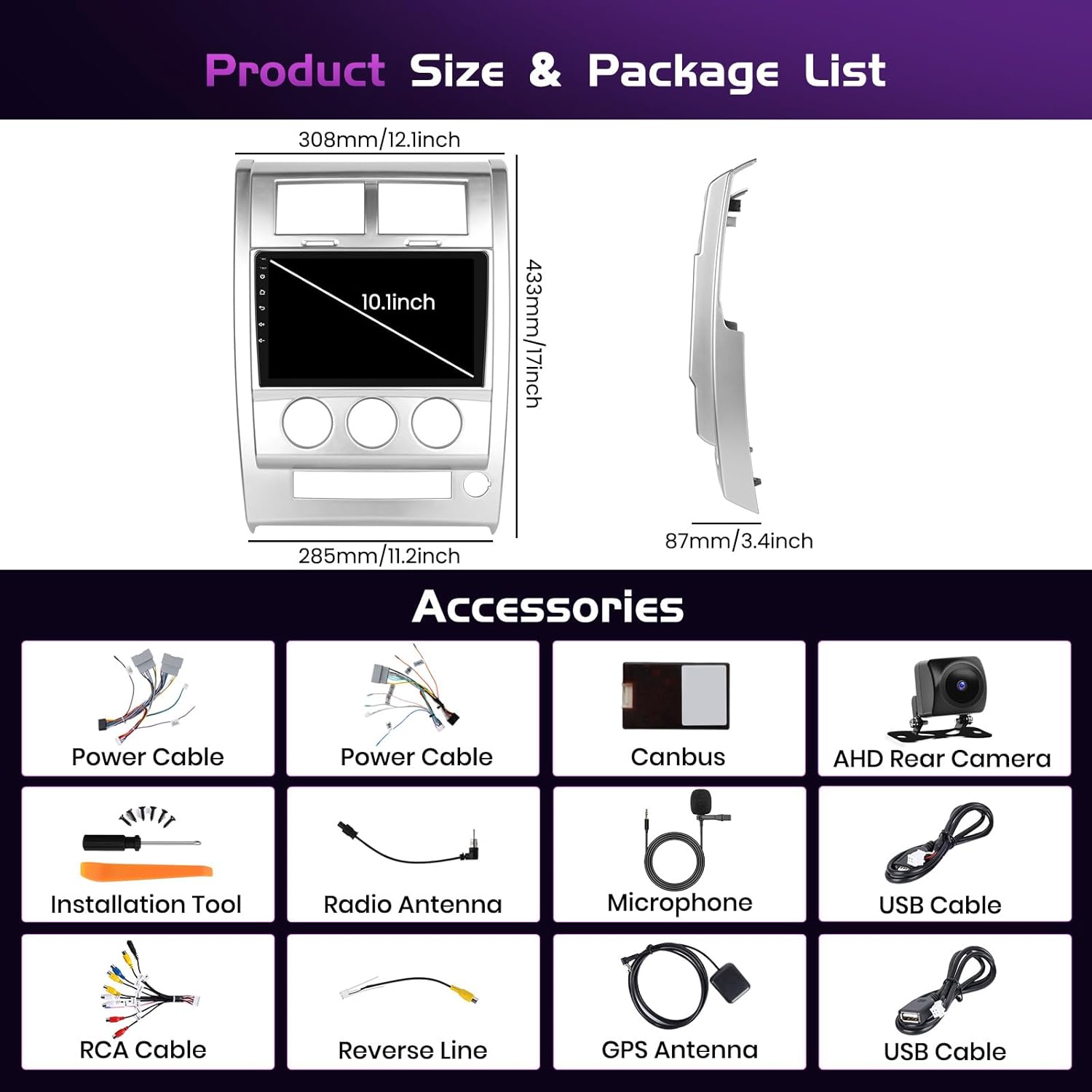
Figure 2: Product dimensions and a visual representation of all included accessories.
Setup and Installation
Installation of the Fuluku Android Car Stereo involves replacing your vehicle's existing radio unit. It is recommended that installation be performed by a qualified professional if you are unfamiliar with car audio system wiring.
1. Pre-Installation Check
- Ensure the vehicle's ignition is off and the battery is disconnected.
- Confirm all package contents are present.
- Familiarize yourself with your vehicle's dashboard layout and existing radio removal process.
2. Removing the Old Unit
Carefully remove the trim panels and screws securing your factory radio. Disconnect all wiring harnesses and the antenna cable from the old unit.
3. Wiring Connections
Connect the provided power cable, RCA cables, USB cables, GPS antenna, radio antenna, and backup camera input cable to the corresponding ports on the new Fuluku stereo. Ensure all connections are secure. The Canbus decoder should be connected as per the specific vehicle wiring diagram to ensure proper communication with the vehicle's systems, including steering wheel controls.

Figure 3: General representation of wire harness connections. Refer to the specific wiring diagram for your vehicle model.
4. Installing the New Unit
Mount the Fuluku stereo into the dashboard opening, securing it with screws. Reattach all trim panels. Reconnect the vehicle battery.

Figure 4: Visual comparison of the dashboard before and after the Fuluku Android Car Stereo installation.
Operating Instructions
1. Initial Power On and Setup
After installation, turn on your vehicle's ignition. The stereo will power on automatically. Follow the on-screen prompts for initial setup, including language selection, time zone, and Wi-Fi connection.
2. Touchscreen Interface
The 10-inch IPS HD touch screen provides a highly responsive and intuitive user experience. Navigate through menus, select applications, and control functions with simple taps and swipes. The display offers a 178° vertical and horizontal viewing angle with 100% sRGB color accuracy.

Figure 5: High-definition IPS display with wide viewing angles and vibrant color reproduction.
3. Wireless Carplay / Android Auto / Mirror Link
Connect your smartphone wirelessly or via USB to access Carplay or Android Auto. This allows you to use your phone's navigation, make calls, send messages, and play music through the stereo's interface. Activate voice assistants like Siri or Google Assistant for hands-free control. Mirror Link functionality enables mirroring your smartphone screen directly onto the stereo display via Wi-Fi hotspot or USB.

Figure 6: Wireless Carplay and Android Auto interfaces for seamless smartphone integration.
4. GPS Navigation & WiFi
The stereo features a built-in GPS system. Download maps for offline use or utilize online navigation with a Wi-Fi connection. Connect to a Wi-Fi hotspot to access the Play Store and download various applications like YouTube and TikTok.

Figure 7: GPS navigation, 5G WiFi, and customizable UI themes.
5. Audio Features (DSP & EQ)
Utilize the integrated 32-band Digital Sound Processor (DSP) and Equalizer (EQ) to fine-tune your audio experience. Choose from 8 preset EQ modes or customize your sound profile. The smart field sound positioning feature allows for optimized audio output.

Figure 8: Audio customization options with DSP and 32-band graphic equalizer.
6. FM/RDS Radio & Bluetooth 5.0
Access FM/RDS radio with 30 preset stations. Bluetooth 5.0 enables hands-free calling, music streaming from your smartphone, and synchronization of your phone's contacts.
7. Steering Wheel Control (SWC) & AHD Backup Camera
The unit supports steering wheel controls for convenient operation of volume, calls, and track changes. The included AHD backup camera provides a 170° wide-angle view, night vision capabilities, and is waterproof, assisting in safe reversing by eliminating blind spots.

Figure 9: Bluetooth, FM/RDS Radio, Steering Wheel Control, and AHD Backup Camera features.
Maintenance
To ensure the longevity and optimal performance of your Fuluku Car Stereo, follow these maintenance guidelines:
- Screen Cleaning: Use a soft, lint-free cloth to gently wipe the touchscreen. For stubborn smudges, slightly dampen the cloth with water or a screen-safe cleaner. Avoid harsh chemicals or abrasive materials.
- Software Updates: Periodically check for available software updates through the system settings. Keeping the software updated ensures you have the latest features, performance improvements, and security patches.
- General Care: Avoid exposing the unit to extreme temperatures, direct sunlight for prolonged periods, or excessive moisture. Ensure proper ventilation around the unit.
Troubleshooting
If you encounter issues with your Fuluku Car Stereo, refer to the following common problems and solutions:
- Unit Does Not Power On:
- Check all power connections, ensuring they are securely plugged in.
- Verify the vehicle's fuse for the radio is intact.
- Ensure the vehicle battery is properly connected and charged.
- No Sound:
- Check speaker wire connections.
- Ensure the volume is not muted or set to minimum.
- Verify audio settings in the system menu.
- Backup Camera Not Displaying:
- Ensure the camera input cable is correctly connected to the stereo.
- Check the camera's power supply and ground connections. A common issue is the red wire for 12V power needing to be stripped and connected correctly, and the black wire to ground. The red wire for the camera should be connected with the yellow/red wire attached to the video output.
- Verify the reverse trigger wire is properly connected to the vehicle's reverse light circuit.
- GPS Signal Issues:
- Ensure the GPS antenna is installed in a location with a clear view of the sky.
- Check the GPS antenna connection to the stereo.
- Bluetooth Connectivity Problems:
- Ensure Bluetooth is enabled on both the stereo and your smartphone.
- Delete previous pairings and attempt to re-pair the devices.
- Restart both the stereo and your smartphone.
If these steps do not resolve the issue, please contact Fuluku customer support.
Specifications
| Feature | Detail |
|---|---|
| Model | 4+64GB Android 15 Car Stereo |
| Operating System | Android 15 (Latest Android System) |
| RAM | 4GB |
| ROM (Memory Storage Capacity) | 64GB |
| Display Size | 10 Inches |
| Screen Type | IPS HD Touch Screen |
| Resolution | 1280x720 |
| Video Output | 1080P HD |
| Connectivity Technology | Bluetooth 5.0, USB, Wi-Fi (5G) |
| Special Features | Wireless Carplay, Android Auto, Mirror Link, Built-in GPS Navigation, DSP (32 EQ), FM/RDS Radio, Steering Wheel Control, Split Screen, AHD Rear Camera Support, Dual USB adapter input, Microphone |
| Voice Command | Buttons, Microphone, Touchscreen |
| Map Type | North America, Worldwide |
| Audio Output Mode | Stereo |
| Item Weight | 4.22 pounds |
| Package Dimensions | 15.35 x 7.68 x 4.96 inches |
Warranty and Support
Fuluku is committed to providing high-quality products and excellent customer service.
- Money-Back Guarantee: Enjoy a 30-day money-back guarantee from the date of purchase.
- Replacement Warranty: A 12-month replacement warranty is provided for manufacturing defects.
- Technical Support: Lifetime technical support is available for all Fuluku products.
For any inquiries, technical assistance, or warranty claims, please contact our customer support team:
Email: fulukusupports@126.com

Figure 10: Fuluku customer support team ready to assist.