
1. Introduction
This manual provides detailed instructions for the installation, operation, maintenance, and troubleshooting of your BeNtli B75M Desktop Motherboard. Designed for LGA 1155 processors, this motherboard supports DDR3 memory, features NVMe M.2 and WiFi interfaces, USB 3.0, and SATA 3.0 connectivity. Please read this manual thoroughly before proceeding with installation to ensure proper setup and optimal performance.
2. Product Overview
2.1 Key Features
- Supports LGA 1155 socket CPUs.
- Compatible with DDR3 1066/1333/1600MHz memory, up to 16GB in dual-channel configuration.
- Integrated NVMe M.2 2280 slot for high-speed storage.
- Dedicated M.2 slot for WiFi modules.
- Features USB 3.0 and SATA 3.0 ports for modern connectivity.
- Equipped with a Gigabit Ethernet LAN port.
- All-solid-state capacitor design for enhanced stability and reliability.
- Compact Mini-ITX form factor (170mm*170mm).
2.2 Component Identification
Familiarize yourself with the various components and connectors on your motherboard using the diagrams below.

Figure 2.2.1: Overall view of the BeNtli B75M Desktop Motherboard, showcasing its layout and major components.
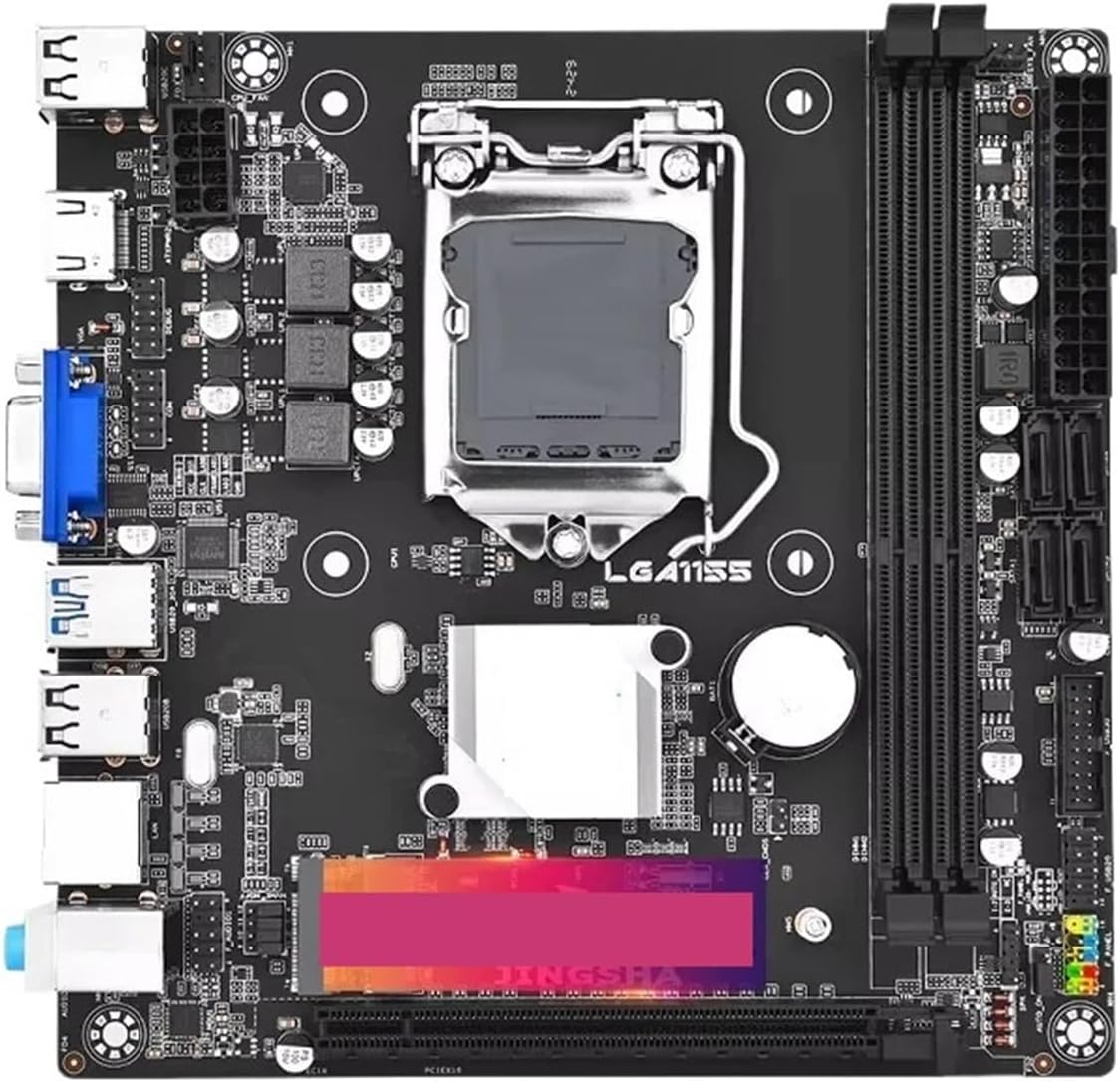
Figure 2.2.2: Top-down view of the motherboard, highlighting the LGA 1155 CPU socket and surrounding components.

Figure 2.2.3: Angled view illustrating the placement of various internal connectors such as SATA ports, USB headers, and fan headers.

Figure 2.2.4: Close-up view of the rear I/O panel, detailing the available ports including USB, VGA, HDMI, LAN, and audio jacks.

Figure 2.2.5: Angled view with a visual representation of the I/O port layout for easy identification.

Figure 2.2.6: Rear view of the motherboard, showing the CPU backplate area and solder points.
3. Setup Guide
3.1 Before You Begin
Before installing the motherboard, ensure you have the following components and observe safety precautions:
- Safety First: Always wear an anti-static wrist strap or frequently touch a grounded metal object to discharge static electricity.
- Required Components: CPU (LGA 1155), CPU Cooler, DDR3 RAM, Power Supply Unit (PSU), Storage Device (SATA HDD/SSD or NVMe M.2 SSD), PC Case, Graphics Card (optional, if CPU does not have integrated graphics or for dedicated performance).
- Tools: Phillips head screwdriver, zip ties (for cable management).
3.2 Installation Steps
- CPU Installation:
- Open the CPU socket lever and lift the metal load plate.
- Carefully align the CPU with the socket, ensuring the golden triangle on the CPU matches the indicator on the socket. Do not force the CPU into place.
- Lower the load plate and secure it with the lever.
- CPU Cooler Installation:
- Apply thermal paste to the CPU if not pre-applied on the cooler.
- Mount the CPU cooler according to its specific instructions.
- Connect the CPU fan cable to the 4-pin CPU_FAN header on the motherboard.
- RAM Installation:
- Open the clips on both ends of the DDR3 memory slots.
- Align the RAM module's notch with the slot's key.
- Press down firmly on both ends of the RAM module until the clips snap into place.
- NVMe M.2 SSD Installation:
- Locate the M.2 slot. Remove the screw and standoff.
- Insert the M.2 SSD into the slot at a 30-degree angle.
- Push the SSD down and secure it with the screw.
- SATA Device Installation:
- Connect one end of the SATA data cable to a SATA port on the motherboard and the other end to your SATA HDD/SSD.
- Connect a SATA power cable from your PSU to the SATA device.
- Power Supply Connection:
- Connect the 24-pin ATX power connector from your PSU to the main power socket on the motherboard.
- Connect the 8-pin 12V CPU power connector from your PSU to the 8-pin socket near the CPU.
- Front Panel Connectors:
- Connect the power button, reset button, HDD LED, and power LED cables from your PC case to the corresponding pins on the front panel header (refer to the motherboard diagram for pin layout).
- Connect the front panel USB 2.0 and USB 3.0 cables to their respective headers.
- Connect the front panel audio cable to the F_AUDIO header.
- I/O Shield and Motherboard Mounting:
- Install the I/O shield into the rear opening of your PC case.
- Carefully place the motherboard into the case, aligning the screw holes with the standoffs.
- Secure the motherboard with screws.
4. Operating Instructions
4.1 First Boot
- Connect Peripherals: Connect your monitor, keyboard, and mouse to the appropriate ports on the rear I/O panel.
- Power On: Ensure all power cables are securely connected. Press the power button on your PC case.
- BIOS/UEFI Access: During startup, repeatedly press the DEL or F2 key (depending on your BIOS version) to enter the BIOS/UEFI setup utility.
4.2 BIOS/UEFI Configuration
The BIOS (Basic Input/Output System) or UEFI (Unified Extensible Firmware Interface) is firmware that initializes hardware during the booting process. Key settings to check:
- Date and Time: Set the correct system date and time.
- Boot Order: Configure the boot priority to your primary storage device (e.g., NVMe SSD or SATA SSD/HDD).
- SATA Mode: Ensure SATA mode is set to AHCI for optimal performance with SSDs.
- Load Optimized Defaults: If you encounter issues, loading optimized defaults can often resolve them.
- Save and Exit: Always save your changes before exiting the BIOS/UEFI.
5. Maintenance
Proper maintenance ensures the longevity and stable performance of your motherboard.
- Dust Removal: Regularly clean dust from the motherboard and components using compressed air. Ensure the system is powered off and unplugged before cleaning.
- Airflow: Ensure your PC case has adequate airflow to prevent overheating. Keep fan vents clear of obstructions.
- Cable Management: Organize internal cables to improve airflow and prevent interference.
- BIOS Updates: Only update the BIOS if necessary (e.g., for new CPU support or critical bug fixes). Incorrect BIOS updates can damage the motherboard. Refer to the manufacturer's website for instructions and compatible BIOS versions.
6. Troubleshooting
This section addresses common issues you might encounter.
6.1 No Power
- Check PSU: Ensure the power supply unit is switched on and connected to a working power outlet.
- Power Cables: Verify that the 24-pin ATX and 8-pin 12V CPU power cables are securely connected to the motherboard.
- Front Panel: Ensure the power button cable from the case is correctly connected to the motherboard's front panel header.
6.2 No Display
- Monitor Connection: Confirm the monitor is connected to the correct video output (motherboard's integrated graphics or a dedicated graphics card) and is powered on.
- RAM: Reseat the RAM modules. Try booting with only one RAM stick if you have multiple.
- CPU: Ensure the CPU is correctly seated and the CPU cooler is properly installed.
- Clear CMOS: Refer to your motherboard's manual for instructions on how to clear the CMOS (usually by removing the CMOS battery for a few minutes or using a jumper).
6.3 System Instability / Random Restarts
- Overheating: Check CPU and system temperatures. Ensure CPU cooler is properly installed and case fans are working.
- RAM Issues: Run a memory diagnostic tool (e.g., MemTest86) to check for faulty RAM.
- Power Supply: An insufficient or failing PSU can cause instability.
6.4 Boot Device Not Found
- Cables: Verify SATA data and power cables for HDDs/SSDs are securely connected. For NVMe, ensure the M.2 SSD is properly seated.
- BIOS Settings: Check the boot order in BIOS/UEFI to ensure your primary storage device is listed first.
- OS Installation: Confirm that an operating system is correctly installed on the recognized boot device.
7. Specifications
Detailed technical specifications for the BeNtli B75M Desktop Motherboard.
| Feature | Specification |
|---|---|
| Brand | BeNtli |
| Model Name | leiyanhua (B75M) |
| Processor Socket | LGA 1155 |
| Chipset | PCH B75 |
| Memory | 2*UDIMM DDR3 1066/1333/1600MHz, Dual-channel, up to 16GB |
| Storage | 3*SATA2.0, 1*SATA 3.0, 1*M.2 2280 NVMe x4 2.0 / NGFF SATA2.0 |
| USB Ports | 6*USB2.0 (rear), 4*USB3.0 (2 rear, 2 via header) |
| LAN | 1*RTL8111H, 1000Mbps Ethernet |
| Audio | ALC897 7.1 channel audio chip |
| Video Output | 1*HD (HDMI), 1*VGA (supports 1920x1080/60 Hz) |
| Expansion Slot | 1*PCIE3.0x16 SLOT |
| Form Factor | Mini-ITX 170mm*170mm |
| Item Weight | 1.76 ounces |
| Package Dimensions | 1.18 x 0.79 x 0.39 inches |
8. Warranty and Support
8.1 Warranty Information
This BeNtli B75M Desktop Motherboard is covered by a manufacturer's warranty. Please refer to the product packaging or the seller's terms and conditions for specific warranty duration and coverage details. Keep your proof of purchase for warranty claims.
8.2 Technical Support
If you encounter issues that cannot be resolved using this manual's troubleshooting section, please contact the seller or manufacturer for technical assistance. Provide your product model (B75M) and a detailed description of the problem to facilitate support.