1. Introduction
This manual provides detailed instructions for the assembly, installation, and maintenance of your Corsair FRAME 5000D RS ARGB Mid-Tower PC Case. Please read this manual thoroughly before beginning your PC build to ensure proper installation and optimal performance.
The Corsair FRAME 5000D RS ARGB is designed for high airflow and modularity, supporting a wide range of components including large graphics cards and extensive cooling solutions. It features the innovative FRAME Modular Case System and InfiniRail™ Fan Mounting System for enhanced customization and ease of use.
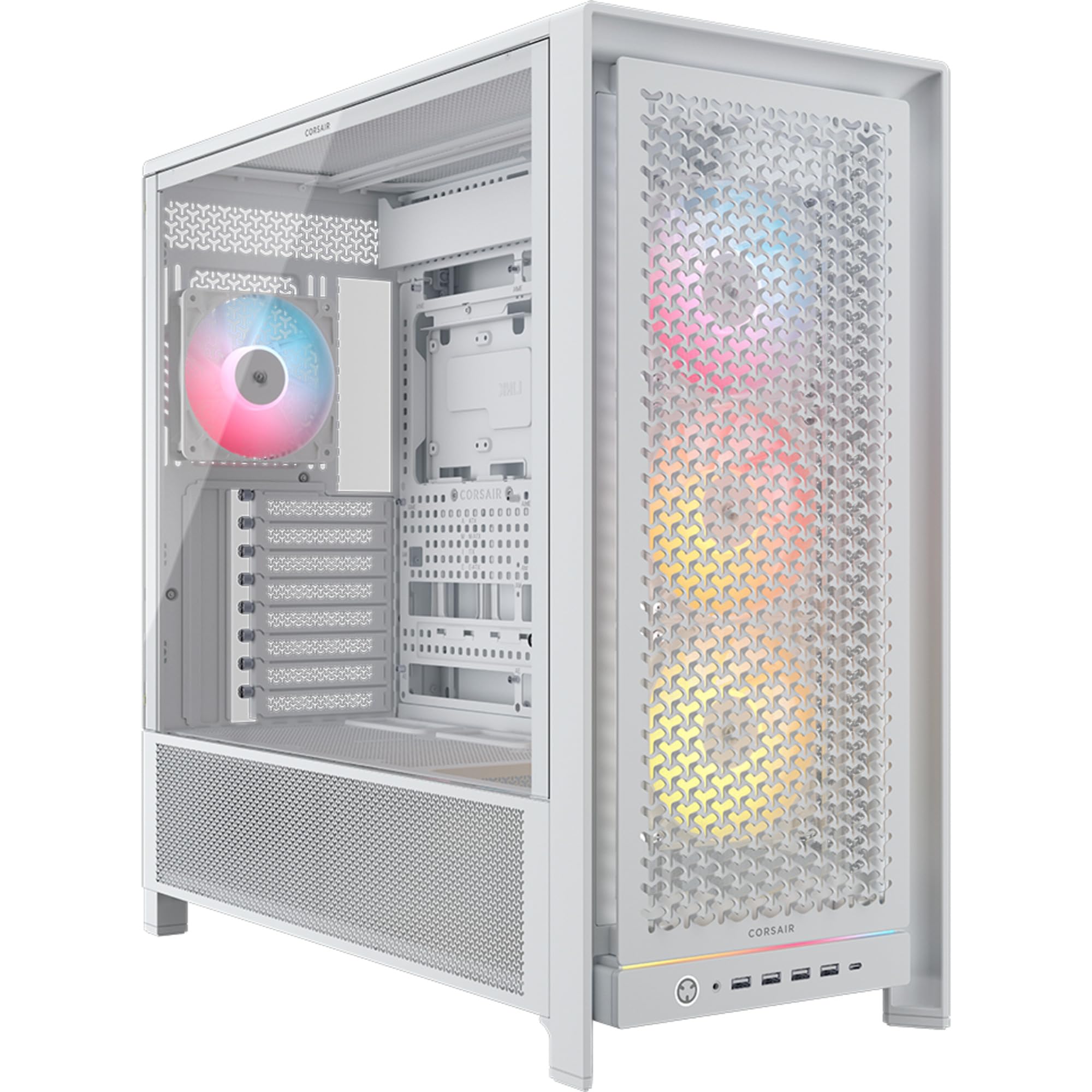
Figure 1: Front view of the Corsair FRAME 5000D RS ARGB PC Case.
2. Key Features
- FRAME Modular Case System: Allows for extensive customization, including upgrading the motherboard tray, replacing the front I/O panel, and swapping out the front intake panel.
- Flexible Internal Side Panel: Can be used as a cable cover for clean management or removed to mount additional fans for increased cooling.
- 3D Y-Pattern Airflow Front Panel: Optimized steel front panel with perforations for high airflow and minimal restriction.
- Extensive Radiator Support: Accommodates up to a 420mm radiator on the top and 360mm radiators on the front or side.
- InfiniRail™ Fan Mounting Options: Supports up to 14x 120mm fans or adjustable mounts for 140mm or 200mm fans, providing flexible cooling configurations.
- Reverse Connection Motherboard Support: Compatible with ASUS BTF, MSI Project Zero, and Gigabyte Project Stealth motherboards for unobstructed airflow and a clean build.
- GPU Anti-Sag Stabilization Arm: Includes a stabilization arm to support heavy graphics cards and prevent sagging.
- RapidRoute 2.0 Cable Management: Features a pegboard motherboard tray with detachable and rotatable tie-down buckles and cable looms for tidy cable routing.
- Modern Front I/O Panel: Includes 4x USB 3.2 Gen1 Type-A, 1x USB 3.2 Gen2 Type-C, and a combined headphone/microphone jack.
- Pre-Installed Fans: Comes with 4x RS140 ARGB PWM fans with daisy-chainable connections for easy setup, offering high airflow and quiet operation.

Figure 2: Modular design of the Corsair FRAME 5000D RS ARGB PC Case.
3. Initial Setup
3.1 Unpacking the Case
Carefully remove the PC case from its packaging. Inspect the case for any signs of damage during transit. Retain the packaging for future transport or warranty claims.
3.2 Accessing the Interior
The side panels are typically secured with thumbscrews or a latch mechanism. Remove the rear thumbscrews or unlatch the side panels to gain access to the interior for component installation.
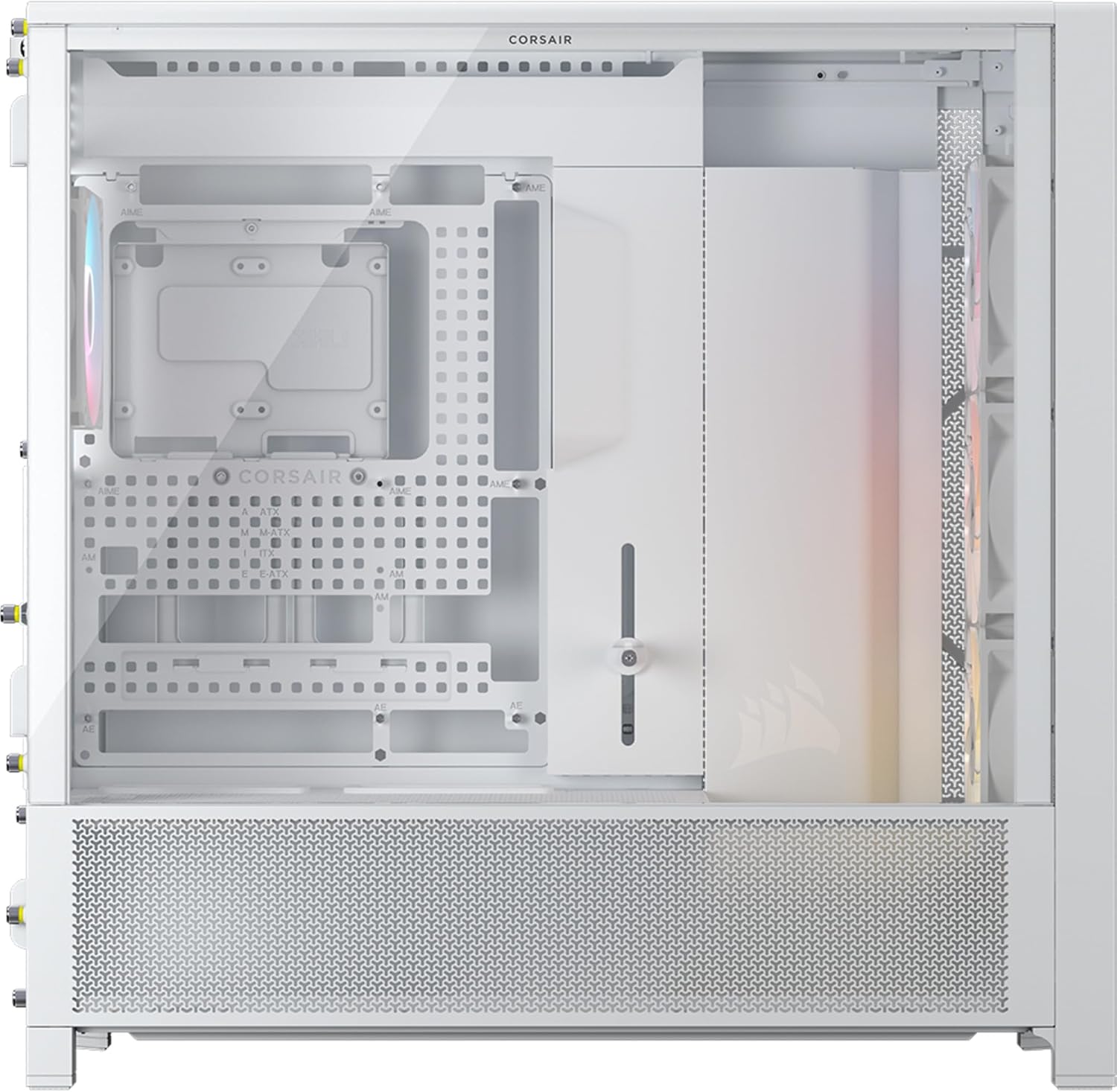
Figure 3: Interior view with side panel removed.
4. Component Installation
4.1 Motherboard Installation
- Ensure the correct standoffs are installed for your motherboard form factor (Mini-ITX, Micro-ATX, ATX, E-ATX).
- Place the motherboard into the case, aligning it with the standoffs and the rear I/O shield opening.
- Secure the motherboard with the provided screws.
4.2 Storage Drive Installation
The case supports 6x 2.5" SSDs and 2x 3.5" HDDs. Locate the drive bays and mounting points, typically behind the motherboard tray or within the PSU shroud area. Secure drives using the provided screws or tool-less mechanisms.
4.3 Graphics Card (GPU) Installation
Install your graphics card into the appropriate PCIe slot on your motherboard. The case supports GPUs up to 450mm in length. Utilize the included GPU anti-sag stabilization arm to support heavier cards.
4.4 Fan and Radiator Installation
The InfiniRail™ Fan Mounting System allows flexible placement of fans and radiators. The case supports:
- Front: Up to 3x 120mm, 3x 140mm, or 2x 200mm fans. Radiator support up to 360mm, 280mm, 240mm.
- Top: Up to 3x 120mm, 3x 140mm fans. Radiator support up to 420mm, 360mm, 280mm, 240mm.
- Side: Up to 3x 120mm, 3x 140mm fans. Radiator support up to 360mm, 280mm, 240mm.
- Rear: 1x 120mm or 1x 140mm fan. Radiator support 120mm, 140mm.
The case comes with four pre-installed RS140 ARGB PWM fans. Connect these fans to your motherboard or a fan controller for power and RGB control.

Figure 4: Cooling layout and radiator compatibility.

Figure 5: InfiniRail™ Fan Mounting System.
4.5 Cable Management
Utilize the RapidRoute 2.0 cable management system located behind the motherboard tray. Route cables through the designated cutouts and secure them using the detachable and rotatable tie-down buckles and cable looms for a clean and organized interior.

Figure 6: RapidRoute 2.0 Cable Management.
4.6 Front I/O Panel Connections
Connect the front I/O cables (USB 3.2 Gen1 Type-A, USB 3.2 Gen2 Type-C, Headphone/Microphone, Power) to the corresponding headers on your motherboard. Refer to your motherboard manual for specific header locations.

Figure 7: Front I/O Panel layout.
5. Operating Your PC Case
Once all components are installed and cables are connected, close the side panels. Connect your peripherals, monitor, and power cable. Press the power button on the front I/O panel to start your system.
5.1 Airflow and Cooling
The FRAME 5000D RS ARGB is designed for optimal airflow. Ensure that intake fans (typically front and side) are drawing cool air into the case, and exhaust fans (typically rear and top) are expelling hot air. Regularly check fan speeds and temperatures to maintain optimal cooling performance.
Video 1: An official video showcasing the modular design and features of the Corsair FRAME 5000D PC Case.
6. Maintenance
6.1 Dust Filter Cleaning
The case includes dust filters on the front, bottom, right side, and left side. Regularly clean these filters to maintain optimal airflow and prevent dust buildup inside your PC. Filters can typically be removed and cleaned with water or a soft brush.
6.2 General Cleaning
Use a soft, dry cloth to wipe down the exterior of the case. For interior cleaning, use compressed air to remove dust from components and fan blades. Ensure the PC is powered off and unplugged before performing any internal cleaning.
7. Troubleshooting
7.1 System Not Powering On
- Check all power connections, including the main ATX power, CPU power, and GPU power cables.
- Ensure the power supply switch is in the 'ON' position.
- Verify that the front panel power button cable is correctly connected to the motherboard header.
7.2 Overheating Issues
- Confirm that all case fans are spinning and correctly oriented for proper airflow (intake/exhaust).
- Clean dust filters and internal components to remove any obstructions to airflow.
- Ensure CPU cooler and GPU fans are functioning correctly.
7.3 Front I/O Ports Not Working
- Check that the USB and audio cables from the front panel are securely connected to the correct headers on your motherboard.
- Verify that the necessary drivers for your motherboard's USB and audio controllers are installed.
8. Technical Specifications
| Feature | Specification |
|---|---|
| Model Name | FRAME 5000D RS ARGB |
| Item Model Number | CC-9011310-WW |
| Dimensions (LxWxH) | 21.89 x 9.84 x 21.34 inches (556 x 250 x 542 mm) |
| Material | Steel, Tempered Glass |
| Case Type | Mid Tower |
| Motherboard Compatibility | Mini-ITX, Micro-ATX, ATX, E-ATX (305mm x 277mm) |
| Expansion Slots | 8 Horizontal or 3 Vertical |
| Storage Bays | 6x 2.5" SSDs, 2x 3.5" HDDs |
| Max PSU Length | 250mm |
| Max CPU Cooler Height | 175mm |
| Max GPU Length | 450mm |
| Dust Filters | Front, Bottom, Right Side, Left Side |
| Front I/O Ports | 4x USB 3.2 Gen1 Type-A, 1x USB 3.2 Gen2 Type-C, 1x Headphone/Microphone Combo, Power Button |
| Pre-Installed Fans | 4x RS140 ARGB PWM Fans |
| Cooling Method | Air |
| Item Weight | 27.9 pounds (12.7 Kilograms) |

Figure 8: Case dimensions and component clearances.
9. Warranty and Support
Corsair products come with a limited warranty. For detailed warranty information, please refer to the official Corsair website or the warranty card included with your product. For technical support, driver downloads, or further assistance, visit the Corsair support page:
You can also find additional resources and community forums on the Corsair website.


