
RAMPAGE GEAR Hydra
Rampage Hydra Gaming Controller User Manual
Model: Hydra
Introduction
This manual provides comprehensive instructions for the setup, operation, and maintenance of your Rampage Hydra Gaming Controller. Designed for versatility, the Hydra offers triple connectivity modes (Bluetooth, 2.4GHz wireless, and USB wired) and is compatible with PC and Android devices. Please read this manual thoroughly to ensure optimal performance and longevity of your device.
Product Overview
The Rampage Hydra Gaming Controller is engineered for an immersive gaming experience, featuring responsive controls, customizable RGB lighting, and vibration feedback. Its ergonomic design ensures comfort during extended gaming sessions.
Key Features:
- Triple Connectivity: Bluetooth, 2.4GHz wireless, and USB wired modes for broad compatibility.
- Responsive Controls: 21-button layout with precise analog sticks and D-pad.
- Immersive Feedback: Custom RGB lighting and vibration feedback.
- Ergonomic Design: Contoured grip for comfortable and extended use.
- Advanced Charging: Type-C fast charging port.
Controller Layout:

Figure 1: Front view of the Rampage Hydra Gaming Controller, showcasing the dual analog sticks with red accents, D-pad, action buttons (A, B, X, Y), and central RGB light strip.

Figure 2: Top view of the controller, highlighting the shoulder buttons (LB, RB) and triggers (LT, RT), along with the USB-C charging port and wireless indicator.
Setup
1. Battery Installation and Charging:
The controller requires 2 AAA batteries, which are included. Insert them into the battery compartment located on the back of the controller, ensuring correct polarity. For wired or charging operation, connect the provided USB-C cable to the controller's Type-C port and the other end to a power source (e.g., PC USB port, USB wall adapter).
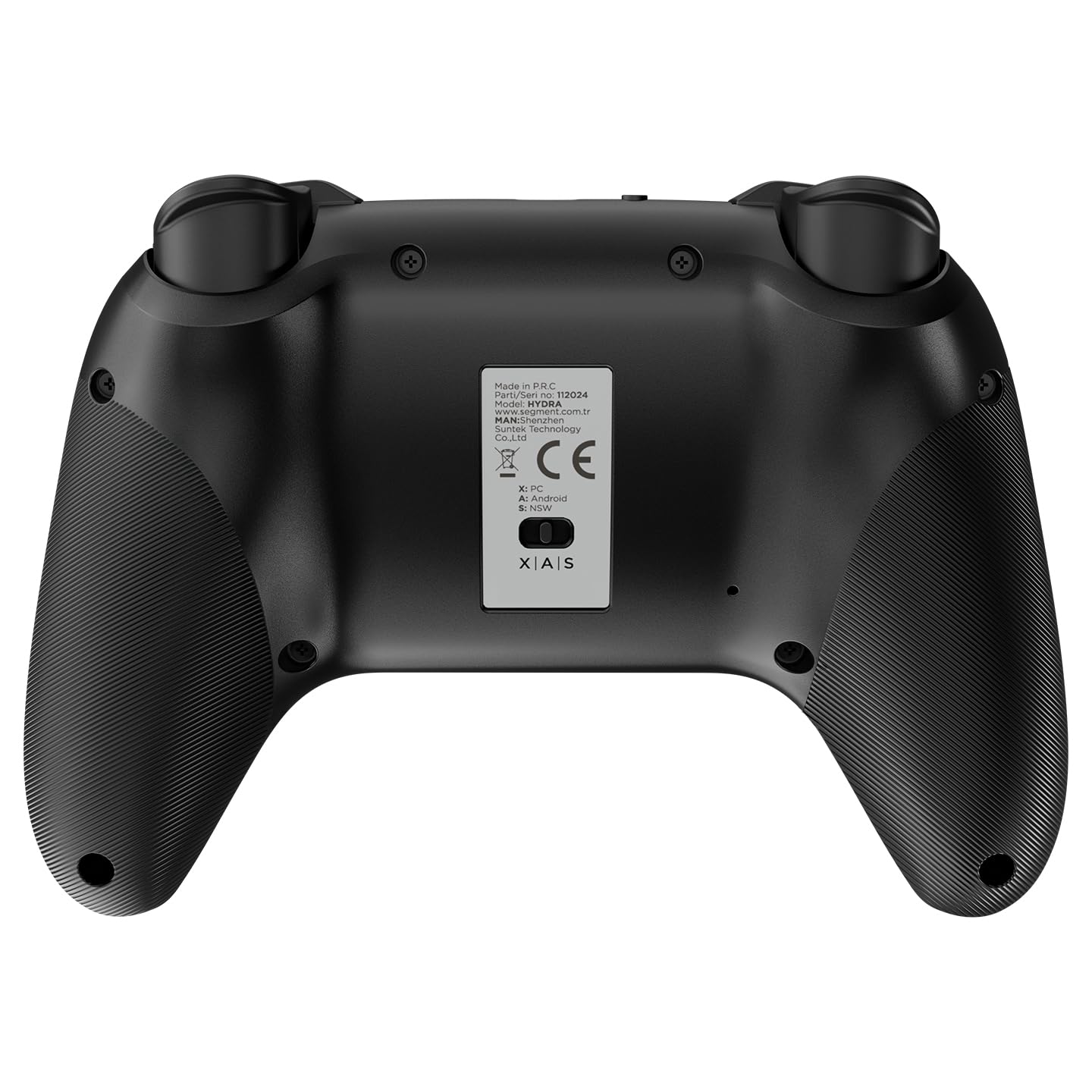
Figure 3: Rear view of the controller, showing the battery compartment cover and product information label.
2. Connectivity Modes:
The Rampage Hydra supports three connection methods:
- USB Wired Mode: Connect the controller directly to your PC or Android device using the USB-C cable. The controller will be automatically recognized.
- 2.4GHz Wireless Mode:
- Insert the 2.4GHz USB dongle (if included, typically found in the battery compartment or packaging) into a USB port on your PC or Android device.
- Turn on the controller. It should automatically pair with the dongle.
- Bluetooth Mode:
- Ensure the controller is powered on.
- Press and hold the Bluetooth pairing button (refer to controller layout for exact location, usually a small button near the home button or on the back) until the indicator light flashes rapidly.
- On your PC or Android device, go to Bluetooth settings and search for new devices. Select "Rampage Hydra" (or similar name) from the list to pair.
Operating Instructions
Power On/Off:
- Power On: Press the Home button (central button with house icon) to turn on the controller.
- Power Off: Press and hold the Home button for 3-5 seconds until the indicator lights turn off. The controller will also automatically power off after a period of inactivity to conserve battery.
Mode Switching:
The controller automatically detects the connection type (PC/Android) when connected via USB or 2.4GHz dongle. For Bluetooth, ensure your device is compatible with gamepads. Specific mode switching buttons may be present; refer to the controller's physical markings or quick start guide for details on switching between PC (XInput) and Android (DInput) modes if automatic detection is not sufficient.
RGB Lighting Control:
The Rampage Hydra features customizable RGB lighting. Look for a dedicated lighting button or a combination of buttons (e.g., Fn + a specific button) to cycle through different lighting effects or turn the lighting on/off. Refer to the controller's markings for the specific button (e.g., the button with a sun/light icon as seen in Figure 1).
Vibration Feedback:
Vibration feedback is automatically enabled when supported by the game and platform. This feature enhances immersion by providing tactile responses to in-game events.
Maintenance
- Cleaning: Use a soft, dry cloth to clean the controller. For stubborn dirt, a slightly damp cloth can be used, but ensure no moisture enters the device. Do not use harsh chemicals or abrasive cleaners.
- Storage: Store the controller in a cool, dry place away from direct sunlight and extreme temperatures.
- Battery Care: If storing for an extended period, remove the AAA batteries to prevent leakage.
Troubleshooting
- Controller not connecting:
- Ensure the controller is charged or has fresh batteries.
- Verify the correct connection mode (wired, 2.4GHz, Bluetooth) is selected or active.
- For Bluetooth, ensure your device's Bluetooth is on and the controller is in pairing mode.
- Try restarting the controller and the device you are connecting to.
- Buttons or sticks not responding:
- Check if the controller is properly connected.
- Test the controller with another game or application to rule out software issues.
- Ensure no physical obstructions are preventing button presses or stick movement.
- Vibration not working:
- Confirm that the game you are playing supports vibration feedback.
- Check in-game settings to ensure vibration is enabled.
Specifications
| Feature | Detail |
|---|---|
| Model | Hydra |
| Connectivity | Bluetooth, 2.4GHz Wireless, USB Wired |
| Compatibility | PC, Android |
| Number of Buttons | 21 |
| Lighting | Customizable RGB |
| Feedback | Vibration Feedback |
| Charging Port | Type-C |
| Item Weight | 12 ounces |
| Batteries | 2 AAA batteries (included) |
| Manufacturer | Rampage |
Warranty and Support
For warranty information and technical support, please refer to the official RAMPAGE GEAR website or contact their customer service. Keep your purchase receipt for warranty claims.
Official RAMPAGE GEAR Store: Visit Store
Ask a question about this manual
Ask about setup, troubleshooting, compatibility, parts, safety, or missing instructions. Manuals+ will review the question and use this page’s manual context to help answer it.