
1. Introduction
Welcome to the comprehensive user manual for your new ApoloMedia 11-inch Android 15 Tablet. This device is designed to provide a seamless and powerful experience for various tasks, from entertainment and learning to productivity. Featuring an Octa-core processor, ample storage, a vibrant HD IPS display, and a long-lasting battery, your tablet is equipped to handle your daily needs with efficiency and reliability.
This manual will guide you through the initial setup, operational procedures, maintenance tips, and troubleshooting steps to ensure you get the most out of your ApoloMedia tablet.

Figure 1.1: Front and rear view of the ApoloMedia 11-inch Android 15 Tablet. The front displays an 11-inch IPS screen with "Android 15" and "Octa-Core" text, while the rear shows the camera module and textured gray finish.
2. What's in the Box
Upon unboxing your ApoloMedia EP1095T Tablet, please verify that all the following items are included:
- 1 x ApoloMedia EP1095T Tablet
- 1 x Type-C Cable
- 1 x AC Adapter
- 1 x Tablet Case
- 1 x User Manual (this document)

Figure 2.1: Illustration of the items included in the ApoloMedia EP1095T Tablet packaging.
3. Product Overview
Familiarize yourself with the physical components and ports of your ApoloMedia tablet.

Figure 3.1: Detailed diagram of the ApoloMedia tablet's physical features, including the Power On/Off button, Volume +/- buttons, Front Camera, SD Card Slot, Type-C port, Speaker, and Rear Camera.
- Power On/Off Button: Located on the top edge, used to power the device on/off or put it to sleep.
- Volume +/- Buttons: Located on the top edge, used to adjust the audio volume.
- Front Camera: Positioned on the top bezel for video calls and selfies.
- SD Card Slot: Allows for storage expansion using a Micro SD/TF card up to 1TB.
- Type-C Port: Used for charging the tablet and connecting to other devices.
- Speaker: Provides audio output.
- Rear Camera: Located on the back of the tablet for taking photos and videos.
4. Setup Guide
4.1 Initial Charging
Before first use, it is recommended to fully charge your tablet.
- Connect the Type-C cable to the tablet's Type-C port.
- Connect the other end of the cable to the AC adapter.
- Plug the AC adapter into a power outlet.
- Allow the tablet to charge for at least 2 hours before initial power on, or until the battery indicator shows full.
4.2 Powering On/Off
- To Power On: Press and hold the Power On/Off button until the screen lights up.
- To Power Off: Press and hold the Power On/Off button until a power menu appears, then select "Power Off".
- To Restart: From the power menu, select "Restart".
- To Sleep/Wake: Briefly press the Power On/Off button.
4.3 Initial Setup Wizard
Upon first power-on, the tablet will guide you through a setup wizard.
- Select your preferred language (e.g., English (United States)).
- Connect to a Wi-Fi network to access the internet. This is crucial for downloading updates and setting up your Google account.
- Sign in with your Google account or create a new one. This is necessary for accessing the Google Play Store and other Google services.
- Follow the on-screen prompts to set up security features (PIN, pattern, password, or biometric unlock), review privacy settings, and restore data from a previous device if desired.
- Your tablet is now ready for use.
4.4 Inserting a Micro SD Card
To expand your tablet's storage, you can insert a Micro SD/TF card (up to 1TB).
- Locate the SD Card Slot on the tablet (refer to Figure 3.1).
- Gently insert the Micro SD card into the slot with the gold contacts facing down until it clicks into place.
- The tablet will detect the new storage. You may be prompted to format the card for internal or portable storage. Choose the option that best suits your needs.

Figure 4.1: Visual representation of the tablet's memory and storage, highlighting 8GB RAM, 128GB internal storage, and 1TB expandable storage.
5. Operating Instructions
5.1 Basic Navigation (Android 15)
Your ApoloMedia tablet runs on Android 15, offering an intuitive and efficient user interface.
- Home Screen: The central hub for your apps and widgets. Swipe left or right to access additional screens.
- App Drawer: Swipe up from the bottom of the screen to access all installed applications.
- Notifications & Quick Settings: Swipe down from the top of the screen to view notifications and access quick settings like Wi-Fi, Bluetooth, and brightness.
- Multitasking: Android 15's taskbar optimization allows you to pin favorite apps and switch between them instantly, mimicking a PC-like workflow.
- Enhanced File Management: Seamlessly access and organize your content with improved file management features.

Figure 5.1: The Android 15 operating system interface, showcasing its security and privacy enhancements.
5.2 Connectivity (Wi-Fi 6 & Bluetooth 5.0)
- Wi-Fi: Go to Settings > Network & internet > Wi-Fi to connect to available networks. The tablet supports Wi-Fi 6 (802.11ax) for faster and more reliable connections.
- Bluetooth: Go to Settings > Connected devices > Connection preferences > Bluetooth to pair with Bluetooth devices like headphones, speakers, or keyboards. The tablet features Bluetooth 5.0 for stable and efficient wireless connections.
5.3 Storage Management
Your tablet comes with 8GB RAM and 128GB internal storage, expandable up to 1TB.
- Internal Storage: View and manage your internal storage by going to Settings > Storage.
- External Storage (Micro SD): Files on your Micro SD card can be accessed via the Files app.
- Virtual Memory Boost: The tablet utilizes a 4+4GB virtual memory boost to keep multitasking smooth, even with numerous apps running.
5.4 Camera Usage
The tablet is equipped with a 5MP front camera and an 8MP rear camera.
- Open the "Camera" app from your home screen or app drawer.
- Switch between front and rear cameras using the camera icon.
- Tap the shutter button to take photos or record videos.
- Access settings within the camera app for options like flash, timer, and resolution.

Figure 5.2: The tablet's 5MP front and 8MP rear cameras are suitable for video calls and capturing everyday moments.
5.5 Battery Management
The 7000mAh battery provides extended usage time.
- Charging: Use the provided AC adapter and Type-C cable for optimal charging.
- Battery Optimization: Android 15's dynamic performance framework intelligently balances power consumption. You can monitor battery usage in Settings > Battery.
- Power Saving Mode: Enable power saving mode to extend battery life when needed.

Figure 5.3: The 7000mAh battery ensures extended usage for HD streaming, gaming, and productivity.
5.6 Smart Control Features
- Digital Wellbeing: Track screen time, set app limits, and activate focus modes to minimize distractions. Access via Settings > Digital Wellbeing & parental controls.
- Parental Controls: Filter content, lock devices remotely, and monitor usage for a safe browsing and learning environment for children.
- Private Space: Android 15's "Private Space" feature allows you to hide sensitive apps behind biometric authentication for added security.
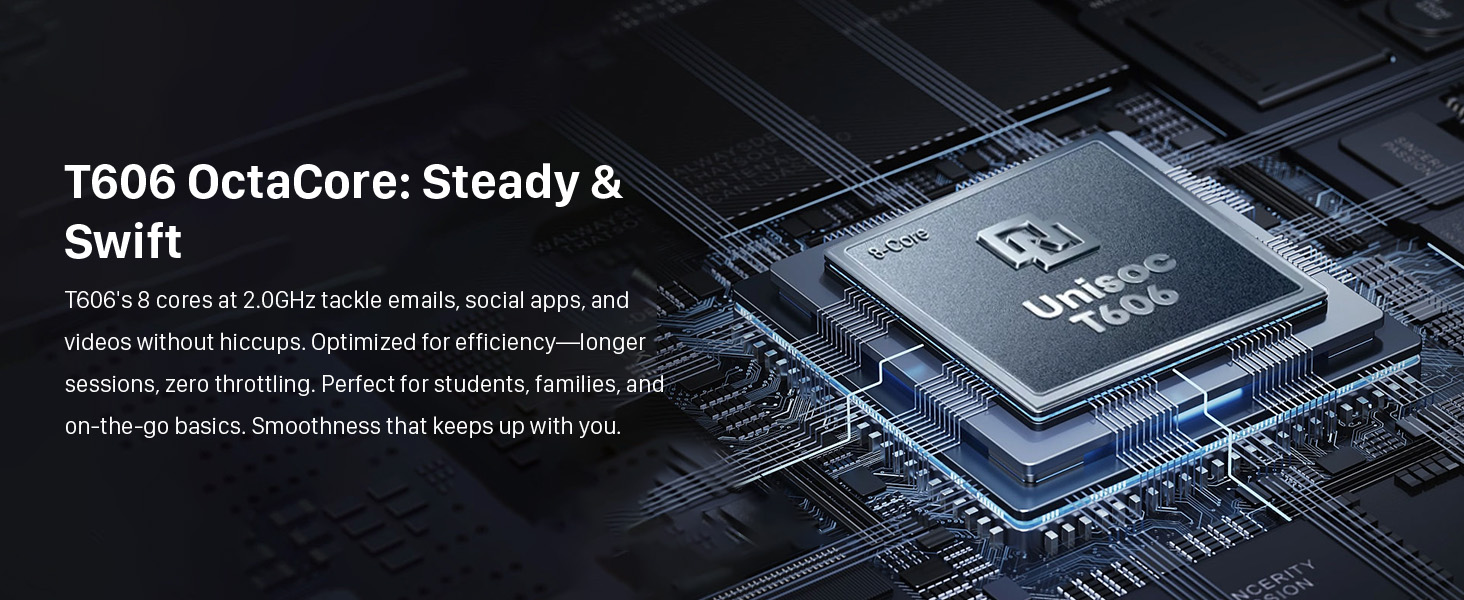
Figure 5.4: The tablet's SmartGuard features promote balanced screen time and safe usage for families.
6. Maintenance
6.1 Cleaning Your Tablet
- Use a soft, lint-free cloth to clean the screen and body of the tablet.
- For stubborn smudges, slightly dampen the cloth with water or a screen cleaner specifically designed for electronics.
- Avoid using harsh chemicals, abrasive materials, or excessive moisture.
6.2 Software Updates
Regularly check for and install software updates to ensure optimal performance, security, and access to new features.
- Go to Settings > System > System update.
- Follow the on-screen instructions to download and install any available updates. Ensure your tablet is sufficiently charged or connected to power during updates.
6.3 Storage Optimization
To maintain smooth performance, periodically manage your tablet's storage.
- Uninstall unused apps.
- Clear cache data for apps (Settings > Apps > [App Name] > Storage & cache > Clear cache).
- Transfer large files (photos, videos) to your Micro SD card or cloud storage.
7. Troubleshooting
This section addresses common issues you might encounter with your ApoloMedia tablet.
| Problem | Possible Solution |
|---|---|
| Tablet won't turn on. | Ensure the tablet is charged. Connect to the AC adapter and wait a few minutes before attempting to power on again. If unresponsive, try holding the power button for 10-15 seconds for a forced restart. |
| Screen is unresponsive or frozen. | Perform a forced restart by holding the Power On/Off button for approximately 10-15 seconds until the device reboots. |
| Wi-Fi connection issues. | Check if Wi-Fi is enabled in Quick Settings or Settings > Network & internet. Restart your Wi-Fi router. Forget the network and reconnect. |
| Apps are crashing or running slowly. | Close background apps. Clear the app's cache (Settings > Apps > [App Name] > Storage & cache). Ensure sufficient free storage space. Restart the tablet. |
| Battery drains quickly. | Reduce screen brightness. Close unused apps running in the background. Disable Wi-Fi/Bluetooth when not in use. Check battery usage in Settings > Battery to identify power-hungry apps. |
| Cannot connect to Bluetooth device. | Ensure Bluetooth is enabled on both devices. Make sure the other device is in pairing mode. Forget the device in Bluetooth settings and try pairing again. |
If the issue persists after trying these solutions, please contact ApoloMedia customer support for further assistance.
8. Specifications
Detailed technical specifications for the ApoloMedia EP1095T Tablet.
| Feature | Detail |
|---|---|
| Model Name | EP1095T |
| Operating System | Android 15 |
| Processor | T606 Octa-Core 2.0GHz (ARM Chipset) |
| RAM | 8GB (with 4GB virtual memory boost) |
| Internal Storage | 128GB |
| Expandable Storage | Up to 1TB via Micro SD/TF card |
| Screen Size | 11 Inches |
| Screen Resolution | 1280 x 800 pixels (HD IPS) |
| Wireless Connectivity | Wi-Fi 6 (802.11ax), Bluetooth 5.0 |
| Front Camera | 5MP |
| Rear Camera | 8MP |
| Battery Capacity | 7000mAh |
| Dimensions (LxWxH) | 9.6 x 6 x 0.39 inches |
| Item Weight | 1.94 pounds |
| Color | Gray |
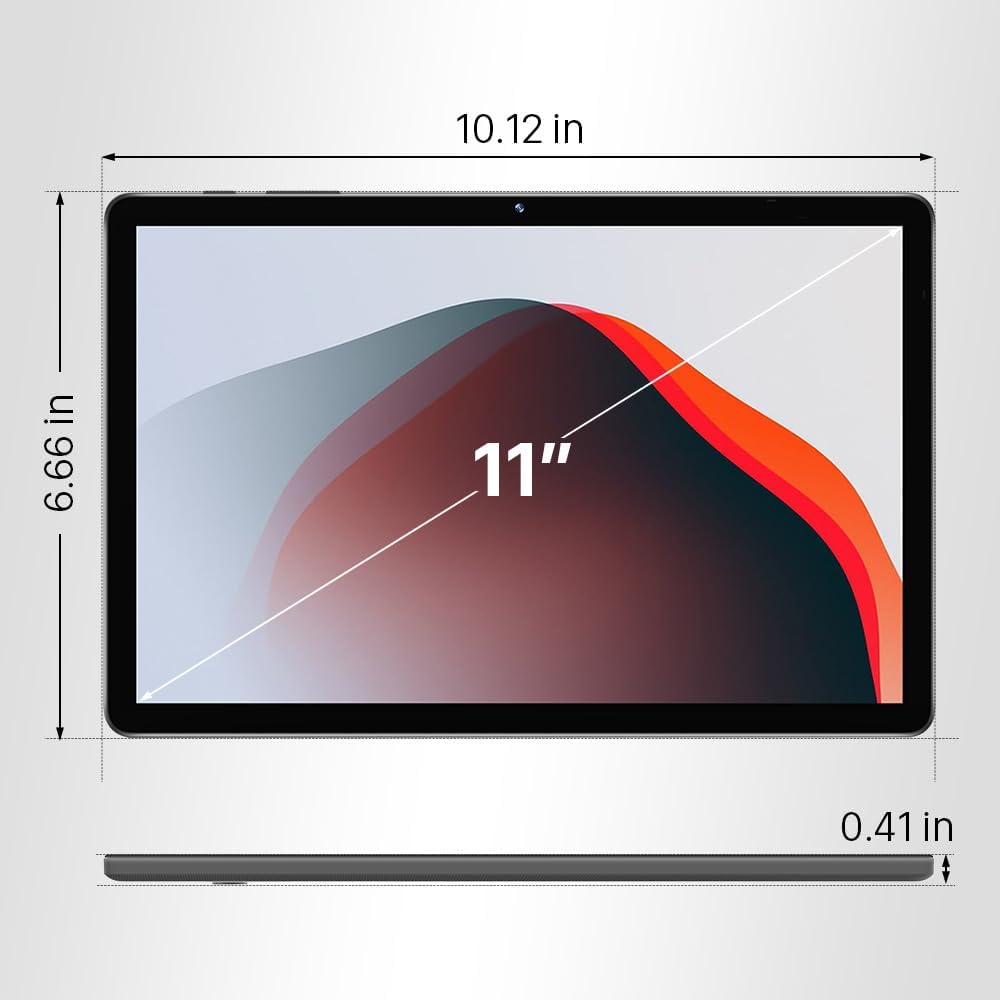
Figure 8.1: Physical dimensions of the ApoloMedia 11-inch tablet.
9. Warranty and Support
Your ApoloMedia EP1095T Tablet comes with a standard manufacturer's warranty. Please refer to the warranty card included in your packaging for specific terms and conditions.
For technical support, troubleshooting assistance beyond this manual, or warranty claims, please contact ApoloMedia customer service through their official website or the contact information provided with your product.
Online Resources: For the latest updates, FAQs, and additional support, visit the official ApoloMedia website.