
LENGIN X6
LENGIN Ear Wax Removal Tool Camera - Instruction Manual
Model: X6
Product Overview
The LENGIN Ear Wax Removal Tool Camera is an advanced ear cleaning device equipped with a 1080P HD camera and LED lights, designed to provide a clear view of the ear canal for effective earwax removal. It supports connectivity with both Android and iOS devices, allowing users to view the ear canal in real-time via a dedicated application. The kit includes various ear spoons and silicone covers for safe and comfortable use. This tool is suitable for adults and can also be used to inspect other body parts such as the nose, throat, and scalp root.

Image: LENGIN Ear Wax Removal Tool Camera and included accessories.
Safety Information and Important Notes
Please read and understand all safety instructions before using the device. Failure to follow these guidelines may result in injury or damage to the device.
- Always ensure the silicone sleeve is tightly placed on the ear pick before use.
- Do not attempt to break the ear pick with your hands.
- Children using the Visual Ear Endoscope must be supervised by an adult.
- This device is not recommended for children under 6 years old or for use on pets that are moving.
- Keep the product out of reach of children.
- First-time users should approach the ear canal gently and slowly.
- Always follow the user manual for initial use.
- Do not use metal ear picks directly to clean earwax.
- Charge the product using a regular 5V1A charging plug.
- Do not use the product while it is charging.
- Do not place the product near a fire source under any circumstances.
- Do not charge the product continuously for more than 1.5 hours.
Setup Guide
- Charge the Device: Before first use, fully charge the ear wax removal tool using the provided Type-C charging cable and a standard 5V1A charging plug. Do not charge for more than 1.5 hours.

Image: Device charging via Type-C port, highlighting Android and iOS compatibility.
- Download the Application: Scan the QR code provided in the product packaging or search for "Soulear" in your device's app store (Google Play Store for Android or Apple App Store for iOS) to download the companion application.

Image: Step-by-step guide for APP download and initial connection.
- Power On: Press and hold the switch button on the device to turn it on. The power indicator light will illuminate.
- Connect via Wi-Fi: Go to your phone's Wi-Fi settings and connect to the device's Wi-Fi network, typically named "Soulear-xxxx" (where xxxx are unique characters).
- Attach Ear Scoop: Select an appropriate silicone ear scoop and firmly attach it over the ear pick. Ensure it fits snugly to prevent scratching the ear canal.
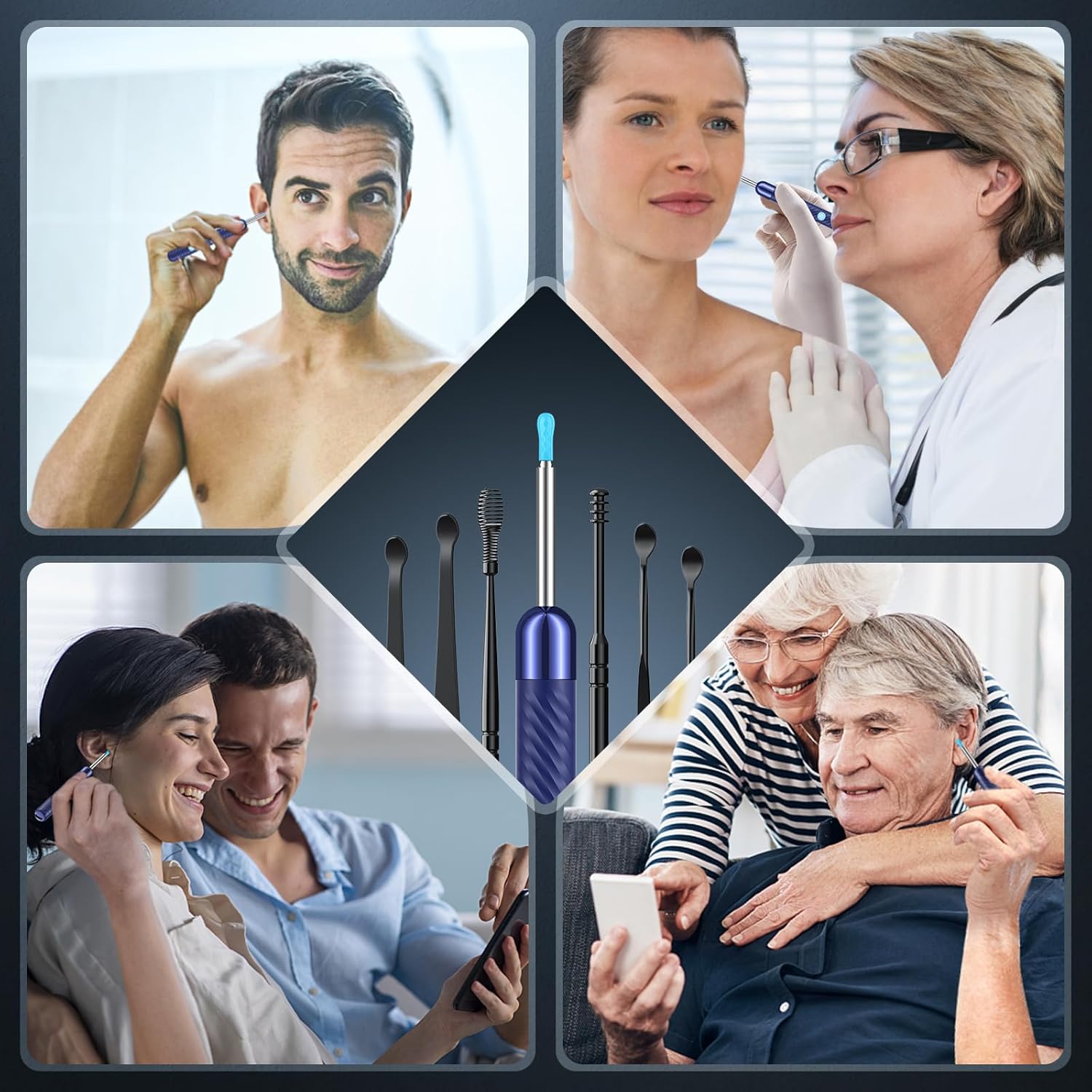
Image: Silicone ear scoops and proper attachment.
Operating Instructions
- Launch the App: Open the "Soulear" application on your smartphone. The live camera feed from the ear wax removal tool should appear on your screen.
- Begin Inspection/Cleaning: Gently insert the ear pick into the ear canal while observing the live feed on your phone. Move slowly and carefully. The 1080P HD camera with 6 LED lights provides a clear view of the ear canal.

Image: Detailed view of the 1080P HD camera lens system.
- Utilize Different Tools: The kit includes various ear spoon tools, such as spring ear picks and four-ring spiral ear picks, designed for different types of earwax and ear canal shapes. Choose the tool that best suits your needs for effective and comfortable removal.

Image: Various ear spoon tools included in the kit.
- Capture Photos/Videos: The application allows you to capture photos and videos of your ear canal. These media files will be stored in the app's album. Grant the app access to your phone's album if you wish to save them directly to your device.
- Multi-purpose Use: Beyond earwax removal, the camera can be used to check other body parts like teeth, nasal cavities, throat, and scalp root.

Image: Examples of multiple usage scenarios for the device.
Maintenance
- Cleaning the Ear Picks: After each use, remove the silicone ear scoop and clean it thoroughly. Use the small brush included in the kit to remove any residual earwax from the ear pick and silicone cover.
- Device Cleaning: Wipe the main body of the device with a soft, dry cloth. Do not submerge the device in water.
- Storage: Store the device and its accessories in a clean, dry place, away from direct sunlight and extreme temperatures.
- Battery Care: To prolong battery life, avoid overcharging the device. Do not charge continuously for more than 1.5 hours.
Troubleshooting
| Problem | Possible Cause | Solution |
|---|---|---|
| Device does not power on. | Low battery. | Charge the device using the Type-C cable and a 5V1A adapter. |
| Cannot connect to Wi-Fi. | Device Wi-Fi not enabled or incorrect network selected. | Ensure the device is powered on. Go to your phone's Wi-Fi settings and select the "Soulear-xxxx" network. |
| No image on the app. | App not launched or Wi-Fi not connected. | Ensure the app is open and the device is successfully connected to your phone via Wi-Fi. |
| Image is blurry or unclear. | Lens might be dirty or too close/far from the earwax. | Clean the camera lens carefully. Adjust the distance from the earwax for optimal focus. |
| Device gets warm during use. | Normal operation or prolonged use. | A slight temperature increase is normal. If it becomes excessively hot, discontinue use and allow it to cool down. |
Specifications
- Model Number: X6
- Camera Resolution: 1080P HD
- Lighting: 6 LED Lights
- Connectivity: Wi-Fi (for Android and iOS devices)
- Battery: 1 Lithium Ion battery (included)
- Charging Port: Type-C
- Manufacturer: LENGIN
- Package Dimensions: 6.69 x 2.56 x 0.75 inches
- Item Weight: 2.08 ounces
- First Available Date: April 7, 2025
Warranty and Support
For any warranty claims, technical support, or inquiries regarding your LENGIN Ear Wax Removal Tool Camera, please refer to the contact information provided with your purchase or visit the official LENGIN support website. Keep your purchase receipt as proof of purchase for warranty purposes.
Legal Disclaimer: Statements regarding dietary supplements have not been evaluated by the FDA and are not intended to diagnose, treat, cure, or prevent any disease or health condition.