
ApoloMedia EP1095T
ApoloMedia EP1095T 11-inch Android 16 Tablet User Manual
Model: EP1095T
Introduction
This manual provides essential instructions for setting up, operating, maintaining, and troubleshooting your ApoloMedia EP1095T 11-inch Android 16 Tablet. Please read this guide thoroughly to ensure optimal performance and longevity of your device.
1. Setup Guide
1.1 Unboxing and Initial Preparation
Upon opening the package, you will find the ApoloMedia EP1095T tablet, a user manual, a power charger, and a Type-C charging data cable. Before first use, ensure all components are present.

Image: Contents of the ApoloMedia EP1095T tablet box, showing the tablet, user manual, power charger, and Type-C charging data cable.
1.2 First Use and Charging
- Remove Protective Film: Carefully peel away the protective film from the screen, starting at the corner as marked.
- Power On: Press and hold the power button until the screen turns on.
- Initial Charge: If the tablet does not power on, charge it for at least 2 hours using the provided charger and cable, then try again. It is recommended to fully charge the device before its first use.
- Language Selection: Wait for 1-3 minutes during initial startup until instructions for setting the language appear.
- Complete Setup: Follow the on-screen instructions to complete the setup process. Your device is then ready to use.
1.3 Connecting to Wi-Fi
To connect your tablet to the internet:
- Go to Settings.
- Select Network & Internet.
- Tap Wi-Fi and turn it on.
- Select your desired Wi-Fi network from the list.
- Enter the password if prompted and tap Connect.
2. Operating Your Tablet
2.1 Basic Navigation and Interface
The ApoloMedia EP1095T runs on Android 16, offering a user-friendly interface. The taskbar optimization allows you to pin favorite applications for quick access and switch between them instantly, mimicking a PC-like workflow.

Image: The ApoloMedia EP1095T tablet showcasing the Android 16 interface with a clean layout of app icons and a prominent search bar.
2.2 App Management
You can download and manage applications through the Google Play Store. The tablet comes pre-installed with essential Google services and apps.
2.3 Camera Functionality
The tablet features a 5MP front camera and an 8MP rear camera, suitable for video calls, capturing moments, or scanning documents. The camera app provides options for both photos and videos with auto-focus and balanced exposure.

Image: The ApoloMedia EP1095T tablet highlighting its 5MP front and 8MP rear cameras, with a family enjoying a video call on the screen.
2.4 Smart Control and Privacy Features
- Digital Wellbeing: Monitor screen time, set app limits, and activate focus modes to minimize distractions.
- Parental Controls: Filter content, remotely lock devices, and monitor usage, making it ideal for children's learning or safe browsing.
- Private Space: Android 16's "Private Space" feature allows you to hide sensitive applications behind biometric authentication for enhanced security.
3. Maintenance
3.1 Battery Care
The tablet is equipped with a 7000mAh battery. To maximize battery life:
- Avoid extreme temperatures.
- Do not leave the tablet fully charged or fully discharged for extended periods.
- After fully charging, it is recommended to charge for an additional 30 minutes to ensure optimal battery health.
- Utilize Android 16's dynamic performance framework, which intelligently balances power consumption for extended use.

Image: The ApoloMedia EP1095T tablet screen showing a large "7000mAh" text and a battery life graphic, indicating long-lasting power.
3.2 Storage Management
The tablet comes with 8GB RAM and 128GB ROM, expandable up to 1TB via a Micro SD/TF card. Regularly manage your storage to maintain performance:
- Delete unnecessary files and applications.
- Transfer large media files to external storage or cloud services.
- Utilize the enhanced file management features of Android 16 for seamless access to your content.

Image: The ApoloMedia EP1095T tablet screen illustrating its storage capabilities with icons for 8GB RAM, 128GB ROM, and 1TB expansion, surrounded by logos of popular streaming and social media applications.
3.3 Cleaning Your Tablet
To clean your tablet, use a soft, lint-free cloth. For stubborn smudges, slightly dampen the cloth with water or a screen-safe cleaner. Avoid harsh chemicals or abrasive materials.
4. Troubleshooting
If you encounter issues with your ApoloMedia EP1095T tablet, refer to the following common solutions:
- Tablet Not Powering On: Ensure the tablet is charged. Connect it to the charger for at least 2 hours. If it still doesn't turn on, perform a soft reset by pressing and holding the power button for 10-15 seconds.
- Screen Unresponsive: If the screen is frozen, press and hold the power button to restart the device.
- Wi-Fi Connection Issues: Check if Wi-Fi is enabled in settings. Restart your router and the tablet. Ensure you are entering the correct password.
- Slow Performance: Close unused applications, clear cache, and ensure sufficient storage space. Consider performing a factory reset if performance issues persist (back up your data first).
- App Crashing: Clear the app's cache and data in Settings > Apps. If the issue continues, uninstall and reinstall the app.

Image: A detailed diagram of the ApoloMedia EP1095T tablet, labeling the locations of the power on/off button, volume controls, reset pinhole, front camera, microphone holes, TF card slot, USB Type-C port, and speakers.
5. Specifications
| Feature | Detail |
|---|---|
| Model Name | EP1095T |
| Operating System | Android 16 |
| Screen Size | 11 Inches |
| Screen Resolution | 1280 x 800 pixels (HD IPS) |
| Processor | T606 Octa-Core 2.0GHz |
| RAM | 8GB |
| Internal Storage (ROM) | 128GB |
| Expandable Storage | Up to 1TB via Micro SD/TF card |
| Battery Capacity | 7000mAh |
| Average Battery Life | 5-7 hours (HD streaming/productivity) |
| Wireless Type | 802.11ax (WiFi 6) & Bluetooth 5.0 |
| Front Camera | 5MP |
| Rear Camera | 8MP |
| Dimensions (LxWxH) | 9.6 x 6 x 0.39 inches |
| Item Weight | 1.98 pounds |
| Color | Grey |
6. Warranty and Support
Your ApoloMedia EP1095T tablet comes with a standard warranty. To activate your 1-year extended warranty, please register your product within 14 days of receiving it. You can typically find instructions for registration in the included user guide or by scanning a QR code provided with the product.
For technical support, troubleshooting assistance, or warranty claims, please refer to the contact information provided in your user guide or visit the official ApoloMedia support website.
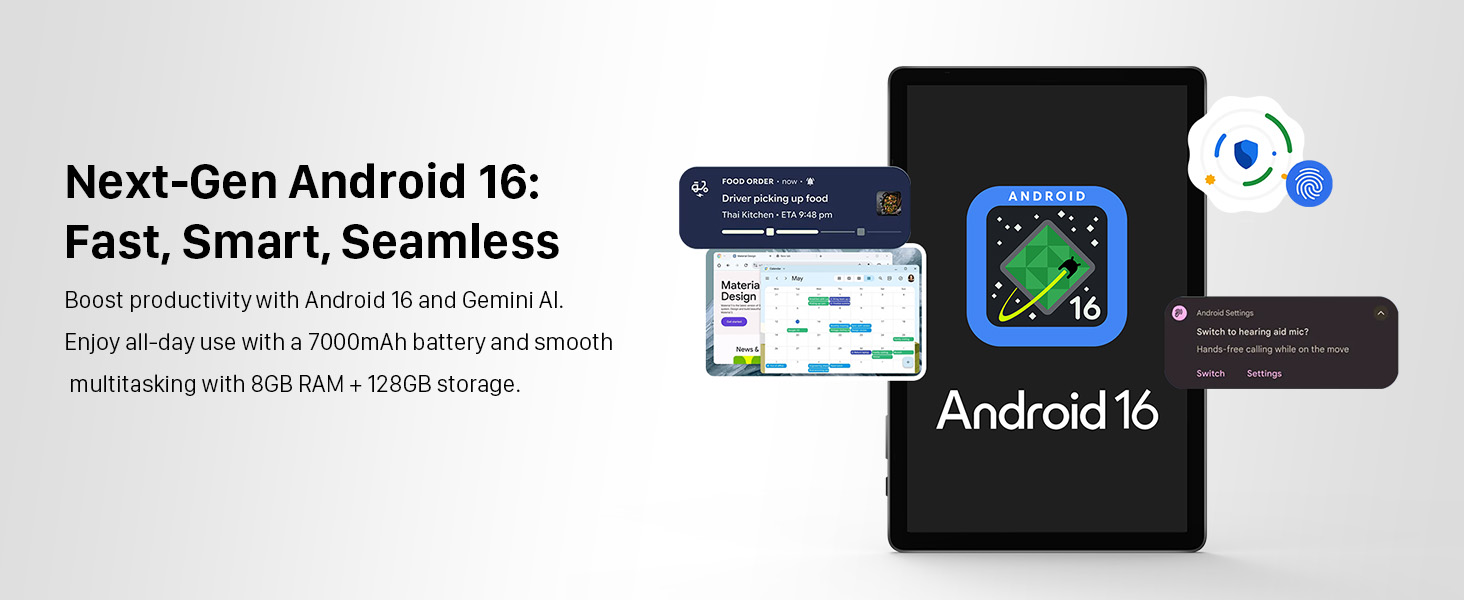
Image: A woman using the ApoloMedia EP1095T tablet for learning, demonstrating its utility for studying and research with a split-screen view.
no relevant documents