
1. Introduction
This manual provides comprehensive instructions for the installation, operation, and maintenance of your wecome Smart Sliding Door Lock. This advanced lock system offers multiple keyless entry options, including fingerprint access, digital keypad, and app control, enhancing the security and convenience of your home or office. Please read this manual thoroughly before installation and use to ensure proper function and safety.
2. Safety Information
Adhere to the following safety guidelines to prevent damage to the product or injury to yourself:
- Do not attempt to disassemble or repair the lock yourself. Refer to qualified personnel for service.
- Use only the specified battery type and ensure correct polarity during installation.
- Keep the lock away from direct water exposure, although it features IP66 dustproof and waterproof ratings, extreme conditions should be avoided.
- Ensure all components are securely fastened during installation to prevent accidental detachment.
- Regularly check for low battery warnings and replace batteries promptly to avoid lockouts.
- Do not use abrasive cleaners or solvents on the lock's surface.
3. Product Overview
The wecome Smart Sliding Door Lock is designed for robust security and ease of use. It integrates multiple access methods and smart home compatibility.
3.1 Components Diagram
Familiarize yourself with the main components of your smart lock:
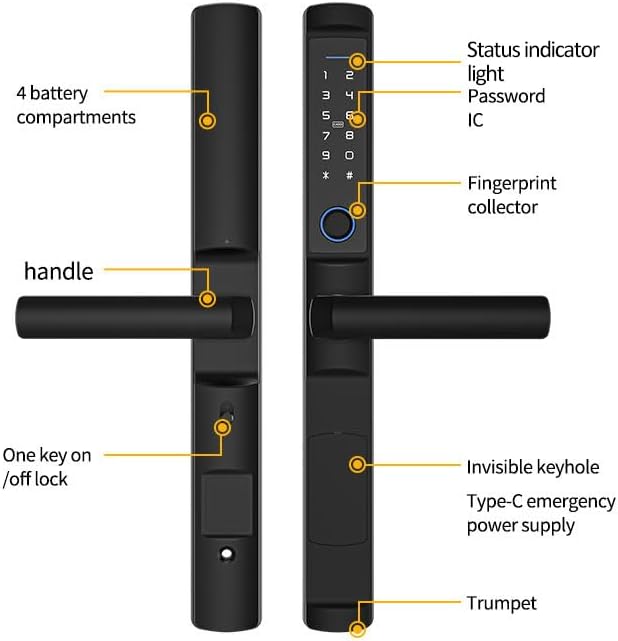
Figure 3.1: Labeled diagram of the wecome Smart Sliding Door Lock components. Key parts include the status indicator light, password IC, fingerprint collector, handle, 4 battery compartments, one-key on/off lock button, invisible keyhole, Type-C emergency power supply port, and trumpet.
3.2 Key Features
- Advanced Touchscreen & Fingerprint Entry: Ultra-responsive touchscreen and high-precision fingerprint scanner for quick access. Backlit digital keypad for low-light conditions.
- Military-Grade Security & Durability: Built with anti-pry steel reinforcement, auto-lock timers, tamper-proof alarms, and IP66 dustproof and waterproof rating.
- Smart Home Compatible & WiFi-Enabled: Works with Alexa, Google Assistant, and Apple HomeKit for voice control and automation. Remote lock/unlock and real-time alerts via app.
- Multiple Unlocking Methods: Supports fingerprint, password, IC card, and emergency mechanical key unlocking.
- Password Customization: Generate one-time, aging, cyclic, or permanent passwords for flexible access management.
4. Specifications
| Feature | Detail |
|---|---|
| Brand | wecome |
| Model Name | Smart Digital Door Lock (Sdl-001) |
| Lock Type | Digital, Mortise Lock |
| Material | Metal |
| Color | Black |
| Finish Type | Matte Black |
| Dimensions (L x W x H) | 3.5 x 3.5 x 18 inches |
| Item Weight | 4.5 Pounds |
| Special Features | Anti-Drill, Anti-Peeping Password, Fingerprint, Passcode Unlock, Touchscreen Keypad |
| Connectivity Protocol | Wi-Fi |
| Controller Type | Android, Apple HomeKit, Google Assistant, SmartThings, iOS |
| Batteries Required | Yes (Batteries not included) |
| Manufacturer | Dongguan Yoheen Technology Co., Ltd |
5. Setup & Installation
5.1 Pre-Installation Check
Before beginning installation, ensure your door is compatible with the wecome Smart Sliding Door Lock. This lock is designed for standard US door prep (2-1/8” bore, 1” crossbore) and requires a specific mortise type.


Figure 5.1: Essential dimensions for the Mortise 2885 and the smart lock components. Verify these measurements against your door's existing setup for proper fit. Key dimensions include 270mm, 208mm, 85mm, 42mm, 28mm, and 22mm.
Confirm that your door's mortise and bore holes match the dimensions provided in Figure 5.1. The lock is designed for effortless DIY installation, requiring no wiring or drilling for standard setups. All necessary screws and templates are included.
5.2 Installation Steps
Follow these general steps for installing your smart lock. Refer to the detailed instructions provided in the product packaging for specific guidance.
- Prepare the Door: Ensure the door is clean and the existing mortise and bore holes align with the lock's specifications.
- Install the Mortise Lock Body: Insert the mortise lock body into the door's mortise cutout and secure it with screws.
- Install the Front Panel: Connect the necessary cables from the front panel to the mortise lock body and secure the front panel to the door.
- Install the Back Panel: Connect the cables from the back panel to the front panel, ensuring proper alignment. Secure the back panel to the door.
- Install Batteries: Open the battery compartment (refer to Figure 3.1) and insert the required batteries (not included), ensuring correct polarity.
- Test Functionality: After installation, test the handle operation and basic locking/unlocking functions using the mechanical key.
- App Setup: Download the Tuya Smart app (or similar compatible app as indicated in the product packaging) and follow the in-app instructions to pair your lock and configure initial settings, including administrator fingerprints and passwords.

Figure 5.2: The wecome Smart Sliding Door Lock installed on a typical sliding door.
6. Operating Instructions
6.1 Unlocking Methods
Your wecome Smart Sliding Door Lock offers multiple convenient ways to unlock:
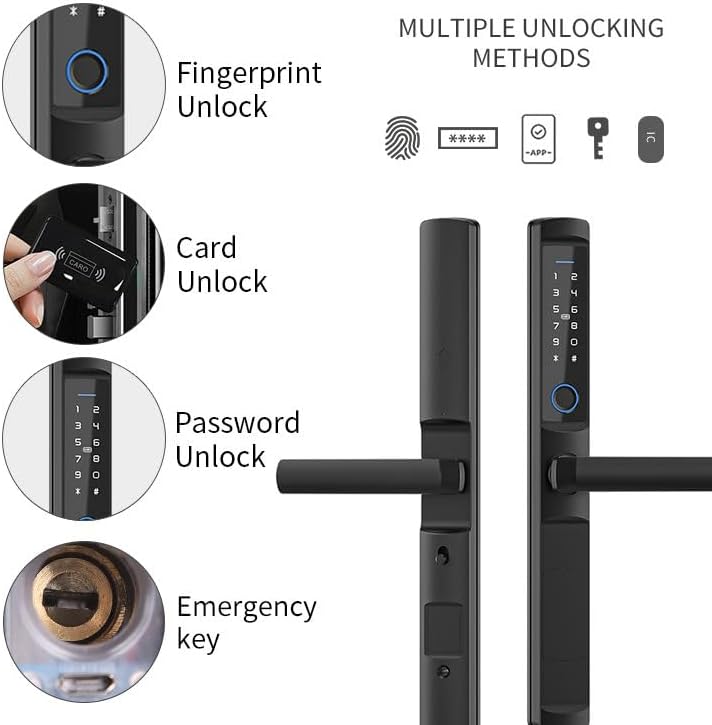
Figure 6.1: Visual representation of the various unlocking methods available.
- Fingerprint Unlock: Place your registered finger on the fingerprint collector. The lock will unlock if the fingerprint is recognized.
- Password Unlock: Enter your registered password on the digital keypad, followed by the '#' key. The backlit keypad ensures visibility in low light.
- IC Card Unlock: Present a registered IC card to the card reader area on the lock.
- Emergency Key Unlock: In case of battery depletion or system malfunction, use the provided mechanical emergency key to unlock the door via the invisible keyhole.
- App Unlock: Use the Tuya Smart app (or compatible app) on your smartphone to remotely unlock the door via Wi-Fi.
6.2 App Control (Tuya Smart App)
The Tuya Smart app provides comprehensive control and monitoring features for your lock:
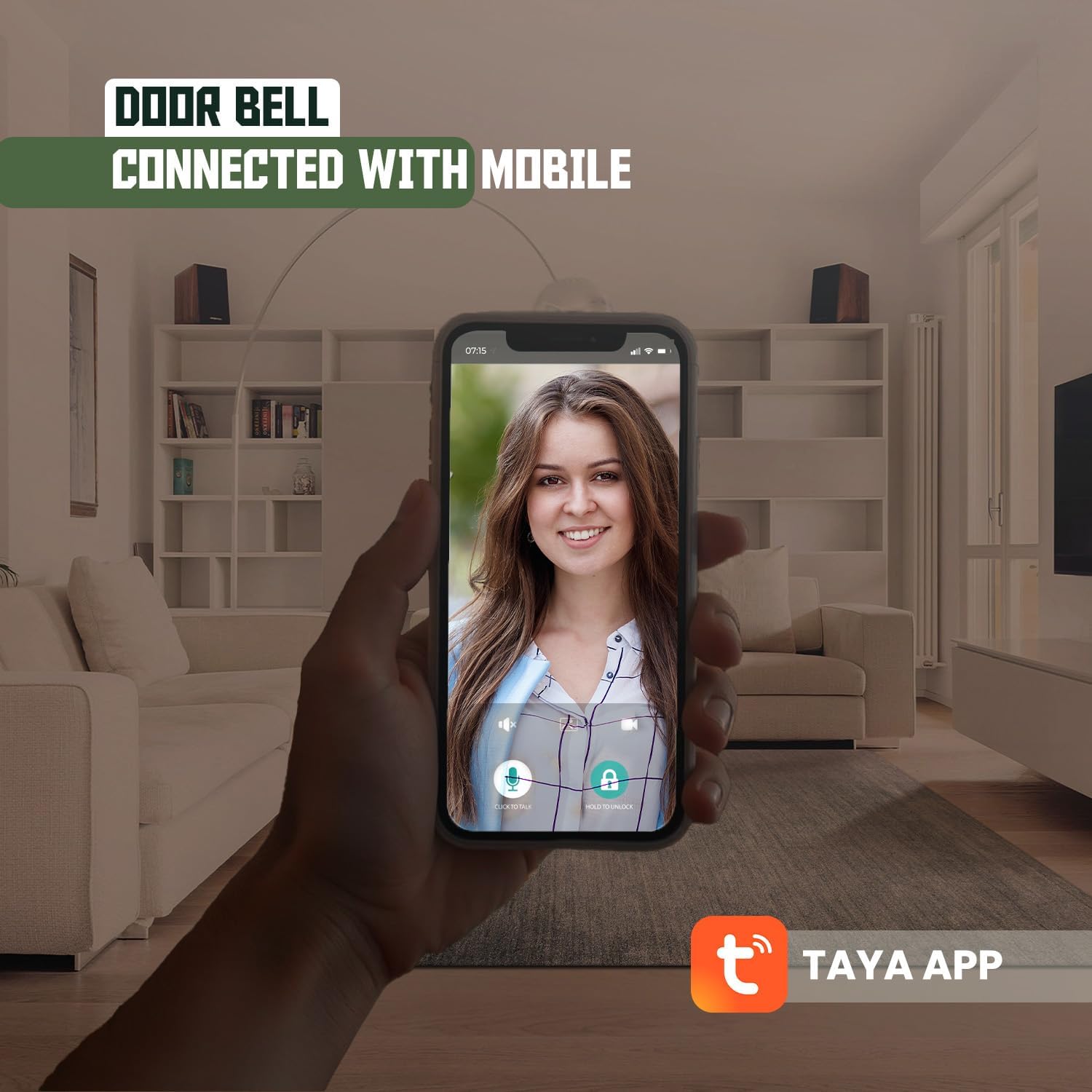
Figure 6.2: Example of mobile app interface for lock management. Note: The app name shown in the image is 'TAYA APP', but the product description refers to 'Tuya App Control'. Please use the app specified in your product's official documentation.
- Remote Unlock/Lock: Control your lock from anywhere with an internet connection.
- User Management: Add, modify, or delete fingerprints, passwords, and IC cards for various users.
- Activity Logs: View a history of lock activities, including who unlocked the door and when.
- Temporary Passcodes: Generate one-time or time-limited passcodes for guests or service providers.
- Real-time Alerts: Receive notifications for low battery, tamper attempts, or unauthorized access.
- Smart Home Integration: Connect with Alexa, Google Assistant, and Apple HomeKit for voice commands and automation routines.
6.3 Password Customization
The lock supports various password types for enhanced flexibility:
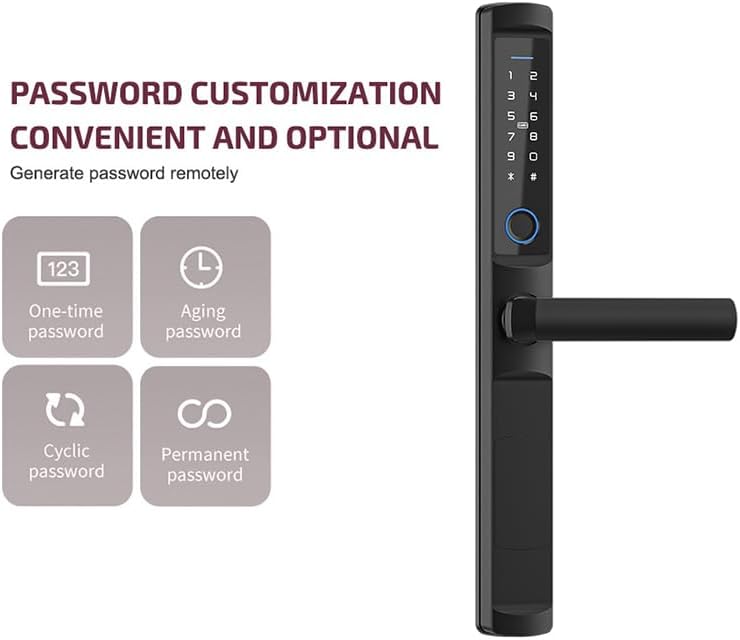
Figure 6.3: Types of customizable passwords.
- One-time Password: Valid for a single use. Ideal for deliveries or one-time access.
- Aging Password: Valid for a specific duration (e.g., hours or days). Useful for short-term guests.
- Cyclic Password: Valid for recurring periods (e.g., every Monday from 9 AM to 5 PM). Suitable for regular service providers.
- Permanent Password: Always valid until manually deleted. For primary users.
These passwords can be generated and managed remotely via the Tuya Smart app.
7. Maintenance
- Battery Replacement: The lock uses standard batteries (not included) and provides low-battery warnings. Replace all batteries simultaneously when prompted to ensure optimal performance. Expected battery life is 6-12 months.
- Cleaning: Wipe the lock's surface with a soft, damp cloth. Avoid using harsh chemicals, abrasive cleaners, or excessive moisture, especially on the keypad and fingerprint sensor.
- Firmware Updates: Periodically check the Tuya Smart app for available firmware updates to ensure your lock has the latest features and security enhancements.
8. Troubleshooting
| Problem | Possible Cause | Solution |
|---|---|---|
| Lock does not respond. | Dead batteries. | Replace batteries. Use the emergency key or Type-C emergency power supply if locked out. |
| Fingerprint not recognized. | Finger wet/dirty, unregistered fingerprint, sensor issue. | Ensure finger is clean and dry. Re-register fingerprint if necessary. Try another registered fingerprint or unlocking method. |
| Keypad not responding. | Low battery, temporary malfunction. | Replace batteries. Try pressing the keypad firmly. If unresponsive, use another unlocking method. |
| Cannot connect to Wi-Fi/App. | Incorrect Wi-Fi password, weak signal, router issue, app not updated. | Verify Wi-Fi password. Move router closer or use a Wi-Fi extender. Restart router. Update Tuya Smart app. Re-pair the lock. |
| Lock makes unusual noises. | Mechanical obstruction, internal component issue. | Check for any obstructions around the latch or bolt. If problem persists, contact customer support. |
9. Warranty & Support
For warranty information, please refer to the documentation included with your purchase or contact the seller directly. For technical support, troubleshooting assistance, or any inquiries regarding your wecome Smart Sliding Door Lock, please contact WeCome customer service through the platform where you purchased the product or via the contact information provided in your product packaging.
Manufacturer: Dongguan Yoheen Technology Co., Ltd