
1. Introduction
The Generic DT-172 Data Logger is a portable device designed for accurate and reliable monitoring of temperature and humidity. It is suitable for a wide range of applications, including warehouses, laboratories, building management, and other environments where environmental conditions need to be tracked over time. This manual provides essential information for the proper setup, operation, and maintenance of your DT-172 Data Logger.
2. Safety Information
- Read all instructions carefully before operating the device.
- Do not expose the device to extreme temperatures, direct sunlight, or corrosive environments.
- Ensure the battery is inserted correctly according to polarity markings.
- Do not attempt to open or modify the device, as this will void the warranty and may cause damage.
- Dispose of batteries according to local regulations.
3. Package Contents
Verify that all items are present in your package:
- 1 x DT-172 Data Logger
- 1 x USB Cable
- 1 x 3.6V Lithium Battery
- 1 x Security Lock (optional, may vary by package)
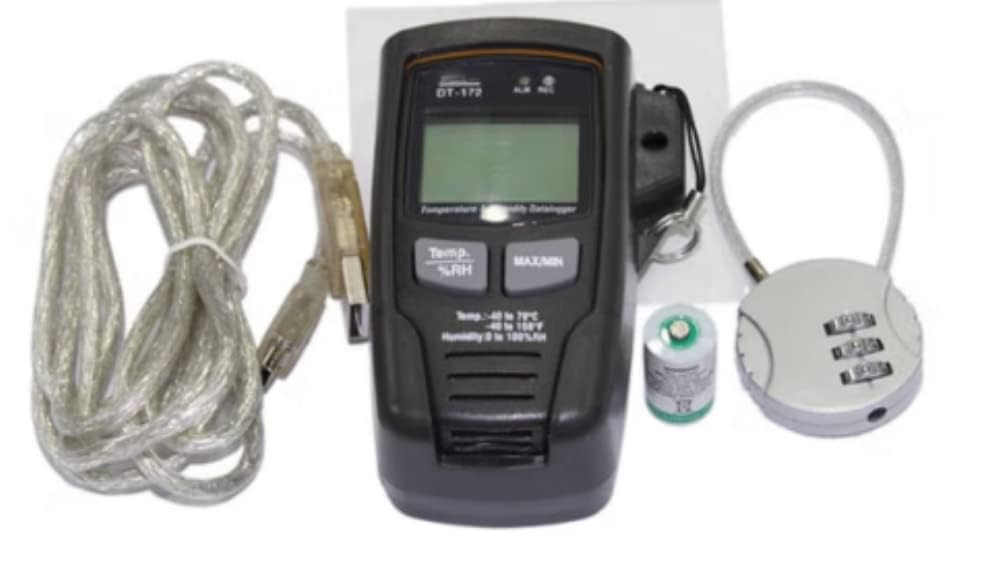
Figure 3.1: Contents of the DT-172 Data Logger package, including the logger, USB cable, battery, and a security lock.
4. Setup
4.1. Battery Installation
- Locate the battery compartment on the side or rear of the device.
- Carefully open the battery compartment cover.
- Insert the provided 3.6V lithium battery, ensuring correct polarity.
- Close the battery compartment cover securely.
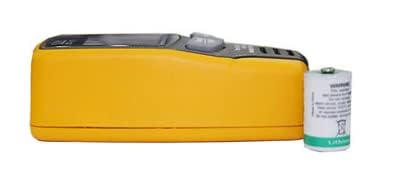
Figure 4.1: Side view of the DT-172 Data Logger next to its 3.6V lithium battery, indicating the battery type.
4.2. Connecting to a Computer
To configure the data logger and download recorded data, connect it to a computer using the supplied USB cable.
- Locate the USB port on the bottom of the DT-172 Data Logger. It may be protected by a rubber cover.
- Gently open the rubber cover.
- Connect the mini-USB end of the cable to the logger and the standard USB end to your computer.
- The device should be recognized by your computer. Install the necessary software (typically provided on a mini-CD or available for download from the manufacturer's website) to interact with the logger.
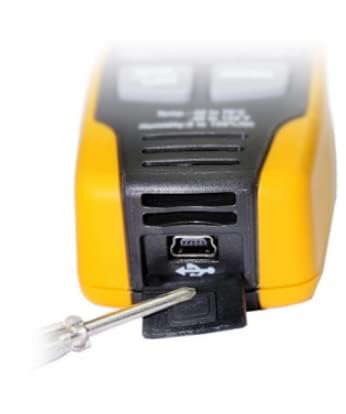
Figure 4.2: Close-up view of the DT-172 Data Logger's USB port, shown with a small tool opening its protective cover.
5. Operation
5.1. Device Overview
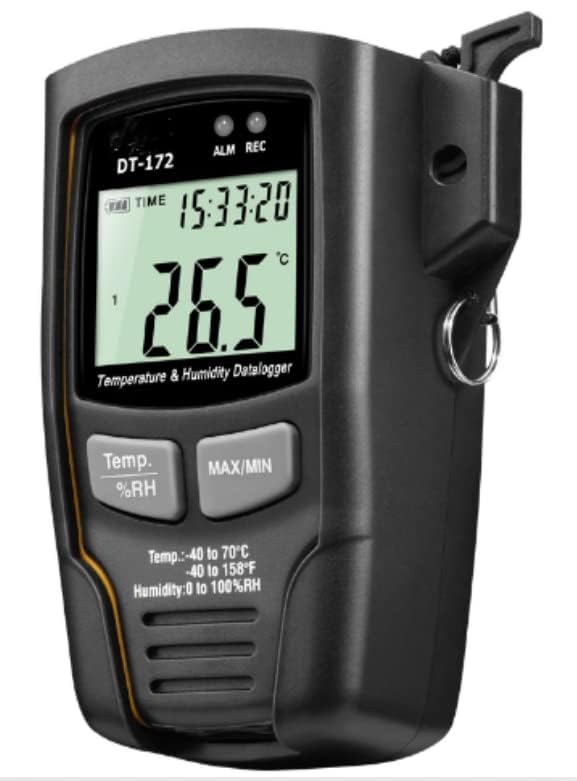
Figure 5.1: Front view of the DT-172 Data Logger, displaying current temperature and humidity, along with buttons for 'Temp./%RH' and 'MAX/MIN'.
5.2. Display Indicators
- TIME: Displays the current time.
- ALM: Indicates an alarm condition (e.g., temperature/humidity outside set limits).
- REC: Indicates that data logging is active.
- Temperature/Humidity Reading: Shows the current measured temperature in °C or °F and relative humidity in %RH.
5.3. Button Functions
- Temp./%RH Button: Press to switch the main display between temperature and relative humidity readings.
- MAX/MIN Button: Press to view the maximum and minimum recorded temperature and humidity values since the last reset or logging start.
5.4. Starting and Stopping Logging
Data logging is typically configured and initiated via the PC software. Refer to the software's user guide for detailed instructions on setting sampling rates, alarm thresholds, and starting/stopping logging sessions.
6. Data Analysis
After a logging session, connect the DT-172 to your computer using the USB cable. Use the dedicated software to download the recorded data. The software allows you to:
- View data in graphical or tabular format.
- Export data to various file formats (e.g., CSV, Excel) for further analysis.
- Set up new logging parameters for future sessions.
7. Maintenance
7.1. Battery Replacement
When the battery indicator on the display shows low power, replace the 3.6V lithium battery as described in Section 4.1. A typical battery life is approximately one year, but this can vary based on usage and logging frequency.
7.2. Cleaning
Wipe the device with a soft, dry cloth. Do not use abrasive cleaners or solvents. Ensure the USB port cover is closed when not in use to prevent dust and moisture ingress.
8. Troubleshooting
- Device not turning on: Check battery installation and ensure the battery has sufficient charge.
- No data logging: Verify that logging was initiated through the software and that the REC indicator is active. Check available memory.
- Cannot connect to PC: Ensure the USB cable is securely connected. Try a different USB port or restart your computer. Verify that the necessary drivers and software are installed.
- Inaccurate readings: Ensure the device is placed in an environment free from direct heat sources, strong air currents, or excessive moisture that could affect sensor performance.
9. Specifications
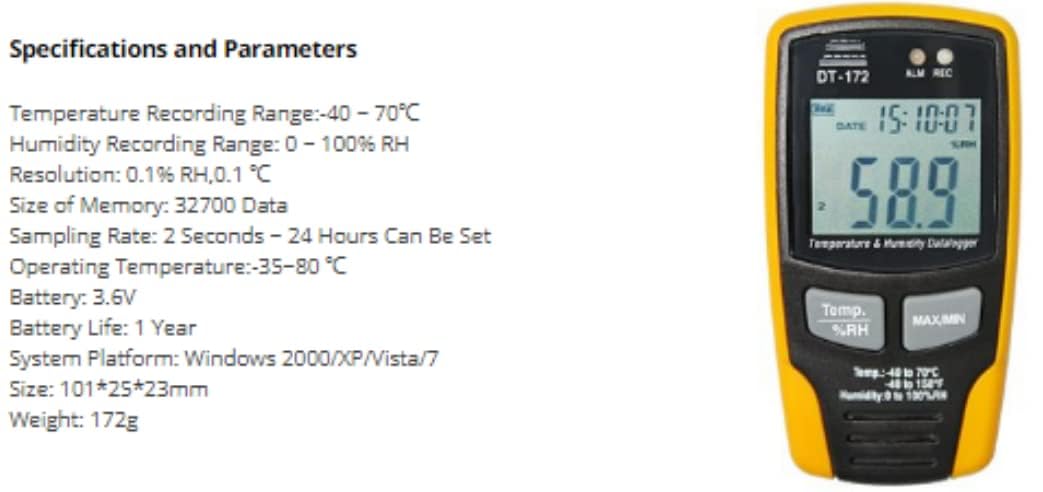
Figure 9.1: Detailed specifications and parameters for the DT-172 Data Logger.
| Parameter | Value |
|---|---|
| Temperature Recording Range | -40 to 70°C (-40 to 158°F) |
| Humidity Recording Range | 0 - 100% RH |
| Resolution | 0.1% RH, 0.1°C |
| Memory Size | 32700 Data Points |
| Sampling Rate | 2 Seconds - 24 Hours (Configurable) |
| Operating Temperature | -35 to 80°C |
| Battery | 3.6V Lithium Battery |
| Battery Life | Approximately 1 Year |
| System Platform | Windows 2000/XP/Vista/7 |
| Dimensions | 101 x 25 x 23 mm |
| Weight | 172 g |
| Manufacturer | CEM |
| ASIN | B0F3X5973Z |
10. Warranty and Support
For warranty information and technical support, please refer to the documentation provided with your purchase or contact the retailer. Keep your purchase receipt as proof of purchase.
11. Application Examples
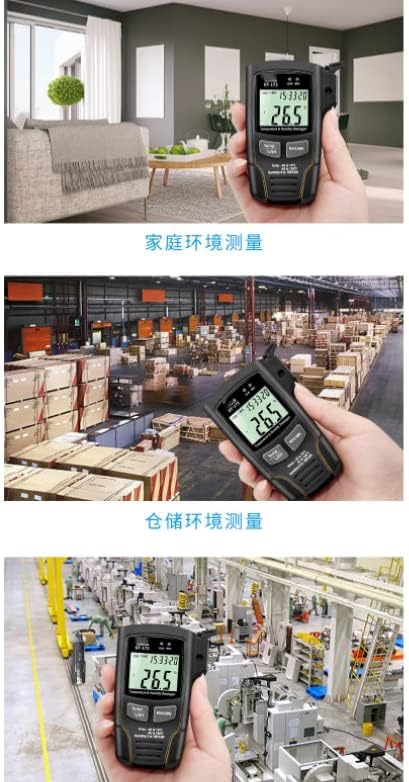
Figure 11.1: The DT-172 Data Logger being used to monitor environmental conditions in a home, a warehouse, and a laboratory setting.

Figure 11.2: A collage illustrating various environments where the DT-172 Data Logger can be effectively utilized, including warehouses, manufacturing facilities, offices, and residential spaces.